November 29, 2025
Best Second Brain Apps for Your Workflow

Ever been in a meeting when someone asks about a piece of research and suddenly it feels like it has vanished? It's the one you're sure was saved, maybe in a notes app, maybe in a desktop folder, maybe lost among the dozens of browser tabs left open "for later." By the time it's finally found, the conversation has already moved on.
And guess what? You're not the only one dealing with this.
Thus, we researched 30+ second brain apps used by knowledge workers, researchers, and creators and created a guide for people who wrestle with information overload and need a better way to capture, organize, and retrieve ideas. It compares traditional note-taking tools with visual-first workspaces, then matches each app to different thinking styles. Linear thinkers receive different recommendations than spatial or visual thinkers, because the right tool should adapt to the way the brain naturally works.
Read on to learn what makes a great second-brain app, how linear and spatial tools differ, and which options are likely to suit specific workflows. The aim is practical: find a tool that actually helps users stop hunting for lost notes and start getting work done.
TL;DR: Top Second Brain Apps
Quick reference for scanners:
Tool | Best For | Key Strength |
|---|---|---|
Kosmik | Visual thinkers and researchers | Infinite canvas with built-in browser |
Obsidian | Privacy-conscious power users | Local-first with complete data ownership |
Notion | All-in-one workspace seekers | Flexibility for notes, tasks, and databases |
Heptabase | Academic researchers | Visual mapping with PDF annotation |
Logseq | Open-source enthusiasts | Free with flashcards and whiteboards |
Capacities | Structured organizers | Object-based notes with AI |
Mem | Quick capture fans | AI-powered auto-organization |
Ready to find your perfect second brain app? Your visual workspace that actually works the way you think is waiting.
What Is a Second Brain?
A second brain is a digital system for capturing, organizing, and retrieving knowledge. Unlike traditional note-taking, it connects ideas through bidirectional links and visual relationships. Your brain stops being a filing cabinet and becomes what it's good at: creative thinking.
Key components of a second brain:
Capture: Save ideas, insights, and resources worth remembering
Organize: Structure information using systems like PARA or Zettelkasten
Connect: Link related concepts with bidirectional links or visual relationships
Retrieve: Search and surface relevant knowledge when needed
Think of it as a trusted place where you capture ideas, organize knowledge, and connect insights without relying on your brain to remember everything.
The term was coined by productivity expert Tiago Forte in his book "Building a Second Brain." But it's not just another note-taking app. It's a methodology for turning information you consume into knowledge you can actually use.
The CODE Method
Tiago Forte's second brain system follows four steps:
Capture: Save ideas, insights, and resources worth remembering. If something resonates, capture it in under 60 seconds.
Organize: Structure information using the PARA method (Projects, Areas, Resources, Archives). Keep it simple at first.
Distill: Extract key insights and make knowledge actionable. Highlight what matters, skip the rest.
Express: Create value by sharing and applying what you've learned. Your second brain is a creation engine, not just storage.
Second Brain vs. Traditional Note-Taking
Here's the critical difference:
Traditional Notes | Second Brain |
|---|---|
Linear storage in folders | Connected thinking with relationships |
Isolated notes that sit alone | Bidirectional links between ideas |
Search only (if you remember keywords) | Smart discovery of related concepts |
Digital filing cabinet | Living knowledge system |
Why You Need a Second Brain
Your brain is brilliant at creative thinking, problem-solving, and making connections. It's terrible at storing thousands of random facts and remembering where you saved that article three months ago.
A second brain system helps to:
Reduces cognitive load so your brain can focus on creating instead of remembering
Connects disparate ideas because innovation happens at intersections
Builds compound knowledge that gets more valuable over time
Enables faster decisions with accessible insights at your fingertips
The average person consumes massive amounts of information daily but retains only fragments. A second brain captures what matters and surfaces it when you need it.
The Problem with Information Overload (and Why Second Brains Solve It)
The numbers are staggering. Knowledge workers spend 88% of their workweek communicating across multiple channels. Teams lose valuable time every day just trying to locate important information spread across different tools.Here's what this looks like in practice:
You're working on a project and remember reading a perfect article about it last month. Was it in your bookmarks? Your notes app? That Slack conversation? The email you sent yourself? After 15 minutes of searching, you give up and start from scratch. Sounds familiar?
Traditional solutions fall short because folders create information silos. Search only works if you remember the exact keywords. Linear notes don't mirror how your brain actually thinks (spoiler: it's non-linear and associative).
How Second Brains Solve This
A proper second brain app gives you:
Single source of truth for all knowledge (no more "which app did I save that in?")
Bidirectional linking where notes reference each other automatically
Visual graphs that show unexpected connections between ideas
Smart search that finds concepts, not just keywords
AI assistance for auto-organization and summarization (in modern tools)
Different Approaches for Different Thinkers
Not everyone thinks the same way. Second brain apps come in different flavors:
Text and outline-based tools like Notion, Obsidian, and Logseq work great for linear thinkers who love hierarchies and structured notes.
Visual and spatial tools like Kosmik, Heptabase, and Milanote suit people who think in diagrams, mind maps, and spatial relationships.
Database-driven apps like Notion and Capacities appeal to those who want structured data with properties and filters.
AI-enhanced options like Mem, Reflect, and Saner.AI automatically organize and surface relevant content.
The right approach depends on how your brain works.
How to Choose the Right Second Brain App for You
Not all brains think alike. Your ideal second brain app depends on your thinking style, primary use case, and technical comfort level.
Your Thinking Style
Linear/Sequential Thinkers: If you love outlines, hierarchies, and structured notes, look at Notion, Workflowy, or Obsidian. You probably organize physical spaces with labeled containers and love a good spreadsheet.
Visual/Spatial Thinkers: If you need to see how ideas connect spatially and prefer arranging things by proximity rather than folders, check out Kosmik, Heptabase, or Milanote. You probably think in diagrams and mind maps.
Database Thinkers: If you like structured data with properties, tags, and filters, explore Notion or Capacities. You enjoy organizing information with metadata and multiple views.
Primary Use Case
Research and academic work: You need bidirectional linking, PDF annotation, and citation management. Look at Heptabase, Obsidian, or Kosmik.
Content creation and ideation: Visual boards and spatial organization help. Consider Kosmik, Milanote, or Notion with canvas mode.
Project management with tasks: Integration with task systems matters. Try Notion, Amplenote, or Saner.AI.
Personal journaling and reflection: Daily notes and templates are key. Check out Reflect, Logseq, or Obsidian.
Team collaboration: Sharing, permissions, and real-time editing are essential. Notion, Milanote, or Kosmik work well for teams.
Technical Comfort Level
Be honest about your technical skills:
Beginner-friendly: Notion, Google Keep, or Craft offer gentle learning curves.
Intermediate: Capacities, Reflect, or Heptabase balance power with usability.
Advanced/Technical: Obsidian and Logseq reward those comfortable with Markdown, plugins, and customization.
Essential Features Checklist
Your second brain app should include:
Cross-device sync (desktop, mobile, web)
Fast capture (quick note entry without friction)
Flexible organization (folders, tags, or links)
Powerful search (keyword and semantic)
Import/export capabilities (data portability)
Offline access
Visual elements support (images, PDFs, embeds)
AI assistance (optional but increasingly expected)
Privacy and Data Ownership
This matters more than many people realize:
Local-first vs. cloud-based: Apps like Obsidian and Logseq store files on your device. Cloud apps like Notion and Mem store data on their servers.
End-to-end encryption: Some apps (Reflect, Anytype) encrypt your data so even they can't read it.
Data export: Can you get your data out easily? Plain text Markdown files (Obsidian, Logseq) are most portable.
Pricing Considerations
Free tier limitations: Many free plans work fine for personal use (Obsidian, Logseq, Notion).
When to pay: Consider paid plans for team collaboration, AI features, cloud sync, or when you're building a serious long-term system.
Long-term cost: A $10/month app costs $120/year or $1,200 over a decade. Make sure the value justifies the investment.
Red Flags to Avoid
Watch out for:
Overly complex setup that prevents actual use
Vendor lock-in where you can't export data
Missing mobile app or poor mobile experience
Slow performance with large collections
Lack of active development or updates
Start with one tool based on your thinking style. Give it 30 days of daily use before switching. Your perfect second brain is the one you'll actually use consistently.
Best Second Brain Apps (Ranked)
We researched 30+ second brain apps based on user reviews, feature sets, and real-world use cases. Each review includes specific features, honest pros and cons, current pricing, and who should use it.
The apps are organized by thinking style and use case, so you can jump straight to your category.
Visual and Spatial Second Brains
Kosmik: Best PKM for Visual Thinkers
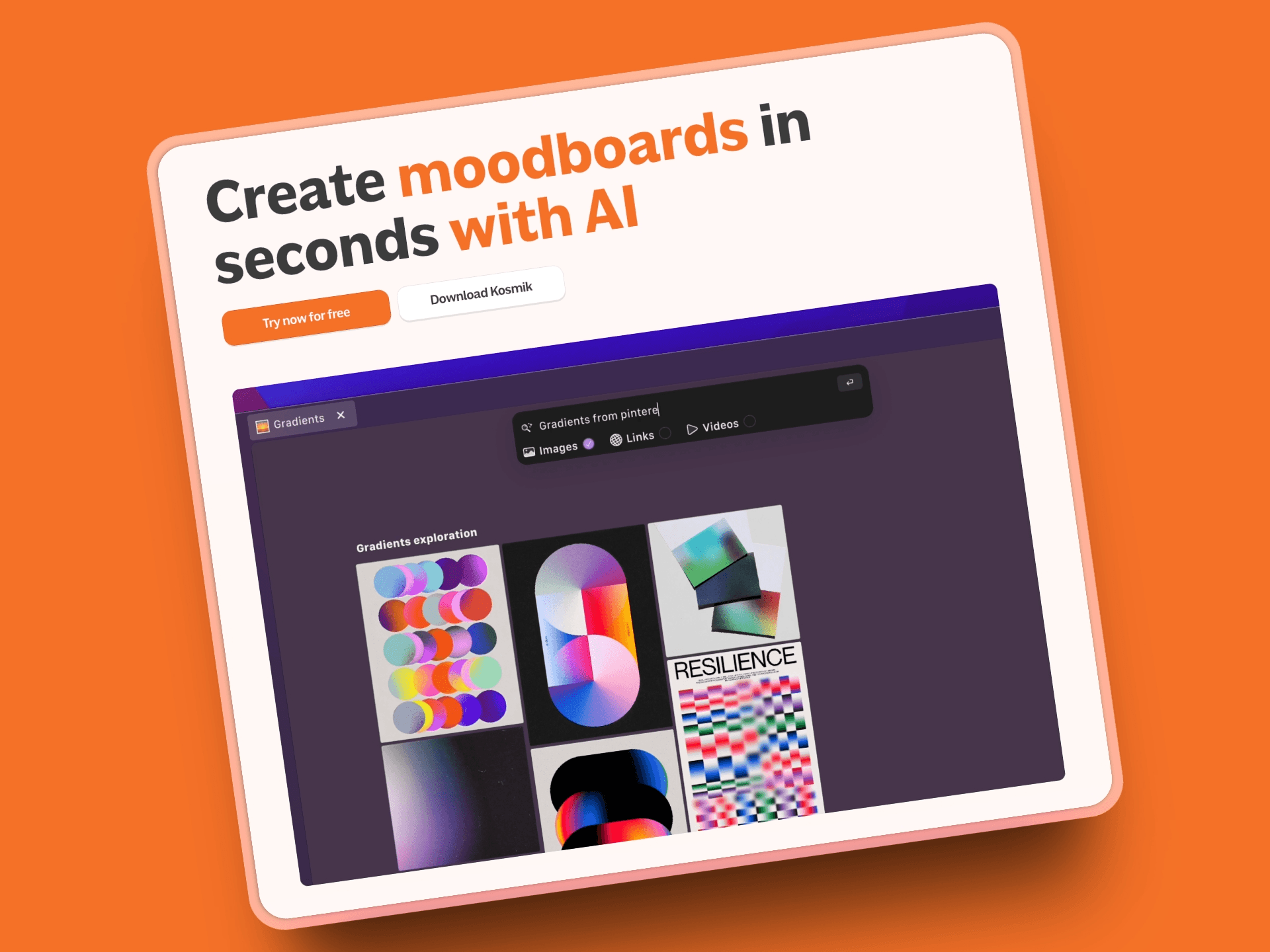
Kosmik reimagines the second brain for visual and spatial thinkers. Instead of forcing ideas into linear documents or rigid hierarchies, Kosmik gives you an infinite canvas. You arrange notes, files, images, PDFs, and web content exactly how your brain sees connections.
It's built on the principle that knowledge isn't linear. Ideas cluster, branch, and connect in unexpected ways. Kosmik lets you work the way you think, making it perfect for researchers, designers, content creators, and anyone who needs to see the big picture while diving into details.
What sets Kosmik apart is its built-in browser, file handling, and true spatial freedom. You're not just linking notes. You're creating a visual knowledge landscape you can explore and navigate intuitively.
Key Features
Infinite Canvas: Unlimited space to arrange and connect all your knowledge spatially
Built-in Browser: Press 'W' to browse any website without leaving your workspace
Visual File Integration: Native support for PDFs, images, videos, and documents right on your canvas
Spatial Organization: Arrange ideas by proximity instead of folders (related items near each other)
PDF Reader with OCR: Extract text from any PDF document automatically
AI Auto-Tagging: Automatically categorizes content by colors, themes, and subjects
Real-Time Collaboration: Multiple team members work on the same canvas simultaneously with live cursors
Pros
True visual thinking environment without forcing you into outlines
Handles files natively without uploads or conversions
Infinite canvas means you never run out of space
Browser integration eliminates app-switching during research
No learning curve for complex folder systems (just arrange things spatially)
Cost-effective for teams at $11.99/user/month (yearly) with unlimited workspaces
Fast, beautifully designed interface
Active development with responsive community
Cons
Different paradigm may require mental adjustment for traditional note-takers
Best experienced on larger screens (though web version works on tablets)
No native mobile phone app yet (desktop and web only)
Collaboration features still maturing
Pricing
Pro: $11.99/month (yearly) or $14.99/month (monthly) with unlimited workspaces, universes, items, file imports, and AI requests
Ambassador: $16.99/month (yearly) or $20.99/month (monthly) with everything in Pro plus Figma plug-in, brand kits, fonts support, and dedicated Slack channel
Enterprise: Custom pricing with team management, custom onboarding, and dedicated support
User Reviews
Kosmik has a 8.6/10 rating on Tool Finder based on 15+ reviews. Users praise the "very fast, beautifully designed macOS desktop app" and "brilliant, useful in-app browser features." Several reviewers note the browser is "faster than Arc, Chrome, Brave" and "useful for spatial research." The dedicated indie team receives high marks for being "extremely active" and "responsive to bugs."
What Makes Kosmik Different from Traditional Note Apps
Kosmik solves a problem most second brain apps ignore: not everyone thinks in outlines and hierarchies. If you're a visual thinker, traditional apps feel constraining. You want to see relationships, arrange things spatially, and work with multiple file types without constantly switching between tools.
Kosmik's approach mirrors natural spatial memory. We remember locations and visual arrangements better than file paths and folder names. When you organize research on an infinite canvas with sources, notes, and connections visible at once, your brain can actually make sense of complex topics.
The built-in browser is genuinely useful. Press 'W', browse to any site, and clip content directly to your canvas without switching apps. For researchers managing multiple sources or creatives building mood boards, this eliminates the friction that kills momentum in other tools.
That said, if you prefer text-based outlines or need advanced plugin customization, Obsidian or Logseq might be better fits.
Best For
Visual and spatial thinkers who find traditional note apps constraining
Researchers managing sources, notes, and connections simultaneously
Designers and creative professionals building mood boards and idea collections
Content creators organizing research and drafts spatially
Small to medium teams (3-50 members) looking for affordable collaboration
Anyone who thinks in diagrams, mind maps, and visual relationships
Heptabase: Best for Visual Research and Deep Thinking
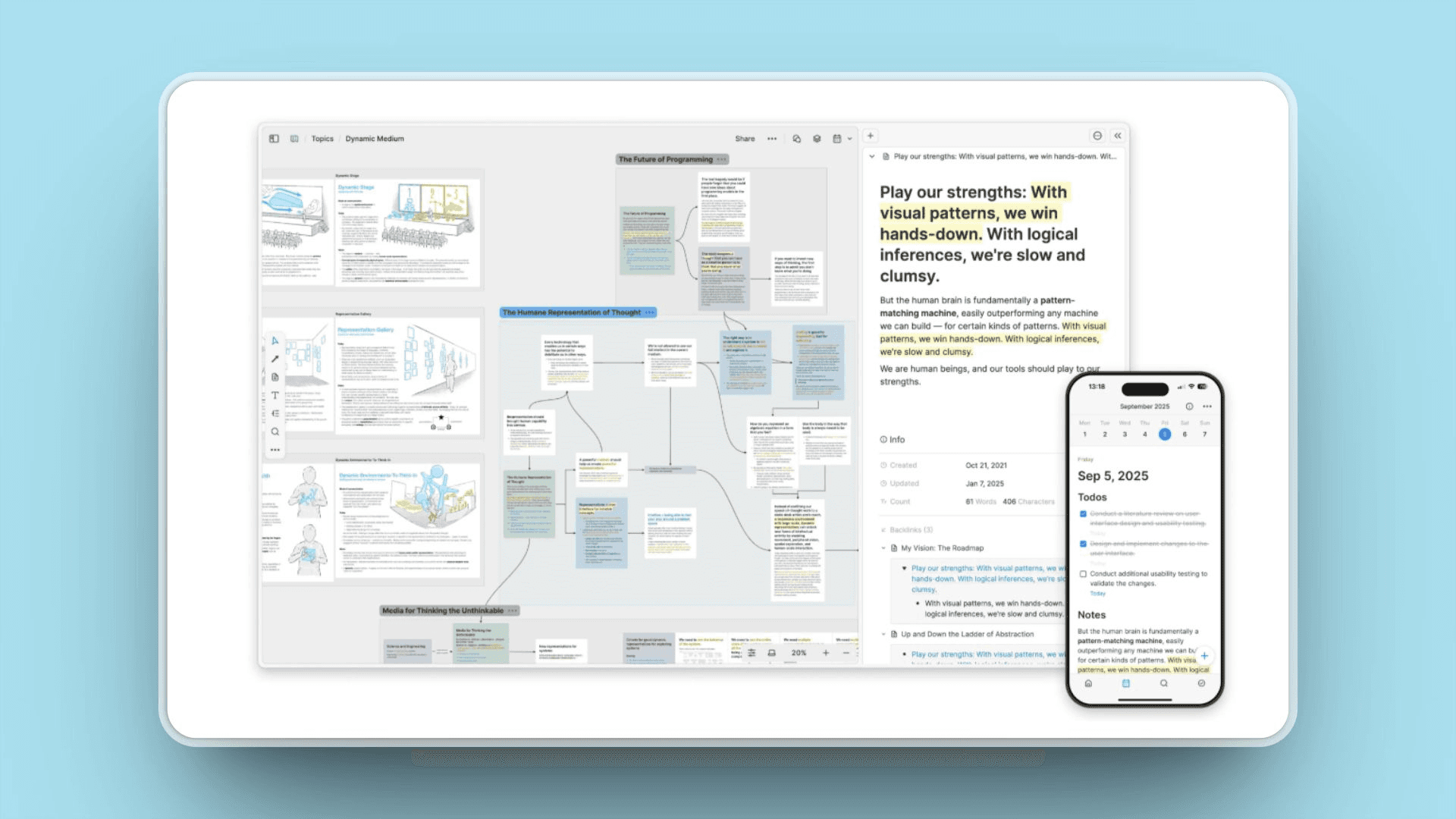
Heptabase combines visual canvas-based thinking with traditional note-taking. It's designed for researchers, students, and deep thinkers who need to understand complex topics by visually mapping relationships between concepts. Cards (notes) can be arranged on whiteboards, connected with lines, and organized into nested structures.
Key Features
Visual whiteboards for mapping ideas and concepts
Card-based notes that can live on multiple boards
Nested organization (cards within cards for hierarchies)
PDF annotation and highlighting built-in
Bidirectional linking and backlinks
Daily journal for reflections
Markdown formatting with multimedia support
Pros
Excellent for academic research and learning complex subjects
PDF annotation tools built-in for source management
Beautiful, clean, intuitive interface
Supports both visual and text-based thinking modes
Responsive development team with regular updates
Cons
Steeper learning curve than simple note apps
Pricier than some alternatives at $8.99-11.99/month
Limited collaboration features (primarily single-user)
Mobile app functional but less powerful than desktop
Some users report performance issues with larger projects
Pricing
$8.99/month (billed annually) or $11.99/month (monthly billing)
No free plan
14-day free trial available
User Reviews
Heptabase has an 4.6/5 rating on Producthunt
Best For
Researchers and academics working with papers and sources
Students learning complex subjects (science, philosophy, history)
Visual learners who need to map concepts spatially
Anyone building a Zettelkasten system with visual elements
Milanote: Best for Creative Visual Collaboration

Milanote is designed for creative professionals: designers, writers, marketers who need visual boards for collecting inspiration, mood boards, and project planning. It combines the flexibility of pinning things on a wall with the organization of a note app.
Key Features
Flexible visual boards with drag-and-drop interface
Templates for mood boards, brainstorming, and project planning
Real-time collaboration tools for team projects
Web Clipper for Chrome to save links, images, and videos instantly
Cloud-based storage for images and files
Task management and content organization
Pros
Beautiful, intuitive interface that's easy to learn
Great for design work and creative collaboration
Strong team collaboration features with commenting
Templates accelerate setup for common workflows
Optimized for visual organization and inspiration collection
Cons
Less suitable for heavy text-based note-taking
Free plan very limited (100 notes/images cap)
Not ideal for coding or technical documentation
Limited export options compared to text-based tools
Mobile apps (iOS and Android) less feature-rich than desktop
Visual board display limited on mobile
Pricing
Free: Up to 100 notes/images
Pro: $9.99/month or $49/month for teams (up to 10 people)
User Reviews
Milanote has a 4.5/5 rating on G2 and 4.7/5 on Capterra (based on hundreds of reviews praising ease of use and visual organization).
Best For
Designers building mood boards and collecting inspiration
Writers organizing story elements and character notes
Marketing teams planning campaigns visually
Creative teams collaborating on visual projects
Agencies and startups needing flexible project boards
Networked Thinking & PKM Tools
Obsidian: Best for Local-First, Markdown-Based Second Brain
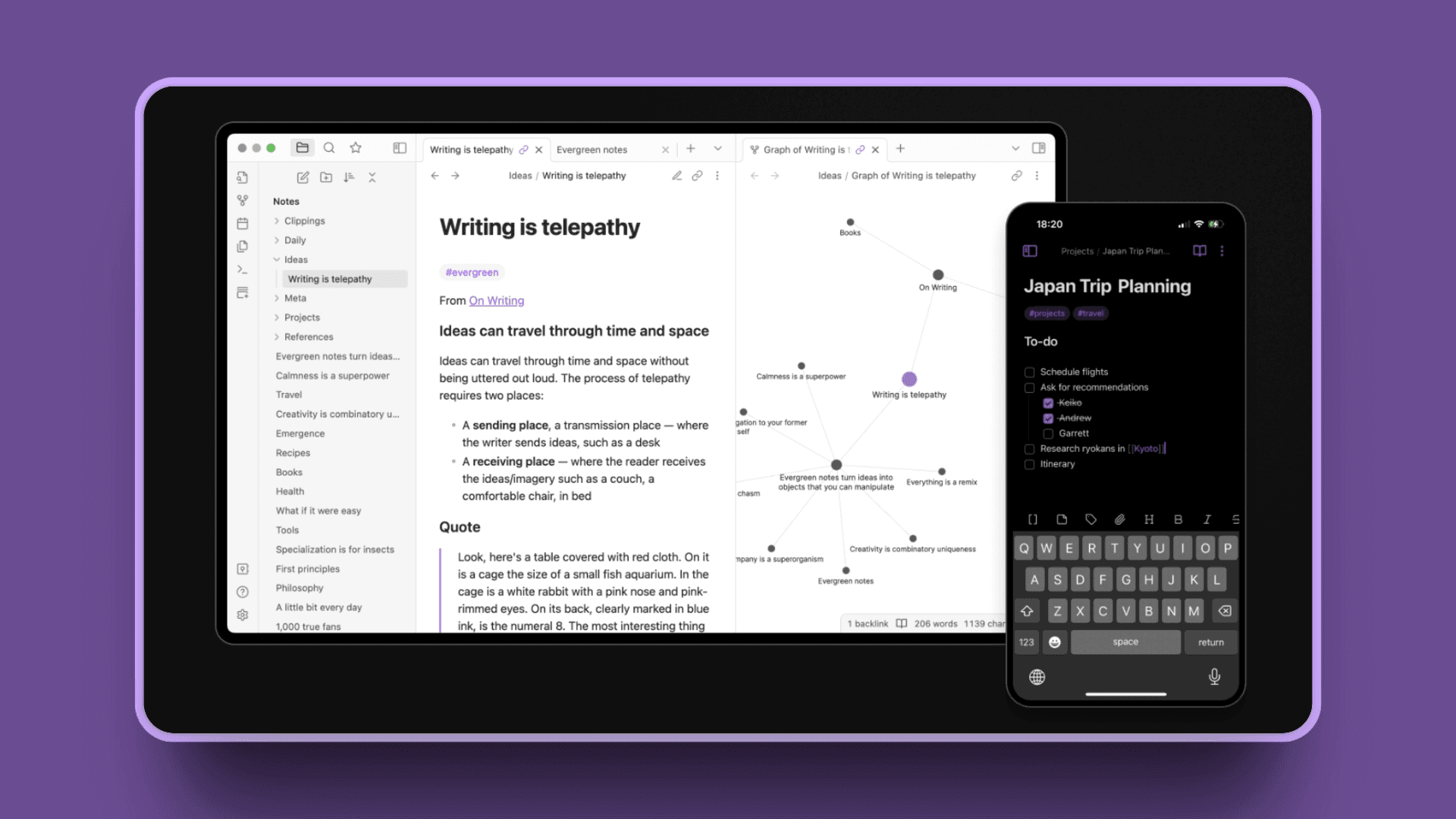
Obsidian is the gold standard for power users who want complete control over their second brain. It stores all notes as plain text Markdown files on your computer (you own your data), supports bidirectional linking for networked thinking, and has a robust plugin ecosystem with 1,000+ community plugins to customize everything.
It's built around the Zettelkasten method of connecting atomic notes, making it perfect for building a true "network of thoughts" over time. The graph view visualizes how all your notes connect, revealing unexpected relationships.
Obsidian has a devoted community of PKM enthusiasts, researchers, and writers who've built elaborate knowledge systems. It's free for personal use, lightning fast, and works offline.
Key Features
Local-first storage (Markdown files you own forever)
Bidirectional linking and automatic backlinks
Graph view to visualize note connections
1,000+ community plugins plus core plugins
Daily notes and customizable templates
Canvas mode for visual layouts
Themes for interface customization
End-to-end encrypted sync (paid add-on)
Pros
Complete data ownership (plain text files on your device)
Lightning fast, even with thousands of notes
Extremely customizable with plugins and themes
Strong community with extensive resources
Graph view reveals hidden connections between ideas
Works offline by design
Free for personal use (no restrictions)
High security with end-to-end encryption option
Cons
Steeper learning curve (Markdown syntax required)
Sync requires paid plan or DIY setup (iCloud, Dropbox)
Mobile app less polished than desktop experience
Requires time investment to set up properly
Can be overwhelming for beginners
No collaboration features (ideal for personal use only)
Pricing
Personal use: Free (100% free with all features)
Sync: $4/month (encrypted sync across devices)
Publish: $8/month (publish notes as website)
User Reviews
Obsidian receives a 9.1/10 rating on Tool Finder with users praising its speed, customization through plugins, and local-first markdown storage.
Best For
Writers and researchers building long-term knowledge systems
Privacy-conscious users wanting local storage
Power users comfortable with Markdown and customization
Zettelkasten practitioners
Anyone building a Tiago Forte-style second brain with PARA method
Logseq: Best Free, Open-Source Networked Notes
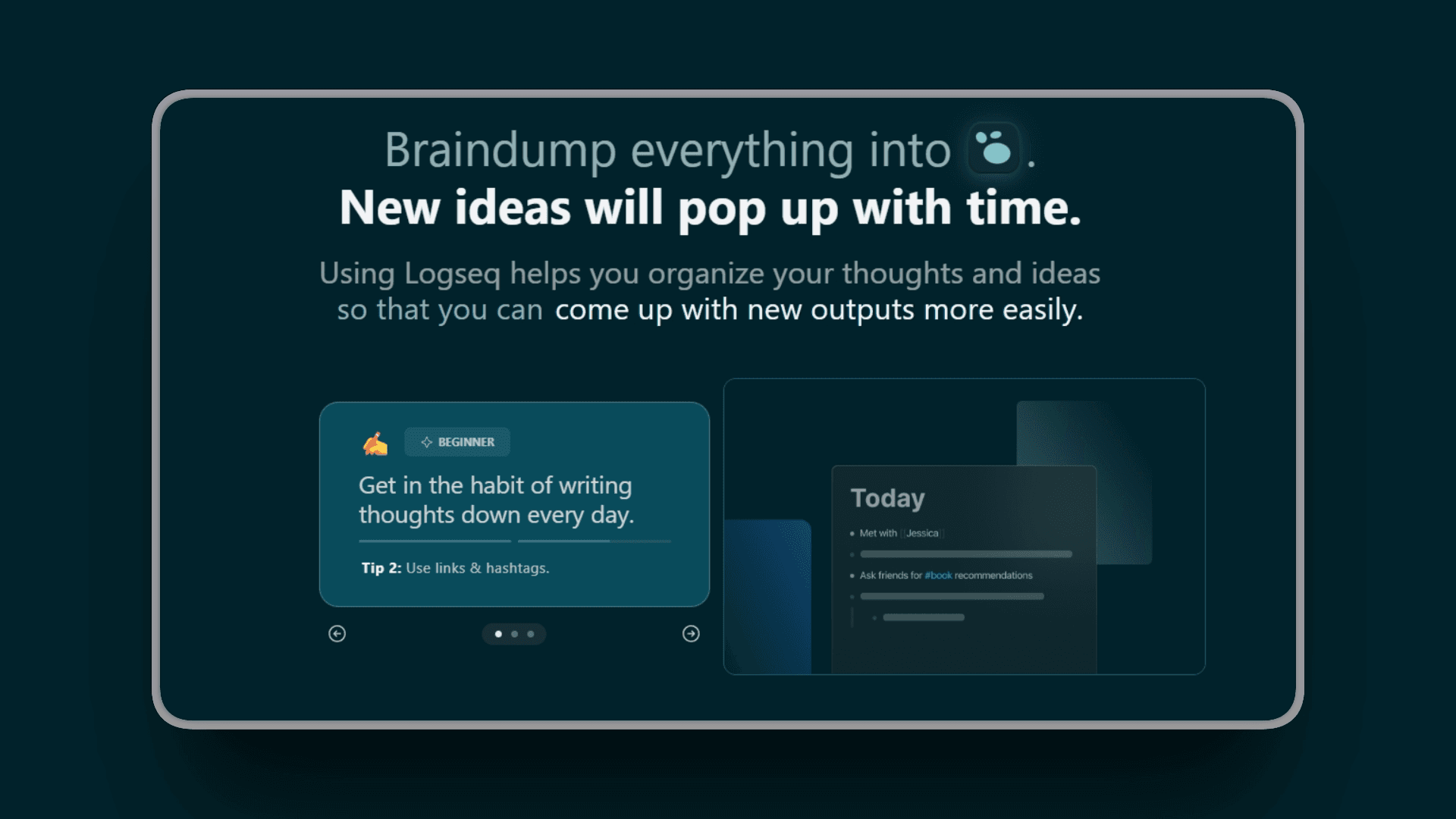
Logseq is an open-source alternative to Roam Research and Obsidian. It's built around outliner-style note-taking (everything is bullets) with bidirectional linking, daily journals, and knowledge graphs. Like Obsidian, files are stored locally in plain text (Markdown or Org-mode). It's completely free and includes features other apps charge for like whiteboards, flashcards, and PDF annotation.
Key Features
Outliner-based structure (everything is bullets)
Bidirectional linking and graph view
Daily journal pages automatically created
Whiteboards for visual thinking
Flashcards with spaced repetition for learning
PDF annotation built-in
Plugin support for extensibility
Local-first, privacy-focused storage
Pros
Completely free and open-source (no paid tiers)
Active development and growing community
Built-in features (flashcards, whiteboards) others charge for
Privacy-focused with local storage (all data on your device)
Supports both Markdown and Org-mode
Fast local-first note capture
Powerful outlining capabilities
Cons
Outliner format isn't for everyone (bullet-based structure)
Mobile app still maturing compared to desktop
Fewer plugins than Obsidian currently
Learning curve for new users
Occasional UI quirks reported
Imperfect sync and mobile UX
Pricing
Free and open-source (no costs, no limitations)
Optional paid sync coming soon
User Reviews
Logseq has a 4.8/5 rating on Product Hunt with users praising it as a powerful open-source alternative that replaced Notion and Obsidian for many.
Best For
Students building study systems with flashcards and spaced repetition
Open-source enthusiasts who value transparency
Users wanting Roam-like features without cost
Daily journaling practitioners
Privacy-conscious note-takers on a budget
Roam Research: Best for Serious Knowledge Workers
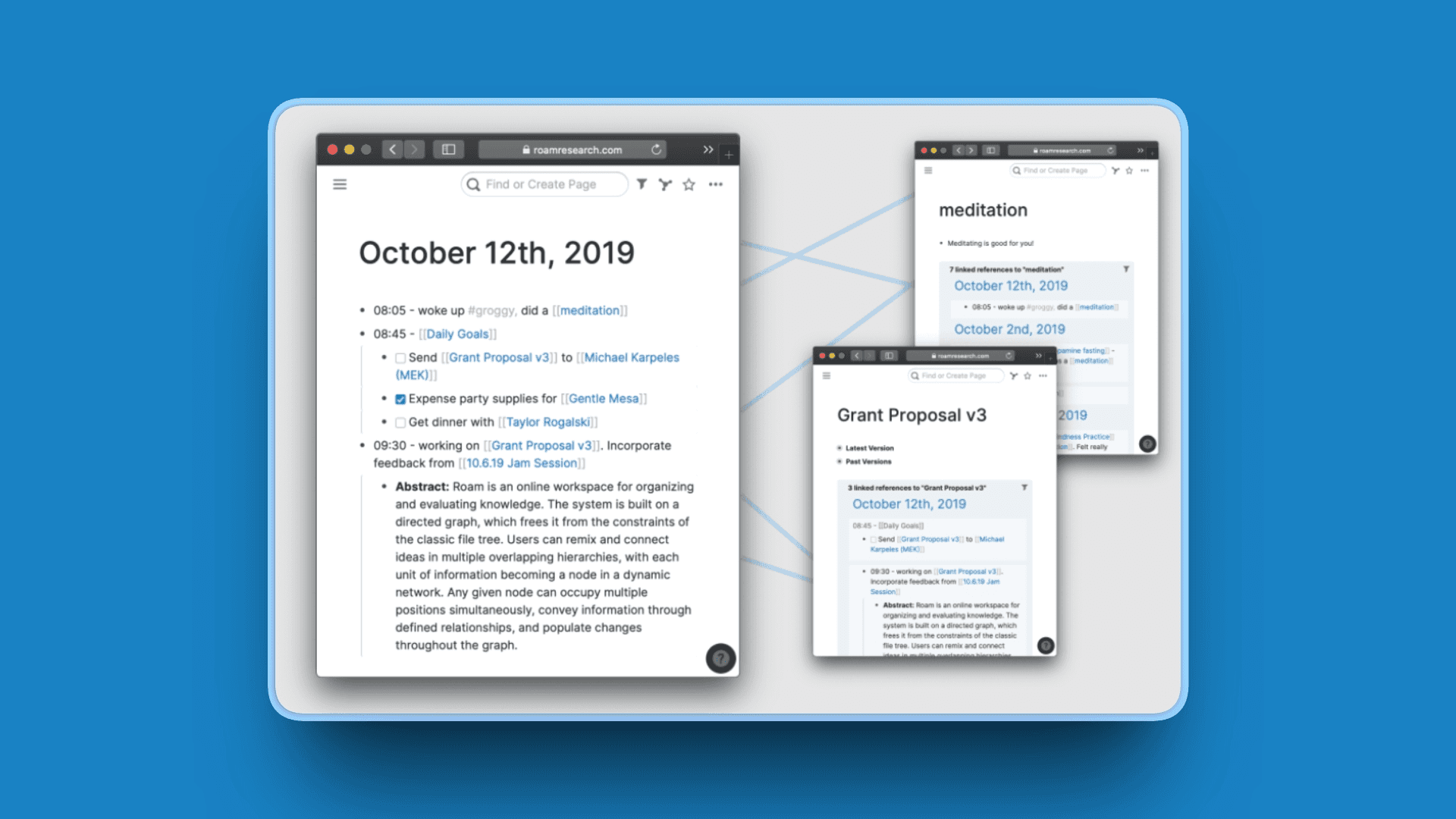
Roam Research pioneered the "networked thought" movement and remains a favorite among serious knowledge workers, researchers, and writers. It introduced bidirectional linking and daily notes to the mainstream. Roam's outliner structure and powerful block references make it unique, though its pricing is high compared to free alternatives like Logseq.
Key Features
Outliner-based with bullet points
Bidirectional linking between notes
Daily notes workflow
Block references (reuse content across notes)
Graph view of connections
Quick capture from anywhere
Queries and filters for finding information
Pros
Powerful for building interconnected knowledge systems
Daily notes workflow is excellent
Block references are unique and powerful
Fast capture and retrieval
Strong community of power users
Directed graph system offers novel approach
Cons
Expensive at $15/month with no free tier
Steep learning curve for new users
Interface can feel dated compared to modern apps
Limited formatting options
No offline access
Slow performance with large datasets reported
Mobile app lacks functionalities with unreliable sync
Pricing
$15/month or $165/year
"Believer" plan: $500 for 5 years ($8.33/month)
30-day free trial available
No free tier
User Reviews
Roam Research is praised by PKM enthusiasts for pioneering bidirectional linking and block references, though its $15/month pricing is considered steep compared to free alternatives like Obsidian and Logseq.
Best For
Serious researchers and academics willing to pay premium
Writers building complex narrative structures
Knowledge workers managing many interconnected projects
Users already invested in Roam's ecosystem
PKM enthusiasts who need block-level references
All-in-One Workspace Second Brains
Notion: Best All-in-One Second Brain Workspace
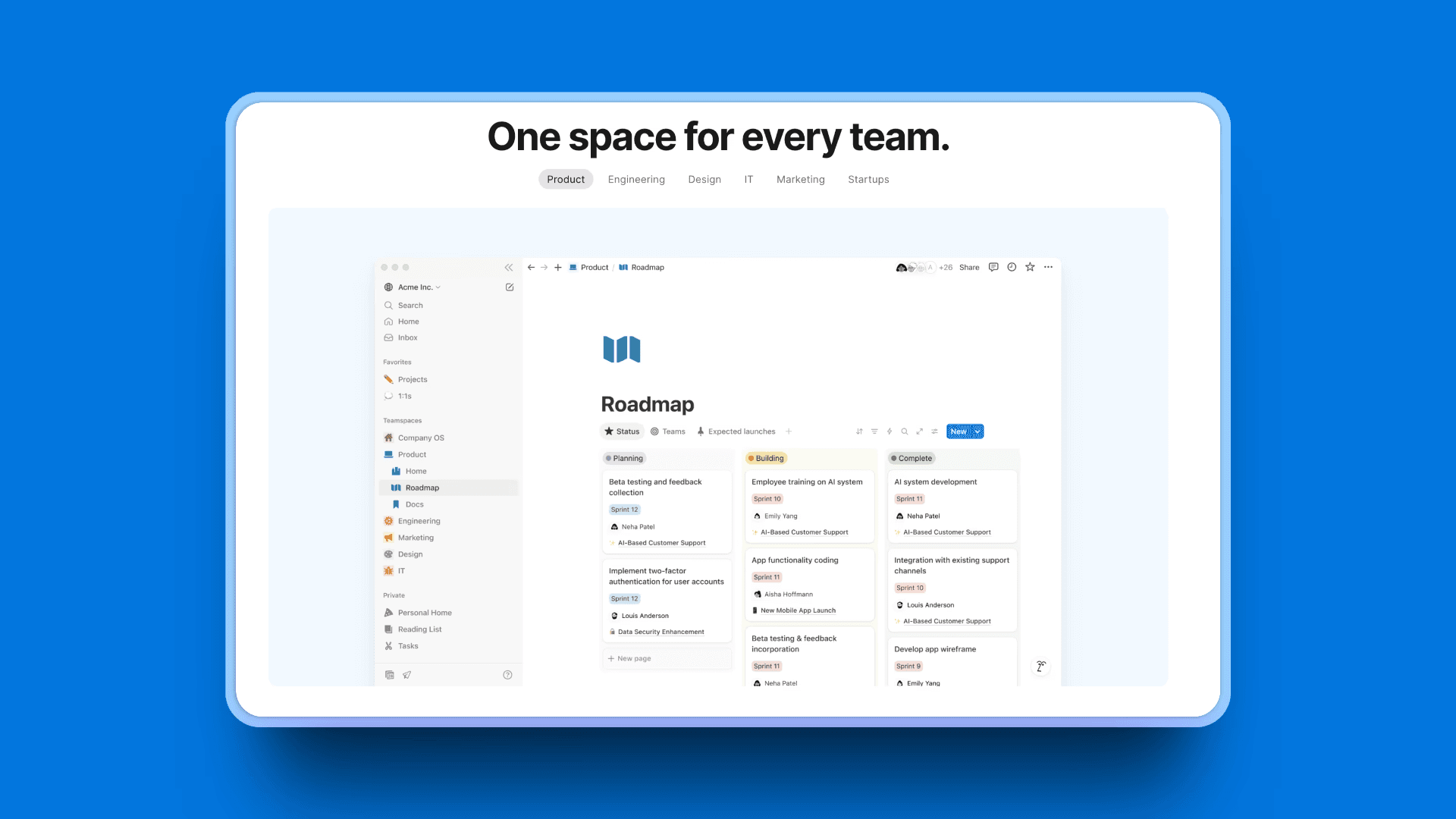
Notion is the Swiss Army knife of second brain apps. It combines notes, databases, wikis, tasks, calendars, and collaboration tools in one workspace. It's block-based, meaning everything (text, images, databases, embeds) is a building block you can arrange freely.
Notion is famous for flexibility and customization. You can build everything from simple note systems to elaborate PARA setups, project management dashboards, and content calendars. The learning curve is moderate, but thousands of free templates help you get started quickly.
It's ideal for users who want one tool for everything: notes, tasks, projects, wikis, and collaboration.
Key Features
Block-based editor (everything is a draggable block)
Databases (tables, kanban boards, galleries, calendars)
Templates and massive template marketplace
Collaboration and sharing with team workspaces
Web clipper for saving articles
Notion AI for summarization and writing help (add-on)
Embeds for videos, tweets, files, and more
Mobile apps for iOS and Android
Pros
Extremely flexible (build any system you want)
Beautiful, modern interface
Strong collaboration features for teams
Huge community and template library
Free plan generous for personal use
Integrates with many tools (Google Drive, Slack, etc.)
Good mobile apps
Real-time editing and commenting
Cons
Can feel overwhelming (too many options)
Requires internet for most features
Performance can lag with large databases
AI features require $10/month add-on
Can become cluttered without discipline
Offline access and mobile usability limited
Steep learning curve (all-in-one = complexity)
Pricing
Free: Personal use with generous limits (up to 10 guests)
Plus: $10/month with team features unlocked
Business: $15/user/month where teams truly scale (AI included)
Notion AI: Included with Business/Enterprise plans; available as add-on for legacy users
User Reviews
Notion maintains a 4.2/5 rating on G2 with users praising flexibility, customization, and the free plan with essential features.
Best For
Users wanting one app for notes, tasks, and projects
Teams needing collaboration tools
People who like building custom systems
PARA method practitioners
Content creators managing editorial calendars
Project management and GTD users
Capacities: Best Object-Based Second Brain
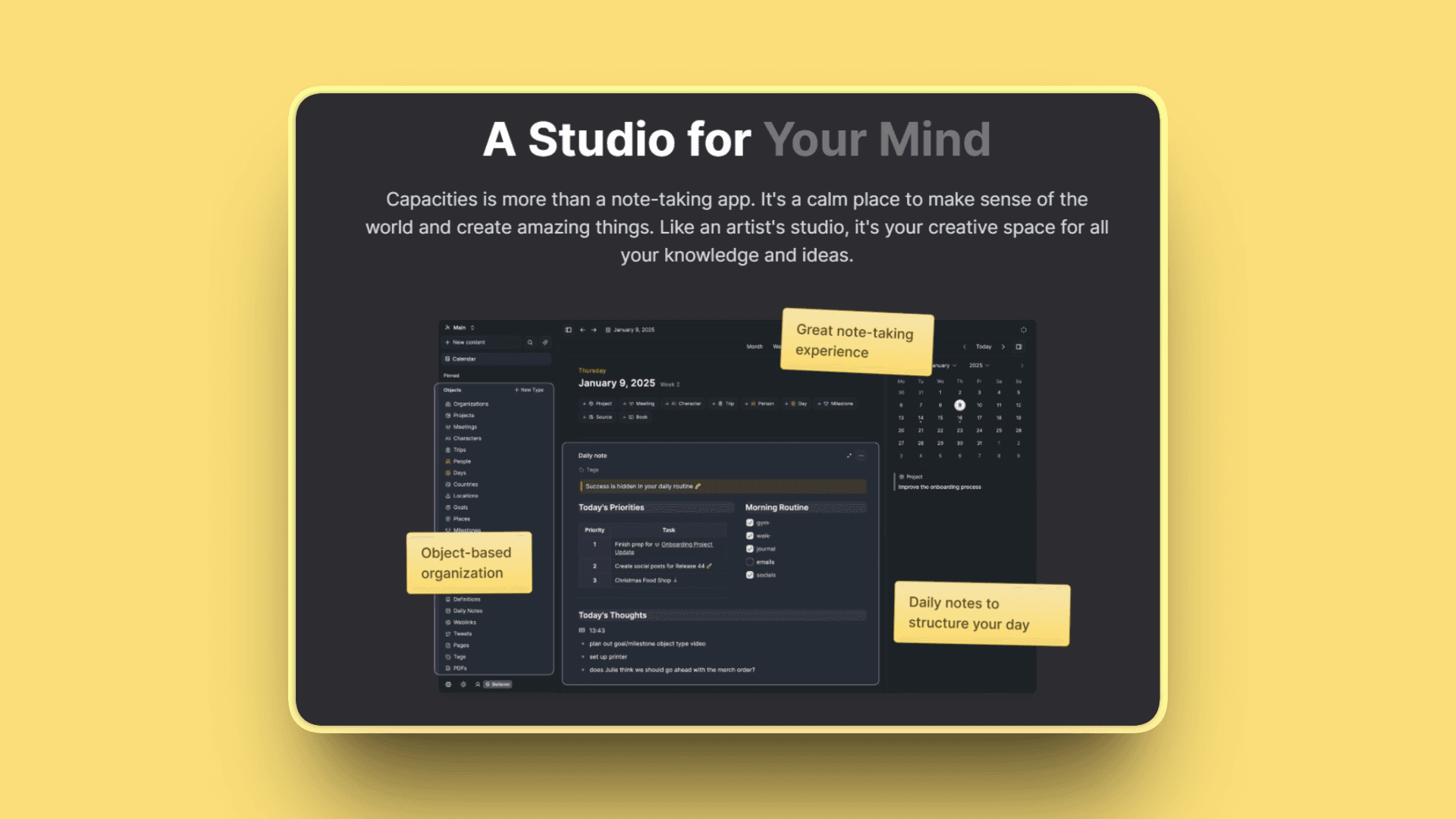
Capacities introduces an "object-based" approach to note-taking. Instead of generic notes, you create typed objects (People, Books, Ideas, Meetings) with custom properties. This structure makes it easier to organize and query your knowledge. It also includes daily notes, AI features, and beautiful design.
Key Features
Object types (custom note categories with properties)
Daily notes and journal
AI assistant for writing and summarization (included in Pro)
Graph view for visualizing connections
Templates and custom properties
Web clipper for saving web content
Markdown notes with backlinks
Seamless sync across devices
Pros
Intuitive structure (objects make sense logically)
Beautiful, modern interface
AI features included in Pro plan
Fast and responsive performance
Good mobile app
Generous free plan
Responsive founders who listen to feedback
Object-based approach natural for linking ideas
Cons
Still relatively new (maturing features)
Limited customization compared to Obsidian/Notion
Graph view less powerful than Obsidian
Fewer integrations with other tools
Mobile app still in beta
Limited offline functionality
Pricing
Free: Basic features (always free)
Pro: $9.99/month or $96/year with unlimited features
Believer: Same as Pro plus beta features
User Reviews
Capacities receives an 4.8/5 rating on Producthunt with users praising its intuitive structure, beautiful UI, and responsive development team.
Best For
Users who want structure without complexity
People tracking people, books, projects, and ideas
Visual organizers who like clean interfaces
Daily journal writers
Anyone building a living knowledge base
Users wanting to replace Notion or Obsidian with simpler alternative
Anytype: Best Privacy-Focused, Local-First Second Brain
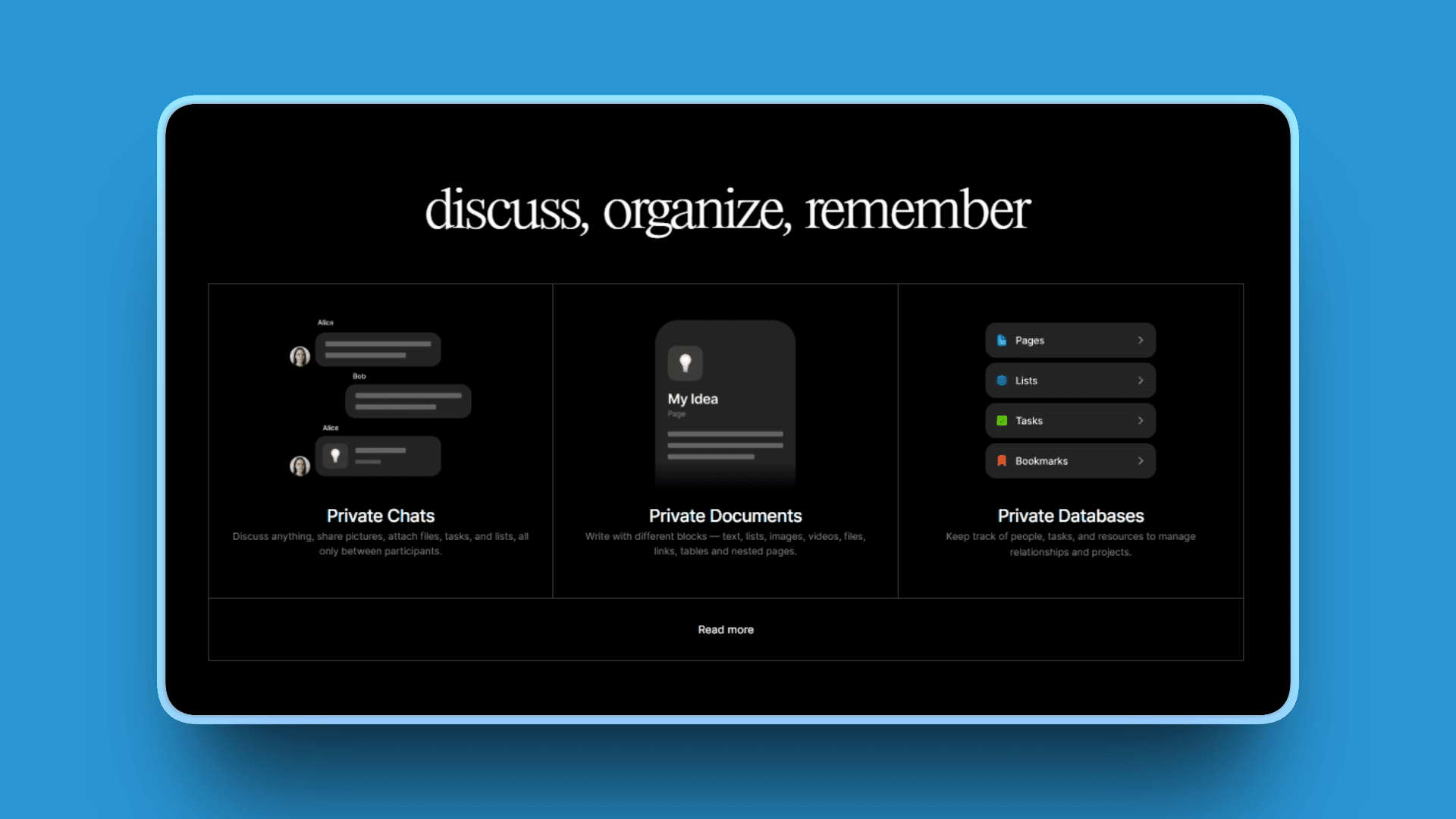
Anytype is an open-source, local-first second brain app with end-to-end encryption. It's similar to Notion in flexibility but stores data on your device with peer-to-peer sync (no cloud servers). You create objects (like Capacities) and connect them in a knowledge graph. It's ideal for privacy-conscious users who want control over their data.
Key Features
Local-first storage with end-to-end encryption
Object-based organization (structured notes)
Graph view for visualizing connections
Offline-first functionality by design
Open-source (community-driven development)
Peer-to-peer sync (no cloud servers)
On-device encryption (you're the only one with the key)
Pros
Strong privacy (encrypted, local storage)
No vendor lock-in (open-source)
Free during beta
Flexible structure like Notion
Complete data ownership
Works offline by design
Highly customizable workflows
Cons
Still in development (some rough edges)
Smaller community than Notion/Obsidian
Mobile app needs improvement
Fewer templates available
Learning curve for customization
Interface takes time to adjust to
Still has occasional bugs
Pricing
Free during beta
Paid plans coming (likely starting at $5/month)
Open source pricing model
User Reviews
Anytype receives a 8.4/10 rating on Tool Finder reviews for privacy focus with users appreciating strong encryption and data ownership.
Best For
Privacy-focused users who prioritize data control
Open-source advocates
Users wanting Notion-like flexibility with data ownership
Those seeking balance between PKM and object-based notes
Users who prioritize offline control
AI-Enhanced Second Brains
Mem: Best AI-Powered Second Brain for Quick Capture
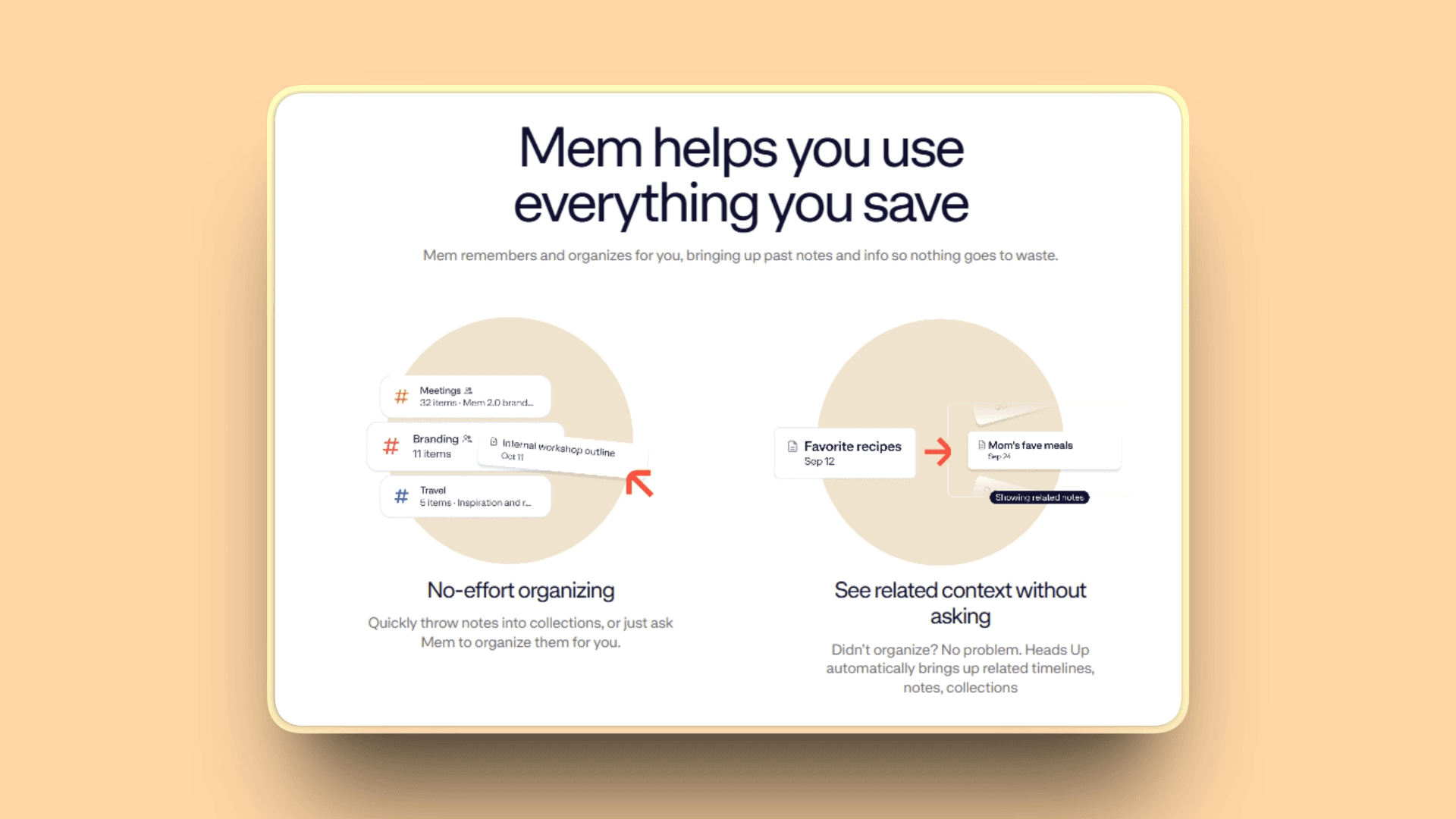
Mem is built around AI and natural language. There are no folders: just capture notes, and Mem's AI organizes, surfaces connections, and answers questions based on your knowledge. Mem Chat lets you query your second brain conversationally. It's fast, minimal, and focused on reducing friction.
Key Features
No folders (AI-driven organization)
Mem Chat (ask questions, get answers from your notes)
Smart search using natural language
Calendar integration for meeting notes
Collaborative workspaces
Templates for common workflows
AI automatically categorizes and links notes
Voice memos processed by AI
Pros
Extremely fast capture without manual organization
AI surfaces forgotten notes automatically
No manual filing needed
Clean, distraction-free interface
Mem 2.0 (October 2025) significantly improved speed and intelligence
Dependable and responsive AI features
Cons
Expensive at $12/month
Less control over organization
Mobile app still in development
Smaller feature set compared to Notion
Requires internet connection for full functionality
Limited integrations with other tools
Pricing
Free: Up to 25 new notes and 25 chat messages per month
Mem Pro: $12/month with unlimited usage (launched October 2025)
User Reviews
Mem receives a 8.8/10 ratings on ToolFinder with users praising fast capture and AI organization capabilities.
Best For
Busy professionals wanting automatic organization
Users who hate manual filing systems
Quick note-takers who capture on the go
AI early adopters
Students and creative thinkers
Anyone wanting to reduce cognitive load
Reflect: Best for Networked Notes with Calendar Integration
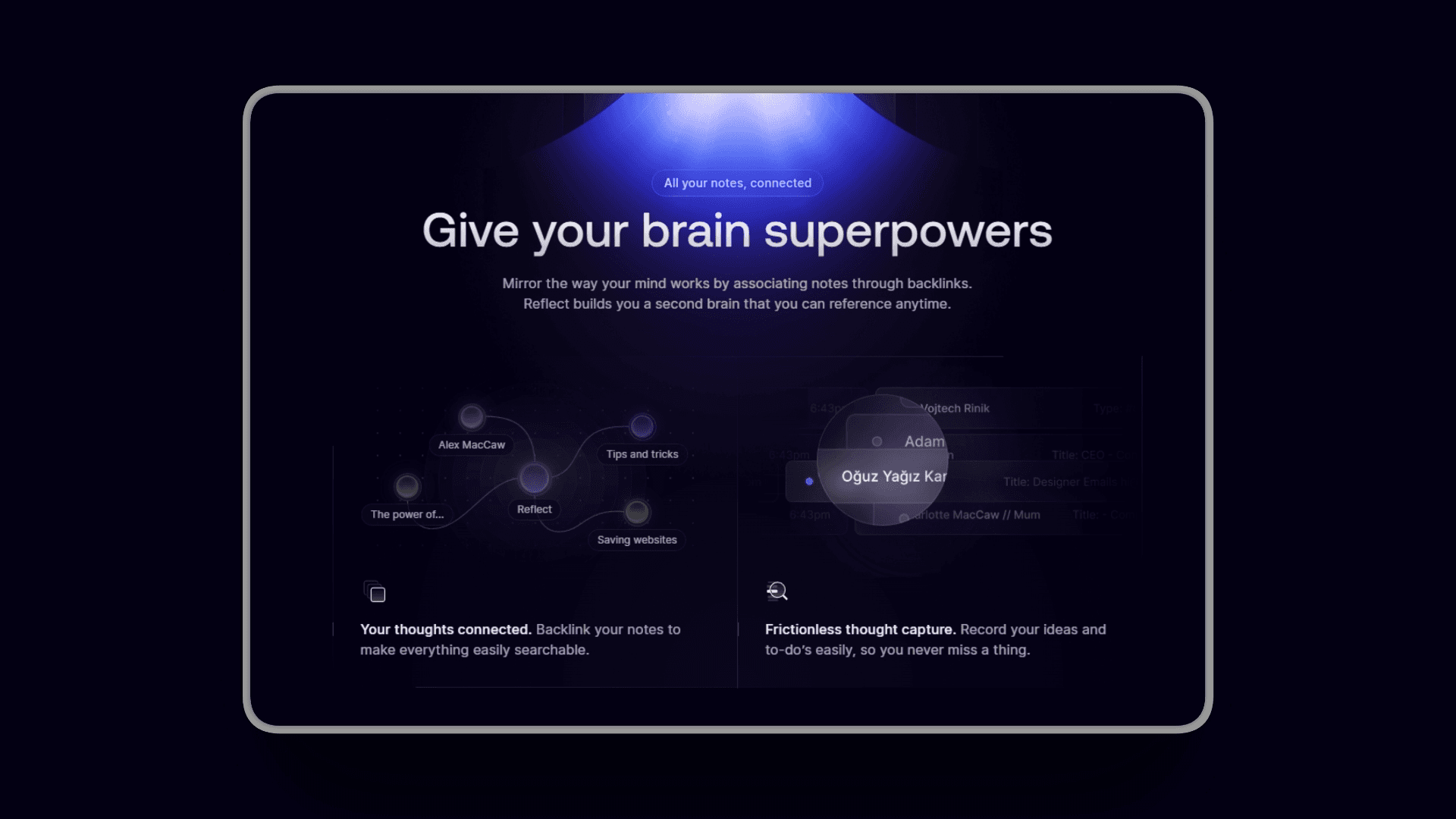
Reflect combines networked notes (backlinks) with calendar integration and AI. It's designed for professionals who take meeting notes, journal daily, and want their calendar events automatically in their note system. AI helps summarize and rephrase content using GPT-4.
Key Features
Backlinks and networked notes
Calendar sync (Google, Outlook)
AI assistant (GPT-4) for summarization
End-to-end encryption for privacy
Daily notes automatically created
Voice transcription for quick capture
Minimal design with powerful capabilities
Excellent offline mode
Pros
Beautiful, polished design
Calendar integration seamless for meeting notes
Strong privacy (encrypted)
AI features included in price
Fast and responsive
Very easy to use
Phenomenal performance
Distraction-free environment for deep thinking
Cons
No free tier ($10/month minimum)
iOS/Mac only (no Android or Windows)
Limited customization options
No collaboration features
Lacks smart chat feature like Mem
Lacks database feature like Tana
A bit costly for what it offers
Pricing
$10/month (annual billing) or $15/month (monthly)
14-day free trial
No free tier
User Reviews
Reflect receives a 4.8/5 rating on Product Hunt with users calling it minimalist, powerful, and beautifully designed with phenomenal performance.
Best For
Professionals with many meetings needing integrated calendar
iOS/Mac users exclusively
Privacy-conscious users wanting AI features
Daily journalers
Those prioritizing distraction-free writing environment
Saner AI: Best AI Second Brain for ADHD and Task Management
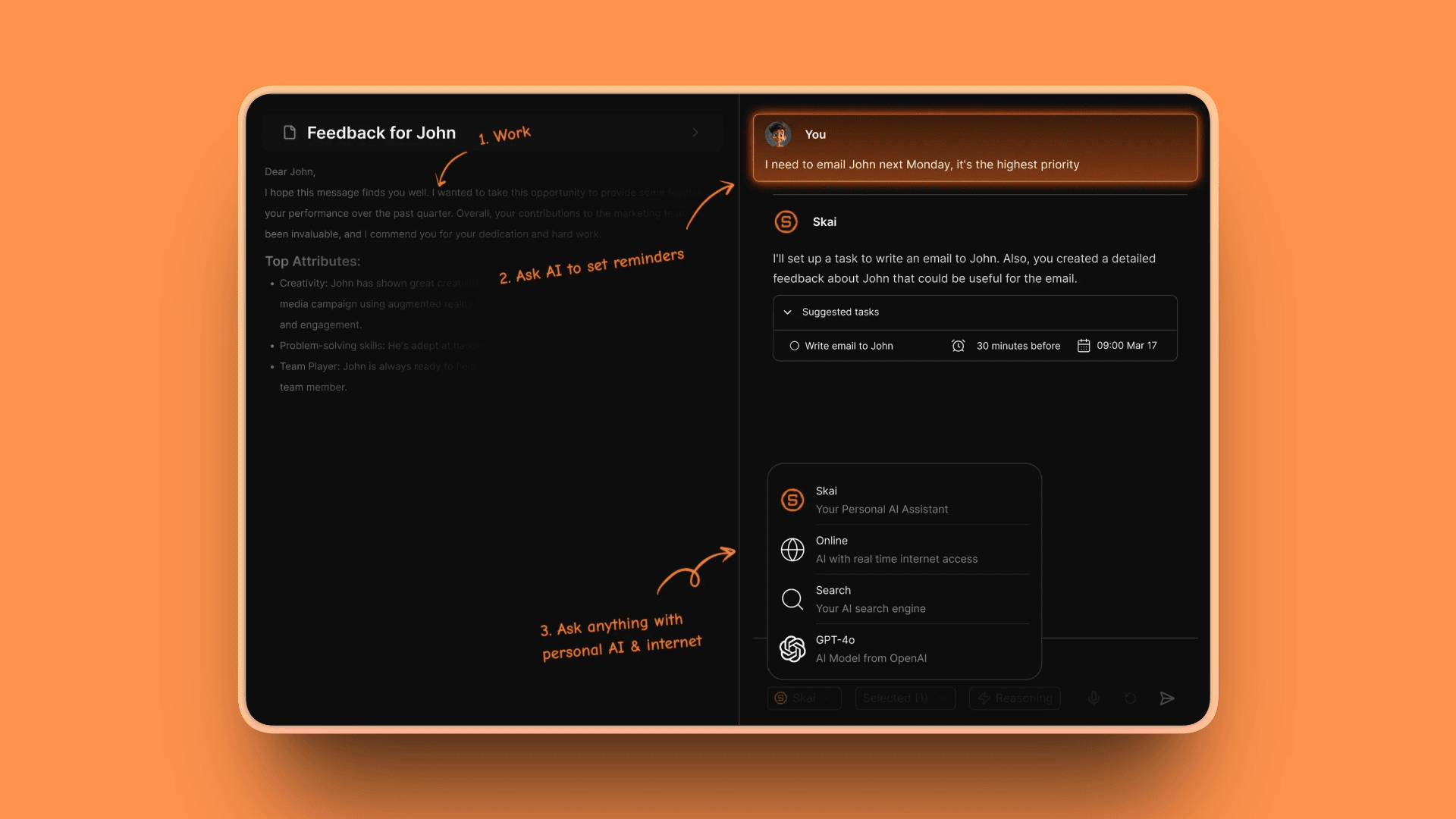
Saner.AI is built for people with ADHD and busy professionals who need more than note storage: they need an assistant. It captures notes, emails, tasks, and Slack messages, then uses AI to organize, remind, and suggest next steps. It's like having a personal assistant for your brain.
Key Features
AI inbox captures everything automatically
Smart tags and automatic summaries
Task assistant (turns notes into tasks automatically)
Email and Slack integration
Focus mode for distraction-free writing
Searchable AI knowledge base
Semantic search across notes, calendar, email, files
Personal AI assistant (Skai) for planning and reminders
Pros
ADHD-friendly (reduces overwhelm)
AI does the organizing automatically
Task automation (notes become tasks)
Integrates communication tools (email, Slack)
Consolidates notes, emails, tasks, calendars into one interface
Enhances productivity for managing ADHD challenges
Perfect for students, researchers, content creators, entrepreneurs
Cons
Requires internet connection
Newer product (still maturing)
Limited customization compared to established tools
AI quality depends on usage patterns
Mobile performance has occasional bugs (2.4 rating on Google Play)
Pricing
Free Plan: 30 AI requests per month, 100 notes
Starter: $8/month
Standard: $16/month with unlimited AI requests, unlimited notes, 100GB storage
User Reviews
Saner.AI has a 4.8/5 rating on Product Hunt based on 16 reviews, praising ADHD-friendly features and AI organization.
Best For
ADHD users needing automatic organization
Busy professionals juggling many inputs
Task-focused users who want automation
People wanting AI assistance for daily planning
Students and researchers managing multiple projects
Content creators and writers organizing ideas
Simple & Fast Second Brains
Craft: Best for Beautiful, Fast Note-Taking
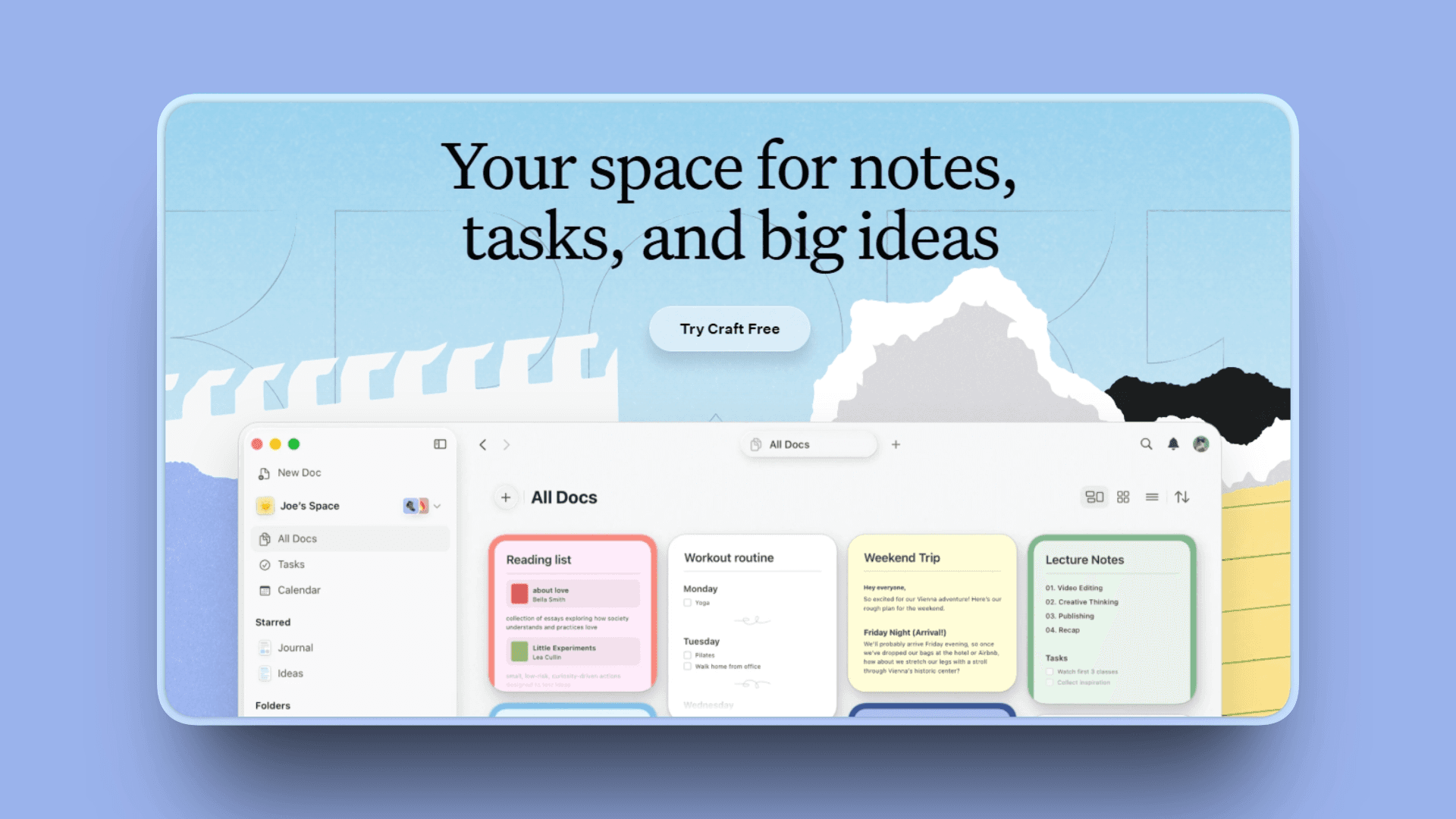
Craft is designed for writers and professionals wanting beautiful, distraction-free note-taking with just enough organization. It has a clean interface, strong formatting, and feels fast. It includes daily notes, tasks, calendar integration, and AI features, all without overwhelming complexity.
Key Features
Beautiful, minimal interface
Rich formatting options
Daily notes and task management
Calendar integration (Calendar View)
AI writing assistant (GPT-4 and Apple AI)
Cross-device sync
Collections for organizing notes
Real-time collaboration
Wide range of customizable templates
Pros
Gorgeous design
Fast and responsive
Easy to use (no learning curve)
AI included in Pro plan
Good mobile apps
Speedy iOS and macOS apps
Minimalist design minimizes distractions
Excellent for real-time collaboration
Cons
Less powerful than Notion/Obsidian
Limited customization
Fewer integrations
No offline mode on free plan
Lacks advanced databases and deep automation
Can be a bit pricey
Pricing
Free plan: Basic features
Pro: $5-7.99/month (Personal Pro plan, pricing varies by region)
User Reviews
Craft has a 9/10 rating on Tool Finder with users praising gorgeous design, speed, and ease of use.
Best For
Writers wanting clean, distraction-free environment
Professionals needing simple notes plus tasks
Users tired of complex tools
Apple ecosystem users (excellent iOS/Mac apps)
Creating documents and managing tasks easily
Bear: Best for Apple Users (Mac, iPhone, iPad)
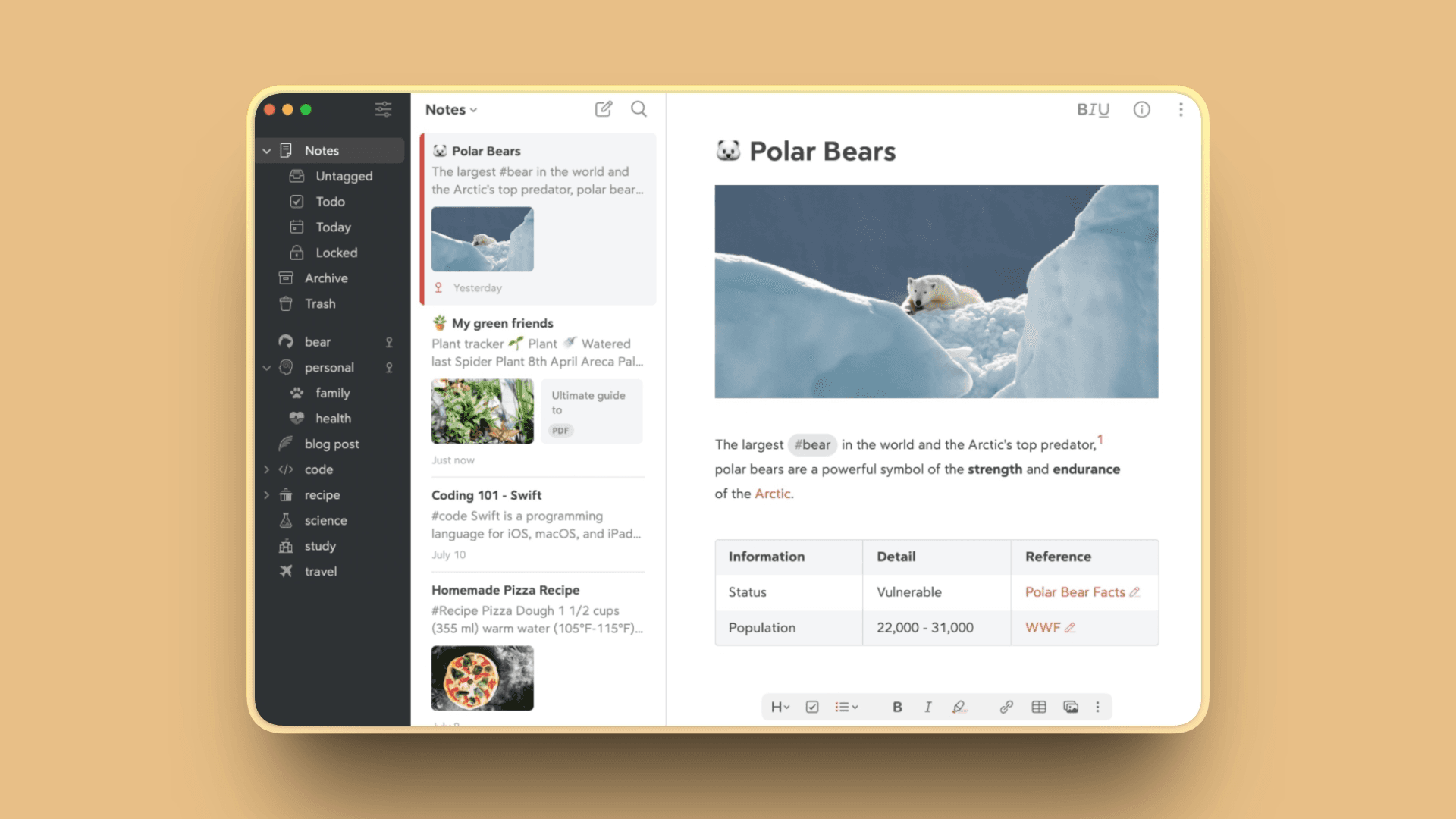
Bear is a beloved note app for Apple users exclusively. It's markdown-based, beautifully designed, and extremely fast. It uses tags instead of folders for organization and syncs across all Apple devices via iCloud. It's ideal for writers, bloggers, and anyone who values simplicity and aesthetics. Bear won the Apple Design Award in 2017.
Key Features
Markdown editing with live preview (GitHub flavored)
Tag-based organization (unique hashtag folders)
Themes and customization (multiple dark modes)
Fast search including speed of sync
Apple ecosystem sync (iCloud syncing)
Export to multiple formats
Quick shortcuts for today's date
Checkboxes support (filter for giant to-do)
Pros
Beautiful, Apple-native design
Extremely fast
Simple and intuitive
Great for writing
Affordable compared to alternatives
More visually pleasing than OneNote/Evernote
Reliable iCloud syncing
Speed of app and sync praised
Cons
Apple-only (no Windows/Android)
No collaboration features
Limited structure (tags only, no folders)
No bidirectional links
No web-based interface
Inaccessible for non-Apple users
Pricing
Free: Basic features (restricted)
Bear Pro: $2.99/month or $29.99/year
Both include 14-day free trial
User Reviews
Bear receives high praise from Apple users with a 4.6/5 rating on G2, calling it beautiful, fast, and simple.
Best For
Apple users (Mac, iPhone, iPad)
Writers and bloggers
Users wanting simple, fast notes
Markdown fans
Minimal note-taking enthusiasts
Workflowy: Best for Outliner-Based Thinking
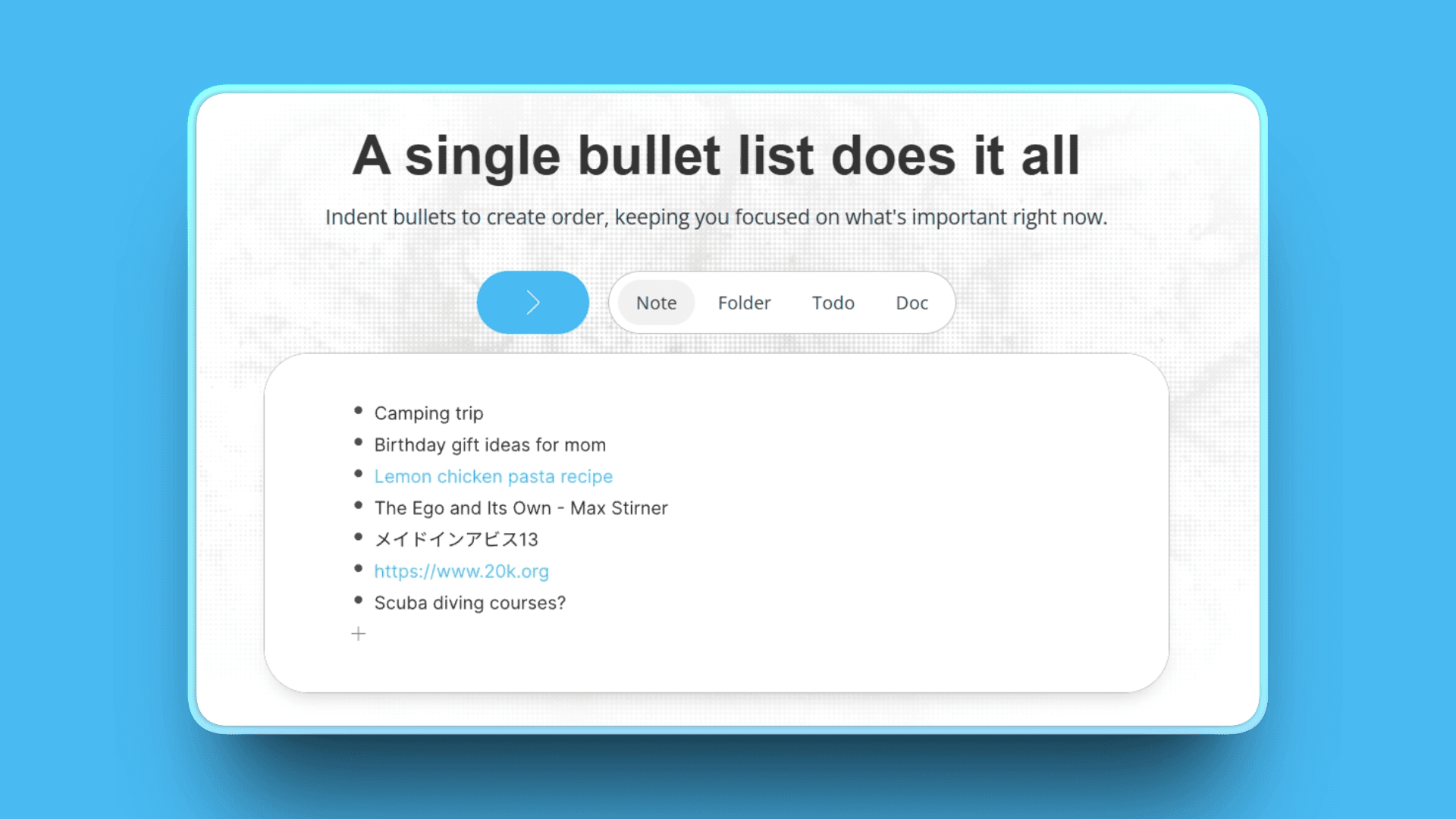
Workflowy is an infinite outliner: everything is a bullet point that can be expanded or collapsed. It's simple but powerful for organizing thoughts, projects, and lists. You can zoom into any bullet to make it the focus. It's ideal for list-makers and linear thinkers.
Key Features
Infinite nested bullets
Zoom into any item to focus
Tags and filters
Kanban board view
Fast search
Mirrors (show same item in multiple places)
Live copies feature (real-time mirroring)
Customizable themes including dark mode
Version history to track changes
Pros
Simple and fast
Great for outlines and lists
No learning curve
Free tier generous for limited use
Works offline
Clean, intuitive interface
Streamlined, eliminates distractions
High ease of use
Cons
Outliner format isn't for everyone
Limited formatting
No images or rich media
Basic compared to Notion
Lacks advanced project management tools
Monthly bullet cap is real issue on free plan
Collaboration lacks real-time chat
Pricing
Free: 100 bullets/month (capped)
Pro: $4.99/month or $49/year (20% savings annually)
Special: 50% discount for nonprofits
Special: Free 1-year Pro for university students/faculty
User Reviews
Workflowy has a 4.5/5 rating on G2 with users praising simplicity and speed for outlining.
Best For
Outliner fans
List-makers and planners
Writers drafting structured content
Budget-conscious users
Freelancers and small teams
Brainstorming and tracking ideas without complexity
Traditional & Established Second Brains
Evernote: Best Traditional Note-Taking App
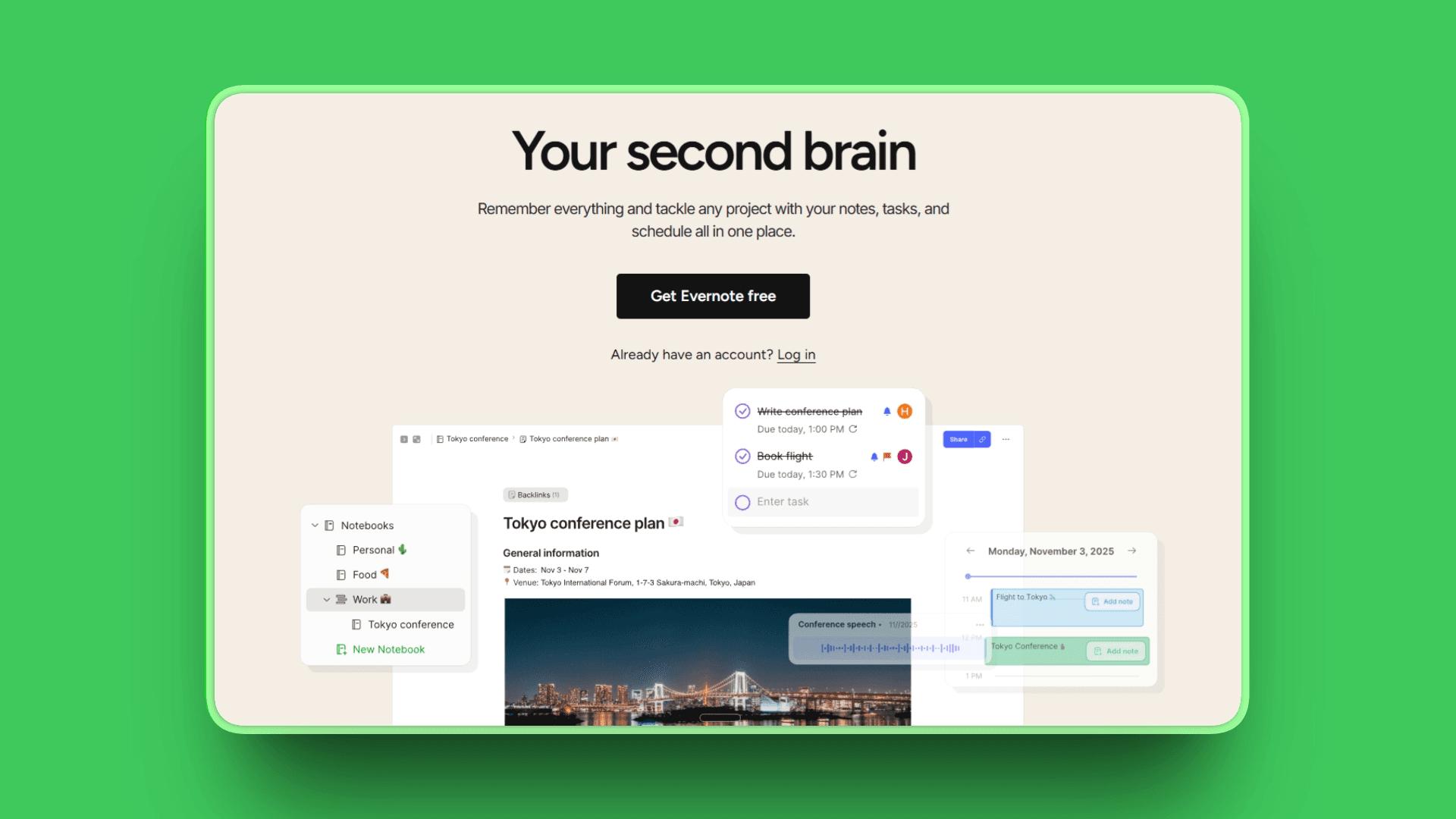
Evernote is the OG note-taking app, launched in 2008. It pioneered web clipping, document scanning, and cross-device sync. While newer apps have surpassed it in features, Evernote remains reliable, familiar, and capable. Recent updates include tasks, calendar integration, and AI features.
Key Features
Web clipper (save articles and web pages)
Document scanning
Tags and notebooks
Search including handwriting and PDFs (OCR)
Tasks and reminders
Calendar integration
AI features (summarization, AI Note Cleanup)
Customizable Home Dashboard
Handwritten notes, audio notes, sticky notes support
Pros
Mature and reliable platform
Excellent web clipper (industry standard)
Strong search (OCR for images)
Good mobile apps
Familiar to many users
Intuitive interface
Cross-device synchronization seamless
Wide range of integrations
Cons
Free plan very limited (50 notes, 2 devices, 60MB monthly uploads)
Feels dated compared to modern apps
Expensive pricing compared to competitors
Less flexible than Notion
Slow load times with large notebooks
Continuous reminders to upgrade can be distracting
Pricing
Free: Very limited (60 MB monthly uploads, 25 MB max note size, 2 devices max, 50 notes limit)
Starter: $14.99/month with 10 GB monthly uploads, basic AI features
Advanced: $24/month with 20 GB uploads, unlimited AI usage, advanced features
User Reviews
Evernote receives a 4.4/5 rating on G2 with users appreciating reliability and web clipper but criticizing limited free plan and pricing.
Best For
Users already invested in Evernote
Web clipping enthusiasts
Traditional note-takers wanting reliability
Those valuing mature, established platform
Microsoft OneNote: Best Free, Full-Featured Option
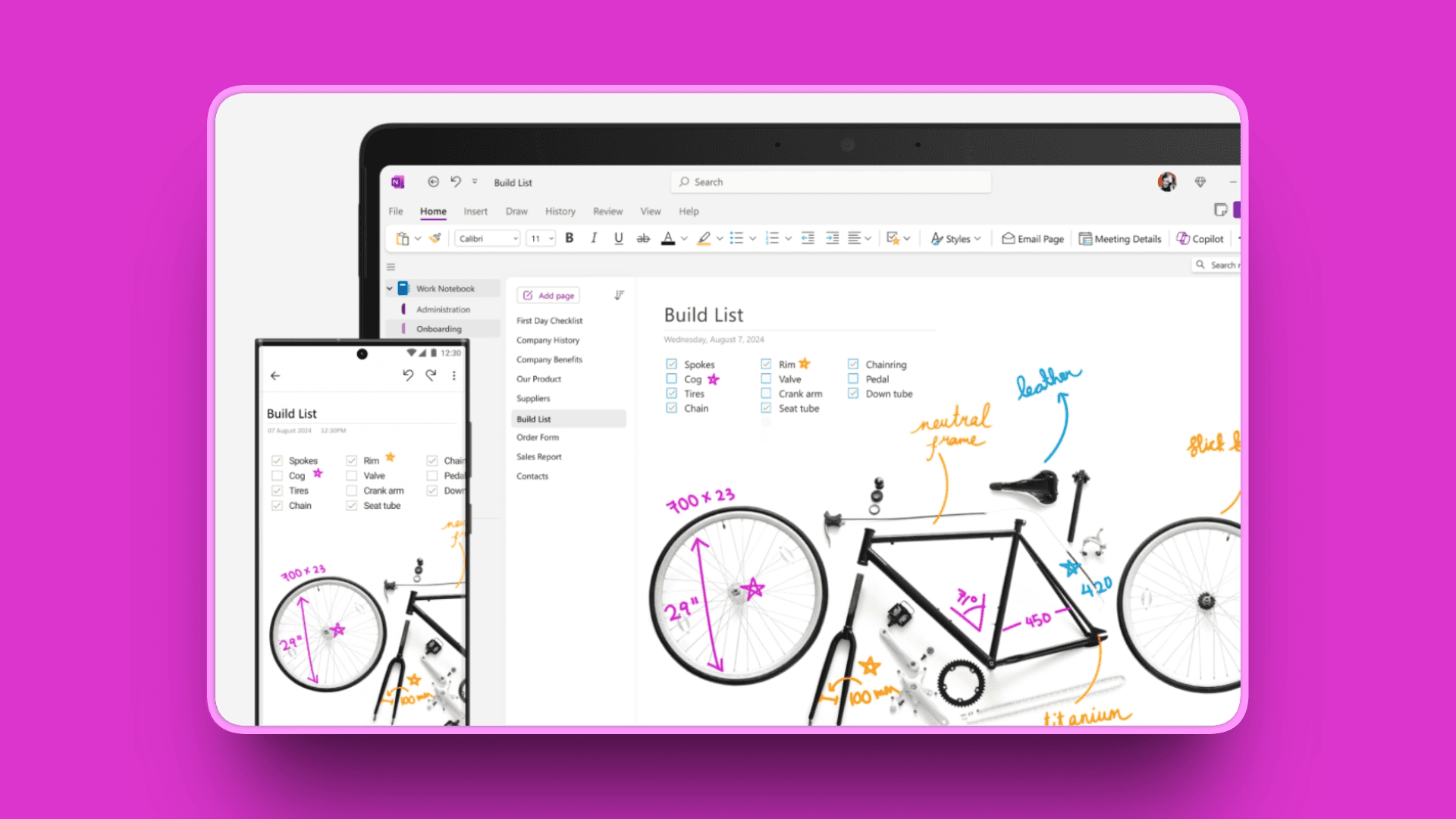
Microsoft OneNote is Microsoft's free note-taking app. It's generous, feature-rich, and integrates well with Microsoft 365 (Outlook, Teams, OneDrive). It uses a notebook/section/page structure and supports free-form placement of content. It's ideal for Windows users and teams already on Microsoft.
Key Features
Free-form canvas (place content anywhere)
Notebooks, sections, pages structure
Microsoft 365 integration (Outlook, Teams, OneDrive)
Drawing and inking (on tablets)
Audio recording
Collaboration features
Completely free, no need to pay a single cent
2025 new features: enhanced meeting integration, ink straightening, eye dropper, new pen types, AI Copilot
Pros
Completely free (no limits on core features)
Integrates seamlessly with Microsoft ecosystem
Best-in-class for stylus input and handwritten notes
Good for tablet inking (especially Surface devices)
Reliable and mature
Strong collaboration
Deep AI integration with Copilot
Full-featured cross-platform support
Cons
Interface feels dated
Less powerful than Notion/Obsidian
Limited customization
Sync can be slow
Free version only 5GB cloud storage (shared across OneDrive/Microsoft 365)
Lacks real-time AI transcription or summarization
Pricing
Free with Microsoft account (no feature limits)
Microsoft 365 subscription: $1.99+/month for more storage and Copilot AI
User Reviews
OneNote has a 4.5/5 rating on G2 with users praising it as completely free with excellent Microsoft integration.
Best For
Windows users
Teams on Microsoft 365
Budget-conscious users needing free solution
Tablet/pen users (especially Surface)
Those valuing stylus input and handwriting
Users wanting completely free solution
Honorable Mentions & Niche Options
Tana: Advanced Tag-Based PKM with Supertags
Tana offers an advanced, tag-based PKM system with "supertags" and AI. Great for power users wanting sophisticated structure. Supertags are a gamechanger: give notes a tag, add structured information via fields, use live searches to find later. Supertags instantly convert notes into tasks, projects, strategy documents, and customized categories.
Pricing: Free plan with only 5 Supertags (quite limiting), Plus $8/month, Pro $14/month
Best For: Power users wanting advanced structure, PKM enthusiasts, those who need sophisticated tagging systems
Amplenote: Notes + Tasks + Calendar for GTD
Amplenote combines notes, tasks, and calendar in one app. GTD-friendly with task scoring using the Eisenhower Matrix and "Good Life Algorithm." Four integrated modes: Jots, Notes, Tasks, Calendar.
Pricing: Personal (Free) with basic features, Pro $5.84/month (annual)
Best For: GTD (Getting Things Done) users, task-focused users needing notes integration, productivity enthusiasts
RemNote: Flashcards + Notes with Spaced Repetition
RemNote is an all-in-one learning tool combining note-taking, knowledge management, flashcards, and spaced repetition. Automatically creates flashcards from notes. Ideal for students and learners.
Pricing: Free with unlimited notes and flashcards, Pro $10/month (annual), Pro with AI $20/month
Best For: Students building study systems, learners using spaced repetition, anyone studying complex subjects, medical students, language learners
Google Keep: Ultra-Simple, Fast Capture
Google Keep offers ultra-simple, fast capture with color-coded notes and lists. Completely free with a Google account. Five capture methods: text notes, checklists, voice notes (auto-transcribe), image notes, drawing notes. Zero learning curve.
Pricing: Completely free (no premium versions)
Best For: Quick capture and simple lists, users wanting no learning curve, Google ecosystem users, budget-conscious users (100% free)
Notion Calendar (formerly Cron)
Notion Calendar is a productivity tool with built-in note-taking, task management, and seamless integration with your Notion workspace. It’s designed for people who plan their day visually and want their meetings, tasks, and notes connected in one place instead of scattered across apps.
Pricing: Completely free
Best For: visual planners who want a calendar-focused workflow, users who rely heavily on Notion, people who prefer their meetings, tasks, and notes connected in one place, and anyone who wants a clean, minimal scheduling tool.
Comparison Table: Second Brain Apps at a Glance
Here's a side-by-side comparison of the top second brain apps across key factors:
App | Best For | Thinking Style | Key Strength | AI Features |
|---|---|---|---|---|
Kosmik | Visual thinkers, researchers | Visual/Spatial | Infinite canvas, built-in browser, Multimedia Support | Yes |
Heptabase | Research, deep thinking | Visual/Hybrid | Visual mapping, PDF annotation | No |
Milanote | Creative collaboration | Visual/Spatial | Templates, team boards | No |
Notion | All-in-one workspace | Linear/Hybrid | Flexibility, databases | Add-on |
Obsidian | Networked thinking, control | Linear/Graph | Local storage, 1,000+ plugins | Plugins |
Logseq | Open-source PKM | Linear/Outliner | Free, whiteboards, flashcards | Plugins |
Roam Research | Serious knowledge workers | Linear/Outliner | Block references, networked notes | No |
Capacities | Structured organizers | Hybrid | Object-based notes | Yes |
Anytype | Privacy-focused | Hybrid | Local-first, encrypted | No |
Mem | AI organization | Linear | AI auto-organization, chat | Yes |
Reflect | Meeting notes, journaling | Linear | Calendar integration, AI | Yes |
Saner.AI | ADHD, task management | Linear | AI assistant, task automation | Yes |
Craft | Beautiful writing | Linear | Design, simplicity | Yes |
Bear | Apple users | Linear | Speed, markdown | No |
Workflowy | Outliners, list-makers | Linear/Outliner | Simplicity, nested bullets | No |
Evernote | Traditional note-taking | Linear | Web clipper, reliability | Yes |
OneNote | Free, full-featured | Linear | Completely free, Microsoft 365 | Yes |
How to Build Your Second Brain: Getting Started
Choosing an app is just the first step. Here's how to actually build a second brain that works.
Step 1: Choose Your Methodology
PARA Method (Tiago Forte):
Projects: Active projects with deadlines
Areas: Ongoing responsibilities
Resources: Topics of interest
Archives: Completed or inactive items
CODE Workflow:
Capture: Save everything worth remembering
Organize: Sort into PARA or your system
Distill: Extract key insights
Express: Create something with your knowledge
Zettelkasten Method:
Atomic notes (one idea per note)
Bidirectional links between related ideas
Literature notes (from sources)
Permanent notes (your insights)
Choose what resonates. You don't need to follow any method perfectly. Mix and match.
Step 2: Set Up Your Capture System
Capture everywhere:
Install web clipper browser extension
Set up mobile app for quick notes
Connect email or Slack if your app supports it
Use voice memos for ideas on the go
What to capture:
Ideas and insights, articles and resources, meeting notes and action items, project plans and brainstorms, inspiration and examples, quotes and highlights.
Capture rule: If it takes less than 60 seconds, capture it. Don't filter yet, that comes later.
Step 3: Organize (But Don't Over-Organize)
Start simple:
Create 4-6 main categories (Projects, Areas, Resources)
Don't create sub-folders until you need them
Use tags sparingly (3-5 main tags)
Visual apps: Use spatial zones instead of folders (proximity equals relationship). Tools like Kosmik let you organize by arranging items spatially.
Linked apps: Use backlinks instead of folders (relationships over hierarchy).
The 2-minute rule: If organizing takes more than 2 minutes, just tag it "to organize" and move on.
Step 4: Connect Ideas (The Magic Step)
This is where second brains become powerful:
Link related notes together
Add notes to multiple projects or areas
Use visual connections or backlinks
Review connections weekly
How to connect:
When writing a new note, ask: "What does this relate to?" Link to 2-3 existing notes. Add context: why are these connected?
Visual apps: Draw lines or group related items spatially.
Text apps: Use wiki-style links or tags.
Step 5: Review and Refine (Weekly Habit)
Weekly Review (15-30 minutes):
Process inbox and unorganized notes
Archive completed projects
Update active project notes
Connect new ideas to existing notes
Identify next actions
Monthly Review: Revisit Areas of Responsibility, update long-term goals, clean up tags and organization, identify emerging themes.
Step 6: Create from Your Second Brain
The output phase (Express):
Write articles from your notes, create presentations from research, make decisions using collected insights, share knowledge with others.
Your second brain is a creation engine, not just storage.
Examples:
Content creators: Research to outline to draft (all from second brain)
Researchers: Literature review to connections to paper structure
Entrepreneurs: Market insights to strategy to presentation
Common Mistakes to Avoid
Tool-hopping: Don't switch apps every month. Give each tool 3-6 months.
Over-organizing: Spending more time organizing than creating is a trap.
Perfectionism: Your system doesn't need to be perfect. Messy is okay.
Capture without review: Capturing is useless if you never revisit notes.
Copying others' systems: What works for someone else may not work for you. Experiment.
No clear purpose: Know why you're building a second brain (research, writing, learning).
Second Brain Apps by Use Case
Different users need different tools. Here's what we recommend based on your specific use case.
For Students and Researchers
Top picks: Heptabase, Obsidian, Logseq, Kosmik
Why: Need to handle sources, citations, visual connections, and complex topic mapping
Bonus features: PDF annotation, flashcards, graph views
For Writers and Content Creators
Top picks: Kosmik, Craft, Notion, Obsidian
Why: Need to organize research, outline drafts, manage content pipelines
Bonus features: Distraction-free writing, version history, export options
For Entrepreneurs and Founders
Top picks: Notion, Mem, Reflect, Kosmik
Why: Juggling projects, ideas, meetings, strategy need all-in-one or smart organization
Bonus features: AI assistance, task management, calendar integration
For Visual Thinkers and Designers
Top picks: Kosmik, Heptabase, Milanote
Why: Think spatially, need visual organization and freedom
Bonus features: Infinite canvas, moodboarding, visual connections
For Privacy-Focused Users
Top picks: Obsidian, Logseq, Anytype
Why: Want local storage, encryption, and data ownership
Bonus features: Open-source, local-first, plain text files
For ADHD and Neurodivergent Users
Top picks: Saner.AI, Notion (with templates), Google Keep
Why: Need automatic organization, reminders, low-friction capture
Bonus features: AI organization, quick capture, visual clarity
For Teams and Collaboration
Top picks: Notion, Milanote, Kosmik
Why: Need sharing, commenting, permissions, and real-time collaboration
Bonus features: Team workspaces, commenting, version history
Frequently Asked Questions
What's the difference between a second brain app and a regular note-taking app?
A note-taking app is for capturing information. A second brain app helps you connect, organize, and retrieve knowledge to think better and create more.
The key differences: Connection (second brain apps link related ideas with backlinks and visual connections), Retrieval (smart search and surfacing of relevant notes), Methodology (support for systems like PARA, Zettelkasten, CODE), Long-term thinking (built for building knowledge over years, not just jotting quick notes).
Think of it this way: A note app is a filing cabinet. A second brain is a living library with a librarian who knows exactly what you need.
Do I need to pay for a second brain app?
Not necessarily. Excellent free options exist:
Obsidian: Free for personal use (pay only for sync) Logseq: Completely free and open-source Notion: Free plan is generous for personal use OneNote: Completely free with Microsoft account Google Keep: Simple but free
When to pay: You need collaboration features for teams, you want AI assistance (summarization, smart search), you need cloud sync across devices, you're building a serious long-term system.
Most users can start free and upgrade only when they hit limitations.
How long does it take to set up a second brain?
Initial setup: 1-2 hours (choose app, set up basic structure) Functional system: 2-4 weeks of daily use Mature system: 3-6 months of consistent habits
Quick start approach:
Week 1: Just capture everything
Week 2-3: Start organizing into main categories
Week 4+: Begin connecting ideas and creating from your notes
Don't aim for perfection on day one. Your system will evolve as you use it.
Can I use multiple second brain apps together?
Yes, many people use 2-3 apps for different purposes:
Common combinations:
Notion (projects) plus Obsidian (long-term knowledge)
Kosmik (research and visual) plus Notion (task management)
Mem (quick capture) plus Obsidian (deep work)
Evernote (web clipping) plus Roam (thinking)
The key: Have a clear division of responsibilities. Don't duplicate everything.
Warning: Using too many apps creates overhead. Start with one, add others only if there's a clear need.
What if I want to switch second brain apps later?
Most modern apps offer export features:
Markdown export: Universal format (Obsidian, Logseq, Notion) JSON or CSV export: For databases (Notion, Airtable) PDF export: Last resort (always works)
Best practices:
Choose apps with good export options
Store important notes in plain text or Markdown when possible
Regularly back up your data
Test export before committing fully
Apps with best portability: Obsidian, Logseq (plain text), Notion (Markdown export)
Apps with lock-in risk: Roam (expensive export), proprietary closed systems
Are AI features worth it in second brain apps?
AI can help with:
Smart search (find notes using concepts, not just keywords), summarization (long articles to key points), writing assistance (rephrasing, expanding ideas), auto-tagging and organization, surfacing related notes you forgot about.
Worth it if:
You have hundreds or thousands of notes
You struggle with manual organization
You want conversational search ("What did I learn about X?")
Not essential if:
You're just starting (manual works fine initially)
You have a small note collection
You prefer full control over organization
Apps with strong AI: Mem, Reflect, Capacities, Notion AI, Saner.AI
Which second brain app is best for the PARA method?
PARA (Projects, Areas, Resources, Archives) works in most apps:
Best support:
Notion: Database views perfect for PARA
Obsidian: Folders or MOCs (Maps of Content) for PARA
Capacities: Object types align with PARA
Kosmik: Visual spatial zones for each PARA category
Implementation:
Create 4 main sections (Projects, Areas, Resources, Archives), tag or folder-organize notes into these categories, move items from Projects to Archives when complete, review Areas monthly.
The app matters less than consistency. PARA is methodology, not tool-specific.
What's the best second brain app for Zettelkasten?
Top Zettelkasten apps:
Obsidian: Most popular for Zettelkasten (bidirectional links, graph view)
Logseq: Free alternative with similar features
Roam Research: Originated networked notes for Zettelkasten
Key features needed: Bidirectional linking (wiki-style links), backlinks (see what links to current note), graph view (visualize connections), atomic notes (one idea per note).
Zettelkasten essentials: Fleeting notes (quick captures), literature notes (from sources), permanent notes (your insights), index notes (MOCs, Maps of Content).
Final Thoughts: Your Second Brain Awaits
The best second brain app is the one you'll actually use.
Don't get paralyzed by choice. Here's the truth: The app matters less than the habit of capturing, organizing, and connecting ideas consistently.
Our recommendation:
Start with one app based on your thinking style (visual thinkers try Kosmik, structured thinkers try Notion, control seekers try Obsidian)
Give it 30 days of consistent daily use
Capture first, organize later (don't let organizing prevent capturing)
Review weekly (spend 15 minutes connecting and refining)
Create something from your second brain monthly (article, presentation, decision)
For most people, we recommend:
Visual and spatial thinkers: Start with Kosmik (infinite canvas, visual freedom, built-in browser)
All-in-one seekers: Start with Notion (flexible, templates available)
Power users and control enthusiasts: Start with Obsidian (local storage, customizable)
Simplicity lovers: Start with Craft or Bear (beautiful, fast, easy)
The best second brain app feels like an extension of your mind, not a chore to maintain. Your second brain should reduce cognitive load, not add to it. If your system feels burdensome, simplify.
Get started with Kosmik and build your first visual research board today.