January 2, 2026
Organize Creative Work Automatically

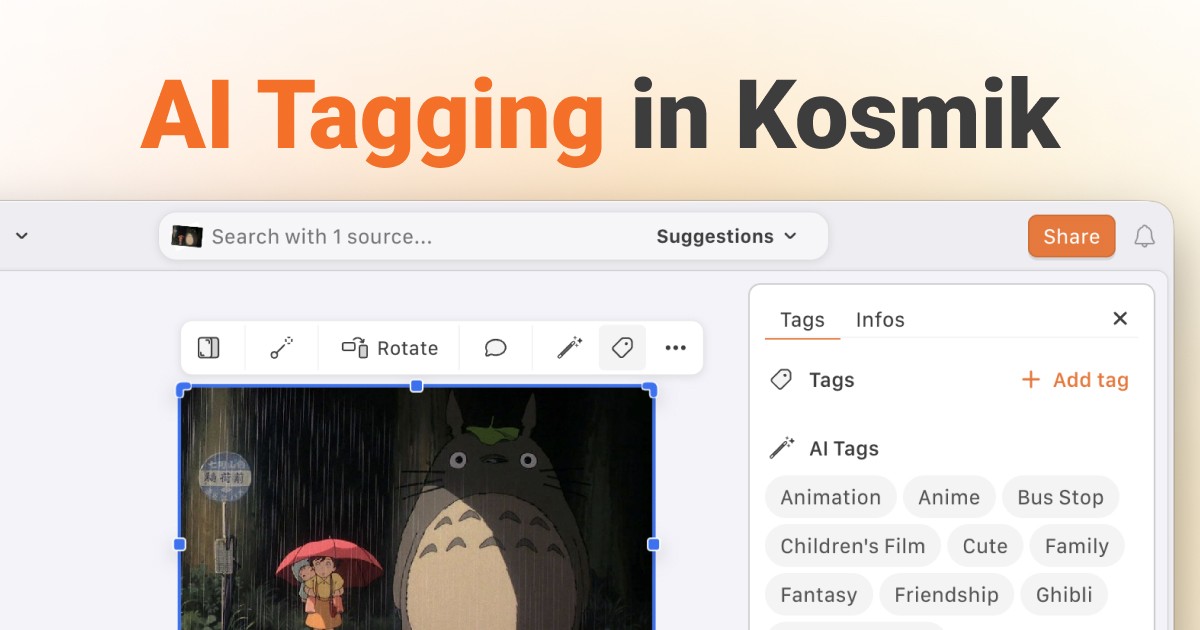
Auto-tagging in Kosmik uses AI to automatically categorize everything you clip, import, or create by analyzing visual elements, themes, colors, and contextual relationships. Instead of manually organizing hundreds of images, videos, and web pages, Kosmik's AI identifies content instantly (like recognizing "Haku, the river spirit from Spirited Away, directed by Hayao Miyazaki") and makes it searchable. You can layer custom manual tags on top of AI tags to create your own organizational system without losing the automatic foundation.
Introduction
You clip an image from a website. You import a PDF. You type a quick note. Three actions, three different apps to organize them later. Except you probably won't organize them.
That inspiration you saved last Tuesday? Lost somewhere in 47 unnamed folders. According to Playbook's State of Creative Digital Asset Management Report, 33% of creative professionals spend more than one hour per week searching for files. You're not bad at organizing. The tools just make it too hard.
Manual tagging promised to fix this. Tag everything! Except tagging takes time. You skip it when you're in flow. Your "to organize" pile grows. Your creative database becomes a junk drawer.
Kosmik's auto-tagging fixes this with AI that watches what you collect and tags it automatically. Not just basic keywords. Contextual understanding. Like recognizing "Haku, the river spirit from Spirited Away, directed by Hayao Miyazaki" from a single screenshot.
The result? Zero organizing overhead. Everything searchable. Click any tag and instantly find every related item across your entire workspace.
Key Takeaways
Kosmik's AI automatically tags all clipped content, imported assets, and notes by analyzing visual elements, themes, colors, and contextual relationships
Auto-tags identify specific subjects contextually (e.g., "Haku, the river spirit from Spirited Away, directed by Hayao Miyazaki"), not just generic objects
Manual tags provide an additional abstraction layer, letting you create custom categories on top of AI-generated tags
Click any tag to instantly surface all related items and navigate directly to their locations on your canvas
The dual tagging system (AI + manual) creates a searchable database without manual organization overhead
What is Auto-Tagging in Kosmik?
Auto-tagging in Kosmik is an AI-powered system that automatically identifies and categorizes everything you add to your visual workspace. The moment you clip a web page, import an image, or upload a PDF, Kosmik's AI analyzes the content and applies relevant tags without any manual input. Think of it as having an intelligent librarian who instantly understands what each piece of content represents and how it relates to your other materials.
Unlike basic auto-tagging systems that only identify generic objects (like "dog" or "building"), Kosmik's AI understands context and relationships. It recognizes not just what's in an image, but the meaning behind it.
For example, instead of tagging an architectural photo as simply "building," Kosmik identifies "Brutalist architecture, 1970s design, concrete construction," understanding style, era, and materials in one contextual tag. This depth makes tags genuinely useful for creative research, not just surface-level categorization.
Auto-tagging is designed for creative professionals, designers, researchers, and visual thinkers who work with large amounts of diverse content. Whether you're building mood boards, organizing design inspiration, compiling research sources, or managing visual assets across projects, auto-tagging eliminates the manual categorization burden. It works behind the scenes so you can focus on creative work instead of file organization.
Key point: Kosmik's auto-tagging creates a searchable index of your entire workspace without requiring any manual effort, making visual research instantly navigable.
How Does Auto-Tagging Work in Kosmik?
Kosmik's auto-tagging happens automatically in real-time as you work. There's no setup required, no training period, and no manual configuration. The AI analyzes every item the moment it appears on your canvas, generating tags that describe content, themes, colors, and contextual relationships.
The Auto-Tagging Process
Step 1: Content Analysis
When you clip a web page from Kosmik's built-in browser (press 'W'), import an image, upload a PDF, or type a note, the AI immediately analyzes the content. For visual content, it examines objects, people, scenes, colors, and composition. For text content, it identifies themes, topics, and key concepts.
The AI uses computer vision and deep learning models trained on millions of images to understand what it's seeing. These models analyze content across multiple layers, picking up everything from faces and landmarks to color schemes and emotional cues.
Step 2: Contextual Recognition
Beyond basic object detection, Kosmik's AI understands relationships and context. A screenshot of an animated character isn't just tagged "character" or "animation." The AI recognizes "Haku, the river spirit from Spirited Away, directed by Hayao Miyazaki," connecting the character to the film and the creator.
This contextual understanding makes tags far more useful for creative and research workflows. You're not just finding "any character." You're finding specific references tied to the exact creative context you need.
Step 3: Automatic Tag Application
The AI applies multiple relevant tags to each item automatically. These tags cover different dimensions: subject matter (what it is), visual characteristics (colors, style), thematic elements (mood, concept), and content type (image, video, PDF). Every tag is clickable and searchable, creating an instant organizational system.
You don't create or manage these auto-tags. They appear automatically. This provides comprehensive, consistent baseline organization across your entire workspace.
Step 4: Searchable Index Creation
As auto-tags accumulate across your workspace, they form a searchable database of everything you've collected. Click any tag to surface all related items instantly. The AI also enables direct navigation, taking you from a tag to the exact location of each tagged item on your canvas.
This transforms your visual workspace into an intelligent, searchable library without any manual organization work on your part.
Auto-tagging processing is designed with privacy in mind. The AI analyzes your content to generate tags without storing or sharing your data externally, ensuring your visual materials and creative work remain secure.
What Gets Auto-Tagged:
Web pages clipped from Kosmik's built-in browser
Images imported from your device
Videos uploaded to your workspace
Screenshots and screen captures
Typed notes and text content
In summary: Auto-tagging transforms your visual workspace into an intelligent, searchable library without any manual organization work on your part.
Key takeaway: Auto-tagging analyzes content across four dimensions (subject, context, visual characteristics, and relationships), creating a multi-layered organizational system automatically.
AI Auto-Tags vs Manual Tags: The Dual System
Kosmik offers both AI-generated auto-tags and custom manual tags, and they work together as complementary layers. Auto-tags provide the automatic foundation, identifying content characteristics without effort. Manual tags add a layer of personal abstraction, letting you create custom categories that match your specific workflow or project needs.
Auto-Tags (AI-Generated)
Auto-tags are applied automatically by Kosmik's AI and describe what the content actually is: subjects, themes, colors, visual elements, and contextual relationships. You don't create or manage auto-tags. They appear automatically.
They provide a comprehensive, consistent baseline of organization across your entire workspace. Every piece of content gets tagged the moment it lands on your canvas.
When to Rely on Auto-Tags:
Building visual research databases where content speaks for itself
Organizing large volumes of inspiration images
Managing diverse file types across multiple projects
Finding items by visual characteristics (colors, themes, subjects)
Manual Tags (Custom)
Manual tags are custom categories you create yourself, letting you organize content according to your own logic. You define tag names, assign colors, and manage them from your profile settings. Manual tags work as an abstraction layer on top of auto-tags, adding project-specific or workflow-specific organization.
Think of manual tags as your personal filing system overlaid on the AI's comprehensive categorization. The AI handles what content is. You define how it fits into your projects.
When to Use Manual Tags:
Creating project-specific categories (e.g., "Client A Mood Board," "Q1 Research")
Organizing by workflow stage (e.g., "To Review," "Approved," "Archive")
Adding custom themes that auto-tags might not capture
Building personal organizational systems that match your thinking process
The Power of Both Together
Using both systems gives you comprehensive organization. Auto-tags handle the heavy lifting of content identification, ensuring everything is categorized from day one. Manual tags add your personal layer, creating the exact organizational structure your projects need.
Both tag types are searchable and clickable. Both enable direct canvas navigation. You get automatic organization without effort (auto-tags) plus custom categorization when you need it (manual tags), creating the perfect balance of automation and control.
The bottom line: You get automatic organization without effort (auto-tags) plus custom categorization when you need it (manual tags), creating the perfect balance of automation and control.
Key Benefits of Auto-Tagging for Creative Work
Auto-tagging transforms how creative professionals and researchers manage visual content. Instead of spending hours manually categorizing assets, you get instant organization that grows smarter as you work. Here's how auto-tagging changes your workflow.
1. Zero Manual Organization Overhead
Traditional visual research requires constant organization: creating folders, naming files, adding tags manually, maintaining category systems. Kosmik's auto-tagging eliminates this overhead completely.
The AI categorizes everything automatically the moment it lands on your canvas, so you never interrupt your creative flow to organize. You clip, import, and create freely, knowing everything is instantly tagged and searchable.
According to ImageKit's analysis of AI-powered metadata tagging, automating metadata tagging can reduce manual effort by up to 70%. For creative professionals managing hundreds of visual assets, that translates to hours saved every week. Research from Veritone shows AI auto-tagging can reduce metadata tagging time by up to 50%.
2. Contextual Understanding, Not Just Object Detection
Basic auto-tagging systems identify generic objects: "person," "building," "food." Kosmik's AI understands context and relationships.
A photograph of a minimalist interior isn't just tagged "room." The AI recognizes "Scandinavian minimalism, natural wood, neutral palette," connecting design style, materials, and color theory in one contextual tag. This depth makes tags genuinely useful for creative research, not just surface-level categorization.
When building mood boards or organizing inspiration, context matters. You're not looking for "any interior." You're looking for specific design styles, materials, or aesthetic influences. Contextual auto-tagging captures that nuance automatically.
3. Instant Search and Discovery
Every auto-tag creates a search entry point into your workspace. Click any tag to instantly surface all related items, regardless of where they are on your canvas or when you added them.
This transforms your visual workspace into a searchable database where finding content is effortless. You're no longer relying on memory or scrolling through everything to find what you need.
Auto-tags don't just show you which items match. They navigate you directly to their locations on your canvas. Click a tag, see all matching items, click one, and Kosmik takes you straight to that exact spot on your workspace. This makes large, complex projects navigable even when they span massive canvases.
4. Scales Effortlessly with Your Work
Whether you have 10 items or 1,000 items in your workspace, auto-tagging works the same. The AI handles large volumes without slowing down or missing content, maintaining consistent accuracy and speed across your entire collection.
As your projects grow, your searchable index grows automatically without requiring any additional effort from you. The system that works for your first mood board works just as well for your hundredth research project.
5. Combines Perfectly with Manual Tags
You get the best of both worlds: automatic baseline organization (auto-tags) plus custom categorization when you need it (manual tags). Auto-tags ensure everything is categorized from day one, while manual tags let you add project-specific or workflow-specific organization.
Both systems work together seamlessly, giving you comprehensive control without manual overhead. The AI handles what content is, and you define how it fits into your workflow.
Most importantly: Auto-tagging removes the friction between collecting content and organizing it, letting you focus on creative work instead of file management.
Real Use Cases: Auto-Tagging in Action
Auto-tagging transforms specific creative workflows by making visual content instantly organized and searchable. Here's how designers, researchers, and creative professionals use auto-tagging in Kosmik to manage real projects.
Building Mood Boards
You're designing a brand identity and collecting visual inspiration: color palettes, typography examples, photography styles, competitor websites, and reference images. In traditional tools, you'd manually organize these into folders or boards, losing time to categorization instead of creating.
Kosmik's auto-tagging identifies each asset automatically: color schemes get tagged by dominant colors, typography screenshots are tagged by style and characteristics, photography is tagged by mood and composition, and competitor sites are tagged by visual elements and themes.
Click the "minimalist" tag to see all minimalist references across typography, photography, and design examples. Click a color tag to surface every asset featuring that palette. Your mood board becomes a searchable visual database.
Finding references by theme, color, or style takes seconds instead of scrolling through hundreds of images. Discover more use cases for visual organization with Kosmik.
Organizing Research
You're researching a complex topic with dozens of web articles, PDFs, screenshots, videos, and bookmarks spread across multiple sources. Keeping track of what you've found and how sources relate to each other becomes overwhelming without organization.
Auto-tagging categorizes everything automatically: articles are tagged by topic and key concepts, PDFs are tagged by subject matter and themes, screenshots are tagged by visual content, and videos are tagged by subjects discussed.
Related materials automatically share tags, creating thematic clusters. Click a topic tag to surface all related content, regardless of format or source. Your research becomes navigable.
Instead of remembering which PDF contained specific information, click relevant tags to find everything instantly. Cross-references emerge automatically through shared tags.
The bottom line: Auto-tagging transforms research chaos into navigable knowledge bases without manual categorization effort.
Managing Visual Assets
You're a designer managing assets across multiple client projects: inspiration images, reference materials, screenshots, mockups, and exported designs. Without organization, finding the right asset for the right project becomes a time sink.
Auto-tags categorize assets by visual characteristics, themes, and content types automatically. Layer manual tags for project-specific organization ("Client A," "Client B," "Internal"). Search combines both: find all minimalist design references (auto-tag) from Client A's project (manual tag).
Tags surface related items instantly and navigate you to exact canvas locations. You maintain a searchable visual library across all projects.
Finding assets takes seconds, and you never lose track of what belongs where.
Key Point: Auto-tagging turns visual chaos into organized, searchable workspaces without manual effort, letting you focus on creative and research work instead of file management.
How to Use Auto-Tagging in Kosmik
Auto-tagging works automatically in Kosmik with zero setup required. The moment you add content to your workspace, the AI begins analyzing and tagging it. Here's how to make the most of auto-tags in your workflow.
Getting Started (Automatic)
There's nothing to configure or enable. Auto-tagging is active the moment you start using Kosmik. Simply add content to your canvas: clip from the built-in browser (press 'W'), use the web clipper extension, import files, upload images or PDFs, or type notes. The AI immediately generates tags.
What Happens Automatically:
AI analyzes every item as it appears on your canvas
Tags are generated and applied without manual action
Your workspace becomes searchable instantly
Related items are automatically grouped by shared tags
Finding Content with Auto-Tags
Every auto-tag is clickable. Click a tag to instantly see all items in your workspace that share that tag. Kosmik surfaces matching items and shows you their locations on your canvas.
Click any result to navigate directly to that item's exact position on your workspace. This makes finding content effortless, even across massive projects with hundreds of items.
Use Kosmik's search to find content by tag name. Type a theme, color, subject, or concept, and Kosmik shows all matching tags and tagged items. This makes your entire workspace searchable without manual categorization.
Combining with Manual Tags
Create custom manual tags from your profile settings. Assign names and colors to tags, then apply them to items for project-specific or workflow-specific organization.
Manual tags work alongside auto-tags, giving you both automatic baseline categorization and custom organizational layers. Both tag types are searchable and clickable.
Pro Tip: Use auto-tags for content discovery (find items by what they are) and manual tags for workflow organization (group items by project or status). Both tag types are searchable and clickable, creating comprehensive organization without overhead.
The bottom line: Auto-tagging requires no effort to set up and no ongoing management. Add content, let AI tag it automatically, and use tags to search and navigate your workspace instantly.
Auto-Tagging vs Traditional Organization
Traditional organization methods (folders, manual tags, naming conventions) require constant upkeep and interrupt your creative flow. Auto-tagging offers a fundamentally different approach that eliminates organizational overhead while improving discoverability.
Feature | Auto-Tagging in Kosmik | Traditional Organization |
|---|---|---|
Setup Required | None (automatic) | Create folder structures, tag systems, naming conventions |
Ongoing Effort | Zero (AI handles everything) | Constant (tag manually, move files, maintain categories) |
Categorization Depth | Contextual (subject + relationships + themes) | Basic (folder names, simple tags) |
Search Capability | Comprehensive (all tags searchable) | Limited (depends on manual effort) |
Scalability | Effortless (handles 10 or 1,000 items) | Degrades (more items = more manual work) |
Organization Speed | Instant (real-time tagging) | Slow (manual categorization takes time) |
Consistency | Always consistent (AI logic) | Varies (depends on user effort/memory) |
Navigation | Direct (click tag, navigate to canvas location) | Manual (browse folders, scroll through files) |
Multi-Format Support | Seamless (images, videos, PDFs, web clips, notes) | Fragmented (different apps for different formats) |
Traditional organization forces you to choose between spending time organizing or skipping organization entirely. Either approach creates friction: you interrupt creative work to categorize, or you lose track of content because nothing is organized.
Auto-tagging eliminates this trade-off by organizing automatically in real-time. You never interrupt your workflow, yet everything remains searchable and navigable.
Manual tags (Kosmik's custom tag system) complement auto-tags for project-specific or workflow-specific organization. But unlike traditional methods where manual categorization is your only option, Kosmik gives you automatic baseline organization (auto-tags) plus optional custom categorization (manual tags). You get the benefits of manual organization without the overhead.
In summary: Auto-tagging delivers better organization with zero effort compared to traditional manual methods that require constant maintenance.
Frequently Asked Questions
Here are the most common questions about auto-tagging in Kosmik, from how it works to how it fits into creative workflows.
What is auto-tagging and how does it work?
Auto-tagging is an AI-powered system that automatically identifies and categorizes content by analyzing visual elements, themes, colors, and contextual relationships. In Kosmik, the AI examines every item you add to your canvas and generates relevant tags instantly without manual input. These tags make your entire workspace searchable and navigable.
What is the difference between auto-tagging and manual tagging?
Auto-tagging is done by AI automatically, analyzing content to identify subjects, themes, colors, and contextual relationships without any manual effort. Manual tagging requires you to create and apply tags yourself, choosing categories and organizational structures. In Kosmik, you can use both: auto-tags provide automatic baseline categorization the moment content appears, while manual tags let you add custom project-specific or workflow-specific organization on top. Both tag types are searchable and clickable, combining the efficiency of automation with the flexibility of custom categorization.
Can I use both auto-tagging and manual tagging together?
Yes, Kosmik is designed for both systems to work together seamlessly. Auto-tags provide the automatic foundation, categorizing everything by what it actually is (subjects, themes, colors, visual elements). Manual tags add a layer of personal abstraction, letting you create custom categories for projects, workflows, or organizational preferences. For example, auto-tags might identify "minimalist design" and "blue color palette," while your manual tags organize the same items into "Client A Project" and "Approved Concepts." Both tag types are fully searchable and enable direct canvas navigation.
How accurate is AI auto-tagging?
Kosmik's AI is highly accurate, identifying not just objects but contextual relationships and themes. It recognizes "Haku, the river spirit from Spirited Away, directed by Hayao Miyazaki" rather than just "animated character." Like all AI, it may occasionally miss nuances. Manual tags complement auto-tags when the AI doesn't capture your specific needs, ensuring comprehensive categorization.
What are the benefits of auto-tagging for creative work?
Auto-tagging eliminates the manual overhead of organizing visual content, freeing you to focus on creative work instead of file management. It provides instant categorization for everything you clip, import, or create, making large projects searchable without effort. For mood boards, research, and visual asset management, auto-tagging identifies themes, colors, subjects, and contextual relationships automatically. You can click any tag to surface all related items and navigate directly to their canvas locations. This transforms chaotic visual collections into organized, searchable workspaces without interrupting your creative flow.
How does auto-tagging help with mood board organization?
When building mood boards, you collect dozens or hundreds of images, screenshots, color palettes, and references that would normally require manual categorization. Kosmik's auto-tagging identifies each asset automatically: colors are tagged by palette, images are tagged by theme and style, and visual elements are recognized contextually. Click a "minimalist" tag to see all minimalist references across your entire mood board. Click a color tag to surface every asset featuring that palette. This makes mood boards searchable and navigable instead of just visually browsable, helping you find specific inspiration instantly.
Can auto-tagging recognize visual elements in images?
Yes, Kosmik's AI recognizes visual elements including objects, people, scenes, colors, composition styles, and thematic elements within images. It goes beyond basic object detection to understand context and relationships. For example, rather than just identifying "character," it recognizes "Haku, the river spirit from Spirited Away, directed by Hayao Miyazaki," connecting the character to the film and creator. This contextual understanding makes auto-tags genuinely useful for creative and research work, capturing the meaning behind visual content rather than just surface-level descriptions.
Does auto-tagging work for videos and PDFs?
Yes, auto-tagging works across all content types in Kosmik, including videos, PDFs, images, web clips, and text notes. For videos, the AI analyzes visual content and identifies subjects, themes, and key elements. For PDFs, it examines text content and visual elements to generate relevant tags. This multi-format support means your entire workspace, regardless of content type, is automatically categorized and searchable. You can find content by theme, subject, or characteristic across images, videos, PDFs, and web pages using the same tag system.
How do I organize tagged content in a visual workspace?
Tagged content in Kosmik remains on your infinite canvas exactly where you placed it, but tags create multiple ways to find and navigate to items. Click any tag to see all items sharing that tag, then click an item to navigate directly to its canvas location. Use search to find content by tag name, theme, or characteristic. Layer manual tags on top of auto-tags for project-specific organization. The visual workspace stays flexible and spatial, while tags provide instant search and navigation paths to any content regardless of where it lives on your canvas.
Can I edit or customize AI-generated tags?
Auto-tags are generated and managed automatically by the AI, so you don't edit them directly. However, you can create and apply custom manual tags to any item to add your own organizational layer. Manual tags work alongside auto-tags, letting you categorize content according to your specific needs without losing the automatic baseline categorization. Both tag types are searchable and navigable, giving you the benefits of AI automation plus the flexibility of custom categorization. If auto-tags don't capture your exact organizational needs, manual tags fill the gaps.
How does auto-tagging improve searchability?
Auto-tagging creates a comprehensive searchable index of your entire workspace without manual effort. Every tag becomes a search entry point: type a theme, subject, color, or concept, and Kosmik shows all matching tags and tagged items. Click any tag to surface related content instantly, regardless of when you added it or where it lives on your canvas. This transforms visual workspaces from browse-only environments to fully searchable databases. You can find specific content in seconds instead of scrolling through everything or relying on memory.
What happens if auto-tagging makes a mistake?
If the AI applies a tag you disagree with or misses a categorization you need, simply add custom manual tags to correct or supplement the automatic categorization. Auto-tags provide baseline organization, but manual tags let you override or enhance them with your own logic. Both tag types work together, so even if auto-tags aren't perfect, your content remains searchable and organized. Over time, Kosmik's AI continues learning and improving, but manual tags give you immediate control when needed.
Conclusion
Creative work shouldn't be interrupted by file management. Auto-tagging in Kosmik eliminates the organizational overhead that traditionally slows down designers, researchers, and visual thinkers.
Instead of choosing between spending time organizing or losing track of content, you get instant automatic categorization the moment anything lands on your canvas. Kosmik's AI understands context and relationships, identifying not just what content is but how it connects to your other materials. Combined with custom manual tags, you get comprehensive organization that scales effortlessly without manual effort.
Whether you're building mood boards, organizing research, or managing visual assets across projects, auto-tagging transforms your workspace into a searchable database. Click any tag to surface related items and navigate directly to their canvas locations. Your visual workspace stays flexible and spatial, while tags provide instant search paths to everything you've collected.
Get started with Kosmik and experience auto-tagging in action. Build your first visual research board and watch as Kosmik automatically organizes everything you add, making it instantly searchable without effort.