March 6, 2026
Present Directly from Your Canvas

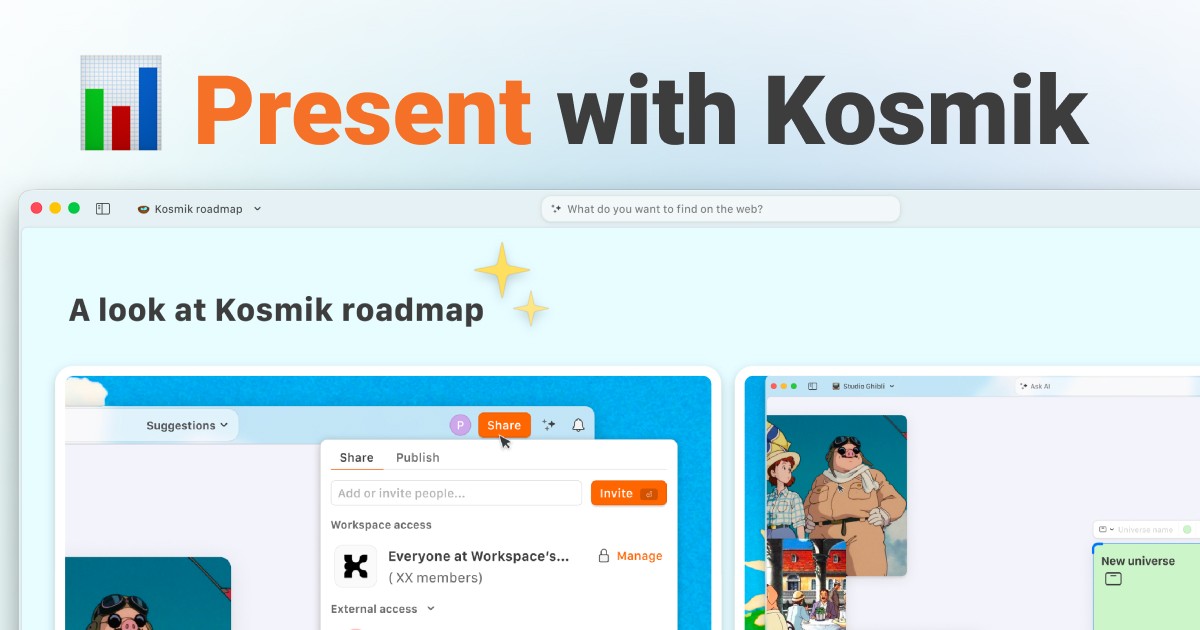
Kosmik Presentation Mode lets you present any content directly from your canvas without exporting to a separate tool. Click an object and press Option+F (Mac) or Alt+F (Windows) to focus on it, then use arrow keys to navigate between objects. Use frames to create slide-like sequences for structured presentations.
You spent hours arranging research, images, and notes on your canvas. Now someone asks you to present it. So you export everything into PowerPoint, rebuild the layout, reformat the text, and lose half the context along the way.
That export step breaks more than your layout. It strips the spatial relationships between your ideas, removes the connections you made visually, and forces your audience to see a polished but disconnected copy of your actual work.
Kosmik Presentation Mode eliminates this friction entirely. Present from the same canvas where you built your work, with two keyboard shortcuts and zero app switching.
Key Takeaways
Keyboard shortcut: Option+F (Mac) or Alt+F (Windows) to focus, arrow keys to navigate
Works with all content types: images, PDFs, videos, web pages, text
Frames are optional: present individual objects or structured slide sequences
Coming soon: full UI chrome hiding for distraction-free presenting
No export needed: present directly from your working canvas
What Is Kosmik Presentation Mode?
Kosmik Presentation Mode is a built-in feature of Kosmik's visual workspace that turns your canvas into a live presentation. Instead of exporting your work into slides, you present it right where you created it.
The core idea is simple. Your canvas IS your presentation.
No export. No conversion. No separate slide deck. You focus on any object, and Kosmik zooms in to show it full view. Then you step through the rest of your content with your keyboard.
This works with every content type Kosmik supports: images, text, PDFs, videos, web pages, and frames. If it lives on your canvas, you can present it.
Users across the support mailbox, Discord, and Reddit had been asking for a way to present their work without leaving the canvas. Clients, teammates, students: they all wanted it. So the Kosmik team built Presentation Mode and shipped it in the first week after Kosmik 1.0 came out of beta.
Here's why this matters. Traditional presentation tools make you recreate your work in a separate environment. You lose context. You lose the ability to show your thinking process. With Kosmik, your audience sees exactly what you built, exactly how you organized it.
In summary: Kosmik Presentation Mode turns your working canvas into a live presentation without requiring a single export.
How to Use Kosmik Presentation Mode
Getting started takes minutes. Here is everything you need to present your first canvas.
Getting Started
Open your Kosmik universe with the content you want to present
Arrange your content in the order you want to present it (left-to-right or top-to-bottom works well)
Click on your first object and press Option+F (Mac) or Alt+F (Windows) to focus on it
Use arrow keys to navigate to the next object or frame
Press Escape or click outside the focused view to exit presentation mode
That is the entire process. Two keyboard shortcuts, zero menus, zero setup.
Using Frames for Structured Presentations
For formal or structured presentations, create frames to group related content into slide-like sections. Each frame can contain images, text, captions, and other media.
Import pictures and add captions inside frames for professional-looking slides with built-in context. When you navigate through your presentation, each frame acts as one stop in the sequence.
Frames are optional. You can present individual objects without frames for informal walkthroughs, or mix framed and unframed content in the same presentation.
Pro Tips
Plan your spatial layout. Arrange objects in a clear left-to-right or top-to-bottom flow before presenting.
Add captions to images. Captions provide context during presentations without needing extra verbal explanation.
Mix content types. Include PDFs, images, videos, and text notes for a rich, multimedia presentation.
Keep raw materials accessible. Since you present from your canvas, all your research and source materials remain one zoom-out away.
Coming Soon: Distraction-Free Chrome Hiding
A double arrow button (coming soon) will hide all interface elements. This removes the toolbar, universe name, sidebar, and AI search bar.
The result is a fully distraction-free presentation experience. Only your content appears on screen. This is ideal for client-facing presentations and classroom settings where you want zero visual distractions.
Watch the presentation mode walkthrough to see it in action.
Why Users Love Presenting from the Canvas
Presenting directly from your Kosmik canvas changes the relationship between creating and presenting. Here is why users love this approach.
No Export, No Context Loss
The traditional workflow goes like this: build on canvas, export to slides, lose spatial relationships. Your audience sees a sanitized copy of your work instead of the real thing.
With Kosmik, you present exactly what you built, in the exact layout you created. Your audience sees your actual thinking process. The connections between ideas stay visible. The context stays intact.
Every Object Is a Potential Slide
Unlike tools that require frames for every slide, Kosmik lets you focus on any single object. Present an individual image, a PDF, a video, or a text note on its own.
Frames add structure when you want it. But they are not required. Any object on your canvas is already presentable. This flexibility means you do not need to pre-plan a rigid sequence to show your work.
Keyboard-Driven Simplicity
One shortcut to focus, another to navigate. That is the entire interface.
No menus to navigate. No mode switching. No setup wizards. Presenting becomes as natural as browsing your own canvas.
Multi-Format Content Support
Kosmik natively supports PDFs, videos, images, web pages, and text on the same canvas. You can present all these content types in sequence without switching apps. Present a research board that includes PDFs, web clips, notes, and videos, all from one place.
Image Captions for Professional Slides
Attaching captions to imported pictures transforms raw images into self-explanatory presentation slides. Present a design mood board or a visual workspace project with context for each visual. Your audience understands what they are looking at without extra verbal explanation.
Key point: presenting from your canvas keeps every connection, every piece of context, and every source material exactly where you put it.
How Presentation Mode Enhances Your Workflow
Kosmik Presentation Mode lets you present directly from your canvas with a keyboard shortcut, removing the export-to-slides step entirely. Here is what your process looks like before and after.
Before Presentation Mode:
Build your research or mood board on the Kosmik canvas
Export key visuals to a separate presentation tool
Rebuild layout, add text, reformat for slides
Present from the separate tool, losing spatial context
Switch back to canvas for follow-up questions
After Presentation Mode:
Build your research or mood board on the Kosmik canvas
Press the focus shortcut and present directly
Navigate through your actual work with keyboard shortcuts
Answer follow-up questions by zooming to any part of your canvas
Everything stays in one place
Here's where it gets interesting. This workflow fits many different scenarios.
Design review. Present a mood board to your team by focusing on each frame. Walk through design directions without leaving your workspace.
Client pitch. Show a client exactly how you organized their project. Navigate through frames with key deliverables while keeping all reference material accessible.
Research presentation. Walk through a literature review. Focus on each PDF, web page, and note in sequence. Answer audience questions by navigating to any item on the canvas.
Classroom teaching. Present lesson materials directly from an organized canvas. Jump to any resource instantly when students ask questions.
Team standup. Walk through project status by focusing on different sections of a project board. Keep the conversation visual and grounded in actual work.
Kosmik Presentation Mode vs. Traditional Presentation Workflows
Most teams still follow the same presentation workflow: build your work in one tool, then export it into a slide deck. Whether you use PowerPoint, Google Slides, or Keynote, the process is the same. You copy content out of your working environment, rebuild it in a linear slide format, and present a simplified version of what you actually created.
This workflow has three costs that add up quickly.
You lose spatial context. Slide decks are linear by design. The spatial relationships between your ideas, the clusters of related research, the visual connections you made on your canvas: all of that disappears when you flatten everything into slides.
You duplicate effort. Every image needs to be re-imported. Every text block needs to be reformatted. Every layout needs to be rebuilt to fit slide dimensions. This is not creative work. It is busywork.
You lose flexibility during the presentation. When someone asks a question about a detail you did not include in your slides, you have to leave the presentation and switch back to your working files. The flow breaks.
Kosmik Presentation Mode sidesteps all three. Your canvas layout is the presentation, so spatial context stays intact. There is nothing to rebuild or re-import, so the duplicate effort disappears. And when someone asks an unexpected question, you zoom out and navigate to any part of your canvas without leaving the presentation.
The difference also extends to content types. Traditional slide tools handle images and text. Kosmik natively renders PDFs, videos, and web pages (through its built-in browser) on the same canvas. You present all of them in one flow without switching apps.
Feature | Kosmik Presentation Mode | Traditional Slide Tools |
|---|---|---|
Present from working canvas | Yes | No, requires export |
Focus on any single object | Yes, one shortcut | No, slides only |
Frames or slides required | Optional | Required |
Content types | PDFs, videos, images, web pages, text | Primarily images and text |
Navigate to any content mid-presentation | Yes, zoom out and navigate | Limited to prepared slides |
Export or rebuild step | None | Required |
The bottom line: traditional presentation tools make you recreate your work in a separate environment. Kosmik lets you present your actual work, in the actual layout you created, without rebuilding anything.
Frequently Asked Questions
What is Kosmik Presentation Mode?
Kosmik Presentation Mode is a built-in feature that lets you present content directly from your Kosmik canvas without exporting to a separate tool. You focus on any object with a keyboard shortcut, then navigate between objects using arrow keys. Frames can be used to create structured slide-like sequences, but they are not required.
How do you activate presentation mode in Kosmik?
Click any object on your canvas and press Option+F (Mac) or Alt+F (Windows) to focus on it. This enters presentation mode by centering and zooming to the selected object. From there, use arrow keys to navigate between objects in the order they appear on your canvas.
What is the keyboard shortcut for Kosmik Presentation Mode?
The primary shortcut is Option+F on Mac or Alt+F on Windows. This focuses on the selected object and zooms in. Arrow keys then navigate between objects during the presentation. The entire experience is keyboard-driven.
Can you present directly from the Kosmik canvas?
Yes. Kosmik Presentation Mode lets you present any content directly from your canvas. There is no need to export, convert, or open a separate presentation tool. Your canvas is your presentation, and every object on it is presentable.
How do you use frames as slides in Kosmik?
Create frames on your canvas to group related content into slide-like sections. Each frame can contain images, text, captions, and other media. When you navigate during presentation mode, frames act as structured slides with a defined flow.
How do you navigate between objects during a Kosmik presentation?
Use the arrow keys on your keyboard. After focusing on your first object, the arrow keys step through objects in the spatial order they appear on your canvas. Navigation is fluid and follows the layout you created.
How do you add captions to images for a Kosmik presentation?
Import images to your Kosmik canvas and add text captions below or beside them. When you create frames around image-caption pairs, they become professional-looking presentation slides that display context alongside each visual.
How do you hide the UI during a Kosmik presentation?
A distraction-free mode with a double arrow button is coming soon to Kosmik. This feature will hide all interface chrome, including the toolbar, universe name, sidebar, and AI search bar. It will create a clean presenting experience with nothing on screen but your content.
Is Kosmik Presentation Mode better than exporting to PowerPoint?
Presenting directly from your canvas preserves the spatial layout, context, and connections between your ideas that get lost in a PowerPoint export. According to Corporate Visions, whiteboard-style presentations can improve message recall by 16% compared to slide-based formats. A separate neuroscience study found an 80% difference in focus on the presenter when whiteboarding versus using PowerPoint. Kosmik also saves time by eliminating the export-rebuild-present workflow entirely.
What are the best use cases for Kosmik Presentation Mode?
The best use cases include design mood board walkthroughs, research presentations with supporting sources, client project pitches, team standups, classroom teaching, and design reviews. Any scenario where you want to present your actual work in context benefits from presenting directly from your canvas.
Can you present mood boards and research boards with Kosmik Presentation Mode?
Yes. Mood boards and research boards are ideal for this feature. Focus on individual images or grouped frames to walk your audience through design directions, research findings, or collected inspiration. Since Kosmik supports images, PDFs, videos, and web pages on the canvas, your presentation includes all your source materials in one place.
Conclusion
Building a presentation should not mean leaving the workspace where your ideas live.
Kosmik Presentation Mode removes the friction between creating and presenting. Your canvas, your mood boards, your research: everything presents exactly as you built it. No export. No conversion. No context lost. Whether you are walking a client through a project, teaching a class, or running a team standup, your actual workspace becomes the presentation.
For more guides and walkthroughs, check out Kosmik tutorials. Get started with Kosmik and present your first canvas today.