October 27, 2025
Save Bookmarks, Text and Images to Your Visual Workspace

You know that feeling when you have 50+ browser tabs open and you can't remember which one has that important article you found three hours ago?
Whether you're a researcher drowning in sources, a creative collecting inspiration, or just someone tired of bookmark chaos, the constant app-switching kills your flow. Research from UC Irvine shows it can take up to 23 minutes to refocus after a distraction.
Here's the problem: Traditional bookmarks only save URLs. When pages change or disappear, your saved content is gone forever. Text-based note apps like Evernote or Notion aren't built for visual thinkers who need to see their research spatially.
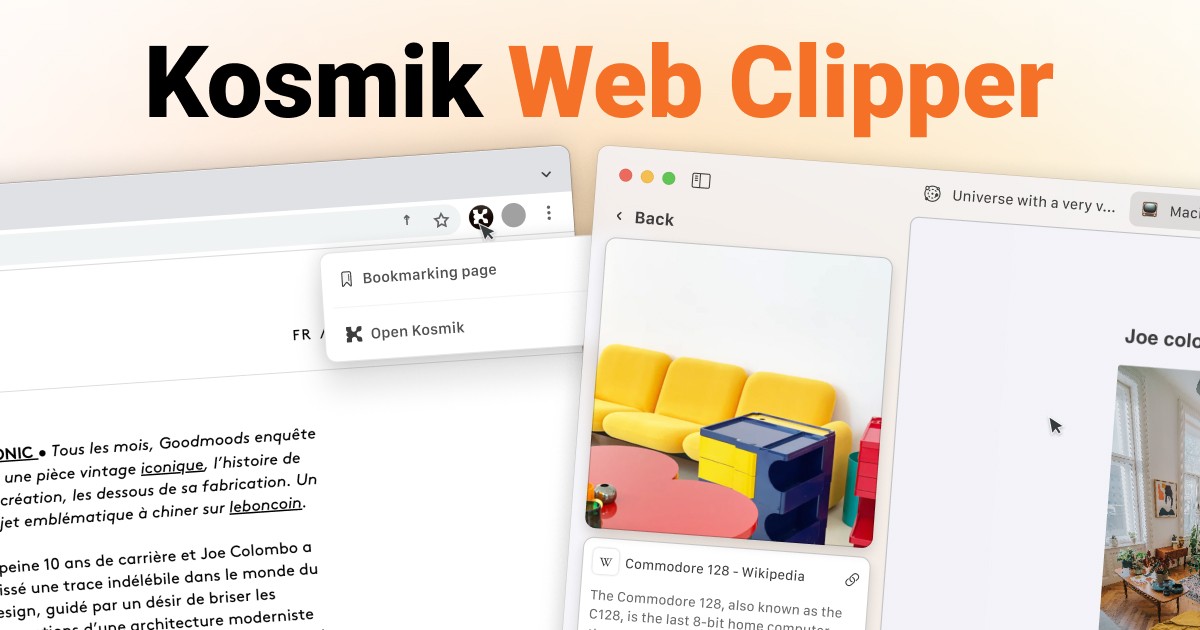
The Kosmik Web Clipper solves this. It's a Chrome extension that lets you clip bookmarks, text selections, and images directly to your visual workspace. Everything saves to your Clipper Library, where AI auto-tags it by color, theme, and subject. Then drag clips to your infinite canvas to organize them visually.
What Is the Kosmik Web Clipper?
The Kosmik Web Clipper is a Chrome extension designed specifically for visual thinkers who want to keep using Chrome alongside Kosmik's visual workspace.
Currently rated 4.5 out of 5 stars on the Chrome Web Store with over 1,000 users and growing adoption among visual thinkers and creative professionals.
It's available on the Chrome Web Store. Learn more about the extension on the official Kosmik extension page.
The clipper gives you three ways to capture content:
1. Bookmark Entire Pages
Click the extension icon to save any webpage with its title, description, preview image, and source URL.
2. Clip Text Selections
Highlight any passage on any webpage and save it with full source context and attribution.
3. Save Individual Images
Right-click any image to clip it to your library with source information preserved.
All clipped content appears in the Clipper Library, a dedicated section in your Kosmik sidebar. Think of it as a visual inbox where you review clips before organizing them on your canvas.
This isn't just another note-taking clipper. The Kosmik Web Clipper is built for people who think visually and organize content spatially, not in hierarchical folders or text lists.
Why You Need a Web Clipper for Visual Workspaces
Switching between your browser and workspace breaks your flow. Traditional browser bookmarks fall short for visual research:
Only save URLs, not actual content
No visual preview of saved pages
Links break when pages change or get deleted
No annotation or context
No searchable content
Hard to organize visually or spatially
Web clippers solve this. They capture the actual page content, text, images, and interactive elements. Content stays preserved even if the original page disappears. You get searchable archived content, tagging capabilities, offline access, and annotation features.
For visual thinkers specifically, web clippers offer unique benefits:
See research as visual cards on an infinite canvas (not text lists)
Arrange clips spatially to show relationships
Quick visual scanning vs. reading through linear lists
Moodboard and inspiration board creation
Spatial organization reflects how visual brains process information
Visual thinking canvas tools allow your brain to process visual information more quickly and effectively than text alone. Spatial grouping and visual connection lines help you see relationships between concepts instantly.
The hybrid workflow advantage: Browse in Chrome where your password managers, work tools, and bookmarks live. Organize in Kosmik's visual workspace. Eliminate app-switching during active work while feeding content into your workspace from anywhere.
Key Features of Kosmik Web Clipper
Clip Bookmarks, Text, and Images
The Kosmik Web Clipper gives you three clipping modes for different content types.
Bookmark Clipping:
Click the Kosmik extension icon while on any webpage. It saves the URL, page title, description, preview image, and timestamp. One-click operation from your toolbar. Content appears immediately in your Clipper Library.
Text Selection Clipping:
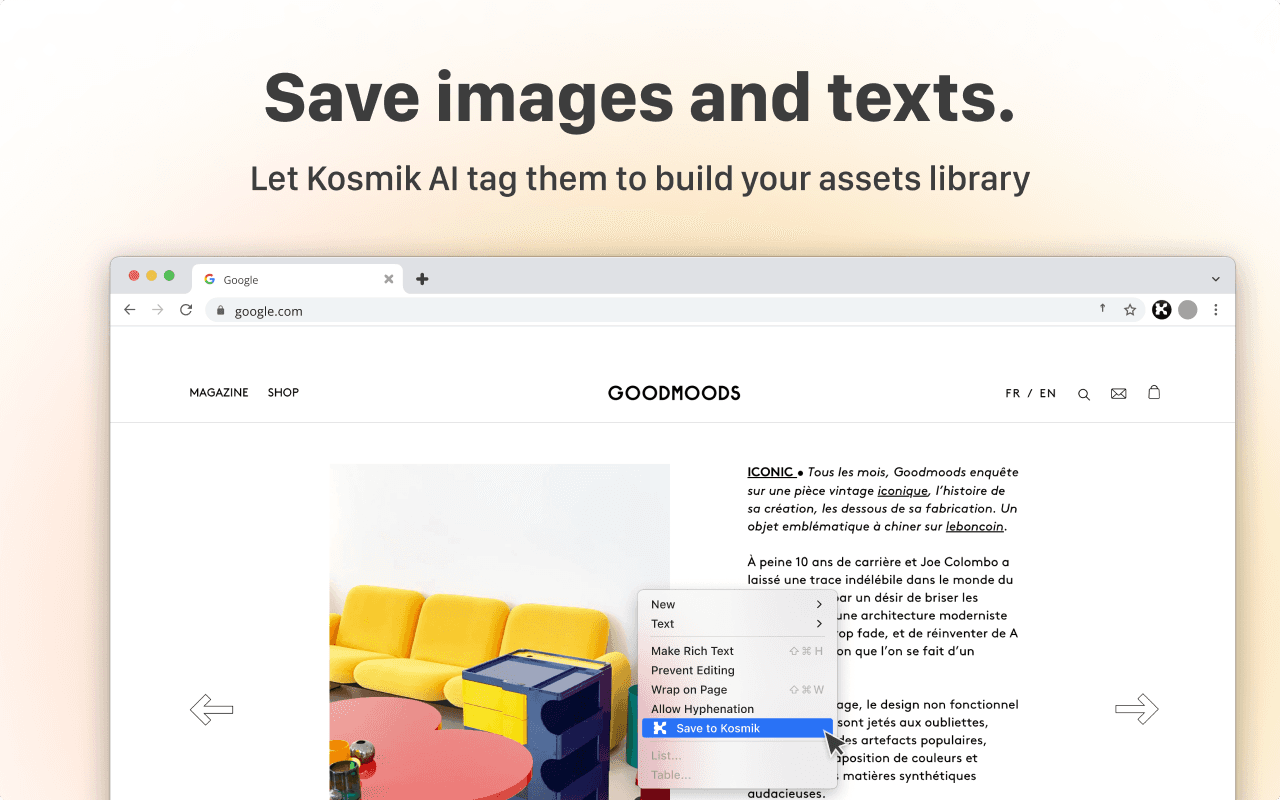
Highlight any passage on any webpage. Right-click the selected text and choose "Clip to Kosmik" from the context menu. It preserves your selected text, source URL, and page context while maintaining formatting where possible.
Image Clipping:
Right-click any image on a webpage and select "Clip Image." The image file saves with its source URL and page attribution. You can clip multiple images from the same page.
This versatility beats single-purpose tools. No complex menus or forms. Instant feedback shows content appearing in your library. Works on any website.
Clipper Library: Your Visual Inbox
The Clipper Library is a dedicated section in your Kosmik sidebar that acts as a staging area for all clipped content.
It follows a "clip first, organize later" philosophy. Similar to email inbox-zero, you collect now and organize during dedicated time.
Content appears chronologically with visual preview cards showing thumbnails, titles, sources, and clip dates. Easy visual scanning lets you review recent clips quickly.
The workflow works like this: Review clips during dedicated organization time. Drag clips from the library to your canvas or specific universe. You don't need to decide organization while browsing. Batch-process clips during focused work sessions.
Benefits:
Reduces decision fatigue while researching
Allows quick capture without workflow interruption
Centralizes all clipped content in one location
Familiar visual inbox metaphor
AI Auto-Tagging
Kosmik's AI analyzes your clipped content automatically and generates relevant tags based on visual and textual elements.
The AI recognizes colors, objects, subjects, themes, and visual styles. It generates relevant tags without any user input. Tags appear immediately after clipping.
What Gets Tagged:
Visual elements in images (objects, colors, composition)
Content themes and topics
Subjects and concepts
Color palettes with dominant colors and proportions
Visual style characteristics
Benefits:
No manual categorization needed. This saves significant time versus manual tagging. Consistent tagging across all content. Tags become searchable metadata. The AI learns your business and personal vocabulary over time.
Integration with Search:
Tags feed into Kosmik's AI search system. Semantic search finds content by concept, not just keywords. Search across text in images with OCR capabilities. Find related content through visual similarity.
Drag-and-Drop to Canvas
Open your Clipper Library in the Kosmik sidebar. Preview all clipped content with visual cards. Click and drag any clip to your canvas. Drop it in your desired location. The clip becomes a canvas card element.
On the canvas, arrange clips spatially. Create visual relationships between content. Group related clips together. Use spatial proximity to show connections. Zoom in and out for different perspectives.
Use Cases:
Moodboard creation with visual inspiration boards
Research organization grouped by topic
Project planning with visual roadmaps
Content strategy with visual content calendars
Design systems as component libraries
Drag-and-drop borrows from real-world behavior (physical manipulation), making the screen feel more human, direct, and engaging.
Integrated AI Search
Kosmik's AI search works across your entire workspace with semantic search capabilities.
Find clipped content by concept, not just exact words. Search text within images using OCR. Visual similarity search finds similar images. Context-aware suggestions surface related content.
Search Benefits:
Instant retrieval of clipped content
No need to remember filenames or folder locations
Describe what you're looking for in natural language
Search works across all content types (text, images, PDFs, videos)
Rediscover forgotten clips easily
The AI-generated tags enhance search accuracy. Combine tag filtering with semantic search. Search by color to find clips with specific color palettes. Search by theme or subject matter. Get related content suggestions.
Fast search results work across large libraries. Search across multiple universes and projects. Find clipped content alongside native Kosmik content. Real-time search as you type.
How to Install and Use Kosmik Web Clipper
Installation Guide
Step 1: Download from Chrome Web Store
Navigate to the Chrome Web Store and search "Kosmik Web Clipper" or download from the Chrome Web Store. You can also visit the official extension page for installation instructions and feature details.
Click "Add to Chrome" and confirm installation in the popup dialog.
Browser Compatibility:
The extension works with Chrome and all Chromium-based browsers including Microsoft Edge, Brave, Opera, and Vivaldi. It's not currently compatible with Firefox or Safari (non-Chromium browsers).
Step 2: Grant Permissions
Review permissions carefully before approving. The extension needs to read and modify data on websites (for clipping content), access tabs (for bookmarking the current page), and storage (for temporary clipboard data before sync). Chrome Enhanced protection warns if an extension isn't trusted.
Step 3: Pin the Extension
Click the puzzle piece icon in your Chrome toolbar. Find "Kosmik Web Clipper" in the extensions list. Click the pin icon to keep it visible in your toolbar. The pinned icon allows one-click access.
Step 4: Connect to Kosmik Account
Click the Kosmik extension icon. Sign in with your Kosmik account credentials or create a new account if you're a first-time user. The extension connects to your Kosmik workspace.
Total installation takes 2-3 minutes. Simple, straightforward process. No complex configuration needed.
How to Clip Content
Clipping a Bookmark:
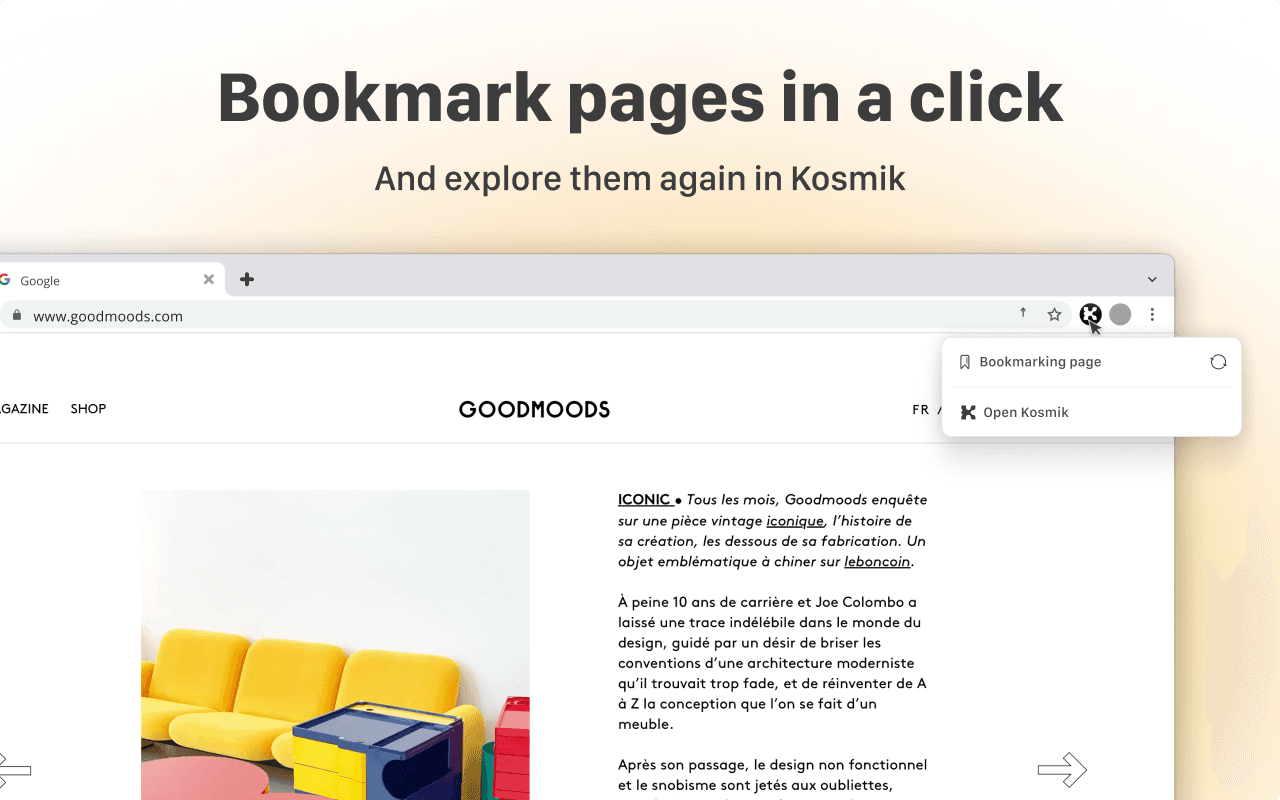
Navigate to the webpage you want to save
Click the Kosmik Web Clipper icon in your toolbar
The bookmark saves automatically to your Clipper Library
Visual confirmation appears
Continue browsing or review the clip in Kosmik
Clipping Text:
Navigate to a webpage with content to save
Highlight the text passage with your mouse
Right-click on the selected text
Choose "Clip to Kosmik" from the context menu
Text saves with source URL to your Clipper Library
Selection can be multiple paragraphs or a single sentence
Clipping an Image:
Find an image on any webpage
Right-click directly on the image
Select "Clip Image to Kosmik" option
Image saves with source attribution
Original resolution preserved where possible
Clip multiple images from the same page
Organizing Clips:
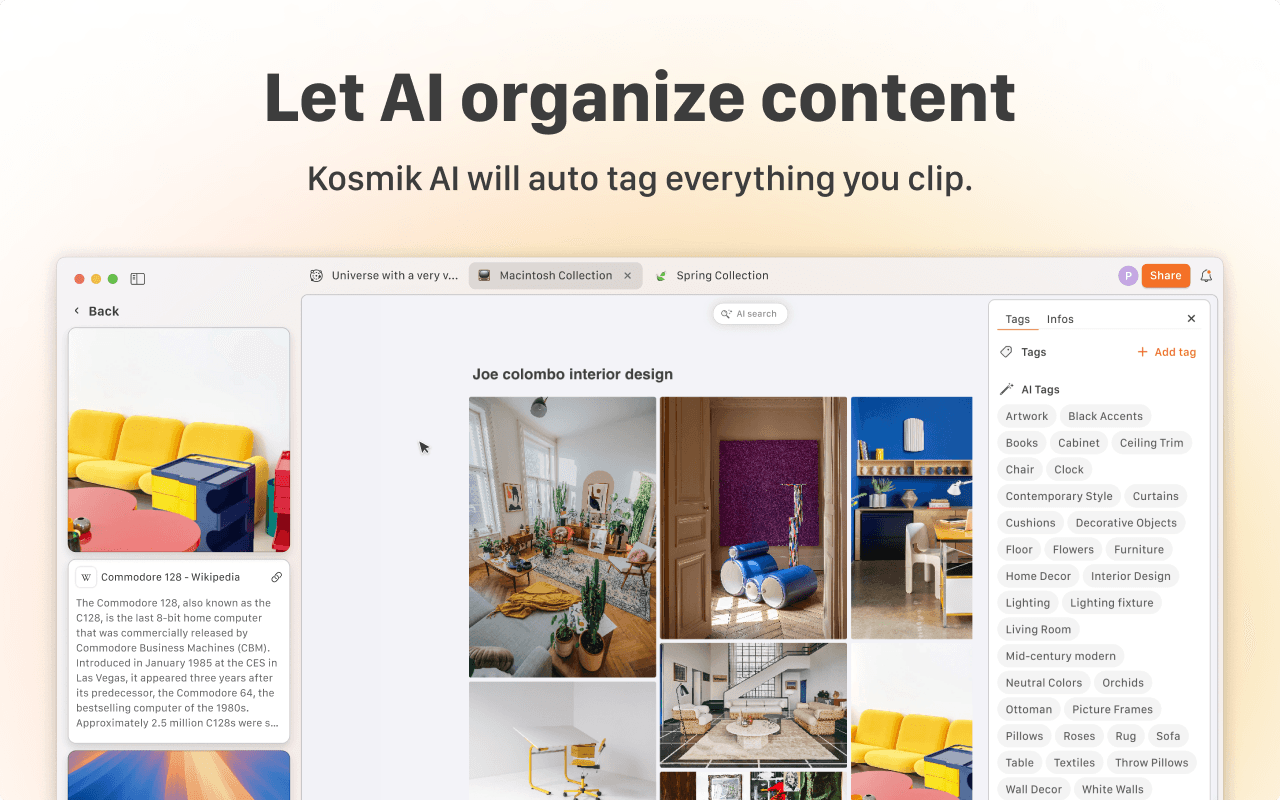
Open Kosmik workspace (desktop app or web)
Navigate to Clipper Library in the sidebar
Review clipped content with visual previews
See thumbnail, title, source, and clip date
Drag a clip from the library to your canvas
Drop in desired location on the infinite canvas
Arrange spatially with other content
Create groups, connections, or moodboards
Tips for Efficient Clipping:
Use keyboard shortcuts if available. Pin the extension for quick access. Clip liberally and organize later. Review your Clipper Library weekly. Create dedicated canvases for different projects. Use drag-and-drop for batch organization.
Best Use Cases for Kosmik Web Clipper
1. Design and Creative Inspiration
Build moodboards for client projects. Collect color palette and typography inspiration. Create UI/UX design pattern libraries. Research style exploration and trends. Build brand identity reference boards.
Workflow Example:
Browse design inspiration sites like Dribbble, Behance, and Awwwards. Clip standout designs with one click. Images appear in Clipper Library with source links. Drag to canvas to create your project moodboard. AI auto-tags by style, color, and design elements. Search "minimalist blue interfaces" to find related clips.
Kosmik's visual canvas and AI features make it particularly well-suited for moodboarding workflows. AI-assisted moodboarding with auto-tagging is gaining popularity among designers. Visual workspace tools are increasingly favored over traditional folder-based systems for creative work.
2. Research and Writing Projects
Collect academic research and organize sources. Gather article and blog post research. Save quotes and citations with source attribution. Compile literature reviews. Track cross-references.
Workflow Example:
Research your topic across multiple websites. Clip relevant text passages with citations. Text saves with source URL automatically. Organize clips spatially by subtopic on your canvas. Use AI search to find related clips. Export or reference during your writing process.
3. Content Creation
Find social media content ideas and inspiration. Screenshot examples for tutorials and guides. Conduct competitor content analysis. Track trends across platforms. Plan visual content calendars.
Workflow Example:
Clip competitor posts (images plus captions as screenshots). Save trending content examples. Organize by platform or campaign on your canvas. Create a visual content calendar. Reference clips when creating original content.
4. Product and Competitive Research
Screenshot feature comparisons. Capture competitor websites before and after changes. Aggregate product reviews. Organize market research. Archive pricing pages.
Workflow Example:
Clip competitor feature pages. Save product screenshots. Bookmark pricing information. Create a comparison canvas with all clips side-by-side. Update your canvas as products evolve. Share with your team for collaborative analysis.
5. Learning and Skill Development
Save tutorials and how-to guides. Collect code snippets (screenshot or text clip). Organize educational content by topic. Compile course resources. Build your personal knowledge library.
Students and researchers capture and organize articles, research papers, and books. Visual learners use OCR capabilities to extract text from images and videos. Non-linear learners benefit from spatial organization versus hierarchical folders.
6. Travel and Event Planning
Collect destination inspiration. Bookmark restaurants and activities with photos. Build visual itineraries. Screenshot accommodation listings for comparison. Create travel moodboards for trips.
Workflow Example:
Browse travel blogs and booking sites. Clip hotel photos, restaurant menus, and activity descriptions. Create a canvas per destination. Spatially arrange by day or area. Share your canvas with travel companions.
7. Shopping and Product Research
Collect product images across retailers. Screenshot prices over time for tracking. Aggregate reviews from multiple sites. Visualize wishlists. Compare products across platforms.
Interior designers collect product details, images, and specifications efficiently. Personal shoppers create visual wishlist boards. Comparison shoppers use side-by-side product screenshots.
Kosmik Web Clipper vs. Traditional Web Clippers
The traditional web clipper market includes established players like Evernote Web Clipper (over 2 million users, 3.1/5 Chrome rating), Notion Web Clipper (over 1 million users, 4.1/5 Chrome rating), and OneNote Web Clipper (4.8/5 Chrome rating).
Here's how Kosmik compares:
Feature | Kosmik Web Clipper | Traditional Clippers |
|---|---|---|
Interface Style | Visual canvas, infinite workspace | Text lists, folders, hierarchical notebooks |
Content Display | Visual cards arranged spatially on canvas | Linear lists, database rows, nested pages |
Organization Method | Drag-and-drop on canvas, spatial arrangement, Clipper Library inbox | Folders, tags, notebooks, databases, hierarchical structure |
AI Features | Auto-tagging (colors, objects, themes), AI semantic search | Limited or manual tagging only |
Best For | Visual thinkers, creatives, designers, moodboarders | Text-heavy note-takers, traditional organizers, document archiving |
Clipping Options | Bookmarks, text selections, images | Full pages, articles, screenshots, text (varies by tool) |
Search Method | AI semantic search across visual workspace, search by color/concept | Keyword search in notes/databases |
Workflow Integration | Integrated with Kosmik's browser plus infinite canvas | Standalone note-taking apps (require separate browser) |
Content Staging | Clipper Library inbox for review before organizing | Direct save to notebooks/pages/databases (immediate organization required) |
Browser Compatibility | Chrome/Chromium only | Chrome, Firefox, Safari, Edge (varies by tool) |
When to Choose Kosmik
You think visually, not in lists or outlines. You're creating moodboards, design systems, or visual research boards. You need spatial organization to see relationships. You want AI to handle tagging automatically. You prefer canvas-based workflow over notebooks. You're building visual projects for design, content, or creative work.
When Traditional Clippers Might Fit Better
Heavy text-based note-taking for long-form writing or meeting notes. Academic writing with extensive text notes. Document-centric workflows. Already invested in a specific ecosystem (Microsoft, Notion). Need broad browser compatibility (Firefox, Safari).
The Hybrid Approach
You can use both: Kosmik for visual and creative work, traditional clippers for text notes. They're different paradigms, not direct replacements. Choose based on content type and workflow preference.
Unique Kosmik Advantages
1. Visual-First Philosophy: The only web clipper designed for infinite canvas workflows.
2. AI Auto-Tagging: Automatic categorization by color, object, and theme versus manual tagging.
3. Clipper Library Staging: Review before organizing versus immediate notebook sorting.
4. Spatial Organization: Arrange clips to show visual relationships.
5. Integrated Browser: Kosmik has a built-in browser (press 'W'). Clips work from both Chrome and Kosmik browser.
6. AI Search: Semantic, visual similarity search versus basic keyword search.
Who Should Use Kosmik Web Clipper?
1. Visual Thinkers and Creatives
Designers, artists, photographers, and illustrators who think in images and spatial relationships, not linear outlines. People frustrated with text-heavy note apps. Anyone who needs to see content arranged visually to understand connections.
Why Kosmik Fits:
The infinite canvas matches how visual thinkers process information. Spatial organization versus hierarchical folders. Visual cards versus text lists. Intuitive drag-and-drop arrangement.
2. Content Creators and Marketers
Social media managers, content strategists, brand designers, creative directors, influencers, and content entrepreneurs.
Use Cases:
Competitor content analysis with screenshot posts. Visual content calendars. Brand inspiration boards. Trend tracking across platforms. Campaign planning and moodboarding.
3. Researchers and Writers (Visual Approach)
Visual journalists and multimedia reporters. Researchers who use moodboarding methodology. Writers building visual reference libraries. Students with visual learning preferences.
Why Kosmik Fits:
Organize research spatially by topic or theme. Create visual connections between sources. AI semantic search finds related content. Clips preserve context with source links.
4. Chrome Power Users
Daily Chrome users with password managers, bookmarks, and extensions. Work environments requiring Chrome. Users wanting to enhance Chrome without replacing it. People managing many tabs and research sessions.
Why Kosmik Fits:
Keep using Chrome for browsing. Add a visual organization layer. Reduce tab clutter by clipping and closing tabs. Build a "second brain" workspace alongside your browser.
5. Kosmik Users Who Browse in Chrome
Existing Kosmik workspace users. Users in corporate or school environments requiring Chrome. People who want to feed content into Kosmik from any browser. Teams collaborating in Kosmik but browsing separately.
Why Kosmik Fits:
Seamless integration with your existing Kosmik workflow. Clips sync across devices. Feed your Clipper Library from anywhere. Maintain a unified workspace.
6. Designers and Creative Professionals
Interior designers collecting product information. Web designers annotating competitor sites. Graphic designers gathering inspiration. UX designers building pattern libraries.
Visual reference tools are increasingly important for creative workflows as AI-assisted design becomes more mainstream.
Tips for Getting the Most from Kosmik Web Clipper
1. Clip Liberally, Organize Later
Use your Clipper Library as a true inbox (staging area). Don't overthink organization while browsing. Capture anything potentially useful. Batch-organize during dedicated time.
The "clip first, organize later" workflow reduces decision fatigue during research sessions. Separating capture and organization improves efficiency.
Set a weekly "clip review" calendar block. Spend 15-30 minutes organizing your Clipper Library. Archive or delete irrelevant clips. Drag important clips to project canvases.
2. Use Right-Click for Speed
Right-click selected text or images for fastest clipping. Use keyboard shortcuts if available in the extension. Pin the extension to your toolbar for one-click bookmark clipping. Minimize steps in your clipping workflow.
One-click and right-click interactions reduce friction in web workflows. Familiar context menu patterns align with standard browser behavior.
3. Review Clipper Library Regularly
Weekly review recommended. Monthly deep clean for extensive clipping. Daily quick scan for active projects.
Scan visual previews in chronological order. Identify clips for current projects. Drag relevant clips to appropriate canvases. Delete outdated or irrelevant clips. Keep your library manageable (under 50 pending clips ideal).
4. Leverage AI Tags for Search
Trust the AI tagging system (don't manually re-tag). Use auto-generated tags as search terms later. Combine tags with visual scanning. Search by color, theme, or subject.
Search "blue minimalist" to find design clips. Search by theme tags AI identified. Use color tags for moodboard curation.
5. Create Dedicated Canvases for Projects
One canvas per project, client, or topic. Drag clips from Clipper Library to the relevant canvas. Spatially arrange clips to show relationships. Create visual workflows, moodboards, or research maps.
Group related clips with proximity. Use Kosmik's connector system to show relationships. Zoom out for overview, zoom in for details. Color-code or tag canvases by project type.
6. Combine with Kosmik's AI Search
Search across all clips instantly. Find content by concept, not just filename. Use natural language search queries. Rediscover forgotten clips easily.
Describe what you remember: "green packaging design." Search by visual similarity to find related images. Cross-reference clips with other Kosmik content.
7. Clip Different Content Types Together
Mix bookmarks, text clips, and images on the same canvas. Create comprehensive, multimedia project boards. Combine visual inspiration with text research. Build rich context for projects.
Example Workflows:
Moodboard: Images plus color palette bookmarks plus inspiration text quotes.
Research: Article text clips plus screenshot images plus source bookmarks.
Competitive analysis: Competitor page bookmarks plus feature screenshots plus pricing text clips.
Frequently Asked Questions
Is Kosmik Web Clipper free?
The Kosmik Web Clipper extension itself is free to download and install from the Chrome Web Store. However, it requires a Kosmik account to function.
Kosmik Pricing:
Rover Plan (Free Forever): $0
1 workspace, up to 3 members
Unlimited universes and items
Up to 100 files (15MB per file)
50 AI requests per month
Community support
Plus Plan: $6.99/month (billed yearly) or $10.99/month (billed monthly)
Unlimited workspaces, members, files
Unlimited AI requests
Priority support
Free to use with the Rover plan. The Plus plan removes limitations for power users. View full pricing details.
What browsers work with Kosmik Web Clipper?
Kosmik Web Clipper works with Chrome and all Chromium-based browsers:
Compatible Browsers:
Google Chrome
Microsoft Edge
Brave
Opera
Vivaldi
Other Chromium-based browsers
Not Compatible:
Firefox (non-Chromium engine)
Safari (WebKit engine)
No official announcement for Firefox or Safari extensions yet (as of October 2025).
Where is my clipped content stored?
All clipped content is stored in your Kosmik workspace, specifically in the "Clipper Library" section accessible from the Kosmik sidebar.
Storage Details:
Cloud storage included with all plans
Encrypted data transmission
Privacy-focused design
Team access controls for shared workspaces
Access:
Available from any device with Kosmik installed. Mac, Windows, and web access. Real-time sync across devices. Content persists even if the original webpage disappears.
Your data is secure and only accessible with your account credentials.
Can I clip content when offline?
The Kosmik Web Clipper extension requires an internet connection to save content to your Kosmik account, as it needs to sync with your cloud workspace.
Offline Capabilities:
Clipping requires internet connection (syncs to Kosmik cloud)
Once synced, you can access clipped content offline in Kosmik workspace
Content remains available for viewing after initial sync
How does AI auto-tagging work?
Kosmik's AI analyzes your clipped content automatically and generates relevant tags based on visual and textual elements.
What AI Analyzes:
Visual elements: Colors, objects, composition
Themes and subjects
Content type and style
Text content (OCR for images)
How Tags Are Generated:
Immediately after clipping
No user input required
Consistent categorization across all content
Tags become searchable metadata
Benefits:
Saves time versus manual tagging. No need to remember to tag. Search using AI-generated tags later. Find content by concept, color, or theme.
You can edit or add custom tags manually if needed. AI tags complement manual organization.
Can I clip YouTube videos?
Yes, you can clip YouTube video pages as bookmarks using the Kosmik Web Clipper.
How It Works:
Navigate to a YouTube video page. Click the Kosmik extension icon to bookmark. Saves video thumbnail, title, and URL. Click the saved bookmark in Kosmik to return to the video.
What's Saved:
Link to video (bookmark), video thumbnail/preview image, video title and description (where available), and source URL.
Note: Clips the bookmark or reference to the video, not the full video file itself (standard web clipper functionality).
How is this different from browser bookmarks?
Web clippers like Kosmik preserve actual content, while browser bookmarks only save URLs.
Key Differences:
Browser Bookmarks | Kosmik Web Clipper |
|---|---|
Saves URL only | Saves content (text, images, previews) |
Link breaks if page changes/disappears | Content preserved even if original page is deleted |
No visual preview | Visual card previews in Clipper Library |
No content search | Searchable content (full-text, AI semantic search) |
Basic folder organization | Visual canvas organization plus spatial arrangement |
No annotation | Context, tags, annotations possible |
Browser-specific | Cross-device in Kosmik workspace |
Unlike bookmarks that break when pages are deleted, web clippers preserve the actual content in your archive. When you bookmark an article and it's removed months later, you lose access. With a web clipper, the content remains available even if the original page disappears.
Additional Benefits:
AI auto-tagging versus manual bookmark folders. Integration with Kosmik's infinite canvas workflow. Drag-and-drop organization. Visual relationships between content.
Do I need a Kosmik account to use the Web Clipper?
Yes, the Kosmik Web Clipper requires a Kosmik account to function.
Account Information:
Free Rover plan available (no credit card required). Create account at Kosmik. Sign-up takes 2-3 minutes. Account connects extension to your workspace.
Free Plan Includes:
1 workspace
Up to 3 members
Unlimited universes and items
Up to 100 files (15MB each)
50 AI requests per month
Clips sync to your personal Kosmik workspace. Cross-device access to clipped content. Cloud storage for clips. AI features (tagging, search).
Can I share clipped content with others?
Yes, you can share clipped content through Kosmik's collaboration features.
Sharing Capabilities:
Real-time collaboration on canvases
Add team members to workspaces (up to 3 on free, unlimited on Plus)
Guest access for external collaborators (up to 10 free, unlimited on Plus)
Share specific canvases or entire universes
Comments and feedback system on shared content
How to Share:
Drag clips from Clipper Library to shared canvas
Invite team members or guests to workspace
Collaborators see clips in real-time
Team can add annotations, organize together
Live cursor tracking shows who's viewing/editing
Use Cases:
Design team moodboards. Research collaboration. Client presentations. Team knowledge sharing.
Plus Plan Benefits:
Unlimited members and guests. Advanced collaboration tools. Priority support for teams.
Comparison Table: Best Web Clippers for 2025
Tool | AI Features | Standout Feature | Best For |
|---|---|---|---|
Auto-tagging by color, object, theme; AI semantic search | Visual canvas with spatial organization and drag-and-drop workflow | Visual thinkers, designers, creatives building moodboards and visual research boards | |
None (manual tags only) | Save full articles with annotations and notebook organization | Text-heavy note-takers, traditional document archiving | |
None (manual tags only) | One-click saving to databases with cross-device sync | Users already in Notion ecosystem, database-centric workflows | |
None (manual tags only) | Highlight and annotate with offline access | Microsoft ecosystem users, traditional note-taking | |
AI summaries (Chrome built-in AI) | Highlighting plus clipping combined, export to Markdown | Researchers who want highlighting and annotations with clips | |
None (manual tags only) | Advanced bookmark management with visual UI and collaboration | Bookmark-centric organization with rich features | |
AI-powered data extraction | Local-first storage with deep customization | Obsidian users, privacy-conscious researchers |
Conclusion: Enhance Your Visual Workflow with Kosmik Web Clipper
Disorganized web research, broken bookmarks, and constant context switching waste your time. Traditional bookmarks break when pages change. Text-based clippers don't serve visual thinkers.
The Kosmik Web Clipper solves this with visual-first clipping designed for Chrome users. Clip bookmarks, text, and images with one click. Your Clipper Library staging area lets you capture now and organize later. AI auto-tags everything by color, theme, and subject automatically. Drag clips to your infinite canvas for spatial organization.
This is the first web clipper built specifically for visual thinkers and infinite canvas workflows. AI handles organization. Visual cards replace text lists. Semantic search finds content by concept. Real-time collaboration works for teams.
Visual thinkers, creative professionals, designers building moodboards, content creators organizing research visually, and Chrome users wanting to enhance their workflow will benefit most.
Get started today. Download the Kosmik Web Clipper from the Chrome Web Store and create your account. Build your first visual research board and let AI handle the tedious work.