November 27, 2025
Best Visual Collaboration Tools for Teams

The way teams work has changed a lot in the last few years. Earlier, most people worked from the same office, shared the same meeting rooms, and used the same whiteboards for planning. But with remote and hybrid work becoming the norm, everything shifted. Teams are now spread across locations, time zones and that naturally changed how people collaborate.
But this shift also created a new problem.
Work started getting scattered across different tools. Design files sit in Figma. Meeting notes end up in Google Docs and important information gets buried inside emails. When everything lives in different places, finding what you need becomes chaotic.
This also comes with a real cost. Companies lose over thousands of dollars per employee every year in lost productivity.
So if your team feels disconnected or constantly searching for files, you’re not alone in this. It’s simply a result of how modern work has changed especially for remote and hybrid teams.
That’s why visual collaboration tools have become essential. They give teams one shared space to brainstorm, plan, and work together, even when they’re not in the same room.
But with so many platforms claiming to be the “best” choosing the right one that works for you can be quite a task.
Thus, We researched the top visual collaboration tools, comparing features, pricing, integrations, and real-world use cases. This guide breaks down 13 leading platforms to help you find the one that fits your team’s workflow, whether you’re designing, planning sprints, or organizing research.
TL;DR: Top Visual Collaboration Picks
Tool | Best For | Key Strength |
|---|---|---|
Kosmik | Creative professionals and researchers | Multimedia workspace with AI capabilities |
Miro | Enterprise teams and workshop facilitators | Comprehensive templates and integrations |
Figma | UI/UX design teams | Professional design collaboration |
Mural | Facilitators and agile teams | Structured collaboration frameworks |
ClickUp Whiteboards | Project-focused teams | Visual planning to task execution |
Looking for a visual workspace that handles diverse content types without forcing you into rigid templates? Try Kosmik and organize your team's ideas on an infinite canvas.
What Are Visual Collaboration Tools?
Visual collaboration tools are cloud-based platforms that enable teams to communicate and collaborate through visual elements on an infinite, scalable canvas. Unlike traditional text-based tools, these platforms let multiple people work together simultaneously using sticky notes, diagrams, drawings, and embedded multimedia.
Think of them as digital whiteboards on steroids. You get the freedom of a physical whiteboard without space constraints, plus the power of real-time collaboration, version history, and integration with your existing workflow tools.
Beyond basic whiteboarding, modern visual collaboration platforms offer comprehensive capabilities. They're complete workspaces where teams can brainstorm ideas, map user journeys, plan projects, organize research, and create visual documentation. Everything stays in one place and remains accessible from anywhere.
These tools serve diverse users. Remote and hybrid teams use them to bridge physical distance. Design teams collaborate on visual concepts. Agile squads plan sprints and run retrospectives. Product managers map roadmaps. Researchers organize information spatially. Knowledge workers think through complex problems visually.
The key capabilities include real-time and asynchronous collaboration, visual thinking tools like diagrams and mind maps, multimedia integration, template libraries for common scenarios, communication features, and integrations with other platforms you already use.
What makes visual collaboration tools different from simple digital whiteboards is their depth. Basic whiteboards let you draw and add sticky notes. Full collaboration platforms add structured frameworks, advanced integrations, project management features, and sophisticated organization capabilities.
Why Teams Need Visual Collaboration Tools
Text-based collaboration has limits. Email creates information silos. Chat threads get chaotic. Complex ideas disappear in linear conversations. Your team loses context constantly.
Visual collaboration solves these problems.
Improved Communication and Understanding
Research shows humans process images in as little as 13 milliseconds, making visual communication significantly faster than reading text. When your team discusses ideas on a shared canvas, everyone sees the same thing simultaneously. No more confusion about what someone meant in that three-paragraph email.
Complex concepts become accessible to everyone when visualized. Instead of describing a user journey in paragraphs, you map it spatially. The whole team understands instantly.
Visual collaboration creates shared understanding. Everyone references the same visual source of truth, reducing miscommunication and alignment issues that plague text-heavy workflows.
Enhanced Creativity and Innovation
Visual brainstorming unlocks more ideas than traditional meetings. The non-linear format encourages connections between concepts that linear thinking misses.
Templates and frameworks guide productive sessions without restricting creativity. Lower barriers to contribution mean quieter team members participate more, they can draw instead of crafting perfect sentences.
Spatial canvases let you see patterns and relationships that text-based tools hide. Ideas connect visually, sparking new insights. This approach is particularly powerful for design thinking workflows where visual connections matter.
Faster Project Execution
Teams aligned on a visual plan from day one execute faster. Fewer revision cycles happen when everyone sees the vision clearly from the start.
Asynchronous work becomes more effective. Team members contribute when it fits their schedule, with visual context preserving meaning better than text updates.
Templates accelerate common workflows. Sprint planning, user journey mapping, SWOT analysis. Start with proven frameworks instead of building from scratch every time.
Better Remote and Hybrid Collaboration
Visual collaboration platforms bridge physical distance with shared visual space. Your distributed team works together like they're in the same room, gathered around a whiteboard.
Support for both real-time and async collaboration adapts to different time zones and work styles. Team members in San Francisco and Singapore collaborate effectively without requiring everyone online simultaneously.
Virtual meetings stay engaging when participants interact with visual content instead of staring at talking heads. Participation increases dramatically.
Unlike physical whiteboards that disappear when meetings end, digital canvases persist. All context, decisions, and ideas remain accessible forever.
Improved Organization and Knowledge Management
Visual organization aids memory and retrieval. Spatial layout helps you remember where information lives, finding that important research faster than searching through folders.
Centralized workspaces reduce tool switching. Browse, capture, organize, and discuss content without jumping between apps constantly.
Version history preserves how ideas evolved. Track decisions, see what changed, understand the thinking behind current plans.
New team members onboard faster with visual context. They see the full picture immediately instead of piecing it together from scattered documents.
How to Choose the Right Visual Collaboration Tool
The best platform for your team depends on specific needs, workflows, and priorities.
Consider these key factors to narrow your options.
Essential Features to Evaluate
1. Collaboration Capabilities
Does the tool support real-time collaboration, asynchronous work, or both? How many people can work simultaneously without performance issues?
Evaluate commenting and feedback features. Can team members provide context-specific feedback? Are there communication tools like video chat and screen sharing built in?
Check permission and access controls. Can you share boards with external collaborators? Control who views versus who edits?
2. Visual Tools and Flexibility
Does the platform offer an infinite canvas or bounded workspace? Infinite canvases give you unlimited room to expand, bounded workspaces enforce structure.
What drawing and annotation tools are included? Shape libraries for diagramming? Template availability and customization options?
Multimedia support matters for creative work. Can you embed images, videos, PDFs, and web content directly? Or are you limited to basic shapes and sticky notes?
3. Integration Ecosystem
Does the tool integrate natively with platforms you already use? Slack, Microsoft Teams, Google Workspace, Jira, Asana, Notion?
API availability enables custom integrations for specific workflow needs. Browser extensions make research and content capture seamless.
Mobile app quality affects distributed teams. Does the mobile experience match desktop features or feel like an afterthought?
4. Performance and Reliability
How does the tool perform with large, complex canvases? Laggy performance kills productivity when you're trying to collaborate.
Offline capabilities matter if you work without consistent internet. Can you access and edit boards offline, syncing changes later?
Check canvas size and content limits. Some tools restrict how much you can add to a single board.
5. Ease of Use and Learning Curve
Is the interface intuitive for new users? What onboarding resources and templates help teams get started quickly?
Power user features like keyboard shortcuts increase efficiency for daily users. Customization options let you tailor the tool to your workflow.
Administrative controls matter for larger teams. Can admins manage users, set policies, and monitor activity easily?
6. Pricing and Value
Free tier limitations vary widely. Some tools offer generous free plans, others restrict heavily to push paid upgrades.
Evaluate per-user costs at your team size. A tool that's affordable for five people might break the budget at fifty.
Where do features distribute across pricing tiers? Are critical capabilities stuck behind expensive enterprise plans?
Watch for hidden costs. Storage limits, integration access, premium support. Annual versus monthly commitment options affect cash flow.
7. Privacy and Data Control
Where does the platform store your data? Cloud-only tools keep everything on their servers. Some offer local storage options for sensitive work.
Data ownership and portability matter if you ever switch tools. Can you export everything easily?
Check compliance certifications for regulated industries. SOC 2, GDPR, HIPAA compliance requirements.
Review privacy policies carefully. How does the company use your data? What access do they retain?
Matching Tools to Use Cases
Different teams need different tools. Quick reference guide:
UI/UX Design Teams: Design-focused platforms with prototyping capabilities work best. Integration with developer handoff tools matters.
Agile/Scrum Teams: Look for project management integration, sprint planning templates, and voting features for estimation.
Creative Professionals: Multimedia-rich spatial canvases that handle diverse content types, perfect for visual research and moodboarding. Browser integration for research workflows.
Enterprise Teams: Robust security, admin controls, compliance certifications, and dedicated support at scale.
Small Teams and Startups: Affordable options with easy onboarding. Generous free tiers that don't restrict core features.
Remote Workshops: Template-rich whiteboarding with facilitation features like timers, voting, and breakout sessions.
Research and Knowledge Work: Tools with web integration, multimedia support, and flexible organization beyond rigid templates.
Individual Knowledge Workers: Platforms valuable for solo use, not just teams. Privacy-focused with offline capabilities.
Now let’s dive deep into each tool.
13 Best Visual Collaboration Tools (Ranked)
1. Kosmik
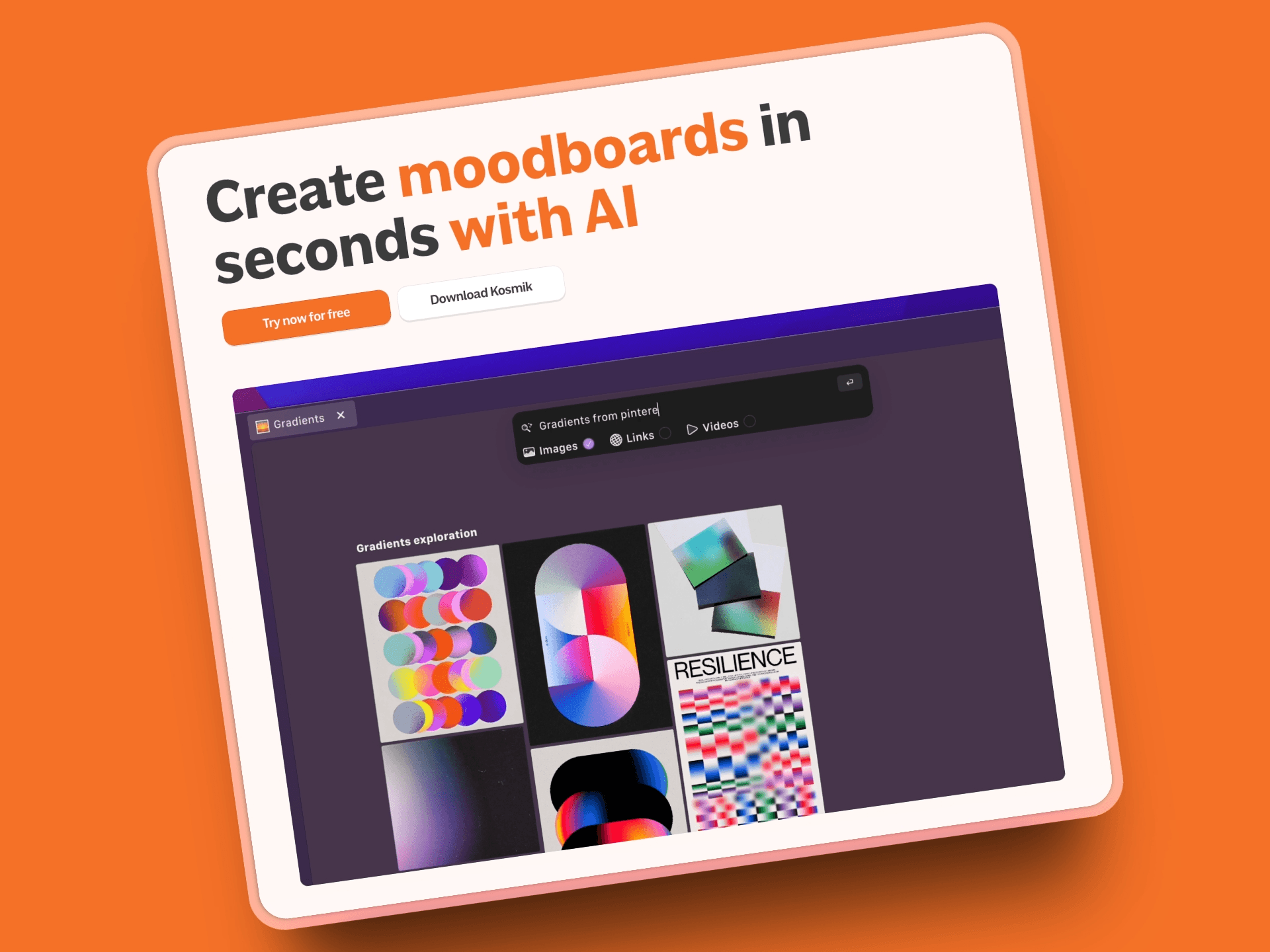
Kosmik is what happens when you build a visual workspace specifically for people who think spatially and work with diverse content. Unlike traditional whiteboard tools focused on diagrams and sticky notes, Kosmik functions as a complete multimedia workspace where teams organize research, brainstorm ideas, and create content using text, images, videos, PDFs, and web pages in a single visual space.
The platform combines the flexibility of an infinite canvas with powerful features that eliminate constant app switching. Press 'W' to browse any website without leaving Kosmik. Drag PDFs directly onto your canvas with built-in OCR text extraction. Organize visual research with AI auto-tagging that categorizes content by colors, themes, and subjects automatically.
Key Features
Press ‘W’ and open any website directly inside your workspace. Instead of juggling between multimedia and your canvas in separate windows, everything loads in one place. This is insanely useful for research-heavy workflows like UX audits, competitive analysis, or content deep-dives
Infinite spatial canvas with true multimedia integration supporting images, videos, PDFs, web embeds, and documents natively and You can also resize, cluster, and arrange content however your brain processes information best.
AI auto-tagging automatically categorizes imported content by color, themes, subjects, visuals, and text patterns, so your messy research becomes structured without manual tagging
PDF reader with OCR extracts text from any document for searching and organization. You can search inside documents, highlight key points, and pull quotes directly onto your canvas without shifting tools.
Chrome extension for seamless web research and content capture directly to your canvas. Save websites, screenshots, articles, or inspiration to Kosmik with a single click. Everything appears exactly where you want it in your workspace, super helpful for moodboards or research docs.
Real-time collaboration with support for async work, unlimited workspaces for different projects. Teams can work live on the same canvas or add ideas across time zones. Commenting, spatial arrangement, and shared workspaces make it great for hybrid teams.
Desktop-first design with offline capabilities and local storage options for data privacy. Kosmik isn’t just a cloud app. It works smoothly offline, saves data locally if you want privacy, and syncs once you’re back online. Great for people working in trains, flights, or unstable network zones.
Pros
Built-in browser eliminates app switching completely, finally you can research and organize in one place.
Exceptional multimedia integration beyond simple image uploads, handles PDFs, videos, web content natively.
Works offline with local storage, ensuring data control and privacy without constant cloud dependence
Browser extension enables frictionless research-to-canvas workflow without manual copying and pasting
Equally powerful for individuals and teams, not restricted to enterprise-only features
Clean, focused interface without overwhelming feature bloat that slows you down
Desktop app provides better performance than browser-only tools
Affordable pricing friendly to solo users and small teams without per-seat price shocks
Cons
Newer platform with smaller ecosystem than established whiteboard tools
Learning curve if you're married to traditional folder-based organization
No mobile app yet, though the web version works on tablets
Pricing
Pro: $11.99/month (yearly) or $14.99/month (monthly) with unlimited workspaces, universes, items, file imports, no file size limit, unlimited AI requests, and priority support
Ambassador: $16.99/month (yearly) or $20.99/month (monthly) with everything in Pro plus Figma plug-in, fonts support, brand kits, dedicated Slack channel, feature preview, and MCP integrations
Enterprise: Custom pricing for teams needing custom onboarding, team management, and workspace management
User Reviews
Why Kosmik is the Best Visual Collaboration Tool?
While most visual collaboration tools focus exclusively on team whiteboarding or specialized design work, Kosmik reimagines the visual canvas as a true multimedia workspace. It bridges the gap between personal knowledge management and team collaboration, offering the flexibility of tools like Notion combined with the visual freedom of Miro.
The emphasis on multimedia integration sets Kosmik apart. You're not limited to uploading images and linking to external files. Videos, PDFs, web pages, and documents all work natively on your canvas. The built-in browser means you can research without switching apps, clipping content directly to your workspace with the Chrome extension.
The pricing model scales smoothly from individual use to growing teams. For medium-sized teams of 5-50 members, Kosmik costs significantly less than competitors charging $10-30+ per user monthly.
Get Started with Kosmik to create your first visual workspace in minutes.
Best For
Creative professionals and researchers who work with diverse multimedia content. People who think visually like designers, UX researchers, content creators, strategists will love Kosmik’s ability to handle everything all in one fluid space. It’s built for deep research, moodboards, competitive analysis, and spatial thinking.
Knowledge workers organizing complex research across multiple formats. If your work involves gathering information from multiple sources like web articles, internal docs, screenshots, recordings, Kosmik keeps everything structured visually instead of burying it in folders or tabs.
Small to medium-sized teams (3-50 members) seeking affordable, scalable collaboration. For teams that need real-time collaboration but don’t want enterprise-level billing, it’s one of the most cost-efficient choices in the market.
Anyone tired of constant app switching between browser, notes, files, and collaboration tools. If your workflow usually bounces between browser tabs, note-taking apps, file viewers, and whiteboards, Kosmik brings all those steps together. It’s built for people who want a smoother, more integrated way to work.
2. Miro
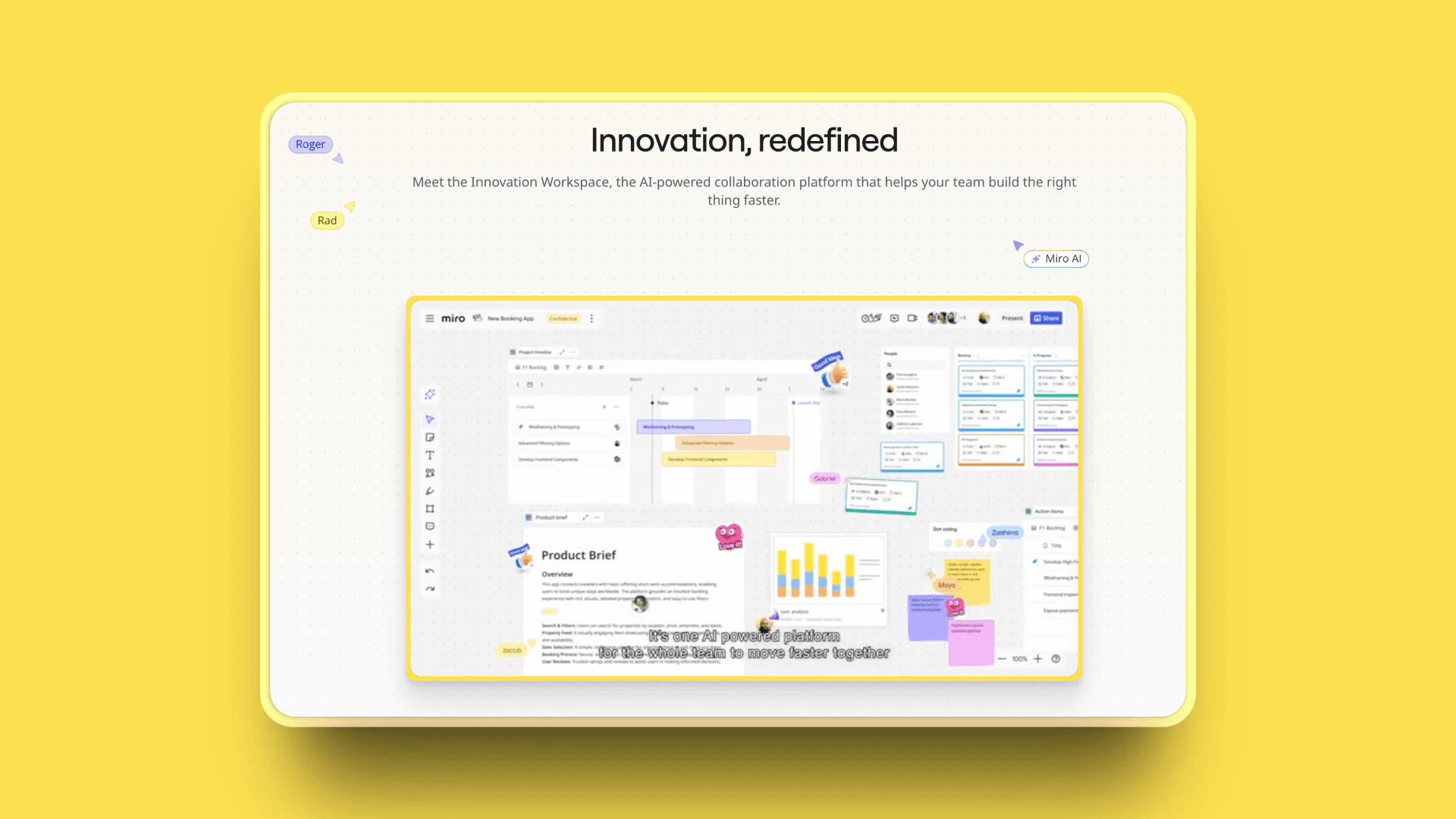
Miro is the market leader in visual collaboration, offering the most comprehensive platform with over 1,000 pre-built templates, extensive integrations, and enterprise-grade features. It's become the default choice for many remote and hybrid teams running workshops, sprint planning, and strategic sessions.
The platform excels at structured collaboration with frameworks for agile methodologies, design thinking, and workshop facilitation. Real-time collaboration supports unlimited board members, making it ideal for large team sessions.
Key Features
Over 2,500+ Pre-Built Templates, UX flows, design sprints, OKRs, customer journey maps, brainstorming sessions, retros. Whatever you need, it’s already there. These templates help teams skip the setup and jump straight into actual work
Real-time collaboration, Everyone works on the same board at once, no lag, no chaos. Live cursors show who’s doing what, comments update instantly, and teams can co-create like they’re in the same room even if they’re spread across continents
160+ native integrations including Slack, Microsoft Teams, Google Workspace, Jira, Asana, Notion, Figma, and Zoom. Miro plugs directly into the tools teams already use daily, Slack for communication, Google Workspace for files, Notion for documentation, Jira/Asana for project tracking, Figma for design. No need to switch tabs 50 times
Built-in video chat and presentation mode eliminate the need for separate meeting tools. Teams can discuss, present, and make decisions inside the board itself. No need for Zoom or Meet just to walk through ideas. This makes workshops and demos ridiculously smooth
Advanced diagramming and flowcharting tools with smart connectors, auto-alignment, shape libraries, UML, BPMN. Miro basically replaces Visio and Lucidchart. Perfect for engineers, product managers, and ops teams who need clean, structured diagrams fast
Smart frameworks for agile ceremonies, design thinking workshops, and strategic planning. Miro includes ready-to-run frameworks for sprint planning, retrospectives, standups, empathy mapping, ideation, prioritization, and more. This makes it ideal for teams following structured methodologies
Enterprise-grade security with SSO, role-based access, granular permissions, audit logs, compliance with major certifications. Miro fits the security requirements of large companies, not just startups or classrooms
Pros
Massive template library covers nearly every collaboration scenario imaginable
Industry-leading integrations with virtually every popular business tool
Highly polished user experience with intuitive interface
Strong performance even with large, complex boards containing hundreds of elements
Excellent documentation, tutorials, and learning resources
Active user community sharing templates and best practices
Mobile app with good feature parity to desktop experience
Cons
Can feel overwhelming for simple use cases, too many features for basic needs
Free tier limited to 3 editable boards, restrictive for active teams
Pricing gets expensive for larger teams at $8-16 per user monthly
Some advanced features require higher-tier Business or Enterprise plans
Cloud-only with no offline mode or local storage options
Pricing
Free: Unlimited team members, but only 3 editable boards per workspace.
Starter: $8/user/month (billed annually) or $10/user/month (billed monthly) with unlimited boards and expanded features
Business: $16/user/month (billed annually) or $20/user/month (billed monthly) with advanced features, integrations, and admin tools
Enterprise: Custom pricing with SSO, advanced security, and dedicated support
User Reviews
Best For
Medium to large teams that run frequent remote workshops, brainstorming sessions, and structured collaborative meetings
Agile and product teams who rely heavily on sprint planning, retrospectives, roadmapping, and other ceremony-based workflows
Cross-functional teams that depend on deep integrations with tools like Jira, Slack, Figma, Notion, and Google Workspace for smooth, connected workflows
Organizations that need a truly comprehensive toolkit, from diagramming to strategy mapping to enterprise-grade security
3. Figma
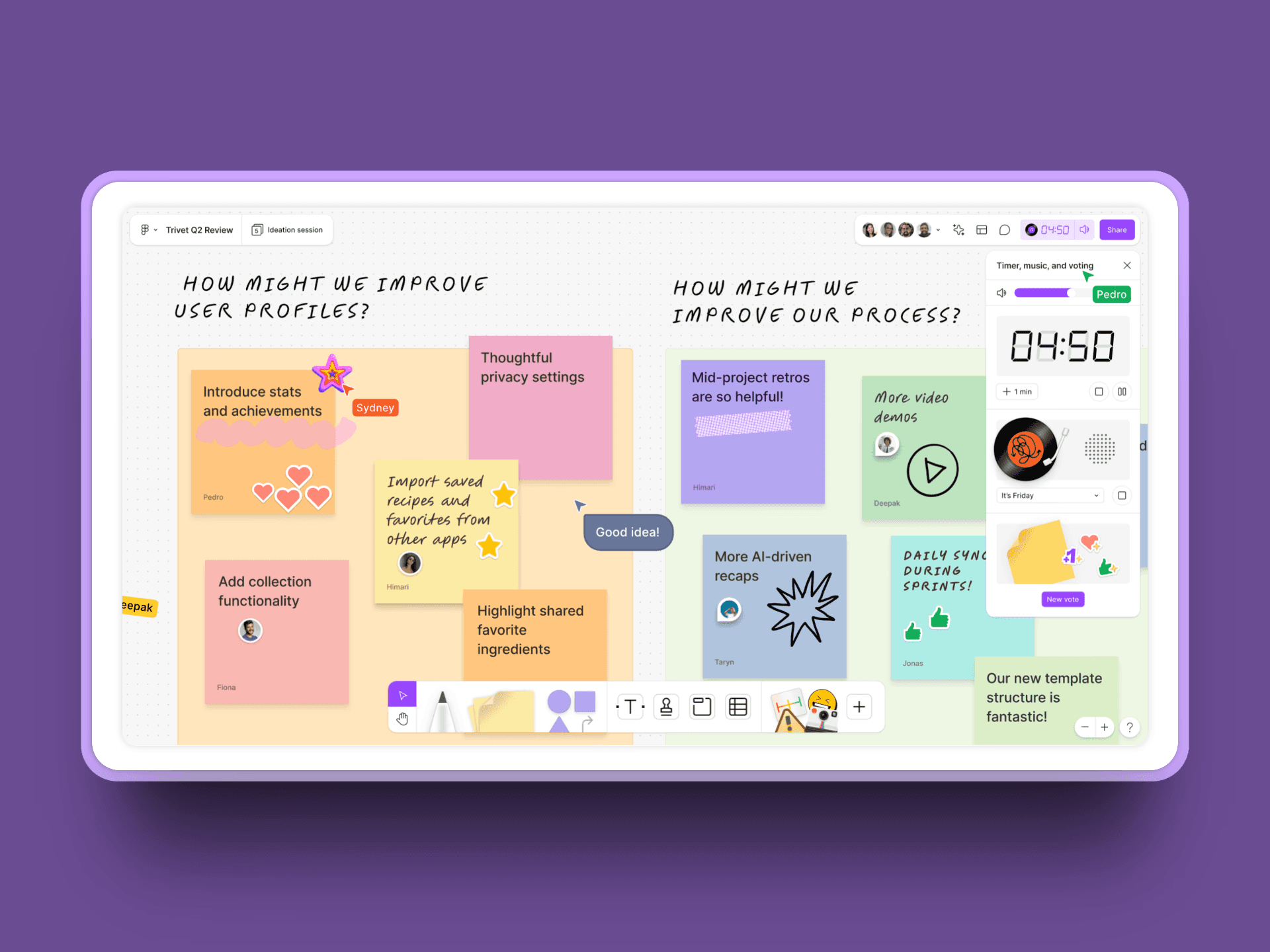
Figma dominates design collaboration with professional-grade tools for UI/UX design, prototyping, and developer handoff. While primarily a design platform, FigJam (Figma's whiteboard tool) extends capabilities to broader team collaboration.
The platform's real-time multiplayer editing revolutionized design collaboration. Multiple designers work simultaneously on the same file with live cursors and instant updates.
Key Features
Professional design tools with full vector editing, typography control, auto-layout, and responsive constraints
Real-time multiplayer editing with live cursors and instant syncing
Interactive prototyping with animations, transitions, overlays, and interactive components
FigJam whiteboarding for brainstorming, diagrams, voting, and team sessions
Component libraries and design systems to maintain consistency across projects
Developer handoff with CSS/iOS/Android code snippets, asset export, and layer inspection
Version history and branching to explore variations and merge changes safely
Large plugin ecosystem for automation, content generation, accessibility checks, icons, and more
Pros
Best-in-class design collaboration features unmatched by competitors
Seamless designer-to-developer workflow with code generation
Excellent performance running entirely in browser
Strong plugin ecosystem adding specialized capabilities
FigJam provides whiteboarding without leaving Figma ecosystem
Industry standard for UI/UX teams, easy to hire designers who know it
Free tier includes up to 3 design files and 3 FigJam boards
Cons
Primarily focused on design, not general-purpose collaboration
Steeper learning curve for non-designers unfamiliar with design tools
FigJam is separate from main design tool, requires switching
Expensive for full teams, editor licenses required at $12-75 per user monthly
Limited features for non-design collaboration needs
Pricing
Free: Up to 3 Figma files and 3 FigJam files, unlimited collaborators and viewers
Professional: $15/editor/month with unlimited files and advanced features
Organization: $55/editor/month with design systems, libraries, and advanced admin
Enterprise: $90/editor/month with enhanced security and dedicated support
User Reviews
Figma maintains a 4.7/5 rating on G2
Best For
UI/UX design teams collaborating on product design
Product teams needing design and prototyping in one platform
Organizations building and maintaining design systems
Designer-developer workflows requiring smooth handoff
Teams prioritizing professional design capabilities over general whiteboarding
4. Mural
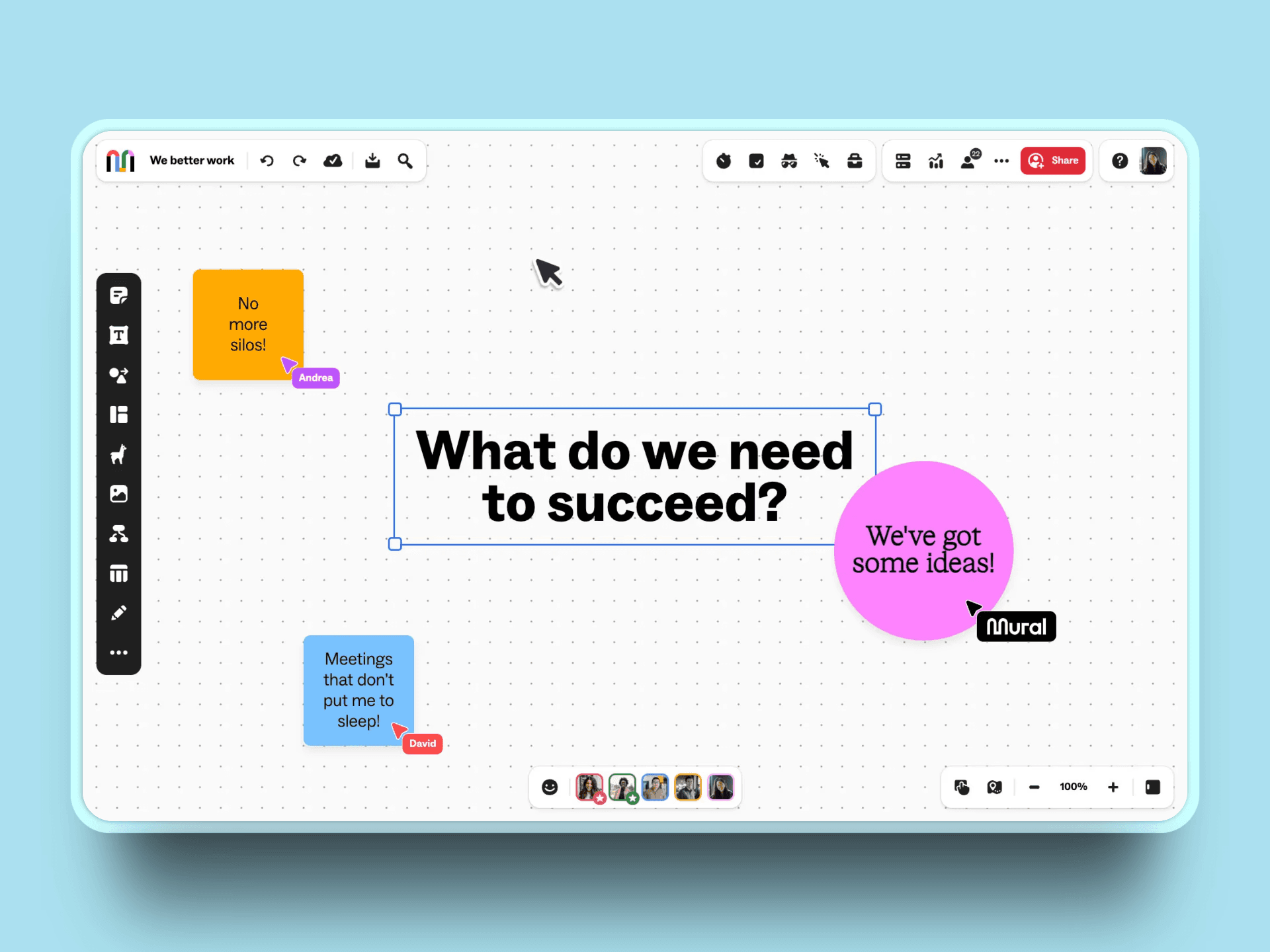
Mural is built specifically for facilitators running structured collaboration sessions, workshops, and strategic planning. The platform emphasizes frameworks and methodologies with features designed for guided collaboration.
Facilitator controls like timers, voting, and private mode set Mural apart from general-purpose whiteboards. AI-powered features help organize brainstorming output automatically.
Key Features
300+ facilitation templates and frameworks for design thinking, agile, innovation, and strategic planning
Guided collaboration tools including timers for timeboxed activities, voting for prioritization, and private mode for independent thinking
Structured facilitation features designed specifically for workshop leaders and consultants
AI-powered organization for automatically grouping and clustering sticky notes
Real-time and async collaboration with commenting and feedback threads
Integration with agile tools including Jira, Azure DevOps, Microsoft Teams, and Slack
Enterprise security with SSO, compliance certifications, and advanced admin controls
Session management with facilitator controls for managing large group activities
Pros
Excellent for structured facilitation and professional workshop leadership
Strong focus on methodologies like design thinking, agile, and innovation frameworks
Facilitator tools (voting, timers, private mode) superior to general whiteboards
Good template quality covering common collaboration scenarios
AI features help organize brainstorming output quickly and effectively
Strong enterprise features with robust security and compliance
Good integration with agile project management platforms
Cons
Fewer templates than Miro (300 vs 1,000+), though higher quality
Fewer third-party integrations than market leaders
Interface can feel less intuitive than competitors
More expensive than some alternatives at $12-17.99 per user monthly
Overkill for simple whiteboarding or casual brainstorming
Pricing
Free: 3 editable murals with core features
Team+: $9.99/user/month (billed annually) or $12/user/month (billed monthly) with unlimited murals and expanded features
Business: $17.99/user/month (billed annually) with advanced features and integrations
Enterprise: Custom pricing with SSO, advanced admin, and dedicated support
User Reviews
Best For
Professional facilitators running workshops and design sprints
Agile teams needing structured sprint planning and retrospectives
Strategic planning sessions and OKR workshops
Innovation teams running structured ideation processes
Consultants leading client collaboration sessions
Teams prioritizing facilitation features over freeform whiteboarding
5. Lucidspark
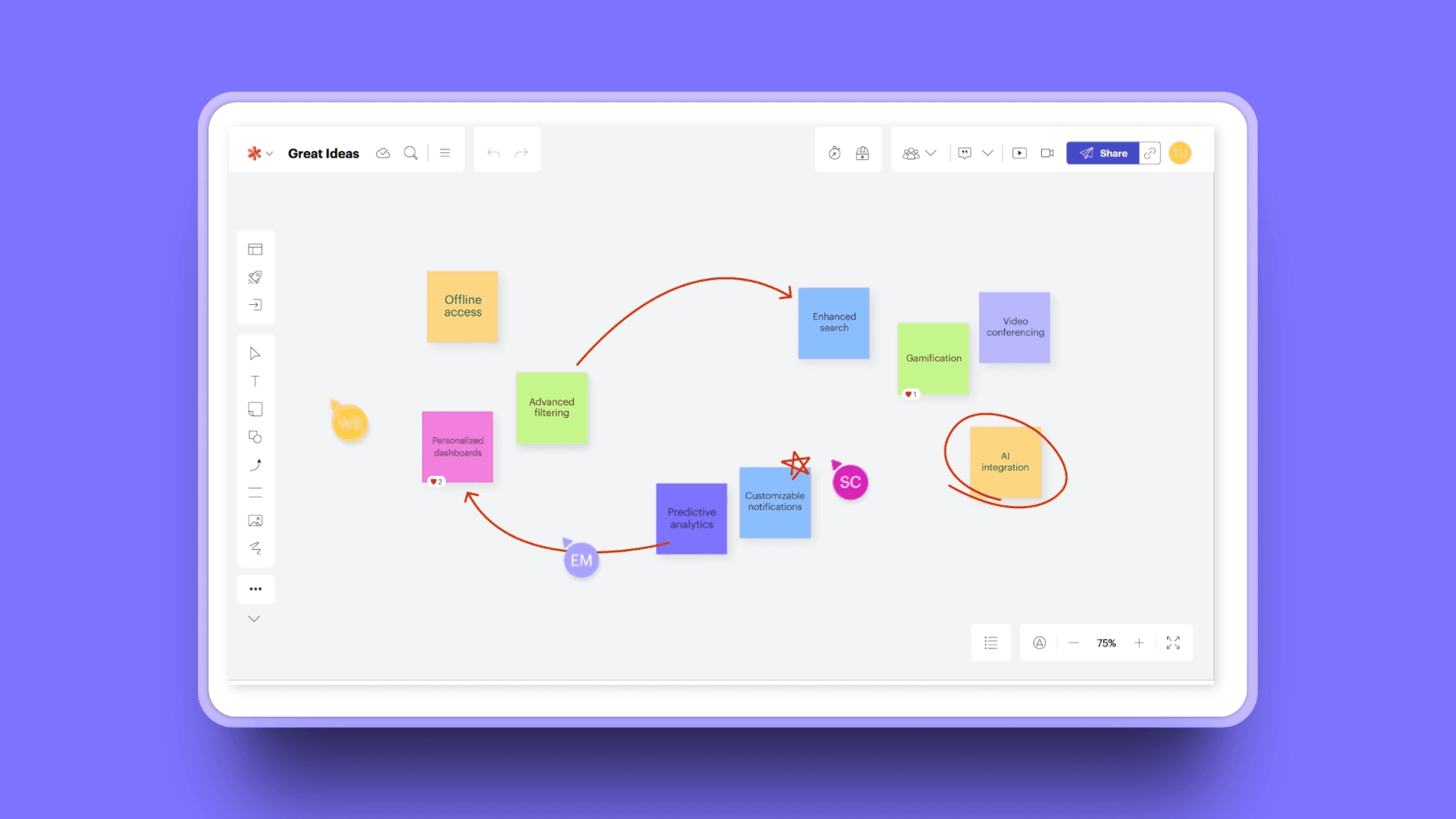
Lucidspark is the collaborative whiteboard from Lucid Software (makers of Lucidchart), designed for brainstorming and ideation that seamlessly transitions to structured diagramming.
The platform's strength lies in connecting freeform brainstorming with professional diagram creation. Start with sticky notes and ideas, then convert promising concepts into Lucidchart flowcharts or diagrams.
Key Features
Infinite canvas with sticky notes, freeform drawing, and collaborative brainstorming tools, giving teams a flexible space to map ideas without constraints.
Collaborative brainstorming tools including voting, grouping, tagging, and commenting, enabling teams to prioritize, organize, and iterate on ideas efficiently.
Seamless integration with Lucidchart for converting freeform brainstorming outputs into professional diagrams, flowcharts, and structured workflows.
AI-powered sticky note grouping automatically clusters related ideas, reducing manual effort and helping teams see patterns and connections quickly.
Templates for common brainstorming scenarios and workshops, allowing teams to start sessions quickly with proven frameworks and best practices.
Real-time collaboration with live cursors and instant updates, making remote or hybrid teamwork interactive, transparent, and productive.
Breakout boards for focused small group work within larger sessions, allowing detailed discussions without cluttering the main board.
Timer and facilitator controls for managing structured activities, keeping workshops on schedule and ensuring equitable participation.
Pros
Excellent integration with Lucidchart ecosystem for end-to-end visual workflows
Good balance between brainstorming freedom and structured diagramming
AI features help organize ideas quickly and identify patterns
More affordable than Miro or Mural at $7.95-9 per user monthly
Clean, focused interface without overwhelming complexity
Good template library for common collaboration scenarios
Smooth transition from ideas to structured diagrams
Cons
Smaller ecosystem and user community than Miro or Mural
Best value requires using both Lucidspark and Lucidchart (bundled cost)
Fewer integrations than market leaders
Less extensive template library compared to Miro
Community resources and third-party templates smaller
Pricing
Free: Up to 3 boards with core features
Individual: $7.95/user/month with unlimited boards
Team: $9/user/month with advanced features and integrations
Enterprise: Custom pricing with SSO and advanced admin
User Reviews
Lucidspark maintains a 4.5/5 rating on G2
Best For
Teams using Lucidchart for technical diagrams and flowcharts
Brainstorming sessions that lead to structured process documentation
Agile retrospectives and sprint planning evolving into workflow diagrams
Teams wanting affordable visual collaboration
Organizations seeking balance between freeform and structured collaboration
6. Microsoft Whiteboard
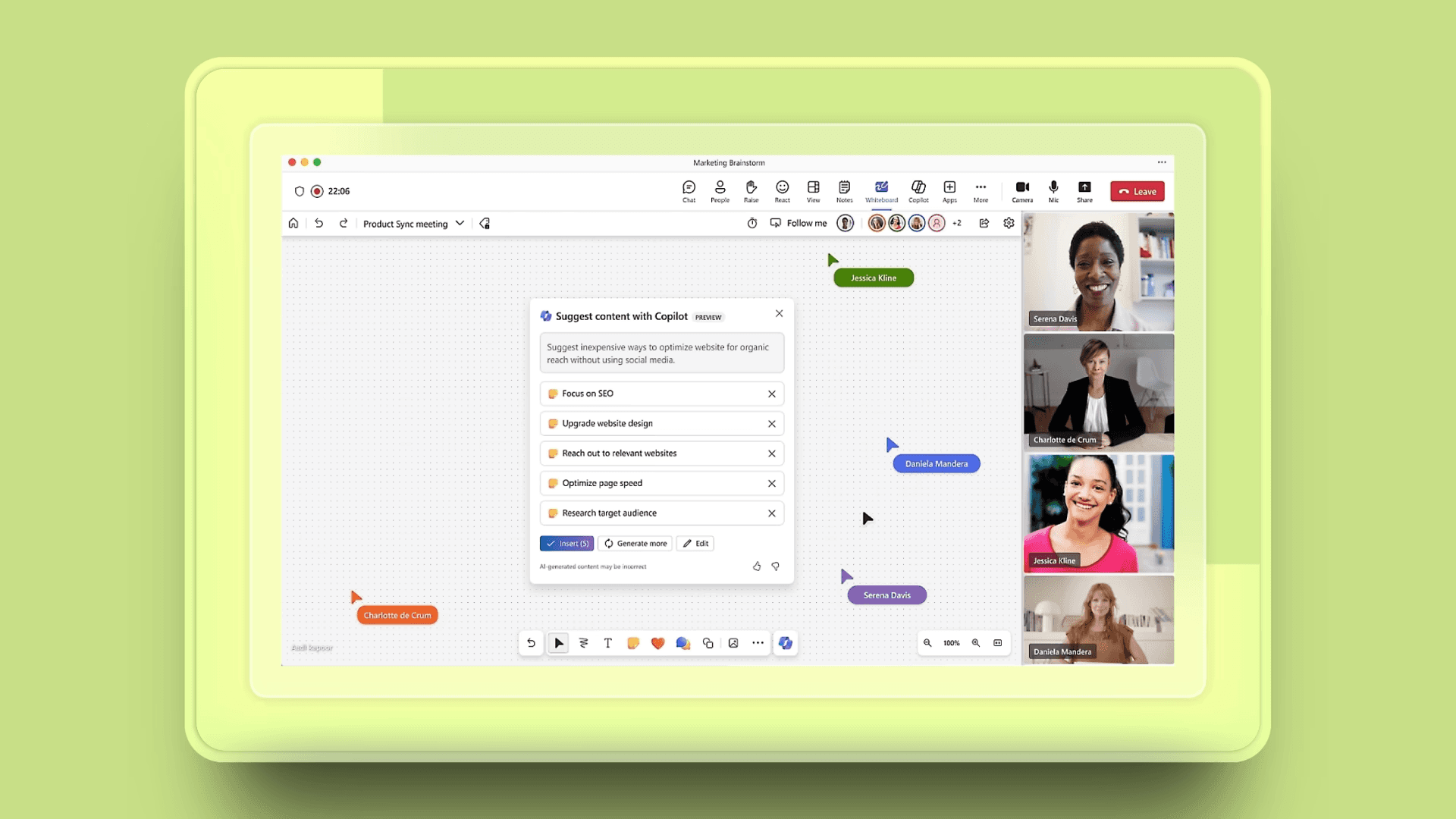
Microsoft Whiteboard is a freeform digital canvas included with Microsoft 365, designed for quick collaboration within the Microsoft ecosystem. It prioritizes simplicity and seamless Teams integration over advanced features.
The platform works best for organizations already invested in Microsoft 365 who want basic whiteboarding without additional subscriptions.
Key Features
Real-time collaboration within Microsoft Teams meetings and channels, allowing multiple participants to edit and contribute to the same board simultaneously
Basic whiteboard tools including sticky notes, text, sketching, and images, providing all the essentials for quick brainstorming and visual planning
Templates for common scenarios like brainstorming, planning, and retrospectives, helping teams start sessions faster with pre-designed frameworks
Cross-Microsoft integration with Teams, OneDrive, and Office apps, enabling seamless workflow and easy access to documents and files from within the board
Touch and pen support optimized for Surface devices, allowing natural drawing, handwriting, and annotation for interactive sessions
Automatic shape recognition that converts rough sketches into clean, professional-looking shapes, making diagrams more readable and organized
Cloud sync across all devices with OneDrive, ensuring boards are always up to date and accessible from anywhere, on any device
Included with Microsoft 365 at no additional cost for existing subscribers
Pros
No additional cost for Microsoft 365 users, excellent value
Seamless integration with Teams for meeting collaboration
Simple, clean interface with minimal learning curve
Good for quick, informal collaboration without complexity
Excellent touch and pen support on Surface devices
No training required for Microsoft users, familiar interface
Unlimited whiteboards on free Microsoft account
Cons
Limited features compared to dedicated visual collaboration platforms
Smaller template library than specialized tools
Fewer integrations outside Microsoft ecosystem
Less powerful for complex visual collaboration needs
Limited customization and advanced features
No facilitation tools like voting, timers, or breakout boards
Mobile experience inconsistent across devices
Pricing
Included with Microsoft 365 subscriptions (Business Basic starts at $6/user/month)
Free tier available with personal Microsoft account
User Reviews
Microsoft Whiteboard receives 4/5 ratings on G2
Best For
Organizations already using Microsoft 365 wanting no additional cost
Quick brainstorming in Teams meetings without separate tools
Simple collaborative sketching and note-taking
Teams wanting to minimize tool sprawl and stick with Microsoft ecosystem
Budget-conscious organizations with existing Microsoft 365 licenses
7. ClickUp Whiteboards
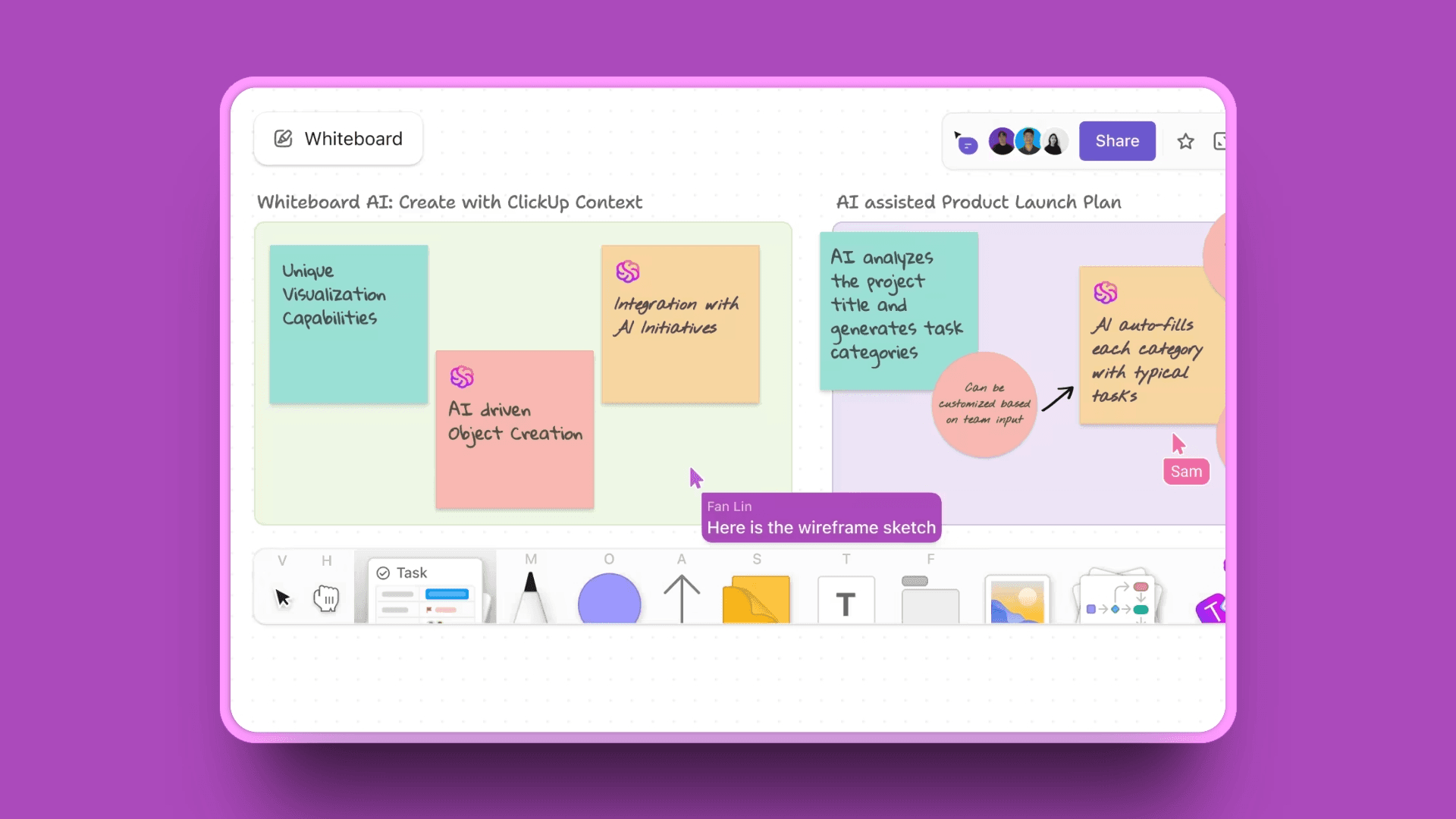
ClickUp Whiteboards integrates visual collaboration directly into ClickUp's project management platform, enabling teams to plan visually and convert ideas to executable tasks instantly.
The platform's unique value comes from connecting visual brainstorming to task management. Sketch a project plan, then convert elements directly into tasks, subtasks, and documentation.
Key Features
Infinite canvas integrated with ClickUp tasks allowing direct connections between visual elements and project execution
Convert whiteboard elements to tasks instantly transforming ideas into actionable work items
Real-time collaboration with commenting and live cursors
Drawing, sticky notes, shapes, connectors plus embedded documents and media
Templates for project planning, brainstorming, and agile workflows
Integration with all ClickUp features including docs, goals, dashboards, and time tracking
Included with ClickUp subscription at no additional cost
Collaborative editing with mentions, reactions, and threaded discussions
Pros
Seamless integration between visual planning and task execution
Convert ideas to actionable tasks instantly without manual recreation
All-in-one platform reduces tool switching between whiteboard and project management
Affordable compared to separate whiteboard plus project management subscriptions
Regular updates and new features with active development
Strong project context makes visual planning more actionable
Free tier includes whiteboards with limited features
Cons
Whiteboard features less mature than dedicated visual collaboration tools
Fewer templates and frameworks than Miro or Mural
Can feel overwhelming with all ClickUp features and options
Whiteboard experience less polished than specialized platforms
Best value requires full ClickUp adoption for project management
Pricing
Free: Included in ClickUp free plan with limited features
Unlimited: $7/user/month with unlimited whiteboards
Business: $12/user/month with advanced features
Enterprise: Custom pricing with additional capabilities
User Reviews
ClickUp receive 4.7/5 ratings on G2.
Best For
Teams using ClickUp for project management wanting visual planning
Project planning that needs to become executable tasks quickly
Agile sprint planning within ClickUp workflow
Product roadmap visualization connected to development tasks
Teams consolidating tools into single all-in-one platform
8. Canva Whiteboards
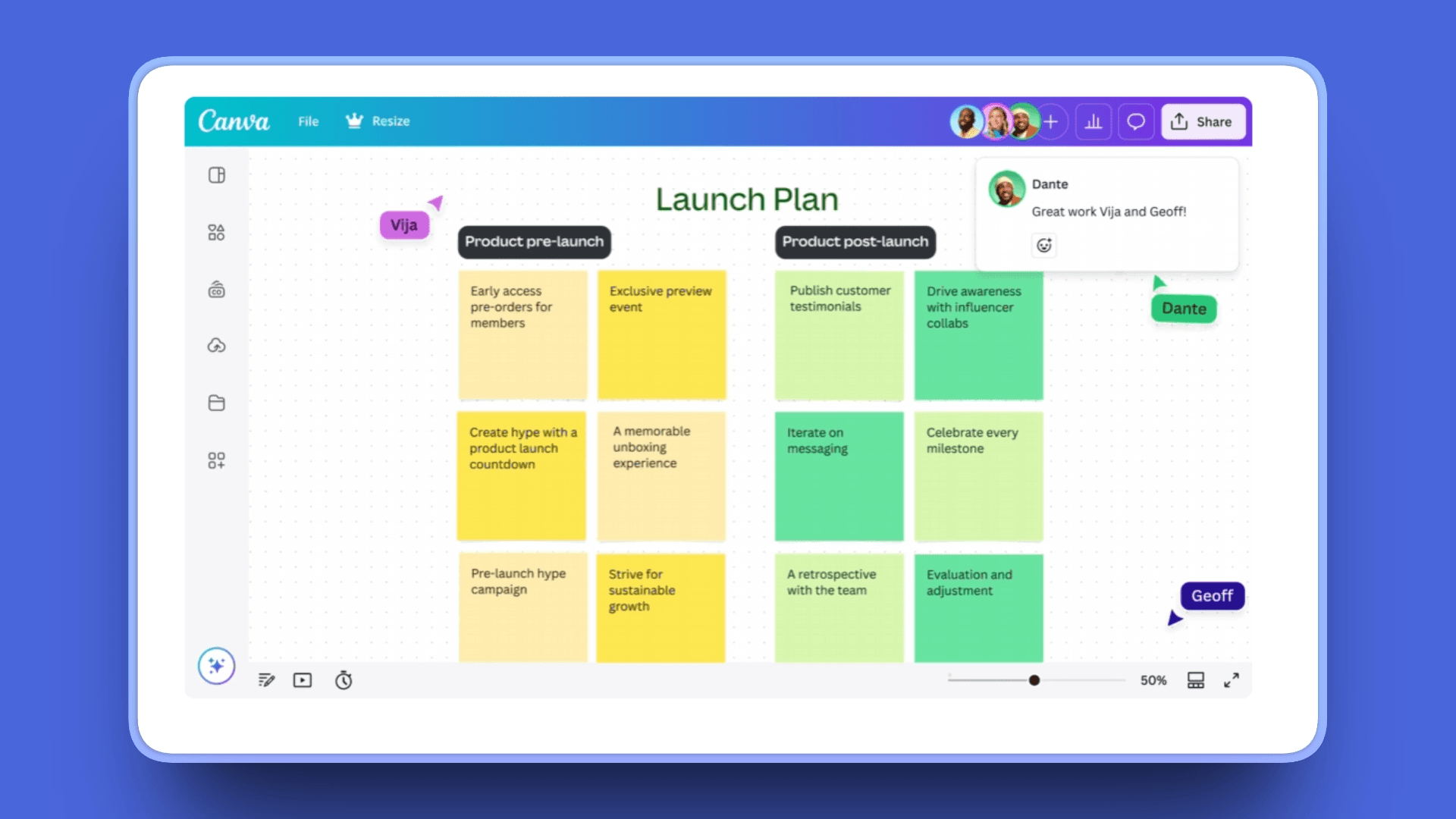
Canva Whiteboards extends Canva's design platform with collaborative whiteboard features, allowing teams to brainstorm and transition ideas to visual content in the same ecosystem.
The platform's unique advantage is access to Canva's massive asset library and AI-powered design features during brainstorming sessions.
Key Features
Infinite canvas with access to Canva's design elements, images, and graphics library
Canva asset library providing millions of images, graphics, and design elements
AI-powered features including Magic Write for content generation and sticky note grouping
Real-time collaboration with live cursors and instant updates
Templates for brainstorming, planning, and creative collaboration
Export to Canva designs transitioning whiteboard concepts to finished graphics
Integration with Canva workflow for seamless creative production
Presentation mode for sharing boards in meetings
Pros
Access to vast Canva asset library during brainstorming
Easy transition from whiteboard to finished designs in same platform
AI features generate content and organize ideas automatically
Familiar interface for existing Canva users
Good for marketing and creative teams producing visual content
Affordable for small teams at $30/month for first 5 users
Strong visual design capabilities beyond basic whiteboarding
Cons
Less sophisticated than dedicated collaboration platforms
Fewer templates for complex use cases like agile or strategy sessions
Limited facilitation features compared to Miro or Mural
Integration ecosystem smaller than specialized tools
Best for creative work, not technical diagrams or process mapping
Pricing
Free: Available for personal use with limited features
Pro: $14.99/user/month with full features for individuals
Teams: $30/month for first 5 users with collaboration features
User Reviews
Canva receive 4.7/5 ratings on G2
Best For
Marketing teams brainstorming campaign ideas and content
Content planning and ideation transitioning to finished graphics
Creative team collaboration on visual projects
Social media content planning and organization
Educational collaboration with visual elements
Teams already using Canva for design work
9. Conceptboard
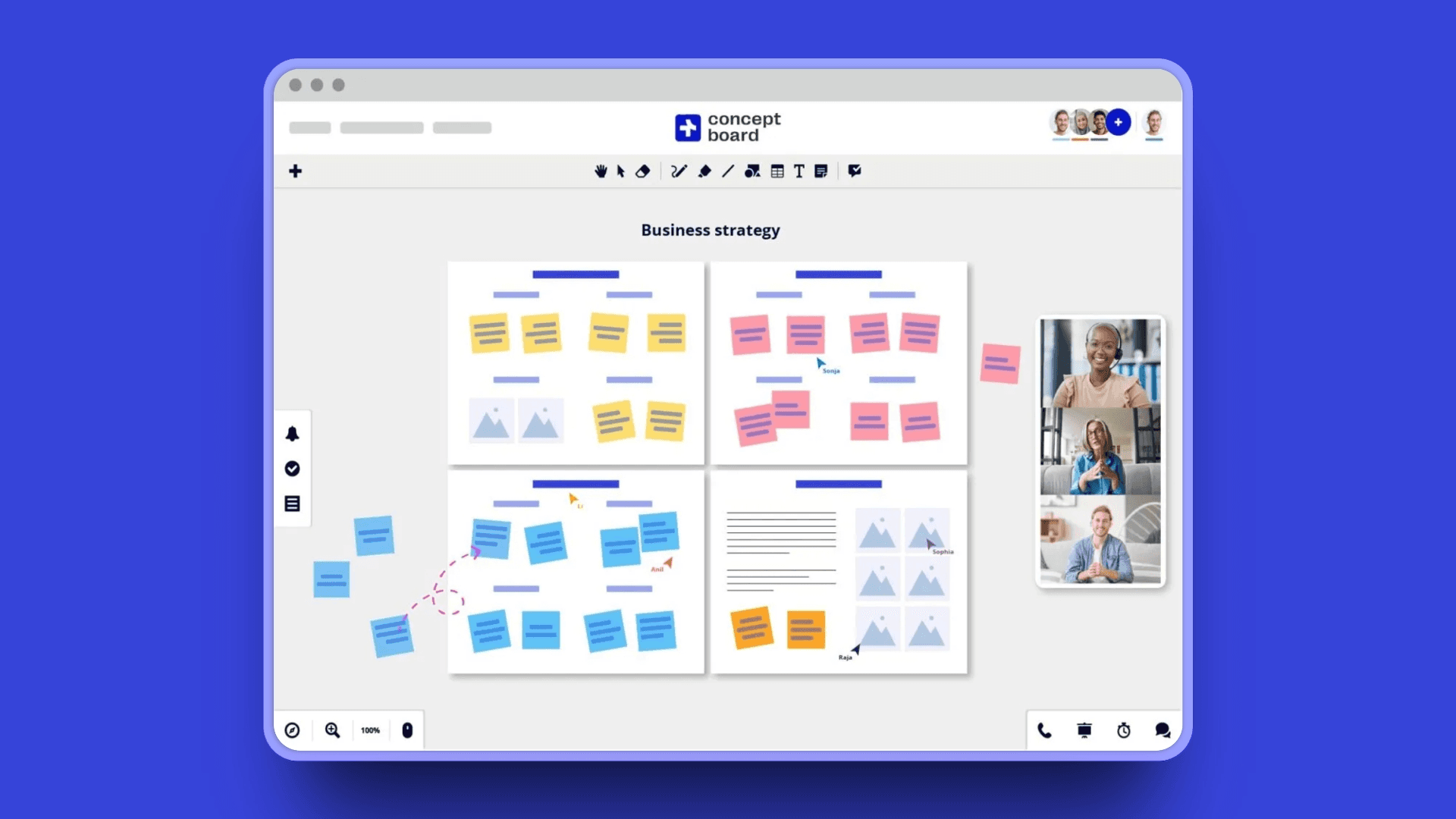
Conceptboard focuses on design feedback and review workflows alongside visual collaboration, with strong annotation and commenting features for creative teams.
The platform excels at design review and approval processes with robust file handling for 200+ file types.
Key Features
Infinite canvas with strong organization and structure features
Advanced commenting and annotation tools for detailed feedback
File preview for 200+ file types without external apps
Video and screen recording capabilities built-in
Version comparison features for tracking design changes
Templates for design thinking, workshops, and creative collaboration
Task management and workflow features for project tracking
Enterprise security with GDPR compliance and data controls
Pros
Excellent for design review and approval workflows
Strong file handling and preview capabilities for diverse formats
Affordable pricing at $6-9.50 per user monthly
Good organization and structure features for complex projects
Video capabilities built-in without third-party tools
GDPR compliant, European company focused on privacy
Task management integrates feedback with action items
Cons
Smaller user base and community than market leaders
Fewer templates than Miro or Mural
Less extensive integration ecosystem
Interface feels less modern than competitors
Learning curve for advanced features
Pricing
Free: 1 board with limited features
Premium: $6/user/month with unlimited boards and more features
Business: $9.50/user/month with advanced features and integrations
Enterprise: Custom pricing with enhanced security and support
User Reviews
Conceptboard maintains a 4.6/5 rating on G2
Best For
Design review and approval workflows
Creative agency collaboration with clients
Project feedback and iteration cycles
Workshop facilitation with European privacy compliance
Remote design critiques and presentations
Client collaboration on creative projects
10. Stormboard
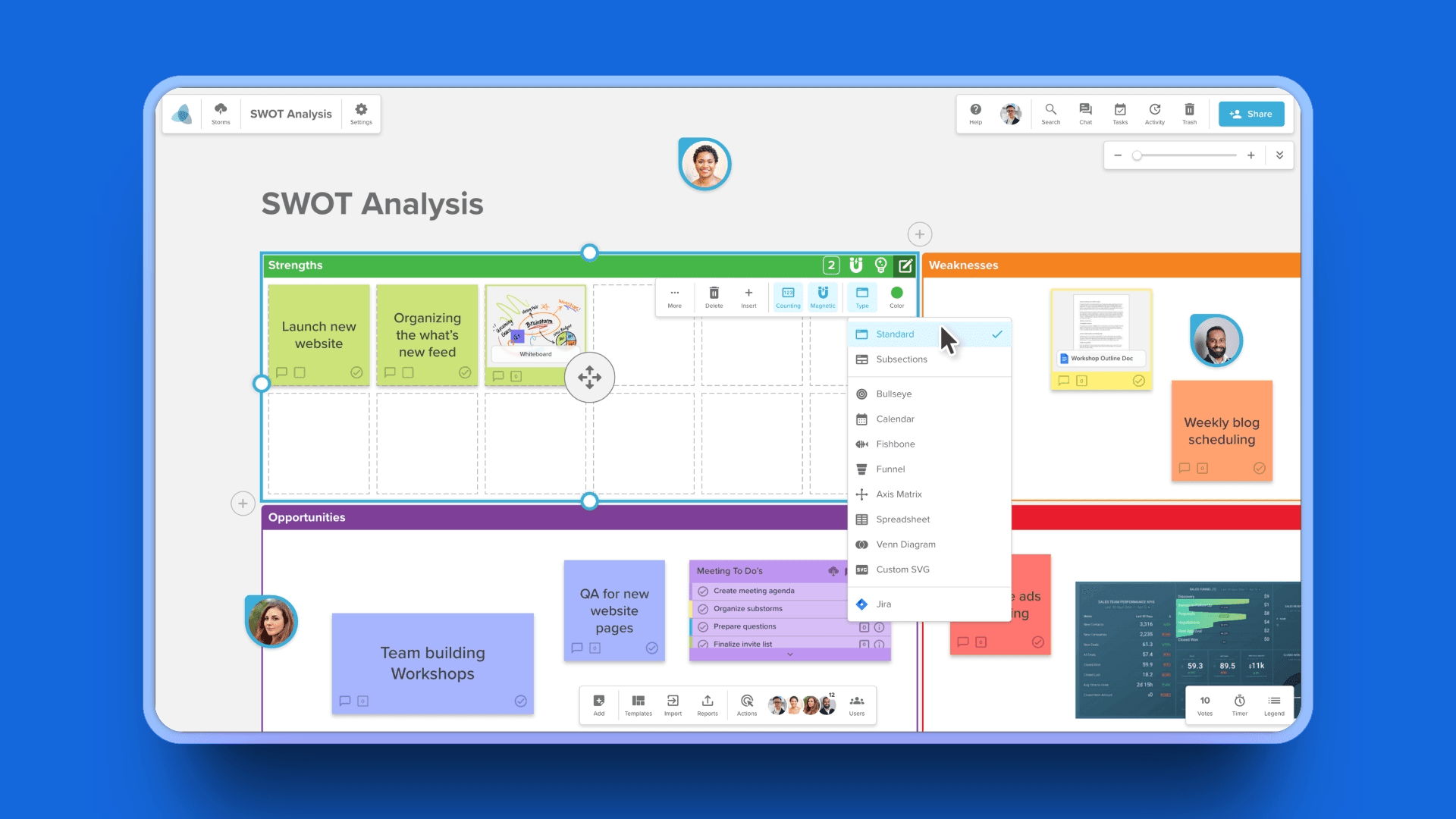
Stormboard is a sticky note-based collaboration tool that combines brainstorming with project management, featuring AI capabilities to organize and analyze ideas.
The platform's unique nested whiteboard concept allows each sticky note to contain its own whiteboard, enabling hierarchical organization.
Key Features
Digital sticky notes with rich capabilities including images, files, and nested content
AI-powered idea clustering and analysis automatically organizing brainstorming output
Nested whiteboards where each sticky note can contain its own canvas
Voting and rating features for prioritizing ideas
Templates for workshops, meetings, and structured brainstorming
Task assignment and tracking connecting ideas to execution
Reporting and analytics on ideas and team participation
Integration with project management tools for workflow continuity
Pros
Unique nested whiteboard concept enables hierarchical organization
Strong facilitation and workshop features for structured sessions
AI helps organize brainstorming output and identify themes
Affordable pricing at $5-10 per user monthly
Good for capturing and tracking ideas through execution
Reporting features unique in visual collaboration category
Task assignment connects brainstorming to action
Cons
Interface feels dated compared to modern competitors
Smaller ecosystem and user community
Learning curve for nested board concept
Fewer templates and frameworks than leaders
Less visual polish than Miro or Mural
Pricing
Free: 5 open storms with limited features
Personal: $5/month with unlimited storms and more features
Business: $10/user/month with team features and integrations
Enterprise: Custom pricing with advanced capabilities
User Reviews
Stormboard receives 4.4/5 ratings on G2
Best For
Structured brainstorming sessions with hierarchical organization
Innovation management and idea tracking
Workshop facilitation with reporting requirements
Idea collection, voting, and prioritization
Retrospectives with action tracking through completion
11. Creately
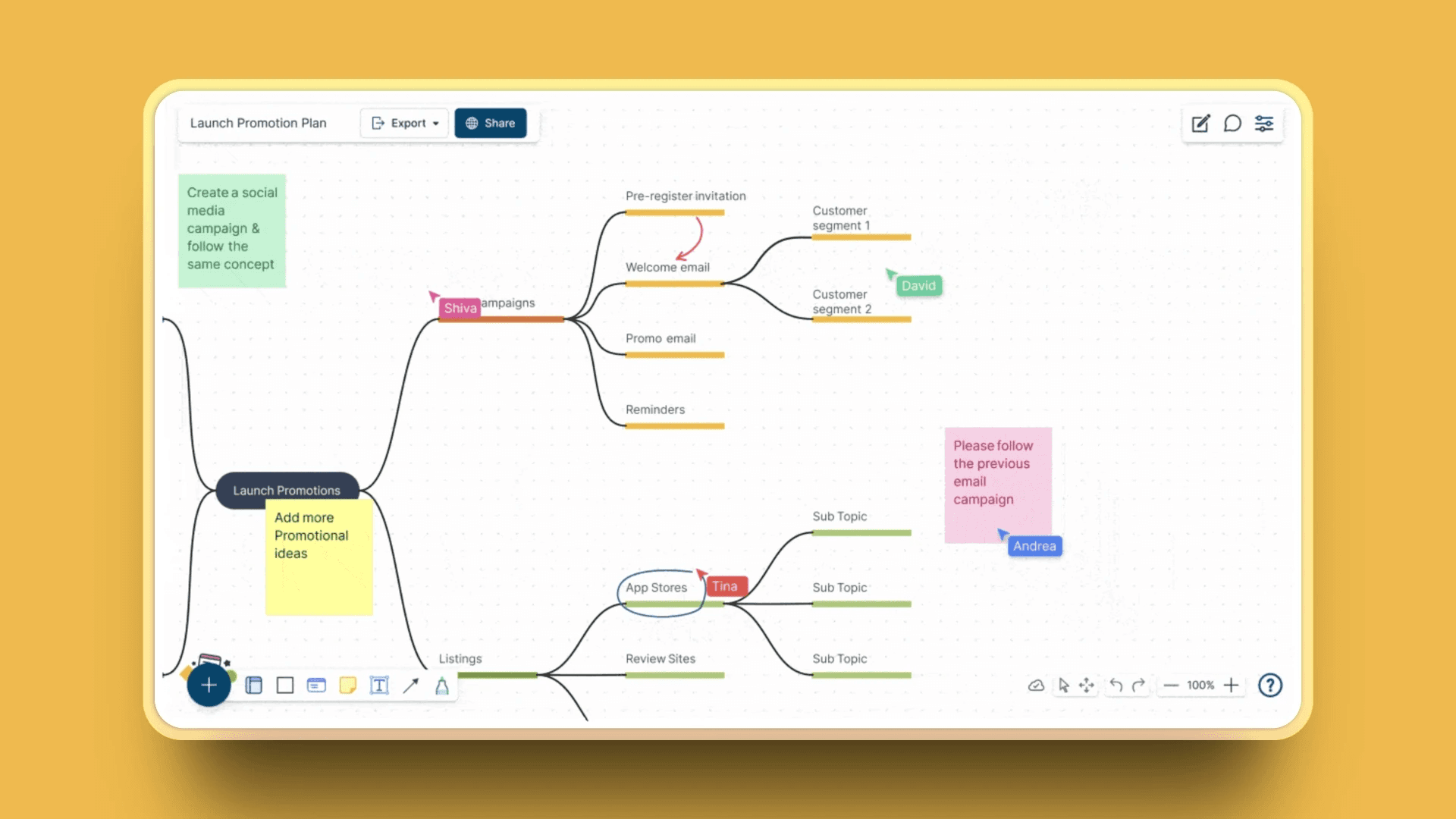
Creately is a visual workspace combining diagramming, whiteboarding, and project management, focusing on visual clarity for business process mapping and planning.
The platform's unique unlimited user pricing at the Business tier makes it attractive for growing teams.
Key Features
Infinite canvas with smart connectors for visual relationships
Professional diagram templates covering 70+ types including flowcharts, org charts, and technical diagrams
Real-time collaboration with multiplayer editing and commenting
Data integration and visualization connecting diagrams to databases
Project management features for tracking work within visual context
2-way sync with databases for dynamic, data-driven diagrams
AI-powered diagram generation from text descriptions
Custom shape libraries for industry-specific needs
Pros
Unique unlimited user pricing at Business tier ($89/month flat rate)
Good balance between structure and flexibility
Strong diagramming capabilities alongside whiteboarding
AI features for diagram creation from descriptions
Affordable for growing teams with flat-rate pricing
Data integration capabilities for dynamic diagrams
Good for both technical and creative collaboration
Cons
Less known than market leaders like Miro or Lucidchart
Smaller template ecosystem for pure collaboration use cases
Interface less polished than premium competitors
Learning curve for advanced data integration features
Smaller community and third-party resources
Pricing
Free: 5 documents with limited features
Starter: $5/user/month with unlimited documents
Business: $89/month flat rate for unlimited users
Enterprise: Custom pricing with enhanced features
User Reviews
Creately maintains 4.4/5 rating on G2
Best For
Business process mapping and documentation
Org charts and system diagrams with data connections
Project planning with visual workflows
Database-driven diagram generation
Growing teams wanting predictable flat-rate pricing
12. Boardmix
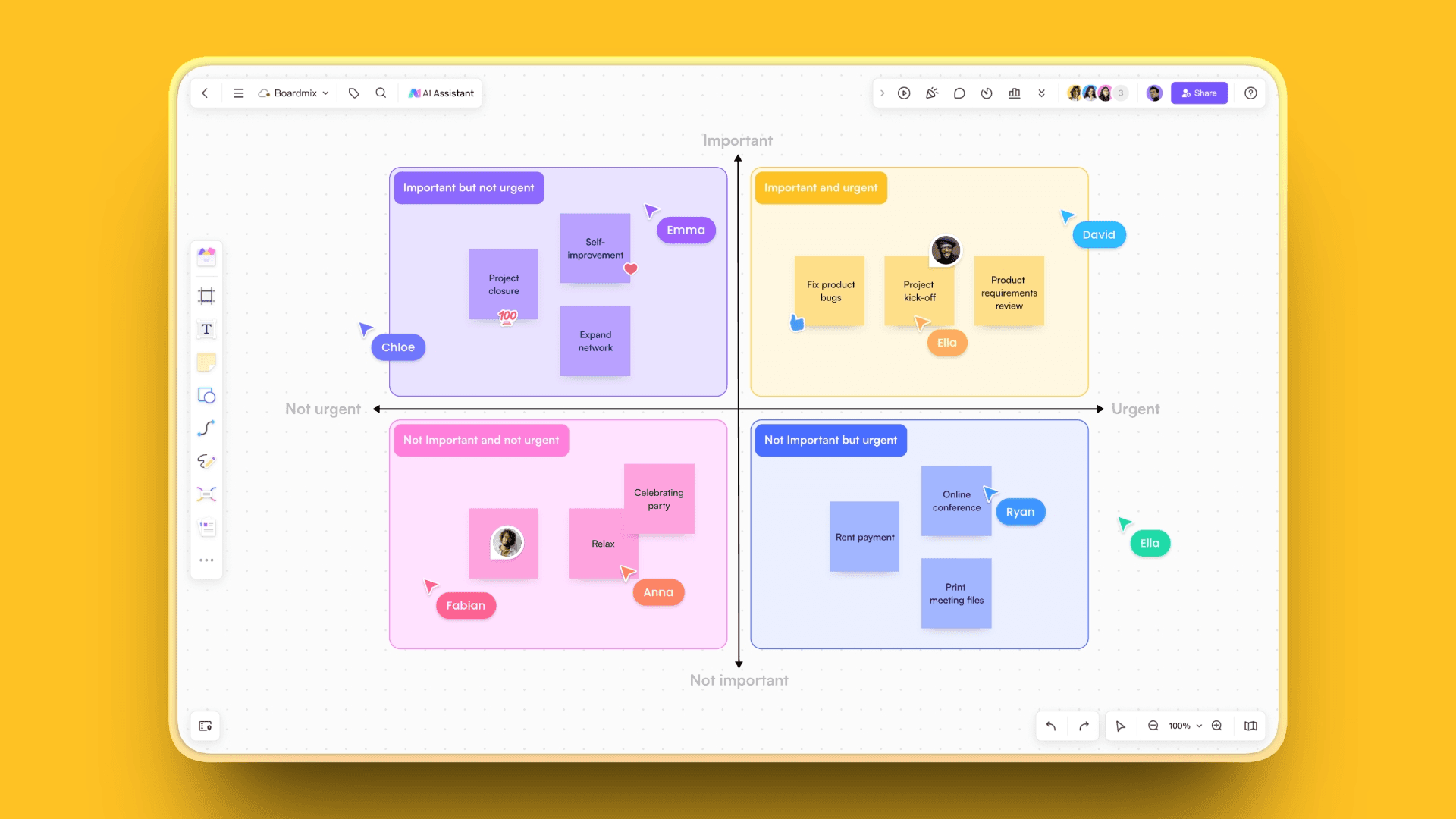
Boardmix is an AI-powered online whiteboard offering comprehensive collaboration features with strong AI integration for content generation and organization at affordable pricing.
The platform supports up to 500 simultaneous collaborators, making it suitable for large virtual events.
Key Features
AI-powered content generation and automatic organization turns messy brainstorms into structured maps, summaries, and clean layouts, instantly categorizing ideas without manual sorting
Supports up to 500 simultaneous collaborators for massive workshops, online classes, or company-wide sessions, staying smooth even with hundreds editing live
Comprehensive template library for all use cases including business, education, and creative templates like mind maps, roadmaps, user journeys, SWOTs, and more for quick starts
Real-time collaboration with video chat and live cursors lets teams talk and co-create on the same board without switching tools, making remote work interactive and fast
Mind mapping and diagramming tools with smart connectors create clean, professional flowcharts and maps that auto-align as you edit, keeping everything neat
Presentation mode with recording support turns your workspace into a guided presentation and allows recording so teammates or clients can view it later
Import and export multiple formats lets you import PDFs and images, and export boards to PNG, JPEG, and PDF for easy sharing or transferring content.
Mobile apps for iOS and Android to brainstorm, annotate, and check updates on the go with a touch-optimized interface that makes drawing and rearranging sticky notes easy
Pros
Strong AI features for content generation and organization
Very affordable pricing at $4.99-7.99 per user monthly
Supports large collaboration sessions up to 500 users
Good template variety for different use cases
Responsive development with frequent updates
Multiple content formats supported natively
Good value for budget-conscious teams
Cons
Newer player with smaller community than established platforms
Fewer integrations than Miro, Mural, or Figma
Less polished in some interface areas
Documentation primarily available in English and Chinese
Smaller ecosystem of third-party templates and plugins
Pricing
Free: Limited boards and features
Personal: $2.90/month for individual use
Business: $4.90/user/month with collaboration features
Enterprise: Custom pricing with advanced capabilities
User Reviews
Best For
AI-assisted brainstorming and content creation
Large virtual events and workshops up to 500 participants
Budget-conscious teams seeking affordable collaboration
Educational collaboration with students
Teams in Asia-Pacific region with localized support
13. Excalidraw
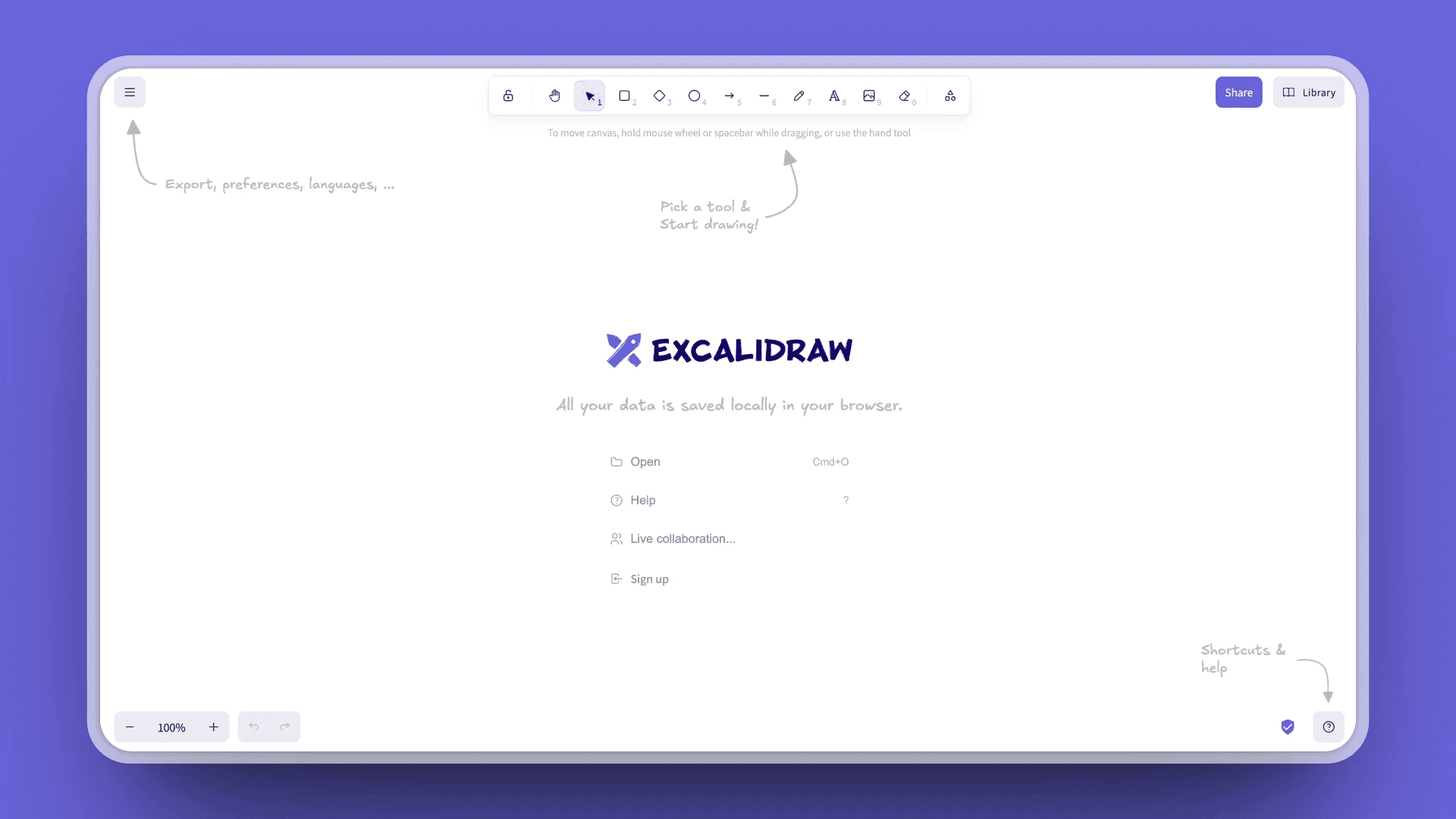
Excalidraw is a free, open-source virtual whiteboard for sketching hand-drawn-like diagrams, focused on simplicity, privacy, and a unique sketchy aesthetic.
The platform's completely free nature and open-source model make it ideal for privacy-conscious users and teams with no budget.
Key Features
Hand-drawn aesthetic for diagrams and sketches with unique visual style. Gives every diagram a natural, human feel, perfect for brainstorming, early concepts, and casual collaboration
Open-source with unlimited use forever. No paywalls, no trials, no limits. You can use it forever without spending a rupee
End-to-end encryption for privacy-focused collaboration. Sessions are secure by default, making it an ideal choice for confidential work or sensitive client projects
Real-time collaboration with shareable links. Invite teammates instantly and work together on the same canvas, no account or signup required
Export to PNG, SVG, clipboard for using diagrams elsewhere. Export your diagrams in multiple formats for presentations, documentation, or other design tools
Library of shapes and components for common diagram elements. Access pre-made icons, arrows, connectors, flowchart elements, and reusable components to speed up diagramming
No account required for basic use. You can open the site and start drawing immediately. Saves time and reduces onboarding friction
Self-hosting option available for complete control. Companies or developers can run Excalidraw on their own servers, ensuring maximum privacy and data ownership
Offline support available, you can continue working without internet, and your changes sync when you're back online
Pros
Completely free for unlimited use with no restrictions
Open-source with active development community
Unique hand-drawn aesthetic stands out from generic diagrams
No account required for basic sketching and collaboration
Fast and lightweight, loads instantly
Can self-host for complete data control
End-to-end encryption ensures privacy
Active community contributing improvements
Cons
Very basic features compared to commercial platforms
No templates or frameworks for structured collaboration
Limited collaboration features beyond basic whiteboarding
No integrations with other business tools
Hand-drawn style not suitable for professional presentations
No project management or advanced organization features
Minimal mobile experience
Pricing
Completely free and open-source
Excalidraw Plus: $6/month for cloud features and more storage (optional)
User Reviews
Best For
Quick technical diagrams and architecture sketches
Developer collaboration on system design
Privacy-focused brainstorming with end-to-end encryption
Teaching and explaining concepts with unique visual style
Open-source project planning and documentation
Personal sketching and note-taking
Teams wanting no-cost solution with complete control
Visual Collaboration Tools Comparison Table
Here's how the top visual collaboration tools compare across key capabilities:
Tool | AI Features | Standout Feature | Best For |
|---|---|---|---|
Kosmik | Auto-tagging, visual search | Built-in browser with multimedia workspace | Creative professionals and researchers |
Miro | Smart frameworks, sticky note grouping | 1,000+ templates and 100+ integrations | Enterprise teams and facilitators |
Figma | Design generation, auto-layout | Professional design collaboration | UI/UX design teams |
Mural | Sticky note clustering | Structured facilitation tools | Workshop leaders and consultants |
Lucidspark | Idea grouping and themes | Seamless Lucidchart integration | Teams using Lucidchart ecosystem |
Microsoft Whiteboard | Shape recognition | Included with Microsoft 365 | Microsoft Teams users |
ClickUp Whiteboards | Content generation | Convert boards to tasks | Project management integration |
Canva Whiteboards | Magic Write, grouping | Access to Canva design library | Marketing and creative teams |
Conceptboard | Limited AI features | 200+ file type preview | Design review workflows |
Stormboard | Idea clustering and analysis | Nested whiteboards | Innovation management |
Creately | Diagram generation | Unlimited users at Business tier | Business process mapping |
Boardmix | Content generation, organization | 500 simultaneous users | Large virtual events |
Excalidraw | No AI features | Free and open-source | Privacy-focused developers |
How Much Do Visual Collaboration Tools Cost?
Visual collaboration tool pricing varies from completely free to premium enterprise rates. Understanding the total cost requires looking beyond per-seat pricing to consider scaling costs, feature distribution, and hidden limitations.
Price Ranges by Category
Free Tier Options
Excalidraw offers completely unlimited free use as an open-source tool. Microsoft Whiteboard is free with a Microsoft account. Many commercial platforms offer free tiers with restrictions.
Miro limits free users to 3 editable boards. Figma allows 3 design files and 3 FigJam boards. Mural, Lucidspark, and others similarly cap free boards at 3. These free tiers work for testing tools or occasional use but restrict active teams.
Budget-Friendly Options ($5-12 per user monthly)
Conceptboard starts at $6 per user monthly. ClickUp Whiteboards cost $7 per user monthly but include full project management. Boardmix offers collaboration at $7.99 per user monthly. Lucidspark Team plan runs $9 per user monthly. Kosmik Pro costs $11.99 per user monthly (yearly billing).
These affordable options provide solid features without premium pricing, ideal for startups and small teams.
Mid-Range Options ($10-15 per user monthly)
Miro Starter costs $8 per user monthly, Business tier $16 monthly. Figma Professional runs $12 per editor monthly. Mural Team starts at $12 per user monthly.
Mid-range pricing delivers more comprehensive features, better integrations, and expanded capabilities for growing teams.
Premium Options ($15+ per user monthly)
Figma Organization tier costs $45 per editor monthly for design systems. Enterprise tiers from Miro, Mural, and others typically range $20-50+ per user monthly with custom pricing, advanced security, and dedicated support.
Hidden Costs to Consider
Training and Onboarding
Time investment in learning new tools costs money even if not directly billed. Complex platforms require hours or days for proficiency. Onboarding entire teams multiplies this cost. Some organizations need external training or consultants.
Integration and Workflow Changes
Setting up integrations takes time. Workflow adjustments disrupt productivity initially. You might need additional tools to bridge gaps in the visual collaboration platform's capabilities.
Scaling Costs
Per-seat pricing multiplies as teams grow. A tool costing $10 monthly per user becomes $1,000 monthly for a 100-person team. Feature limitations at lower tiers force upgrades as needs expand. Storage and usage limits trigger additional costs.
Best Value Propositions
Best free option: Excalidraw for simple needs, Microsoft Whiteboard if using Microsoft 365.
Best budget pick: Boardmix or Kosmik for comprehensive features at low cost.
Best all-in-one value: ClickUp Whiteboards to consolidate tools.
Best for design teams: Figma despite higher cost, industry standard value.
Best for facilitation: Miro or Mural worth the premium for extensive templates and features.
Best for privacy-conscious: Kosmik with offline capabilities and local storage.
Best unlimited users: Creately Business tier at $89 monthly flat rate for unlimited team members.
Frequently Asked Questions
What is the difference between a digital whiteboard and visual collaboration software?
Digital whiteboards provide a basic canvas for drawing, sketching, and adding sticky notes, simulating physical whiteboards digitally. Visual collaboration platforms build on this foundation with deeper features like advanced integrations, communication channels, project management capabilities, structured frameworks, and workflow automation.
Think of digital whiteboards as a subset of visual collaboration software. Tools like Microsoft Whiteboard or Excalidraw are digital whiteboards. Platforms like Miro, Mural, or Kosmik are full visual collaboration platforms offering much broader capabilities.
For simple brainstorming and sketching, basic digital whiteboards suffice. For complex team collaboration, strategic planning, or integration with other workflows, visual collaboration platforms provide significantly more value.
Can you use visual collaboration tools for free?
Yes, many visual collaboration tools offer free tiers, though with varying limitations.
Completely Free Options
Excalidraw is fully featured with unlimited use as an open-source tool. Microsoft Whiteboard is free with a Microsoft account.
Free Tiers with Limitations
Miro allows 3 editable boards with unlimited team members. Figma provides 3 design files and 3 FigJam boards. Mural, Lucidspark, and others limit free users to 3 boards. ClickUp offers limited features on free plans. Kosmik's Pro plan starts at $11.99/month (yearly) with unlimited features.
Free tiers work well for small teams, occasional use, or testing tools before commitment. Active teams typically need paid plans for unlimited boards, advanced features, and integrations.
Consider starting with free tiers to test fit, then upgrade as usage and needs grow.
Which visual collaboration tool is best for remote teams?
The best visual collaboration tool for remote teams depends on specific needs:
For comprehensive features and integrations
Miro offers the most extensive template library with 1,000+ options, robust integrations, and features specifically designed for remote work.
For design-focused teams
Figma with FigJam provides the best design collaboration experience, especially for product and UX teams.
For facilitated workshops
Mural excels with facilitator controls including voting, timers, and structured frameworks.
For budget-conscious teams
Boardmix or Lucidspark provide strong features at lower price points without sacrificing core capabilities.
For teams minimizing tools
ClickUp Whiteboards or Microsoft Whiteboard integrate with platforms you already use.
For privacy and multimedia work
Kosmik offers offline capabilities, local storage, and exceptional multimedia integration for creative remote teams working with diverse content.
Most importantly, choose a tool your entire remote team will actually use. The best tool balances features, ease of use, and cost for your specific situation.
How do visual collaboration tools integrate with other software?
Integration capabilities vary significantly across platforms:
Native Integrations
Most visual collaboration platforms offer native integrations with popular tools like Slack, Microsoft Teams, Google Workspace, Jira, Asana, and Notion. Native integrations typically provide the smoothest experience with two-way sync and embedded functionality.
API Access
Tools like Miro, Mural, Figma, and Lucidspark provide APIs allowing custom integrations and automation. This proves valuable for enterprise teams with specific workflow needs.
Third-Party Automation
Many tools integrate through Zapier, Make, or similar automation platforms, enabling connections to thousands of other apps even without direct integration.
Embedding and Exporting
Most platforms allow embedding boards in other tools like Notion, Confluence, or Google Docs, plus exporting to various formats including PDF, PNG, and SVG.
Integration Leaders
Miro leads with 100+ native integrations and robust API. ClickUp Whiteboards offers 1,000+ integrations through the ClickUp platform. Figma provides a strong plugin ecosystem plus integrations. Microsoft Whiteboard delivers deep Microsoft 365 integration. Kosmik offers a Chrome extension for seamless web research capture plus a Figma plug-in for design workflow integration.
When evaluating integration needs, identify your 3-5 most critical tools and verify how well the visual collaboration platform connects with them.
What are the best visual collaboration tools for agile teams?
Agile and Scrum teams have specific needs around sprint planning, retrospectives, and iterative workflows.
Miro
Templates for sprint planning, retrospectives, and daily standups. Integration with Jira, Azure DevOps, and agile project management tools. Voting and estimation features. Large canvas for product roadmaps.
Mural
Structured facilitation features ideal for agile ceremonies. Timer for timeboxed activities. Voting and prioritization tools. Templates for SAFe, Scrum, and Kanban methodologies.
ClickUp Whiteboards
Direct connection between visual planning and task execution. Convert whiteboard elements to tasks and sprints instantly. All-in-one platform for complete agile management. Sprint tracking and reporting built-in.
Lucidspark
Brainstorming that flows into Lucidchart diagrams for documentation. Voting and grouping features for prioritization. Integration with project management tools.
Kosmik
While not traditionally agile-focused, Kosmik serves product teams well for user research organization, competitive analysis, and design exploration phases that feed into sprint planning.
For teams heavily invested in Jira, choose a tool with strong Jira integration like Miro, Mural, or ClickUp to maintain workflow continuity and automate updates.
Are visual collaboration tools secure for enterprise use?
Most established visual collaboration platforms offer robust enterprise security features, though capabilities vary:
Standard Security Features
TLS/SSL encryption for data in transit. Encryption at rest for stored data. Role-based access controls. SSO and SAML integration. Two-factor authentication. Audit logs and activity tracking.
Enterprise-Specific Features (typically at higher tiers)
Advanced admin controls and user management. Data residency options for compliance. Compliance certifications including SOC 2, GDPR, HIPAA. Custom security policies. Dedicated support and SLAs. Private cloud or on-premises deployment options.
Security Leaders
Miro, Mural, and Figma offer comprehensive enterprise security at Business and Enterprise tiers. Microsoft Whiteboard follows the Microsoft 365 security model. Kosmik provides local-first options with data control.
Privacy Considerations
Cloud-based tools store data on their servers. For maximum privacy and control, choose tools offering local storage like Kosmik or self-hosted options like Excalidraw. Review data usage policies carefully. Ensure compliance with your industry regulations. Consider data residency requirements for international teams.
For highly sensitive work, tools with offline capabilities and local storage may be preferable to cloud-only platforms.
Can one person use visual collaboration tools for individual work?
Absolutely. While marketed for teams, visual collaboration tools increasingly provide value for individual knowledge workers.
Best for Individual Use
Kosmik: Designed for both individuals and teams. Multimedia workspace for research and creative work. Offline capabilities and privacy controls. Free tier for personal use.
Excalidraw: Completely free with unlimited use. Simple, focused tool for sketching. Privacy-focused with end-to-end encryption.
Miro/Mural: Powerful but may be overkill for individuals. Free tiers work for personal brainstorming. Better value proposition for teams.
Individual Use Cases: Visual note-taking and thinking. Research organization and synthesis. Personal project planning. Content planning and writing outlines. Learning and studying. Creative brainstorming. Goal mapping and life planning.
The key is choosing a tool that doesn't require a team to provide value. Kosmik, Excalidraw, and tools with generous free individual tiers work exceptionally well for solo users.
What's the learning curve for visual collaboration tools?
Learning curves vary significantly across platforms:
Easy to Learn (minutes to basic proficiency)
Microsoft Whiteboard offers minimal features with a familiar interface. Excalidraw provides a simple, focused toolset. Canva Whiteboards feel intuitive for Canva users. Basic use of any tool including drawing, sticky notes, and simple collaboration requires minimal learning.
Moderate Learning Curve (hours to days for proficiency)
Miro has many features but a well-organized interface. Lucidspark offers straightforward design with some depth. Kosmik provides intuitive basics, becoming more powerful with practice. FigJam is easy for whiteboarding, more complex for advanced design.
Steeper Learning Curve (days to weeks for full proficiency)
Figma is a professional design tool with significant depth. Mural offers many facilitation features to master. ClickUp Whiteboards carries complexity of the full ClickUp platform. Advanced features in any tool require time investment.
Factors Affecting Learning Curve
Prior experience with similar tools. Complexity of intended use, simple brainstorming versus complex diagrams. Team adoption where everyone needs to learn versus solo use. Available onboarding resources and documentation quality.
Tips for Faster Learning
Start with templates rather than blank canvas. Use built-in tutorials and help resources. Focus on your specific use case first. Learn advanced features as needed, not all at once.
Most teams can start collaborating productively within an hour on any modern visual collaboration tool, with increasing efficiency over the first few weeks of regular use.
Choosing Your Visual Collaboration Tool
Visual collaboration tools have become essential for modern teams, bridging the gap between traditional text-based communication and the visual thinking our brains are wired for. The market offers options ranging from simple free whiteboards to comprehensive enterprise platforms, each with distinct strengths.
The best visual collaboration tools don't just add features. They solve real problems. Information overload. Scattered resources across twelve apps. Lost context in endless chat threads. Misalignment that causes expensive revision cycles.
Kosmik tops our list for creative professionals and researchers because it reimagines what a visual workspace can be. Instead of forcing you to choose between a browser, note-taking app, file manager, and whiteboard, Kosmik combines everything on an infinite multimedia canvas. Built-in browser with press-of-a-key access. Native support for videos, PDFs, images, and web content. Offline capabilities with local storage for privacy-conscious teams.
The platform scales smoothly from individual use to team collaboration. Start with the Pro plan at $11.99/month (yearly) for unlimited workspaces and sharing capabilities. For teams needing advanced features, the Ambassador plan at $16.99/month (yearly) adds Figma plug-in integration, brand kits, and dedicated Slack support.
Start with Kosmik and build your first multimedia workspace today. Experience the difference when visual collaboration meets true multimedia flexibility.