December 31, 2025
Find Assets with AI in Seconds

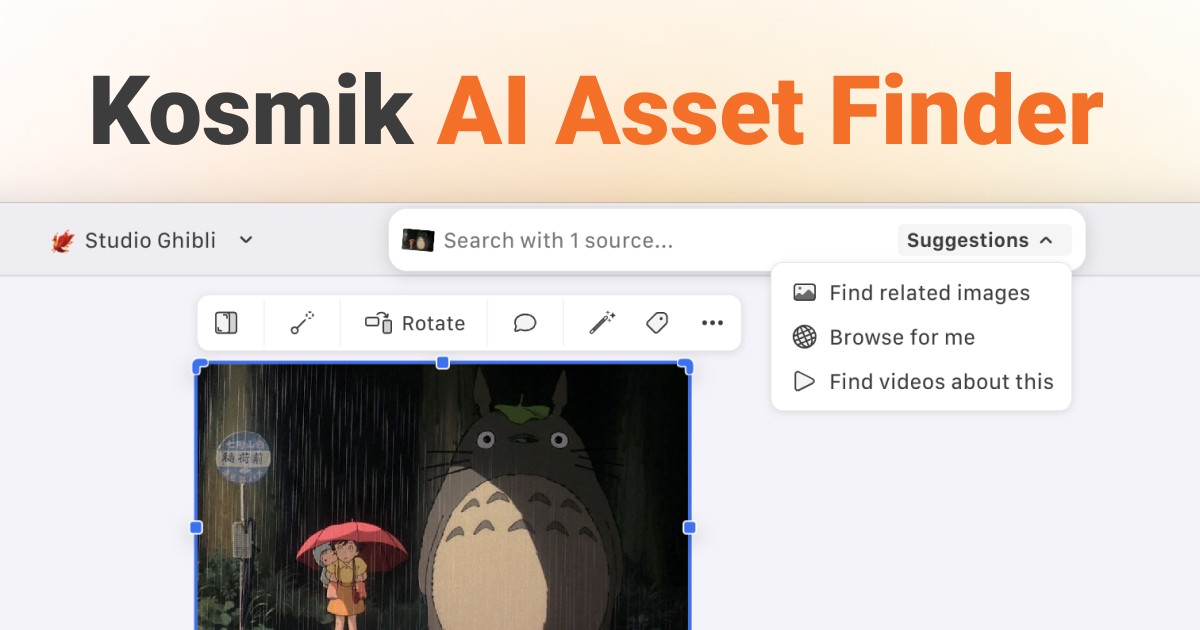
Kosmik AI asset finder uses items on your canvas as visual prompts to discover related images, videos, and links from across the web, building complete mood boards in seconds instead of hours. Building a mood board shouldn't feel like managing air traffic control. But here you are with 20 browser tabs open across Pinterest, Unsplash, and YouTube, manually copying links, downloading images, losing track of sources.
Every designer knows this pain. You spend hours hunting for the perfect aesthetic match across multiple platforms. You download files, create folders, track sources in spreadsheets, import everything to your design tool. Your creative flow dies somewhere between "Save Image As" and "Where did I put that file?"
Reverse image search tools like Google Lens find exact matches, but they don't help you discover what ELSE could inspire you. Mood board generators require text prompts or manual curation. You're stuck between tools that find duplicates and tools that require you to already know what you're looking for.
Kosmik's AI asset finder solves this by turning your existing canvas items into search prompts. Drop 2-3 inspiration images on your canvas, click the AI search, and instantly get a stack of related assets (images, videos, and links) that match your aesthetic. No app-switching, no manual downloading, sources preserved, everything auto-tagged.
Key Takeaways
Kosmik AI asset finder uses canvas items as visual prompts to discover related images, videos, and links from across the web, including YouTube
Unlike reverse image search (finds exact matches), AI asset finder discovers NEW assets fitting the same theme, style, or subject
Select multiple canvas items for refined results: AI understands combined aesthetics and generates more targeted suggestions
All discovered assets arrive auto-tagged with colors, themes, and subjects, with original sources preserved for attribution
Build complete mood boards in seconds by searching without leaving your workspace (no app-switching or manual downloading required)
What is Kosmik AI Asset Finder?
Kosmik AI asset finder is an intelligent web search feature integrated directly into Kosmik's visual workspace. Instead of typing keywords, you select one or more items already on your canvas, and the AI searches the web to find related images, videos, and links that match your visual direction.
Most people are familiar with reverse image search tools like Google Lens, which help you find where a specific image exists online or locate exact visual matches. Kosmik's AI asset finder works differently. It's designed for creative discovery, not source verification.
The bottom line: This is about finding MORE, not finding EXACT. You're showing the AI examples of what you like, and it brings back similar options you haven't seen yet. It's like having a research assistant who understands your aesthetic and browses the web on your behalf.
Who it's for:
Designers creating mood boards and gathering visual inspiration
Researchers building visual reference libraries across topics
Content creators collecting imagery for articles and presentations
Creative teams collaborating on visual strategy and brand development
Anyone who thinks visually and needs to organize inspiration efficiently
What problem it solves:
Eliminates the manual, time-consuming process of opening multiple tabs, searching different platforms, downloading files, importing to tools, and organizing everything separately. Your search happens where you work.
How Does AI Asset Finder Work?
In summary, Kosmik's AI asset finder analyzes the visual characteristics of items on your canvas and searches the web for content that shares similar themes, colors, subjects, or aesthetic qualities.
The Technology Behind It
Computer Vision Analysis:
When you select items on your canvas, Kosmik's AI (powered by Google Gemini) analyzes multiple visual signals using advanced computer vision techniques developed in modern deep learning research:
Color palettes: Dominant and accent colors
Subjects and objects: What's depicted in the images
Visual themes: Abstract concepts like "minimalist," "vintage," or "bold"
Composition styles: Layout patterns, perspectives, visual density
Contextual Understanding:
If you select multiple items, the AI understands the combined context. For example, selecting a pastel color palette image + a botanical photograph + a minimalist layout tells the AI you want "soft, nature-inspired minimalism." Far more refined than any text query could express.
The Search Process
Step 1: Selection
You select one or more items on your canvas that represent the direction you want to explore. These become your visual "search query."
Step 2: AI Analysis
The AI analyzes your selected items to understand themes, colors, subjects, and overall aesthetic. This happens instantly in the background.
Step 3: Web Search
Kosmik searches the web (including YouTube) for content matching your visual criteria. You can optionally filter by specific websites (like Pinterest, specific design blogs, etc.).
Step 4: Results Delivery
The AI returns a "stack" of results (images, videos, and links) directly on your canvas. No need to open new tabs, download files, or switch apps.
Step 5: Auto-Tagging
Every asset that arrives is automatically tagged by Kosmik's AI with relevant descriptors: colors, themes, subjects, visual characteristics. Sources are preserved for attribution.
Step 6: Refinement
You can continue selecting items (including newly discovered ones) and running new searches to keep refining and expanding your collection.
Key point: This entire process takes seconds, not the hours typically spent manually searching and organizing across multiple platforms.
AI Asset Finder vs. Reverse Image Search: What's the Difference?
Understanding the difference between AI asset finding and reverse image search is crucial for choosing the right tool for your creative work.
Two Different Tools for Two Different Jobs
Reverse Image Search: Finding Exact Matches
Reverse image search tools (Google Lens, TinEye, Reversely.ai) are designed to:
Find where a specific image appears online
Locate higher-resolution versions of an image
Verify image sources and check for copyright
Detect if an image has been modified or reused
Use case example: You found a great product photo and want to know where to buy it, or you want to verify if an image is copyrighted.
AI Asset Finder: Discovering Related Inspiration
Kosmik's AI asset finder is designed to:
Discover NEW assets you haven't seen that fit a similar aesthetic
Build collections based on visual themes and styles
Expand creative research with related content
Find videos and links matching your visual direction
Use case example: You have 2-3 inspiration images and want to find 20 more in the same style to complete a mood board.
Side-by-Side Comparison
Dimension | Reverse Image Search | AI Asset Finder (Kosmik) |
|---|---|---|
Primary Purpose | Find exact matches or sources of existing images | Discover NEW related content based on visual themes |
Input Method | Upload single image or provide URL | Select one or more canvas items |
Search Query | "Where does this image exist?" | "What else looks/feels like this?" |
Results | Exact or near-exact visual duplicates | Related images/videos fitting same style/theme |
Refinement | Search one image at a time | Select multiple items for combined context |
Output Format | Grid of matches with source links | Stack of results placed directly on canvas |
Auto-Tagging | Manual organization required | Automatic tagging with colors, themes, subjects |
Source Tracking | Find original source | Preserve sources of discovered assets |
Best For | Verification, source attribution, finding duplicates | Creative discovery, mood boards, visual research |
Workflow | Standalone tool, manual download/organize | Integrated workspace, instant canvas placement |
The bottom line: Both tools use AI and computer vision, but they serve fundamentally different needs. Reverse search helps you track down existing images; AI asset finder helps you discover new ones.
Key Capabilities of Kosmik AI Asset Finder
Kosmik AI asset finder includes several unique capabilities that go beyond basic visual search.
1. Multi-Item Context Selection
What it does:
Select 2, 3, or even 5 items on your canvas, and the AI understands the COMBINED aesthetic you're targeting. This is far more powerful than single-image search.
Why it matters:
Text queries force you to reduce complex visual concepts into words ("minimalist Scandinavian interior with warm wood tones and plants"). Visual selection is instant and accurate. Just show the AI examples.
Example use case:
A designer creating a brand mood board selects a color palette swatch, a typography sample, and a product photo. The AI finds imagery that works with all three elements, maintaining visual cohesion across the brand.
2. Video Discovery from Images
What it does:
Kosmik searches YouTube and returns videos that match the visual themes, subjects, or aesthetics of your selected canvas items.
Why it matters:
Most visual search tools are image-only. Finding relevant video content usually requires separate text searches. Kosmik bridges this gap by understanding visual styles across media types.
Example use case:
A content creator building a video essay about architecture has a canvas of mid-century modern building photos. AI asset finder discovers architectural walkthrough videos on YouTube featuring similar styles and eras.
3. Source Filtering and Preservation
What it does:
You can filter searches by specific websites (Pinterest, design blogs, stock photo sites) and Kosmik preserves the original source URL for every discovered asset.
Why it matters:
For professional work, attribution and source tracking are critical. You're not just collecting pretty pictures. You're building a properly sourced research library.
Example use case:
A researcher wants inspiration specifically from museum collections and architecture blogs. They filter the search to those domains, and every asset that arrives includes clickable source links for proper citation.
4. Automatic Tagging and Organization
What it does:
Every asset discovered through AI search is immediately tagged by Kosmik's AI with descriptive keywords: colors, themes, subjects, visual characteristics.
Why it matters:
Manual tagging is tedious and inconsistent. According to Veritone, AI auto-tagging can reduce metadata tagging time by up to 50%. Six months from now, you can search your workspace and instantly find "blue minimalist product photos" even if you've saved hundreds of images.
Example use case:
A design team builds a massive mood board library over weeks. Later, when starting a new project, they search "warm autumn colors nature" and instantly retrieve all relevant assets without remembering filenames or folder locations.
5. Integrated Workspace Search
What it does:
The AI search bar is built directly into Kosmik's canvas. Search results appear in your workspace instantly. No downloads, no imports, no app-switching.
Why it matters:
Context switching kills creative flow. Staying in one environment from search through organization through presentation keeps you focused and productive.
Example use case:
A designer working on a presentation finds they need more supporting visuals. Without leaving Kosmik, they select existing slide images, run AI search, and drag new assets directly into their layout. Total time: 30 seconds.
6. Stack-Based Results Interface
What it does:
Instead of a grid view, results appear as a "stack" of assets on your canvas that you can flip through, drag onto canvas areas, or dismiss.
Why it matters:
Stacks mimic how people naturally organize physical inspiration (like flipping through a deck of reference cards). It's more tactile and intuitive than scrolling through endless grids.
Example use case:
An art director receives a stack of 20 fashion photography results. They quickly flip through, drag 8 onto the canvas in different zones (color inspiration, composition ideas, styling reference), and dismiss the rest. The workspace stays organized, not cluttered.
How to Use Kosmik AI Asset Finder: Step-by-Step Guide
Here's exactly how to use Kosmik AI asset finder to build a mood board in minutes.
Getting Started
Prerequisites:
Kosmik account
At least 1-2 starting images or ideas on your canvas (or start with the AI search bar directly)
Estimated time: 5-10 minutes to create a complete mood board
Step 1: Add Initial Inspiration to Your Canvas
What to do:
Start by adding 1-3 images, notes, or links that represent your creative direction. You can clip from the web using Kosmik's built-in browser (press 'W'), use the web clipper extension, or upload files.
Why this matters:
These initial items become your "visual prompt." They tell the AI what aesthetic you're pursuing.
Pro tip: Even rough ideas work. A color palette image + a single photo + a text note describing the vibe gives the AI plenty of context.
Step 2: Select Items to Define Your Search Context
What to do:
Click to select one or more items on your canvas. Hold Shift to select multiple items. These selections tell the AI what you want more of.
Why this matters:
Selecting multiple items creates a richer, more refined context. The AI understands "give me images that work with ALL of these," not just one.
Pro tip: Try different combinations. Select just the color palette for broad results, or add specific subject photos for narrower, more targeted discovery.
Step 3: Open the AI Search Bar
What to do:
With your items selected, click the AI search icon or use the search bar. You'll see options to search for Images, Videos, or Links.
Why this matters:
You can focus your search on specific content types depending on what your project needs.
Pro tip: Start with images to build your visual foundation, then run a second search for videos to add motion examples or tutorials.
Step 4: Optionally Filter by Source
What to do:
If you want results from specific websites (Pinterest, Behance, museum sites, design blogs), enter those domains in the filter field.
Why this matters:
Some projects need curated sources (museum archives for academic work, brand-approved stock sites for commercial projects).
Pro tip: Leave filters open for broad discovery initially. Add filters later if you need to narrow to specific sources.
Step 5: Review Results Stack
What to do:
Kosmik returns a stack of results directly on your canvas. Flip through them like cards. Drag assets you like onto specific canvas areas. Dismiss assets that don't fit.
Why this matters:
The stack interface keeps your workspace clean while giving you tactile control over what stays and what goes.
Pro tip: Don't overthink it. Drag liberally. You can always refine later. The goal is to get a critical mass of inspiration quickly.
Step 6: Organize and Refine
What to do:
Arrange your selected assets spatially on the canvas. Group by theme, color, use case, or any organization that makes sense for your project. Run additional searches with newly discovered items to keep expanding.
Why this matters:
Spatial organization (visual clustering) is more intuitive for creative work than folders and tags. Your canvas becomes a visual map of your inspiration.
Pro tip: Use Kosmik's auto-tags to search across your entire workspace later. Everything you've discovered is now searchable by color, theme, subject.
Pro Workflow Tips
Tip 1: Iterative Refinement
Start broad (1 image, wide search), then narrow (select 3-4 refined images, targeted search). This funnel approach builds mood boards efficiently.
Tip 2: Combine with Web Clipper
Use Kosmik's built-in browser (press 'W') or web clipper extension to add assets manually when you know specific sources, then use AI search to discover what you DON'T know exists.
Tip 3: Create Template Universes
Build a "brand aesthetic" universe with core visual references. Use AI search to populate new project boards that maintain brand consistency.
Tip 4: Leverage Auto-Tags for Later
Don't worry about manually organizing during collection. Kosmik's auto-tags make everything searchable later. Focus on gathering first, refining second.
Real-World Use Cases: Who Benefits from AI Asset Finder?
Kosmik AI asset finder serves a wide range of creative professionals and visual thinkers. Here's how different users leverage it.
Use Case 1: Designers Creating Rapid Mood Boards
The Scenario:
A brand designer has a client kickoff tomorrow and needs to present 3 different visual direction options for a new product launch. Mood boards are essential tools in the design process for communicating visual concepts to clients.
The Old Way:
Open Pinterest, search keywords, save pins to boards. Open Unsplash, search keywords, download images. Open Behance, browse projects. Create a folder structure. Import everything to a presentation tool. Organize manually. Total time: 2-3 hours per mood board.
With Kosmik AI Asset Finder:
Drop 2-3 initial inspiration images per direction on canvas. Select them, run AI search, get 20 options instantly. Drag favorites into organized zones. Repeat for other directions. Total time: 20-30 minutes for all three boards.
Outcome:
Designer presents polished, well-sourced mood boards with time left to refine based on early client feedback.
Use Case 2: Content Creators Researching Visual Articles
The Scenario:
A blogger writing an article about sustainable architecture needs supporting imagery: building photos, interior shots, infographics, diagrams.
The Old Way:
Google Images search, open 15 tabs, check licenses, download, organize in folders, track sources manually. Realize you're missing a specific angle, search again. Total time: 1+ hour.
With Kosmik AI Asset Finder:
Start with 1-2 example photos of sustainable buildings. Run AI search filtered by Creative Commons sources. Get a stack of related architectural imagery. Drag to canvas. Auto-tagged and source-preserved. Search for "infographic sustainability" text query for diagrams. Total time: 15 minutes.
Outcome:
Article is visually rich, properly sourced, and the writer stayed focused on writing instead of losing an hour to image hunting.
Use Case 3: Researchers Building Visual Reference Libraries
The Scenario:
An academic researcher studying Art Nouveau architecture needs to compile a comprehensive visual reference library spanning architecture, furniture, fashion, and graphic design from the 1920s-1940s.
The Old Way:
Visit museum websites, download images individually, create complex folder hierarchies, maintain a spreadsheet of sources, manually tag by subcategory. Lose track of where specific images came from.
With Kosmik AI Asset Finder:
Add initial examples from known sources. Use AI search filtered by museum and archive websites. Build visual clusters on canvas organized by subcategory (architecture, furniture, etc.). All sources preserved, all items auto-tagged. Later, search "geometric patterns Art Nouveau" across entire universe to find relevant assets instantly.
Outcome:
Researcher has a living, searchable visual library that grows over weeks and remains organized without manual metadata entry.
Use Case 4: Marketing Teams Planning Campaign Visual Strategy
The Scenario:
A marketing team is planning a seasonal campaign and needs to align on visual direction across social media, email, and web assets.
The Old Way:
Team members collect inspiration separately. Share links in Slack. Create shared Google Drive folders. Schedule a meeting to review 100+ random images with no clear organization. Debate which direction to pursue.
With Kosmik AI Asset Finder:
Create a shared Kosmik workspace. Each team member adds initial ideas to different canvas zones. Run AI searches collaboratively to expand each direction. Visually compare side-by-side. Vote by organizing strongest assets into a "final direction" zone. Total collaboration time: 1 focused session instead of days of async chaos.
Outcome:
Team alignment happens faster because they're looking at the same organized, sourced visual canvas instead of scattered links and files.
Use Case 5: Product Designers Analyzing Competitive Visuals
The Scenario:
A product designer is researching how competitors present similar products visually: photography styles, color palettes, composition approaches.
The Old Way:
Visit competitor websites manually, screenshot, organize screenshots, lose track of sources, manually tag by visual characteristic.
With Kosmik AI Asset Finder:
Add initial competitor product photos to canvas. Run AI search to discover similar product photography across the web (including competitors you didn't know about). Auto-tagged by color, composition, style. Spatial organization reveals patterns: "Most competitors use white backgrounds" or "Minimalist brands favor top-down angles."
Outcome:
Visual competitive analysis reveals actionable insights in a fraction of the time, with sources preserved for reporting.
How AI Asset Finder Integrates with Kosmik's Workflow
Kosmik AI asset finder isn't a standalone feature. It's part of an integrated visual research ecosystem.
Built-in Browser + AI Search
The Workflow:
Press 'W' to open Kosmik's built-in browser. Browse to a source you know (Pinterest, a design blog, a portfolio site). Clip assets directly to your canvas using the clipper. Then use AI search to discover what ELSE exists in that same style from sources you DON'T know yet.
The Benefit:
Combines manual curation (sources you trust) with AI discovery (sources you haven't found yet). No app-switching between browser and workspace.
Auto-Tagging + Search
The Workflow:
Every asset discovered through AI search arrives auto-tagged with colors, themes, subjects. Six months later, you can search your entire workspace ("warm minimalist interiors") and instantly find relevant assets, even if you don't remember adding them.
The Benefit:
Your visual library becomes searchable without manual metadata entry. The more you use AI asset finder, the smarter your workspace gets.
Web Clipper Extension + AI Search
The Workflow:
Browse the web normally in Chrome. Use Kosmik web clipper extension to save assets to your Kosmik Inbox. Later, open Kosmik, drag those clipped items to your canvas, and use them as prompts for AI search to find related content.
The Benefit:
Clip as you browse throughout the day. Organize and expand with AI when you have focused work time. Async collection, batch discovery.
Collaboration + Shared Discovery
The Workflow:
In a shared Kosmik workspace, multiple team members can add initial inspiration. Anyone can run AI searches to expand the collection. Results appear instantly for the whole team. Commenting and feedback happens directly on the canvas.
The Benefit:
Distributed discovery, centralized organization. No "who has the file?" or "where's the link?" chaos.
Key point: AI asset finder amplifies Kosmik's core value (visual thinking without context switching) by making web discovery as seamless as everything else.
Frequently Asked Questions
What is Kosmik AI asset finder?
Kosmik AI asset finder is an intelligent web search feature that uses items on your canvas as visual prompts to discover related images, videos, and links from across the web. Unlike reverse image search that finds exact matches, it discovers NEW assets fitting the same theme, style, or subject. The feature is integrated directly into Kosmik's visual workspace, so results appear instantly on your canvas without app-switching.
How does AI asset finder work?
You select one or more items on your Kosmik canvas, and the AI analyzes their visual characteristics (colors, themes, subjects, composition). It then searches the web for content matching those characteristics and returns a stack of related images, videos, and links. Every discovered asset is auto-tagged and source-preserved. The entire process takes seconds and happens without leaving your workspace.
What can you search for with Kosmik AI asset finder?
You can search for images, videos (including YouTube content), and links. The AI understands visual themes, color palettes, subjects, composition styles, and abstract concepts like "minimalist" or "vintage." You can also filter results by specific websites to narrow searches to trusted sources like museum archives, design blogs, or stock photo sites.
Do I need to use keywords to search?
No. Kosmik AI asset finder uses visual selection instead of keywords. You select items already on your canvas that represent the aesthetic or theme you want, and the AI understands what to find based on those visual examples. This is more accurate than trying to describe complex visual concepts with words.
What's the difference between AI asset finder and reverse image search?
Reverse image search (like Google Lens) finds exact matches and sources of existing images, useful for verification and finding higher resolutions. Kosmik AI asset finder discovers NEW related content that fits similar themes and aesthetics, useful for creative research and mood boards. Different tools for different jobs: reverse search answers "where is this?"; asset finder answers "what else looks like this?"
Is Kosmik AI asset finder the same as Pinterest visual search?
No. Pinterest Lens searches within Pinterest's database to find pins visually similar to an uploaded image. Kosmik AI asset finder searches the broader web (including but not limited to Pinterest), allows multi-item selection for refined context, integrates results directly into your workspace, and auto-tags everything. It's also not limited to a single platform's content.
How is AI asset finder different from AI image generators?
AI image generators (like Midjourney, DALL-E) create new images from text prompts. Kosmik AI asset finder finds existing images, videos, and links from the web based on visual similarity to your selected images. It's discovery, not generation. You get real content with real sources, not AI-created visuals.
Can AI asset finder replace manual searching?
AI asset finder significantly reduces time spent on manual searching by automating the discovery of aesthetically similar content, but works best when combined with human creative judgment for selection and refinement. Research shows AI auto-tagging and visual search can reduce time by up to 50%, but the most effective workflow combines AI discovery with human curation. You guide the aesthetic direction through selection, and AI accelerates the discovery process.
How do you use Kosmik AI asset finder?
Select one or more images on your Kosmik canvas, click the AI asset finder button, and the AI analyzes your selection and returns 5-20 visually similar images and videos. For better results, select 2-5 images that represent your desired aesthetic. Review the results, select your favorites, and run the search again to refine the direction. Each iteration gets more specific to your visual goals. Discovered assets are automatically tagged and preserve source links.
How long does it take to create a mood board with AI asset finder?
Creating a comprehensive mood board with AI asset finder typically takes 15-20 minutes, compared to 2-3 hours with traditional manual searching across multiple platforms. The speed comes from: immediate results (5-20 items per search in seconds), no app switching (browse, search, organize in one workspace), automatic organization (spatial canvas plus auto-tagging), and preserved sources (no manual link tracking required).
Can you search for videos with Kosmik AI asset finder?
Yes, AI asset finder discovers both images and videos. Select images on your canvas and the AI returns video content (including YouTube videos) that matches the visual aesthetic of your selected images. For example, select movie stills from Studio Ghibli films, and AI asset finder can discover related YouTube videos with similar visual styles. Videos appear in results alongside images, and all maintain source links when added to your canvas.
Does Kosmik preserve sources for discovered assets?
Yes, all images and videos discovered through AI asset finder automatically preserve their original source URLs, which remain accessible after adding assets to your canvas. This ensures proper attribution for creative work, enables revisiting sources for more context, maintains citation integrity for research, and supports copyright compliance. Source preservation works seamlessly with Kosmik's Web Clipper extension for comprehensive source tracking.
What happens if AI asset finder doesn't find relevant results?
If initial results aren't relevant, refine your search by selecting different source images or adjusting your selection to include more specific examples of the aesthetic you're seeking. AI asset finder works best with clear visual direction. Try: selecting images with stronger visual characteristics, using 2-5 images instead of just one to provide more context, or selecting results that partially match and searching again to refine. Each iteration helps the AI better understand your desired aesthetic.
Can you use AI asset finder with text notes, or only images?
AI asset finder analyzes visual content only, so it requires images or videos as input. However, you can organize discovered visual assets alongside text notes on your Kosmik canvas. The workflow integrates visual and text: use AI asset finder to discover images/videos, place them on your canvas alongside research notes, tag both visuals and notes for organization, and search your entire workspace using tags that apply to both content types.
Is there a limit to how many searches you can run?
No, Kosmik Pro plan includes unlimited AI requests, so you can run as many AI asset finder searches as needed for your projects. The free 1-week trial also includes unlimited AI requests with full Pro features. After the trial, you need an active Pro subscription at $11.99/month (yearly) or $14.99/month to continue using AI asset finder and other AI features.
Conclusion
Kosmik AI asset finder solves the creative researcher's most frustrating challenge: spending hours hunting for inspiration across disconnected platforms instead of actually creating.
By turning your existing canvas items into visual search prompts, it discovers related assets in seconds, not hours. The difference between "show the AI what you like" and "try to describe it in keywords" is the difference between natural visual thinking and forced translation. Every discovered asset arrives auto-tagged, source-preserved, and ready to organize spatially on your canvas.
This isn't reverse image search for finding exact matches. It's not an AI generator creating new images. It's intelligent discovery built specifically for visual thinkers who need to explore, collect, and organize inspiration without breaking creative flow. The integration with Kosmik's workspace means no app-switching, no manual tagging, no lost sources.
Experience how AI asset finding transforms mood board creation. Try Kosmik free with full Pro features, including unlimited AI searches. Build your first visual research board and discover why staying in one workspace (from search through organization through presentation) changes everything.