January 1, 2026
Annotate, Highlight and Sketch

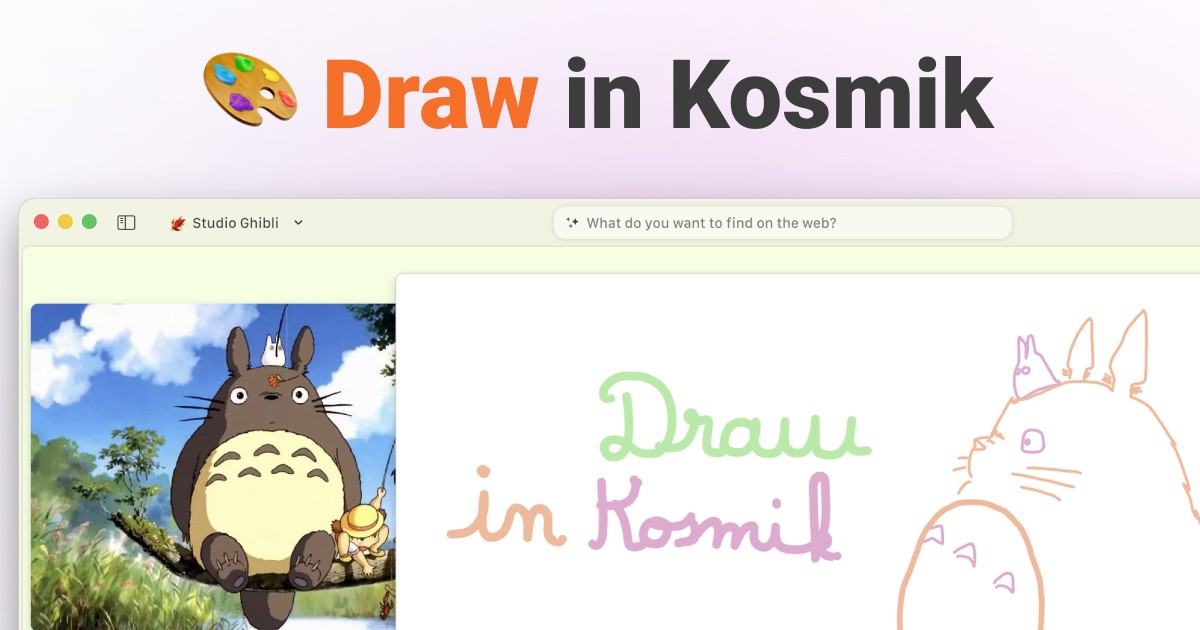
Kosmik drawing tools include three essential annotation features: a Pen for precise sketching and writing, a Marker for highlighting with realistic opacity, and an Eraser for removing individual strokes. Unlike traditional PDF annotators, Kosmik's annotations behave like stickers: you can move, select, layer, and reorganize them on your infinite canvas, making visual collaboration and spatial organization effortless.
Visual thinkers need more than static annotations. Whether you're marking up PDFs, connecting ideas on a canvas, or collaborating with your team, your drawing tools should adapt to your workflow, not constrain it.
Kosmik transforms how you work with visual information by combining annotation tools with an infinite canvas workspace.
Most annotation tools treat drawings as permanent marks stuck to specific pages or documents. Once you draw, you're locked in. Moving, layering, or reorganizing visual notes becomes impossible without starting over.
Kosmik's drawing tools solve this with a unique approach: every annotation is a movable, editable object on your infinite canvas. Draw with a pen, highlight with a marker, erase mistakes, then move everything around as your ideas evolve.
Key Takeaways:
Three specialized tools: Pen for precise drawing and writing, Marker for highlighting with varying opacity, Eraser for individual stroke removal
Sticker-like manipulation: move, resize, and layer annotations after drawing them anywhere on your canvas
Tool memory: customized thickness and color settings persist between uses for consistent workflows
Layering control: send annotations to back or front for perfect composition and visual clarity
Integrated workflow: annotate PDFs, organize visually, and browse all in one workspace with zero app-switching
What Are Kosmik Drawing Tools?
Kosmik drawing tools are native annotation capabilities built directly into the infinite canvas workspace. They let you annotate PDFs and images, create visual connections between ideas, highlight and mark up documents, and draw diagrams for brainstorming.
The drawing palette includes three specialized tools: Pen, Marker, and Eraser. Each tool serves a distinct purpose. The Pen creates dense, opaque strokes for writing and precise sketching. The Marker produces semi-transparent strokes ideal for highlighting text or areas in PDFs and images. The Eraser removes drawn content stroke by stroke, even if drawn long ago.
To access the tools, click the drawing tools button to open the palette. Select your tool, and you're ready to draw directly on your canvas.
Here's what makes this different. Traditional PDF annotators create static, fixed annotations that are permanent once placed. You can't move them or reorganize them. They're embedded into the document.
Kosmik treats annotations as movable objects. You can move them anywhere on your canvas, select them for editing, send them to back or front for layering, and reorganize them as your thinking evolves. Annotations make PDFs flexible by adding collaboration, interactivity, and context without altering the original content.
Key point: Kosmik drawing tools turn every annotation into a movable, editable object on your infinite canvas, unlike traditional PDF annotators where marks are permanent.
The tools are designed for creative professionals building mood boards and collecting design inspiration, researchers organizing academic papers and literature reviews, visual thinkers who prefer spatial organization, content creators planning articles and fact-checking across sources, designers managing inspiration boards and design systems, and teams collaborating on brainstorming and project planning. Learn more about Kosmik's use cases for different workflows.
The Three Drawing Tools Explained
Pen Tool: Precise Drawing and Writing
The Pen tool creates denser strokes for writing and precise sketching. Its opaque, solid strokes ensure visibility against any background and provide clear contrast for readability.
You can customize both thickness and color to match your needs. Choose from the color palette and adjust the thickness slider. These settings are remembered between uses, so you don't need to reconfigure every time.
Use the Pen tool for handwritten notes on PDFs. Add margin notes to research papers, draw arrows and boxes for visual thinking, or create flowcharts during brainstorming. Circle key terms, underline important passages, sketch quick ideas, or draw lines connecting related concepts across your canvas.
The dense ink works perfectly for standalone drawings that need to stand out. Whether you're annotating with a stylus or mouse, the Pen gives you the precision and visibility you need for detailed work.
Key Features
Dense, opaque strokes provide full coverage without transparency
Customizable thickness: thin for detailed notes, medium for general use, thick for bold emphasis
Full color palette: choose any color for your workflow or color-coding system
Tool memory: settings persist automatically when you switch between tools
Custom cursor: visual feedback shows the Pen tool is active
Best For
Detailed annotations requiring high visibility, handwritten notes and margin commentary, diagram creation with arrows and shapes, precise underlining and circling, and freehand sketching during ideation sessions.
Marker Tool: Realistic Highlighting with Opacity
The Marker tool creates lighter, semi-transparent strokes ideal for highlighting text or areas in PDFs and images. It works like a real highlighter with varying opacity, becoming less opaque as you use it. This mimics how physical markers behave, where first strokes are more saturated and repeated strokes become lighter.
The transparency is crucial. It allows the underlying text or images to remain readable while adding emphasis. You can layer multiple highlights without obscuring the content beneath.
Customize the color to match your workflow. Yellow for key points, pink for questions, green for supporting evidence. Adjust the thickness for different highlighting styles, from narrow text highlights to broad area emphasis.
Use the Marker for highlighting key passages in research papers, emphasizing important areas in screenshots or diagrams, creating color-coded organization systems, building visual hierarchy with layered highlights, and adding non-destructive emphasis to mood board images.
In summary: Use the Pen for creating new content and the Marker for emphasizing existing content.
Key Features
Semi-transparent strokes preserve underlying content visibility
Realistic opacity variation mimics physical highlighter behavior
Customizable color: yellow, pink, green, blue, or any palette color
Adjustable thickness: narrow for text highlighting, broad for area emphasis
Perfect integration with Kosmik's PDF reader for annotation workflows
Best For
Highlighting text in PDFs while keeping it readable, emphasizing key areas in visual research materials, color-coded organization across multiple documents, layering emphasis to show priority levels, and adding subtle highlights to creative mood boards.
Eraser Tool: Precision Editing
The Eraser tool removes drawn content with stroke-by-stroke precision. You can erase individual strokes even if they were drawn a while ago, without deleting entire annotations.
This precision matters. Traditional erasers often delete entire annotation objects at once or require undo/redo to fix mistakes. Kosmik's stroke-by-stroke erasing lets you remove only the marks you don't want.
Select the Eraser from the palette, then click or drag over specific strokes to remove them. Other annotations on your canvas remain untouched. You can refine drawings created long ago, trim excess strokes for a cleaner appearance, or gradually iterate on complex diagrams.
Use the Eraser to fix mistakes without redrawing entire annotations, refine sketches by deleting rough lines while keeping clean ones, update annotations by removing outdated marks from evolving projects, trim excess strokes for precision, and progressively refine drawings over time.
The bottom line: Kosmik treats annotations as first-class canvas objects, not permanent marks stuck to pages.
Key Features
Individual stroke removal: erase specific marks without affecting others
Persistent precision: edit annotations created at any time, even days or weeks ago
Non-destructive workflow: refine drawings without starting over
Selective deletion: keep good strokes, remove only mistakes
Fast corrections: no need to redraw entire annotations
Best For
Correcting drawing mistakes quickly, refining rough sketches into clean diagrams, updating evolving project annotations, precision editing for professional presentations, and iterative design processes.
Key Features and Capabilities
Customizable Thickness and Color
Both the Pen and Marker tools provide customizable colors and thickness, so you can tailor annotations to suit your needs. Choose from the color palette and adjust the thickness slider. Preview your settings before you draw.
Thickness customization enables different annotation styles. Thin strokes work for detailed annotations, margin notes, and precise underlining. Medium strokes handle general highlighting, arrows, and connections. Thick strokes create bold emphasis, titles, and major headings.
Color customization unlocks powerful organizational systems. Our brains are hard-wired to process color before virtually anything else. We recognize colors and associate meaning to them far faster than we can read text. Different colors make it easier to spot what you need at a glance.
Create a color-coding system that fits your workflow. For research, use yellow for key points, green for supporting evidence, and red for questions or concerns. For project planning, try blue for tasks, purple for ideas, and orange for decisions. For creative review, use pink for elements you love, gray for neutral items, and brown for work that needs improvement.
Tool memory preserves these settings automatically. Set your preferred configurations once, and Kosmik remembers them. Jump between tools without reconfiguring each time.
Sticker-Like Manipulation
Kosmik annotations can be moved, selected, and layered like stickers. This is the key differentiator from traditional PDF tools.
Static annotations in traditional tools are permanent once placed. You can't reposition them. They're embedded into the document. Editing requires deletion and redrawing.
Kosmik's movable annotations work differently. Click to select an annotation, then drag it anywhere on your infinite canvas. Resize it without redrawing. Control the visual stacking order with layering controls. Reorganize annotations spatially to show relationships between ideas.
The flexibility is transformative. Reorganize annotations as your thinking evolves. Refine your layout without starting over. Arrange annotations to create visual connections. All of this happens without affecting the original content. You can transform static pages into dynamic, review-friendly canvases that adapt to your workflow.
Layering Control
Send annotations to the back or bring them to the front for precise layering control. This z-order functionality lets you build complex compositions without unwanted overlaps.
Thoughtful layering improves design and preserves interactivity, so charts and buttons stay clickable and readable. Precise control over annotation layout maintains both visual clarity and functional accessibility.
Use layering to place text annotations over images. Send the image to the back, bring the text to the front. Send marker highlights behind diagram elements so they don't obscure important details. Stack multiple highlights for priority levels. Build multi-layered annotated designs with perfect visual hierarchy.
Commands are simple. Send to Back moves an annotation behind other elements. Bring to Front moves an annotation in front. Relative positioning allows gradual layer adjustments for precision control.
Tool Memory
Tools retain settings between uses. This seemingly simple feature saves significant time and cognitive load.
When you set the Pen to blue with medium thickness, it stays that way. Draw your annotations, switch to the Eraser to fix a mistake, then switch back to the Pen. Still blue, still medium thickness. No re-configuration needed.
Settings persistence saves time by eliminating repeated configuration. It enables consistent styling across all your annotations. You don't need to remember your preferred settings. The tools remember for you.
This supports custom workflows that are fully adaptable to your development pipeline. Jump between tools without losing settings. Spend time drawing, not adjusting controls. Maintain automatic consistency across your entire session.
Custom Cursors
Each tool has a custom cursor that provides visual feedback. When the Pen is active, you see a pen cursor. Switch to the Marker, and the cursor changes to a marker icon. Select the Eraser, and you get an eraser cursor.
This visual feedback helps you identify which tool is active instantly. It reduces errors from using the wrong tool. The cursor matches the tool type, creating a professional, polished user experience.
How to Use Drawing Tools in Kosmik
Getting Started
Step 1: Access the Drawing Palette
Locate the drawing tools button on the Kosmik interface. Click it to reveal the palette with three options: Pen, Marker, and Eraser.
Step 2: Select Your Tool
Click Pen for precise drawing and writing with dense, opaque strokes. Click Marker for highlighting with transparent, overlay strokes. Click Eraser to remove strokes.
Step 3: Customize Settings
Adjust thickness by selecting thin, medium, or thick strokes. Choose a color from the color palette. Your settings will be remembered for next use thanks to tool memory.
Step 4: Start Drawing
Draw directly on PDFs, images, or blank canvas areas. Annotations are created as movable objects with sticker-like behavior. Use the Pen for notes, diagrams, and precise marks. Use the Marker for highlighting text or emphasizing areas.
Step 5: Edit and Reorganize
Move annotations by clicking and dragging them to new positions. Layer annotations using send to back or bring to front commands. Erase individual strokes with the Eraser tool. Refine your layout by arranging annotations spatially across the infinite canvas.
Pro Tips
Tip 1: Use Color-Coded Workflows
Color coding allows us to find what we need faster and easily identify where everything belongs. Assign colors by category: yellow for main ideas, green for examples, red for questions. Use consistent colors across all projects for instant recognition. Leverage tool memory to switch between pre-configured colors without setup.
Tip 2: Layer Strategically for Complex Annotations
Thoughtful layering improves design and preserves interactivity. Place highlights behind text for readability. Bring arrows and connections to the front for visibility. Use send to back for background context, bring to front for emphasis. Precise control over annotation layout prevents unwanted overlaps.
Tip 3: Combine Pen and Marker for Rich Annotations
Use the Marker to highlight key passages in PDFs first. Then use the Pen to add margin notes and explanations. Create visual hierarchy: Marker for background emphasis, Pen for foreground details. The result is readable highlights with detailed commentary.
Tip 4: Use Eraser for Iterative Refinement
Sketch rough ideas quickly with the Pen. Use the Eraser to remove excess strokes and refine. Keep good strokes, delete only mistakes. Build up complex diagrams progressively without starting over. Stroke-level erasing enables gradual refinement.
Tip 5: Leverage Tool Memory for Workflow Consistency
Set up standard configurations for each tool. Pen: blue, medium thickness for notes. Marker: yellow, medium thickness for highlights. Eraser: always ready when needed. Tools remember settings between uses. Switch tools freely without reconfiguring each time. Maintain visual consistency across all annotations automatically.
Use Cases: When to Use Kosmik Drawing Tools
PDF Annotation and Research
Modern academic research software offers features like AI-assisted literature discovery, PDF annotation, and real-time collaboration. In 2025, efficient research isn't just about storing PDFs. It's about smart workflows that save time and boost insight.
Kosmik's drawing tools integrate directly with the PDF reader feature. Open any PDF in Kosmik, select your tool, and annotate directly.
Annotate research papers by using the Marker to highlight key findings. Add margin notes and citations with the Pen. Color-code by theme: yellow for methodology, green for results, red for questions.
Create a visual literature review by importing multiple PDFs to your infinite canvas. Annotate each paper with Pen and Marker. Draw connections between related findings with the Pen tool. Spatial arrangement shows relationships that linear organization can't reveal.
For collaborative research, share your workspace with co-researchers. Each person annotates with different colors. Real-time collaboration means you see team annotations live. Move annotations to reorganize findings as you discuss.
Kosmik eliminates app-switching. The built-in browser lets you press 'W' to browse without leaving your workspace. PDF reader with OCR extracts text. Annotation tools mark up documents. All on one infinite canvas.
Visual Brainstorming and Ideation
Visual collaboration tools boost creativity, improve communication, and enable easy sharing, organizing, and documenting. Real-time input and visual tools help teams come up with more ideas in less time.
Kosmik's drawing tools excel at visual brainstorming. The infinite canvas provides unlimited space. Sticker-like annotations let you reorganize ideas as thinking evolves.
Create mind maps by using the Pen to sketch your central idea. Draw branches for related concepts. Use the Marker to highlight priority ideas. Move branches to reorganize the structure as patterns emerge.
Diagram workflows by drawing flowcharts with the Pen tool. Add emphasis with the Marker. Layer arrows to show process flow. Erase and refine as ideas develop.
For team ideation sessions, multiple users can draw simultaneously with real-time collaboration. Each team member uses a different color. Vote on ideas by circling them with the Marker. Organize concepts by moving annotations into spatial groups.
The right visualization tool can help turn scattered thoughts into clear structure. Visual brainstorming is a simple and effective way to come up with ideas and spot problems.
Creative Workflows and Mood Boards
A mood board is a visual collage that captures the feeling, style, and direction of a project. It's a strategic tool that helps everyone understand exactly what you're trying to create.
Brief annotations are recommended as short explanations of why you chose each element. Visual elements alone don't always communicate complete ideas, so it's important to include contextual information.
Kosmik's drawing tools enhance mood board workflows. Gather inspiration images on your infinite canvas. Use the Marker to highlight key elements in images. Use the Pen to add notes explaining design choices. Circle important details for team or client review.
For design iteration, import design mockups or sketches. Use the Pen to mark areas needing improvement. Use the Marker to highlight successful elements. Move annotations as the design evolves.
For client presentations, annotate design proposals with Pen and Marker. Add explanatory notes for design decisions. Use layering to show design progression by sending early drafts to the back. Present on the infinite canvas with zoom for detail.
Kosmik supports multiple file types natively. Images, videos, PDFs, web pages, and documents all work without opening separate apps. The web clipper lets you save inspiration directly from your browser.
How Kosmik Drawing Tools Enhance Your Workflow
Before Kosmik: Static Annotations and App-Switching
Traditional PDF annotators create annotations that are permanent once placed. You cannot move or reorganize marks. There's no layering control. Editing requires deletion and redrawing.
The impact is frustration. Rigid workflows can't adapt annotations to evolving thinking. Mistakes require complete redraw. Poor organization results from inability to spatially arrange annotations. Time waste from redrawing instead of refining.
Research shows that context switching can consume up to 40% of productive time. According to Asana's studies, workers are switching between nine apps per day and feel overwhelmed by them.
After an interruption, employees require an average of 23 minutes and 15 seconds to fully refocus. The typical fragmented workflow looks like this: open a PDF reader to view a document, switch to an annotation tool to mark up the PDF, switch to a note-taking app to write commentary, switch to a browser to research related topics, switch to an organization tool to file the annotated PDF.
The result is constant context switching, lost focus every 3-4 minutes, mental exhaustion from tool overload, and productivity loss of up to 40% of productive time.
After Kosmik: Flexible, Integrated Workspace
Kosmik's sticker-like annotations solve the rigidity problem. Move annotations anywhere on your canvas. Layer with send to back or bring to front controls. Edit individual strokes with the precision Eraser. Reorganize spatially as your thinking evolves.
The impact is adaptive workflows where annotations evolve with your ideas. Faster refinement by editing strokes instead of redrawing. Visual organization through spatial arrangement that shows relationships. Reduced frustration from flexible, iterative annotation.
Kosmik combines everything in one place. Built-in browser lets you press 'W' to browse without leaving Kosmik. PDF reader with OCR provides native PDF viewing and text extraction. Drawing tools offer Pen, Marker, and Eraser for annotations. Infinite canvas organizes everything spatially. AI features summarize, explain, and describe content. Real-time collaboration lets teams work together on the same canvas.
The unified workflow becomes: press 'W' to browse and research, import PDFs directly to canvas, annotate with drawing tools without app switch, organize annotated content spatially without app switch, collaborate with team in real-time without app switch.
Most importantly: Kosmik drawing tools eliminate the rigid constraints of traditional annotation apps, letting your visual thinking flow naturally.
Zero context switching means everything stays in one workspace. Maintained focus with no interruptions from app switching. Faster workflow as integrated tools eliminate delays. Better organization as the visual canvas shows all work at once.
Frequently Asked Questions
What are Kosmik drawing tools?
Kosmik drawing tools are a set of three annotation features: a Pen for precise sketching and writing with dense strokes, a Marker for highlighting with realistic transparency, and an Eraser for removing individual strokes. Unlike traditional annotators, Kosmik's drawings behave like movable stickers on an infinite canvas, allowing you to reorganize annotations as your ideas evolve.
What's the difference between pen and marker in Kosmik?
The Pen creates dense, opaque strokes ideal for writing and detailed sketching, while the Marker produces semi-transparent highlights that don't obscure underlying content. The Pen is best for creating new annotations and drawings, whereas the Marker excels at emphasizing existing text or canvas elements without covering them completely.
How do I access drawing tools in Kosmik?
Click the drawing tools button in Kosmik to open the palette, which displays three options: Pen, Marker, and Eraser. Select your desired tool from the palette, customize the color and thickness settings, then start drawing directly on your canvas or PDFs. The tool remains active until you switch to a different option.
Are Kosmik drawing tools free?
Kosmik drawing tools are available to all users with a Pro plan subscription (starting at $11.99/month billed yearly). A free 1-week trial includes full access to all Pro features, including drawing tools, allowing you to test the functionality before subscribing. After the trial, Pro features require a paid subscription. View full pricing details.
Can I customize drawing tool colors and thickness in Kosmik?
Yes, both the Pen and Marker tools offer customizable color palettes and adjustable thickness settings. Select your tool, choose from available colors, and adjust the thickness slider to match your needs. Kosmik remembers your settings between uses, maintaining consistent styling for faster workflows without re-configuring each time you draw.
Can I move or edit drawings after creating them in Kosmik?
Yes, Kosmik annotations behave like movable stickers rather than permanent marks. You can select, move, layer, and reorganize any drawing on your infinite canvas. This flexibility allows you to adjust your visual organization as ideas evolve, unlike traditional PDF annotators where marks are permanently fixed to specific page locations.
Does Kosmik support pressure-sensitive drawing?
Currently, Kosmik drawing tools use fixed line weights based on your thickness settings rather than pressure-sensitive input. You can adjust thickness manually for different stroke weights, and settings are remembered between uses for consistent annotation styles. This approach works with both mouse and stylus input devices.
Can I erase part of a drawing in Kosmik?
Yes, Kosmik's Eraser tool removes individual strokes rather than entire annotations. This allows precise corrections without deleting your whole drawing. Select the Eraser from the palette, then click or drag over specific strokes to remove them. Other annotations on your canvas remain untouched, preserving your overall organization.
Can I annotate PDFs with Kosmik drawing tools?
Yes, Kosmik's drawing tools integrate directly with the built-in PDF reader. Open any PDF in Kosmik, select the Pen or Marker tool, and annotate directly on the document. You can highlight text with the Marker, add handwritten notes with the Pen, then move those annotations around your canvas to create visual connections.
What's the best use case for Kosmik's marker tool?
The Marker tool excels at highlighting text in PDFs and emphasizing key elements on your canvas without obscuring content. Its semi-transparent strokes mimic real highlighters, making it ideal for visual scanning, color-coding research findings, or creating non-destructive emphasis layers. The varying opacity ensures underlying text remains readable while adding clear visual priority.
How do drawing tools work with Kosmik's infinite canvas?
Drawing tools create annotations that behave as independent canvas objects, which you can move, layer, and organize spatially alongside PDFs, images, notes, and web content. This integration enables visual thinking workflows where you annotate sources, then rearrange those annotations to show relationships, create visual hierarchies, or build spatial idea maps that traditional linear tools can't support.
How are Kosmik drawing tools different from other annotation apps?
Kosmik's unique advantage is treating annotations as movable, editable objects on an infinite canvas rather than permanent page marks. You can reorganize drawings after creation, layer them with other content types, and build spatial visual relationships. This flexibility, combined with Kosmik's built-in browser and multi-format support, eliminates app-switching that plagues traditional PDF annotators and whiteboard tools.
Conclusion
Traditional annotation tools trap your drawings in fixed positions, forcing linear thinking when your ideas are spatial and evolving.
Kosmik's drawing tools change this completely. With movable annotations, customizable Pen and Marker tools, and seamless infinite canvas integration, you can annotate PDFs, sketch ideas, and reorganize everything as your understanding deepens. No more rigid constraints. Just visual thinking that flows naturally.
Whether you're a researcher marking up papers, a designer collecting inspiration, or a team collaborating visually, Kosmik's drawing tools adapt to how you work. Start with the Pen for detailed notes, use the Marker for highlighting, and move everything around until it makes sense.
Get started with Kosmik to experience drawing tools on an infinite canvas. Annotate your first PDF and discover how movable annotations transform visual workflows.