October 13, 2025
Discover Best Figma Alternatives for Creative Professionals


You love Figma for design work. But when it's time to gather inspiration, brainstorm with your team, or build moodboards? It starts feeling clunky real fast.
You're switching between tabs to grab images. Your browser slows down. The whole thing just feels... off.
Figma wasn't built for the messy, exploratory part of creative work. It's made for precision, turning ideas into pixel-perfect designs. But the actual ideation phase? You need something different.
If you're looking for better tools for moodboarding, brainstorming, or whiteboarding, you've got options. We researched 14 different tools so you don't have to spend weeks figuring out which one actually works.
From AI-powered research tools to enterprise whiteboard platforms, there are genuinely good options for every creative workflow.
Kosmik stood out with its AI features that actually save you time instead of just adding more complexity. But depending on your team size, budget, and what you're actually trying to accomplish, other tools might fit better.
Let's dive in.
TL;DR
For moodboarding and brainstorming, Kosmik is the strongest Figma alternative because it combines AI-powered content discovery, a built-in browser, and an infinite canvas in one workspace. If you run large team workshops, Miro handles hundreds of users with 7,000+ templates. Design teams already in Figma should stick with FigJam for the easiest transition. For visual project organization on a budget, Milanote keeps things simple and clean.
Top 5 Figma Alternatives
Don't have time to read everything? Check out our top picks:
Tool | Best For | Key Strength |
|---|---|---|
Kosmik | AI-powered visual brainstorming and moodboarding | Auto-finds related content, built-in browser, multimedia support |
Miro | Enterprise workshops | 7,000+ templates, handles hundreds of users |
FigJam | Design teams in Figma | Perfect if you're already using Figma |
Milanote | Creative project organization | Pinterest-style boards, clean interface |
Mural | Facilitated workshops | Best facilitation toolkit available |
Key point: no single tool dominates every category. Kosmik leads in AI features, Miro in templates and enterprise collaboration, and Excalidraw in simplicity and privacy.
Check out Kosmik for moodboarding to organize ideas, images, and videos all in one spot.
Now let's get into the details.
Why Creative Teams Are Moving Away from Figma for Moodboarding?
We looked at hundreds of reviews across G2, Capterra, and Reddit. Here's what keeps coming up from people using Figma for brainstorming and moodboarding:
Performance Dies with Large Files
"The lag is unbearable when our moodboard hits 50+ images." Sound familiar?
Many users report performance issues when collaborative sessions involve large files. Your browser eats up memory. Files load slowly. And when multiple people are working together? It's a mess.
You're Stuck Doing Everything Manually
Figma won't help you find images. It can't browse the web and it doesn't auto-tag your content.
You're the one dragging files from browser tabs, organizing them into frames, and keeping track of where everything came from. It's tedious work that should be automated by now.
App Switching Kills Your Flow
Here's the typical workflow: Open your browser, search for inspiration, download an image, switch to Figma, upload it, place it, add a note about the source. Repeat 50 times.
By the time you're done, you've forgotten half your original ideas.
Can't Handle Multiple File Types
Modern creative work isn't just images anymore. You need videos, PDFs, text, and web clips all in one place.
Figma won't let you add videos to your canvas. Can't embed YouTube references. PDFs? Forget it. You're stuck with static images and basic text.
Content creators organizing screen recording backgrounds? Researchers collecting diverse materials? You're forced to use separate tools for each file type, then somehow keep track of everything across multiple apps.
It's Getting Expensive
Figma keeps adding features for big design teams and enterprises. Meanwhile, freelancers and small creative teams are watching their bills climb for features they barely use.
The pricing structure makes sense for precise design work. For brainstorming? You're paying for tools you don't need.
Missing the Tools You Actually Need
No mind mapping connections. Limited multimedia support. No built-in way to read PDFs or clip web content directly.
The bottom line: Figma is excellent for precision design work, but it was not built for the messy, exploratory phase of creative ideation.
Essential Features to Look for in a Figma Alternative
Not all tools are built the same. Here's what to look for when you're choosing an alternative for moodboarding and brainstorming:
Core Features That Make or Break Your Workflow
Infinite canvas: Your ideas shouldn't be constrained by page sizes. You need room to think spatially and make connections between concepts.
Real-time collaboration: Multiple people working at once, seeing each other's cursors, no weird conflicts when you save. This should just work.
Multimedia support: Images, videos, PDFs, web links, all in one place without jumping through hoops or exporting and re-importing.
Templates: Starting from scratch every time is exhausting. Good templates get you 80% there so you can focus on the creative work.
Research and Organization Tools
This is where most tools fall short. Look for:
AI-powered content discovery: Finds related images automatically instead of making you search
Auto-tagging: Recognizes colors, subjects, themes without manual work
Built-in web browsing: Browse and clip content without switching apps
Source tracking: Actually remember where you found that perfect image
Collaboration Features
Real-time commenting without performance hits or lag
Voting and polling for team decisions
Guest access that doesn't cost extra per person
Permission controls that make sense instead of being overly complicated
The AI Advantage
AI-powered tools can significantly reduce the time you spend organizing and finding content. We're talking hours per week saved.
Look for tools that use AI to:
Suggest related content automatically before you think to search for it
Organize by themes and colors without you lifting a finger
Let you search using natural language instead of exact keywords
Detect similar visual elements across your projects
Most importantly: look for tools that reduce manual work through AI automation, support multiple file types natively, and let you research without leaving your workspace.
14 Best Figma Alternatives (Ranked)
Here are the 14 best Figma alternatives for moodboarding and brainstorming, ranked by features, pricing, and user experience.
1. Kosmik: Best Figma Alternative for Moodboarding
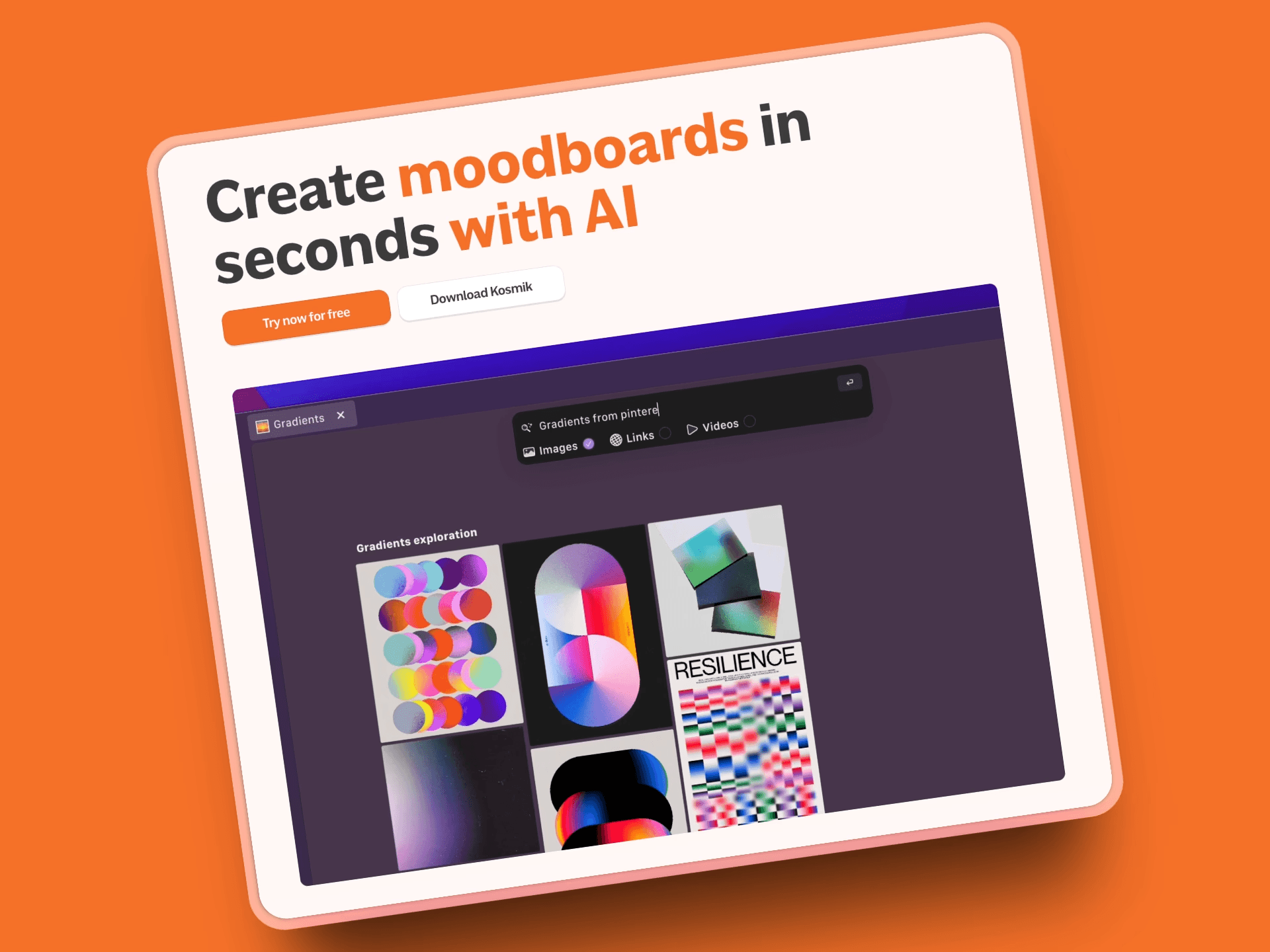
Kosmik is a moodboarding tool built specifically for the messy early stages of creative work, with AI that actually helps instead of getting in the way.
Instead of making you hunt for content and manually organize everything, Kosmik does the heavy lifting. Its AI Asset Finder discovers related content automatically using computer vision. Auto-tagging recognizes objects, colors, and themes. And the built-in browser means you never have to leave your workspace.
But here's where it gets interesting: the AI watches what you're working on and suggests related content before you even think to look for it.
Features
AI Asset Finder: Uses computer vision to analyze your canvas items and discover related content from YouTube, Pinterest, and other web sources
Built-in web browser: Research and save content directly onto your visual board without ever leaving the app (press W to open)
Auto-tagging system: Automatically organizes visual content by colors, subjects, and themes for easy retrieval
Native video player with frame capture: Play videos (MP4, WebM, YouTube embeds) directly on your canvas, capture exact frames with one click, and organize video references alongside images. Perfect for screen recording backgrounds and content creation
Frames: Visual containers for organizing canvas content into sections, with customizable titles, fill colors, and borders
Drawing tools: Pen, marker, and eraser tools for annotation, with PDF markup support
Connector system: Draw visual connections between ideas to see relationships and develop concepts
PDF reader built-in: Read, annotate, and extract content from research documents without switching apps
Real-time collaboration: Work with your team without lag or conflicts, all on the same canvas
AI-powered search: Use natural language to find anything across all your projects quickly
Pros
You'll significantly reduce research time thanks to AI-assisted content discovery (finally!)
The all-in-one workspace eliminates constant app switching, making your workflow actually flow
The 1-week free trial gives you full access to all Pro features, including AI
The workflow feels natural and mirrors how your brain actually thinks, visually and spatially
Comprehensive multimedia support including images, videos (MP4, WebM, YouTube embeds), PDFs, and web content, all natively on a single canvas
Desktop apps for Mac and Windows plus a web version that works on any browser
Cons
Kosmik is newer, so the template library is still growing compared to established competitors
No mobile app yet (web version works on tablets)
Why Choose Kosmik?
Kosmik uniquely combines visual research with AI-powered organization built specifically for creative professionals. Unlike traditional browsers and note-taking apps, it transforms scattered content into a cohesive, searchable visual workspace. This lets you focus on creating and connecting ideas rather than hunting through tabs or folders.
For creatives, designers, researchers, and teams overwhelmed by information overload, Kosmik helps you work smarter and faster. Watch how Kosmik makes moodboarding effortless.
Pricing
Free Trial: 1-week full access to all Pro features
Pro: $11.99/month (yearly) or $14.99/month (monthly), unlimited workspaces, items, AI requests, and file imports
Ambassador: $16.99/month (yearly) or $20.99/month (monthly), coming soon, adds Figma plug-in, brand kits, and early feature access
Enterprise: Custom pricing
Perfect For
Designers, researchers, and content creators tired of manually organizing inspiration
Teams who need to organize multiple file types including videos alongside images
Creative professionals who want AI-powered content discovery without the complexity
User Reviews
8.6/10 on ToolFinder
Why It Beats Figma
Figma makes you do everything manually. Kosmik's AI handles the busywork while you focus on creative thinking. Plus, the built-in browser means you're not constantly switching between apps just to find inspiration. See the full Kosmik vs Figma comparison.
In summary: Kosmik combines AI-powered content discovery, built-in browsing, and an infinite canvas into a single workspace built specifically for moodboarding and brainstorming.
Get started with Kosmik and experience a smarter, more visual way to research and create.
2. Miro: Best for Enterprise Whiteboarding and Workshop Facilitation
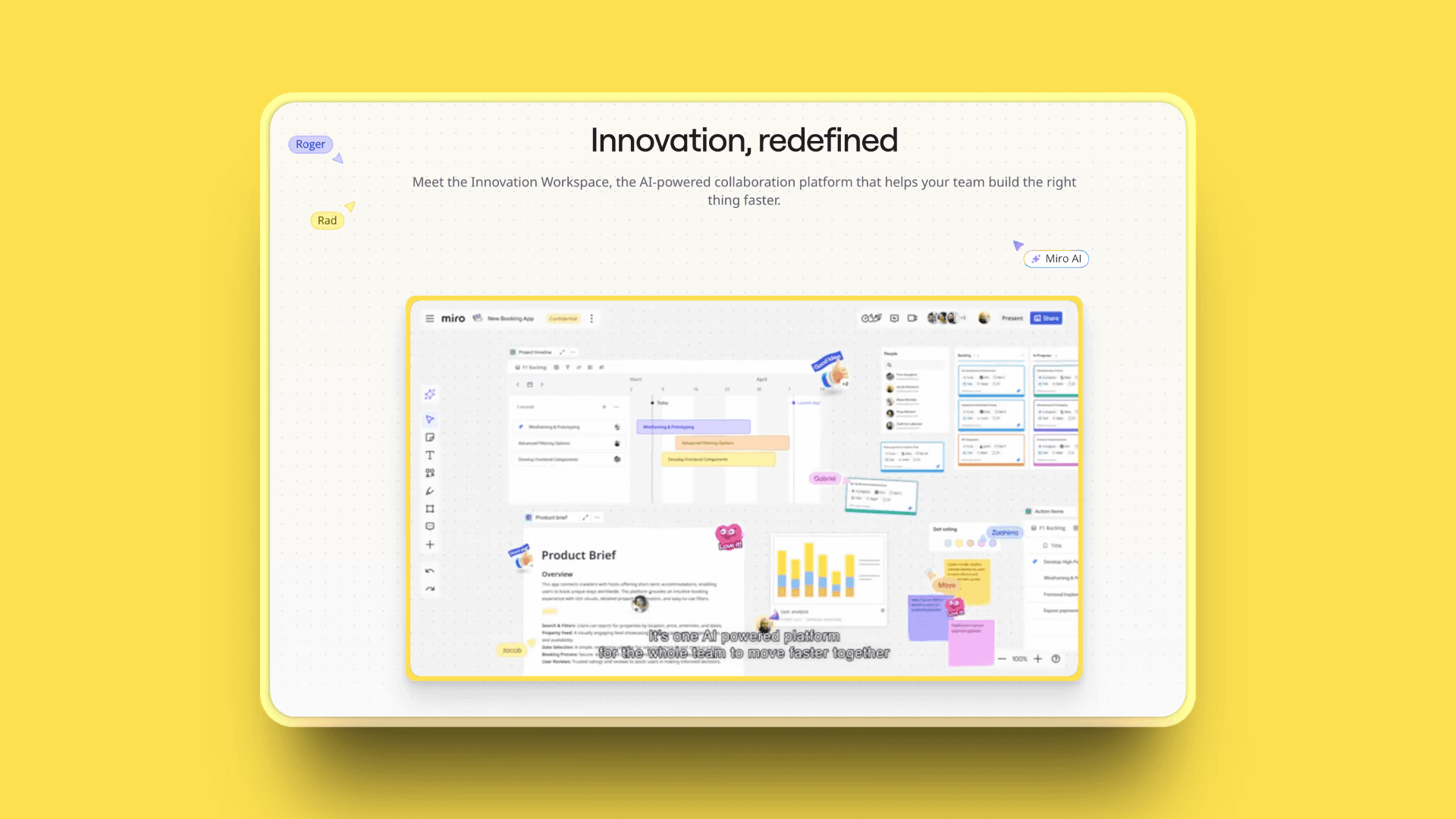
Miro is the go-to tool for digital whiteboarding. Think enterprise-grade collaboration platform with every feature you'd need for running workshops at scale. If you're facilitating workshops for big teams or need every integration under the sun, this is your tool.
Features
Infinite canvas that handles hundreds of users at once: Vast workspace where large teams can collaborate simultaneously without lag
7,000+ templates for every workshop scenario: Massive template library for workshops, brainstorming, planning, retrospectives, and more
Advanced facilitation tools: Timers, voting, breakout rooms, and features to help run engaging sessions
Miro AI: AI assists with generating diagrams, organizing ideas, and streamlining workflows, plus new AI Innovation Workspace features
Enterprise security and admin controls: Strong compliance features for large organizations managing sensitive data
Video walkthrough feature: Record and share video explanations right on the board for async collaboration
160+ integrations: Connects with Slack, Jira, Google Workspace, Microsoft Teams, and more
Pros
Unmatched template library covers almost any use case you can think of
Can handle hundreds of simultaneous users smoothly, ideal for large teams
Extensive ecosystem of integrations makes adoption easier
Proven platform trusted by enterprise teams worldwide
Frequent updates and strong community support
Cons
The extensive feature set can feel overwhelming for simple brainstorming
Performance can slow with very complex or large boards
Steeper learning curve compared to newer, simpler tools
Pricing starts at $8+ per user per month, which adds up for small teams
Some users find the interface complex at first but generally adapt with practice
Pricing
Free: 3 editable boards, basic features
Starter: $8/user/month (annual) or $10/user/month (monthly)
Business: $20/user/month (annual) or $25/user/month (monthly)
Enterprise: Custom pricing
Perfect For
Large organizations, workshop facilitators, and teams running structured agile processes. If you need rock-solid reliability at scale, Miro delivers.
User Reviews
4.7/5 on G2
3. FigJam: Best for Design Teams Already Using Figma
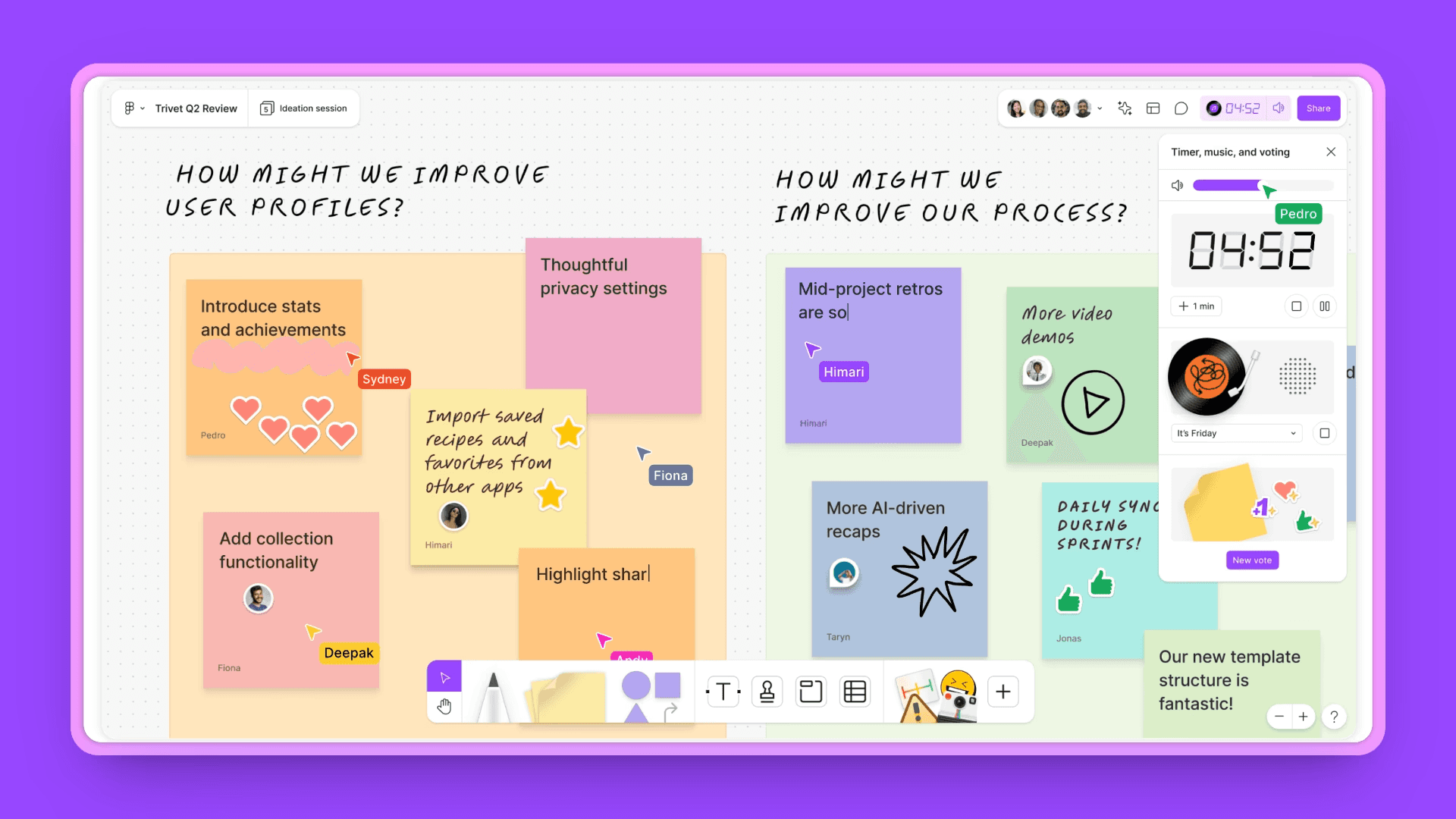
If you're already paying for Figma, FigJam is your path of least resistance. Think Figma's whiteboard companion, designed for teams who already live in the Figma ecosystem. FigJam is bundled with all paid Figma seats at no extra cost.
Features
Seamless integration with Figma design files: Easily move work between FigJam and Figma without export/import hassles
Real-time collaboration with cursor chat: Everyone works together simultaneously with instant chat and reactions
Built-in audio and video calls: Start quick calls inside FigJam so discussions stay in one place
AI-powered templates and diagrams: Generate templates from prompts and sort sticky notes by theme with AI
Mobile app for on-the-go work: Join sessions or add ideas from anywhere with mobile features
Voting and polling features: Teams can gauge opinions or make decisions with built-in polls
Pros
Integration with Figma works smoothly, so you can bring in assets easily
The interface is instantly familiar for Figma users (zero learning curve)
The mobile app adds flexibility for team members who aren't at their desks
Now bundled free with all paid Figma seats, making it a no-brainer for Figma teams
Cons
Some advanced functionality is missing compared to stand-alone whiteboard apps
AI features are still basic compared to dedicated AI-first tools like Kosmik
Large collaborative sessions may run into performance slowdowns
You're tied to the Figma ecosystem with less flexibility than dedicated platforms
Pricing
Starter (Free): Unlimited personal drafts, 3 shared FigJam files
Professional: $3/editor/month (annual) or $5/month (monthly)
Note: Every paid Figma seat now includes FigJam and Figma Slides at no additional cost
User Reviews
9.2/10 on Capterra
Perfect For
Design teams who already live in Figma and need basic whiteboarding without learning a new tool.
4. Milanote: Best for Traditional Creative Project Organization
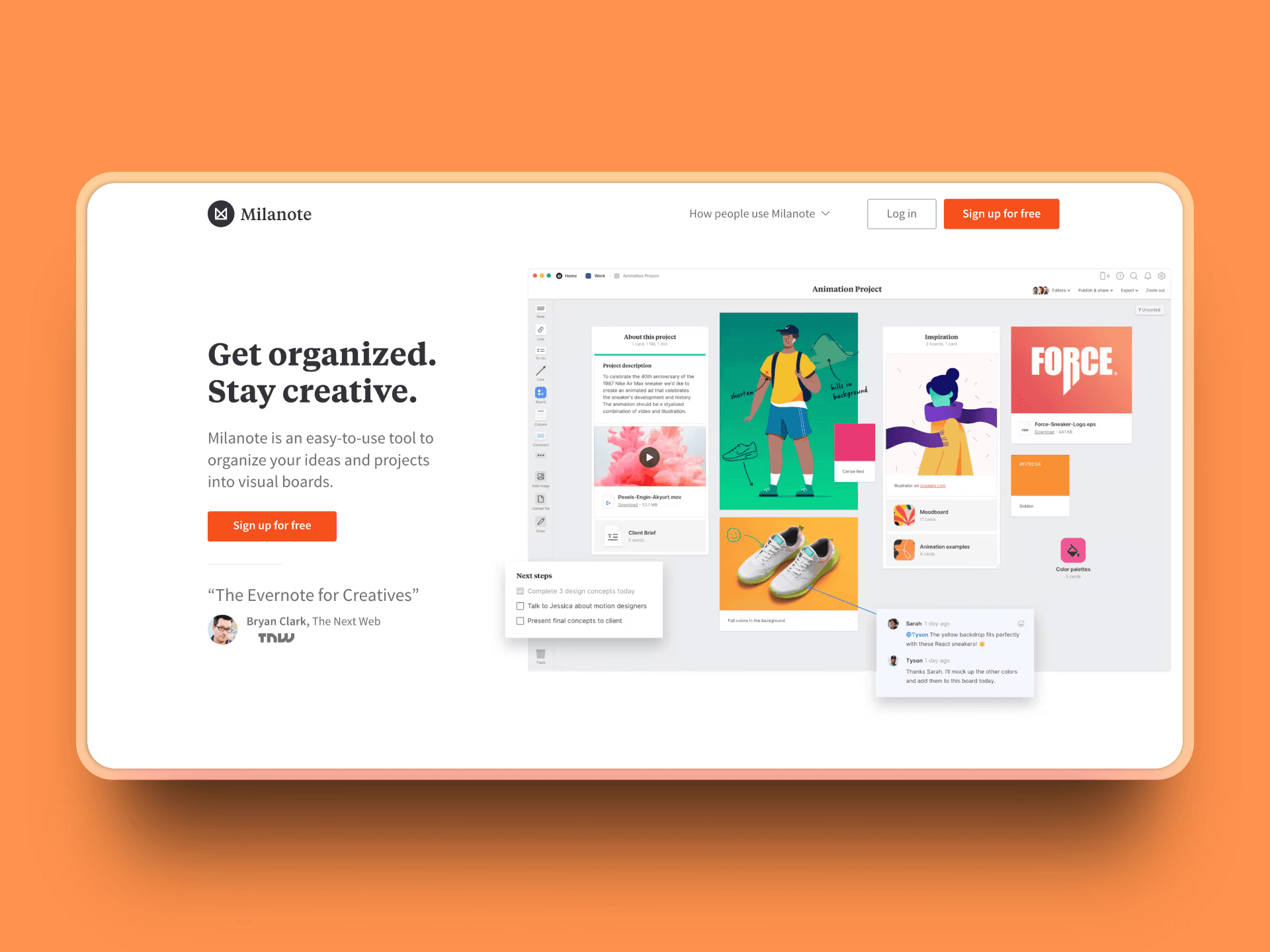
Milanote is what it looks like when Pinterest meets a project management tool. Think visual organization without the complexity of advanced whiteboard platforms. It's perfect for organizing creative projects the old-fashioned way, beautifully simple and intuitive.
Features
Pinterest-style board organization: Drag and arrange cards visually, perfect for moodboarding or planning concepts
Support for images, videos, notes, and links: Add all kinds of media to your boards in one space
Task management built in: Include simple to-do lists alongside your ideas to track next steps
Client collaboration features: Share boards for feedback with collaborators outside your team
Mobile apps for capturing content: Quickly add photos, ideas, or links wherever inspiration strikes
Template library for creative workflows: Ready-made templates for storyboarding, creative briefs, and more
Pros
The visual layout is very intuitive, which makes organizing creative ideas feel natural
Excellent for moodboarding, storyboarding, or mapping out early project ideas
The mobile apps make it easy to save inspiration anywhere, anytime
Affordable for individuals, and the interface looks clean and attractive
Cons
No AI or automation features built in
Collaboration is more basic compared to advanced whiteboard tools
You can't research the web or browse content directly in Milanote
For complex or technical projects, the features can be a bit limiting
Fewer integrations than larger competitors
Pricing
Free: 100 notes/images/links, 10 file uploads, unlimited shared boards
Pay Per Person: $9.99/month (yearly) or $12.50/month (monthly), unlimited items
Team: $49/month (yearly), for teams
Enterprise: Contact sales
User Reviews
8.9/10 on Capterra
Perfect For
Individual designers, creative agencies, and small teams who prefer visual organization over complex features.
5. MURAL: Best for Structured Design Thinking and Facilitation
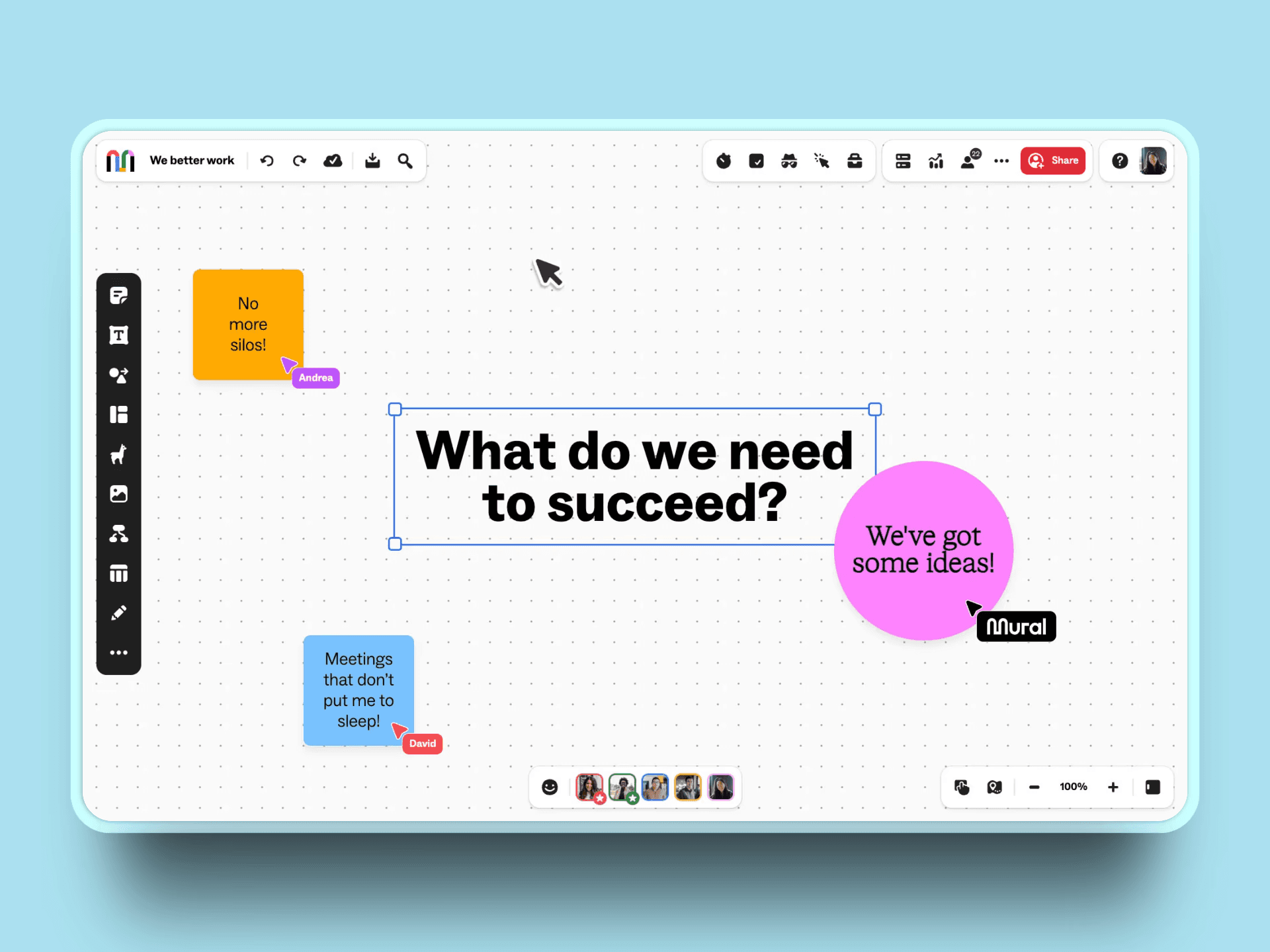
MURAL is the professional facilitator's dream tool. Think Miro, but specifically designed for running structured design thinking workshops and innovation sessions. If you facilitate workshops professionally, MURAL has every feature you didn't know you needed.
Features
Extensive facilitation toolkit: Timers, participant summoning, feedback options, and group clustering for organized sessions
Structured templates for design thinking: Organized frameworks for brainstorming, agile workflows, and retrospectives
Advanced workshop management tools: Features for scheduling, tracking, and managing large multi-step workshops
Anonymous collaboration options: Users can contribute ideas privately for honest feedback
AI-powered features: AI mind maps, information clustering, and three AI levels (Assistant, Contributor, Coach)
Time-boxed activities and voting: Set timers for tasks and use built-in voting for decision-making
Pros
The facilitation features are genuinely top-tier for advanced workshops
Templates are thoughtfully designed, supporting rigorous ideation processes
Strong enterprise security, integrations, and administrative controls
Excels at running structured remote workshops with presentation mode
AI features have improved significantly with Azure OpenAI integration
Cons
Pricing is higher than most competitors for full-featured access
Too many features can make it complex for simple brainstorming
New users might find the learning curve steep
The structure and template focus means less flexibility for free-form creative sessions
Pricing
Free: 3 active murals, unlimited members/visitors
Team+: $9.99/user/month (annual) or $12/user/month (monthly)
Business: $17.99/user/month (annual)
Enterprise: Custom pricing
User Reviews
4.6/5 on G2
Perfect For
Professional facilitators, innovation teams, and organizations running formal design thinking processes.
6. Adobe Express: Best for Quick Visual Content Creation
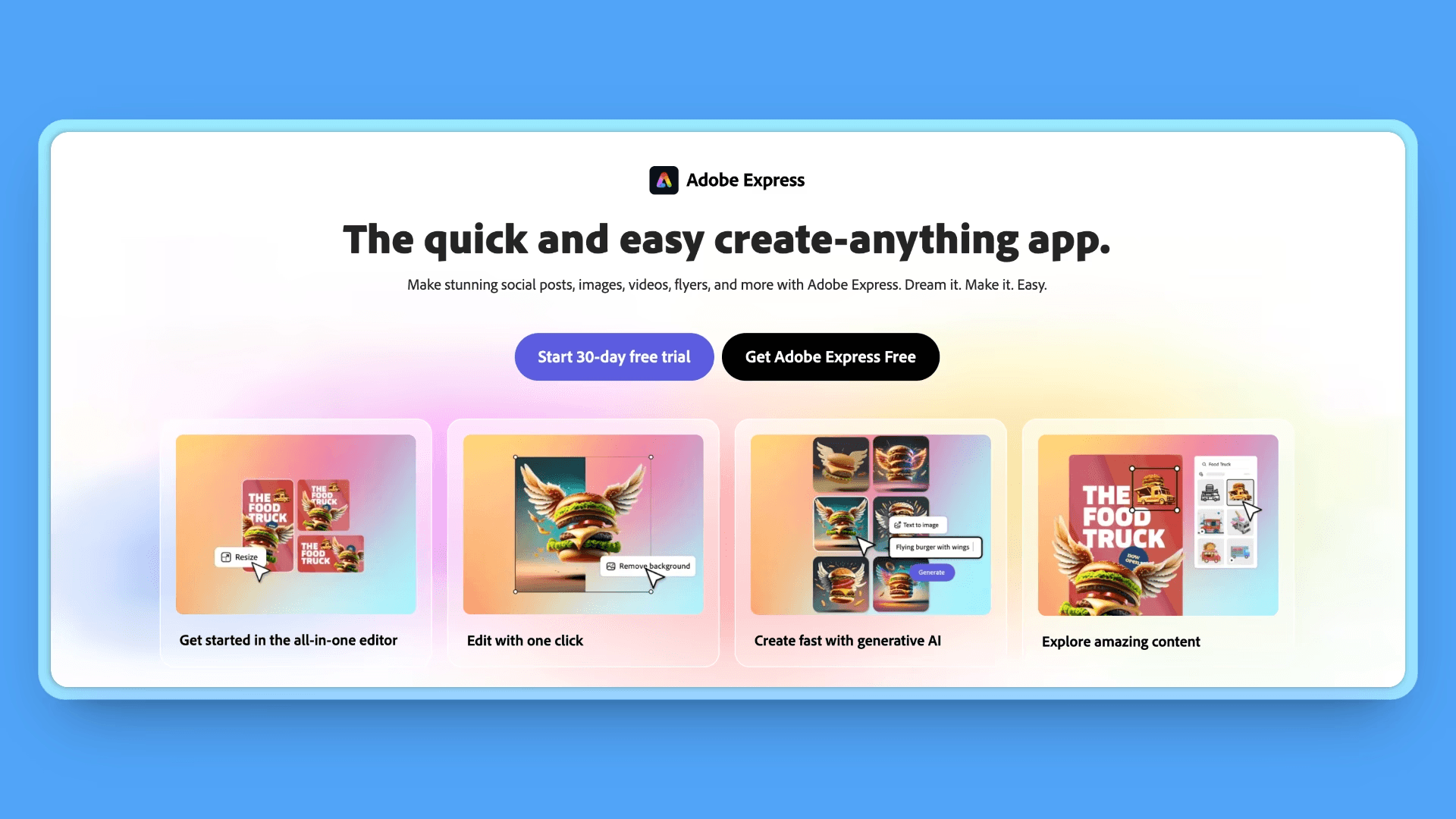
Adobe Express is Adobe's simplified design tool with moodboard capabilities. Think Canva, but with Adobe's assets and Creative Cloud integration. If you're already in the Adobe ecosystem, this makes a lot of sense.
Features
Moodboard templates and design assets: Wide selection of professional templates and access to huge asset libraries
Integration with Creative Cloud: Connects to other Adobe apps for smooth workflows
AI-powered design suggestions: AI tools for smart layouts, auto-generating visuals, and Adobe Firefly features
Social media templates: Hundreds of platform-specific templates, so moodboards can become social posts easily
Brand kit management: Upload and manage brand logos, colors, and typography for consistency
Mobile and web access: Work on moodboards from any device, phone, tablet, or web browser
Pros
Access to Adobe's extensive asset library makes polished outputs easy
Wide variety of templates and design elements
AI design guidance streamlines workflows and adds creative suggestions
Great for producing finished, share-ready moodboards quickly
Strong integration with other Adobe products for smoother processes
Cons
Requires a paid subscription for full access to features
Collaboration features are more limited than platforms built for teamwork
Less flexible for brainstorming or unstructured ideation, focus is on final outputs
Lacks built-in research tools for collecting web content
Fewer features for real-time collaborative whiteboarding
Pricing
Free: 100,000+ templates, limited Adobe Stock access, 5GB storage
Premium: $9.99/month, 200M+ Adobe Stock assets, 100GB storage, 250 generative credits/month
Teams: Custom pricing for brand controls and collaboration
User Reviews
4.6/5 on Capterra
Perfect For
Creative professionals already paying for Adobe who need polished moodboard outputs.
7. Pinterest: Best Free Platform for Visual Inspiration
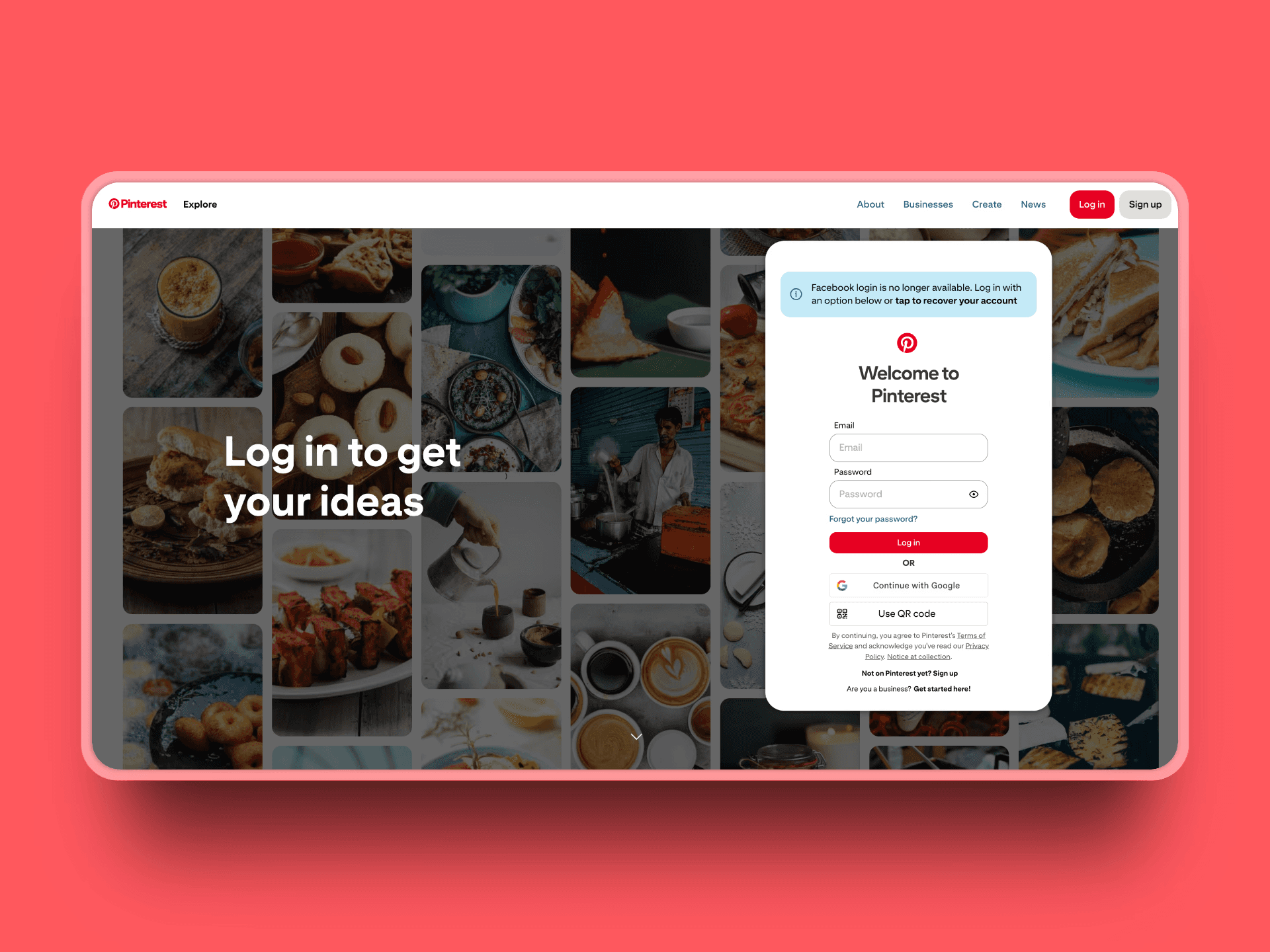
You probably already know Pinterest. But here's the thing: it's still one of the best free tools for gathering visual inspiration. Think massive visual library that's completely free and optimized for discovery.
Features
Massive content library: Access to billions of images, videos, and ideas across countless topics
Board organization: Create and organize boards to collect and categorize saved pins easily
Social discovery features: Algorithm recommends content tailored to your interests and trends
Mobile-first experience: Smooth and intuitive browsing and saving on phones and tablets
Browser extension for saving content: Quickly save interesting content from across the web
Collaboration on shared boards: Invite others to contribute to shared boards for group planning
Pros
Pinterest is completely free to use, with no paywall for core features
Huge library of visual inspiration across many fields
The mobile app is highly optimized and user-friendly
Sharing and collaborating on ideas through shared boards is straightforward
Excellent platform for discovering trends and new creative directions
Cons
Organizational tools are somewhat limited compared to specialized moodboarding apps
Collaboration features are basic and lack advanced teamwork tools
Pinterest isn't designed for deep brainstorming or structured creative sessions
No support for annotations or comments directly on pins
Content is focused on what exists on the platform, less flexibility for custom projects
Pricing
Free for everything.
User Reviews
4.7/5 on Capterra
Perfect For
Individual creators and teams focused purely on visual inspiration and trend research.
8. Canva: Best for Template-Based Creative Collaboration
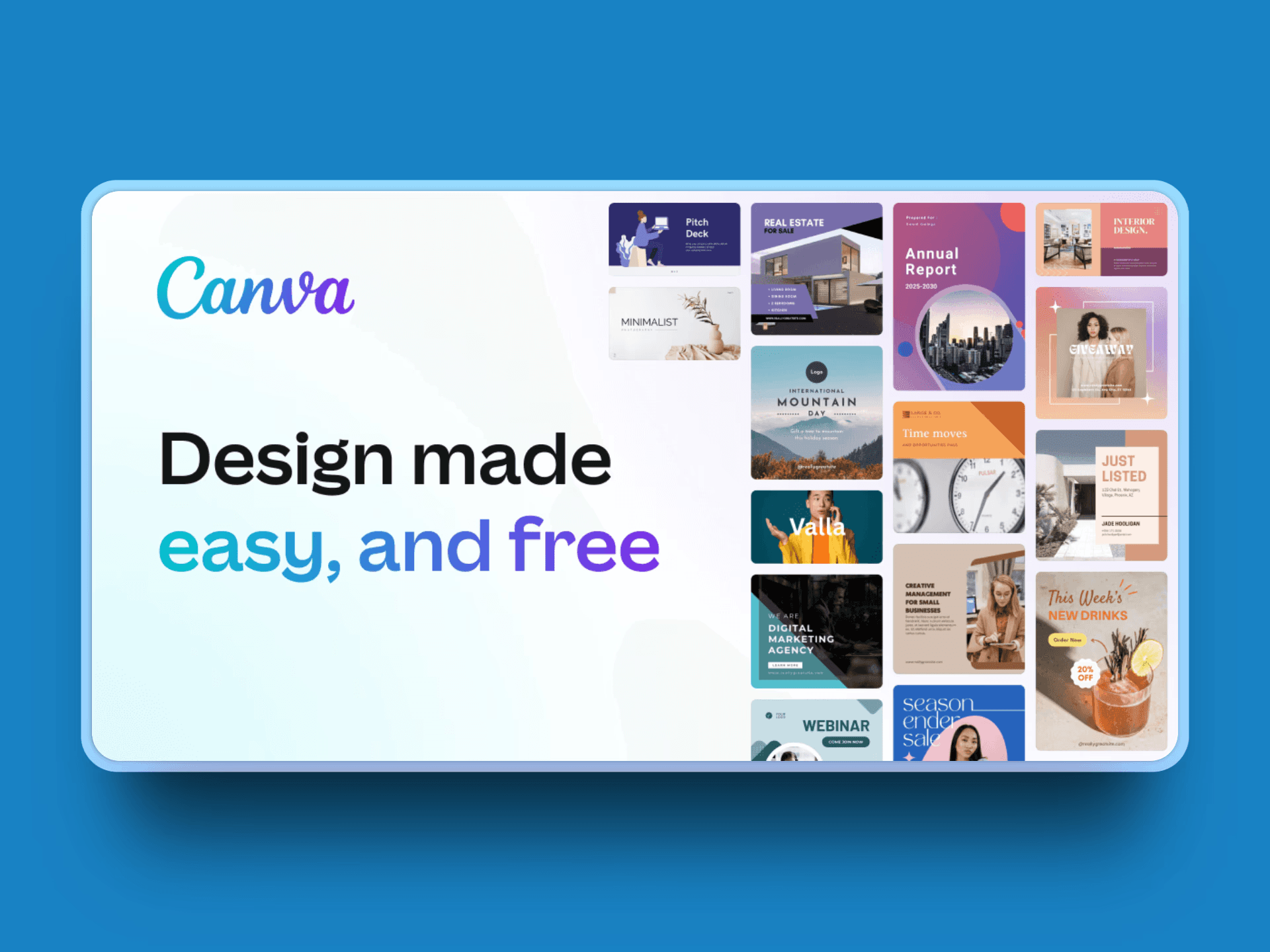
Canva has evolved way beyond social media graphics. Think template-based design platform with solid collaboration features. It's now a genuine option for collaborative moodboarding if you like working with templates. With over 265 million monthly active users, Canva has grown into what it calls a "Creative Operating System."
Features
Extensive template library: Vast collection of templates for everything from social posts to presentations
Real-time collaboration: Teams work together on the same project with live updates and comments
Brand kit management: Store brand colors, fonts, and logos in one place for consistency
AI-powered design tools: AI assistance for generating visuals, refining layouts, and automating tasks
Presentation and export options: Create presentations directly and export designs in various formats
Mobile apps: Design and collaborate on the go with full mobile functionality
Pros
Extremely user-friendly interface that suits beginners and professionals alike
Huge variety of templates to suit many different design needs
Good collaboration tools for team projects and feedback
AI-powered design help enhances productivity and creativity
Affordable pricing options, including a free tier with useful features
Cons
Heavy reliance on templates can limit originality for complex custom projects
Some premium features are locked behind a subscription paywall
Less advanced than specialized design or ideation tools in some areas
Focuses more on polished final outputs than on deep brainstorming phases
Pricing
Free: 2M+ templates, basic AI features, 5GB storage
Pro: $15/month (monthly) or $120/year, 140M+ stock assets, 1TB storage
Business: $20/user/month (yearly), minimum 3 users, team features (formerly Canva Teams)
User Reviews
4.7/5 on G2
Perfect For
Small teams and individuals who prefer template-based design approaches.
9. MindMeister: Best for Structured Mind Mapping
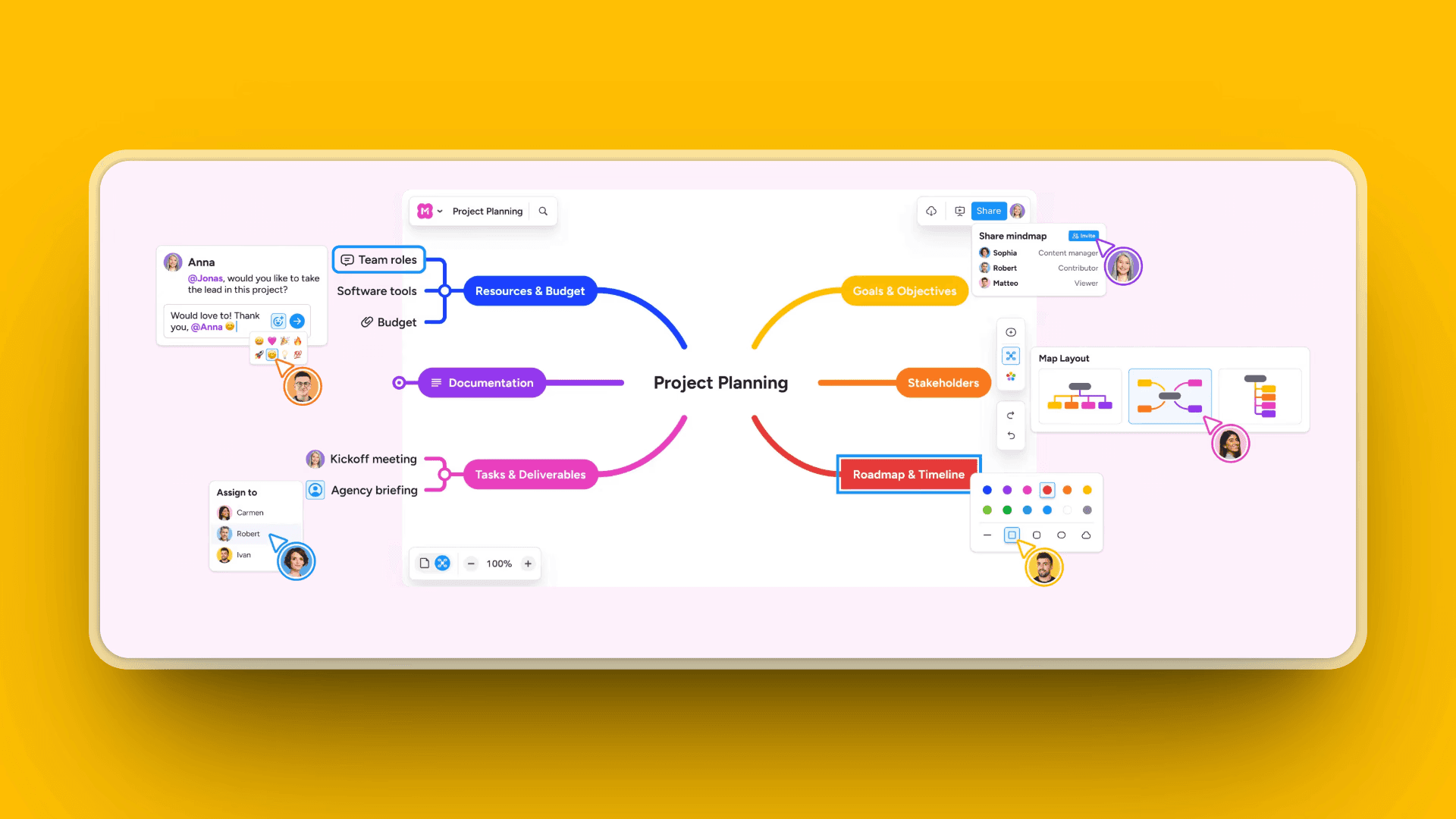
If your brain thinks in hierarchies and branches, MindMeister is built for you. Think traditional mind mapping meets cloud collaboration.
Features
Hierarchical mind map structure: Organize ideas in clear, tree-like structures for easy relationships
Real-time collaboration: Multiple users work together simultaneously with live updates
Presentation mode: Turn mind maps directly into interactive presentations
Task management integration: Assign tasks, set due dates, and track progress inside maps via MeisterTask
Theme and styling options: Customize colors, fonts, and layouts or choose ready-made themes
Export capabilities: Export in various formats like PDF, Word, PNG, or PowerPoint
Pros
The interface is intuitive and easy to use, even for beginners
Collaboration features are solid with real-time syncing
Presentation capabilities make sharing ideas directly from maps easy
Clean, modern design enhances readability and focus
Mobile apps allow access and editing on the go
Cons
Limited to hierarchical layouts, so it's less flexible than free-form canvas tools
The free plan only supports three mind maps, which can be restrictive
Advanced multimedia and visual customization features are limited
Doesn't support highly complex or non-linear project visualization
Multimedia support is basic compared to some competitors
Pricing
Free: 3 mind maps, unlimited collaborators
Personal: $6.50/user/month (yearly), unlimited maps
Pro: $10.50/user/month (yearly), advanced features and Google Workspace integration
Business: $15.50/user/month (yearly), team features, SAML SSO, compliance exports
User Reviews
4.6/5 on Capterra
Perfect For
People who think in structured, hierarchical formats and don't need flexible visual layouts.
10. Conceptboard: Best for Visual Feedback and Iteration
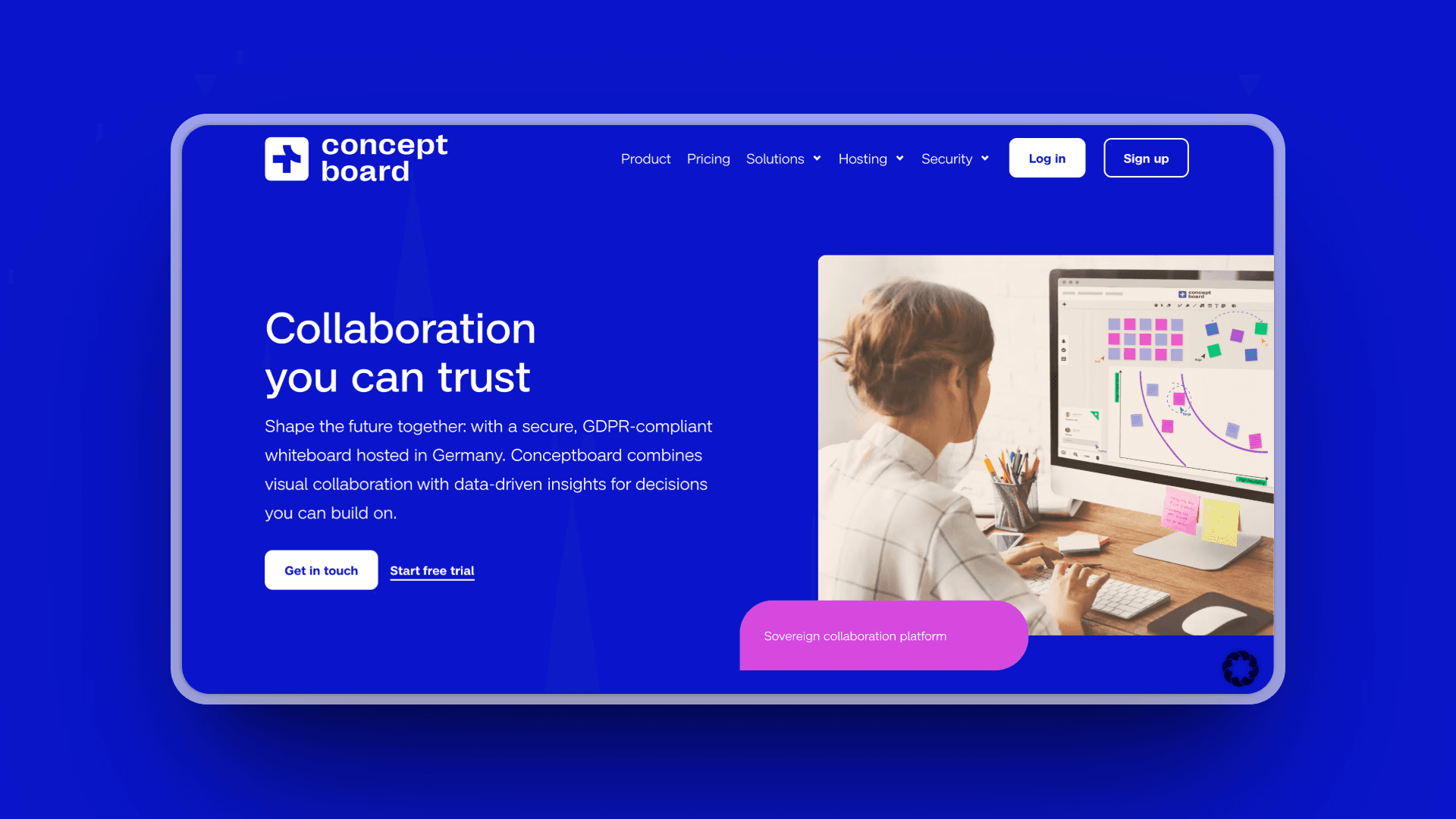
Conceptboard focuses on one thing: making feedback and iteration smooth as butter. Think collaborative whiteboard built specifically for design feedback loops.
Features
Infinite canvas whiteboard: Virtual workspace with unlimited space for brainstorming and collaboration
Advanced feedback tools: Robust annotation, commenting, drawing, and sticky note tools
Version comparison: Track changes and compare different board versions over time
Integration capabilities: Integrates with Google Drive, Dropbox, Microsoft Teams, OneDrive, Confluence, and Webex
Mobile apps: View and contribute to boards anywhere through mobile devices
Enterprise security: Strong data protection with GDPR compliance and secure hosting
Pros
Features powerful annotation and feedback options for iterative design
Ideal for design teams that need to constantly revisit and adjust work
Enterprise-grade security meets strict privacy requirements
Multiple view modes suit different workflows
Solid integration options with other enterprise tools
Cons
Smaller user base compared to major competitors affects resource availability
The library of templates is more limited
The interface takes some time to master due to feature density
No support for AI-powered features or automation
User interface may feel less intuitive for new users
Pricing
Free: 3 active boards, 250MB storage
Starter: 5 EUR/user/month, unlimited boards, 5GB storage
Advanced: 10 EUR/user/month, unlimited projects, 1TB storage, board history
Corporate: 14 EUR/user/month, SSO, audit logs, unlimited storage
Special: Custom pricing for dedicated server and on-premises options
User Reviews
4.6/5 on Capterra
Perfect For
Teams focused on iterative design with detailed feedback loops. Strong choice for European organizations needing GDPR compliance.
11. Stormboard: Best for Voting and Decision Making
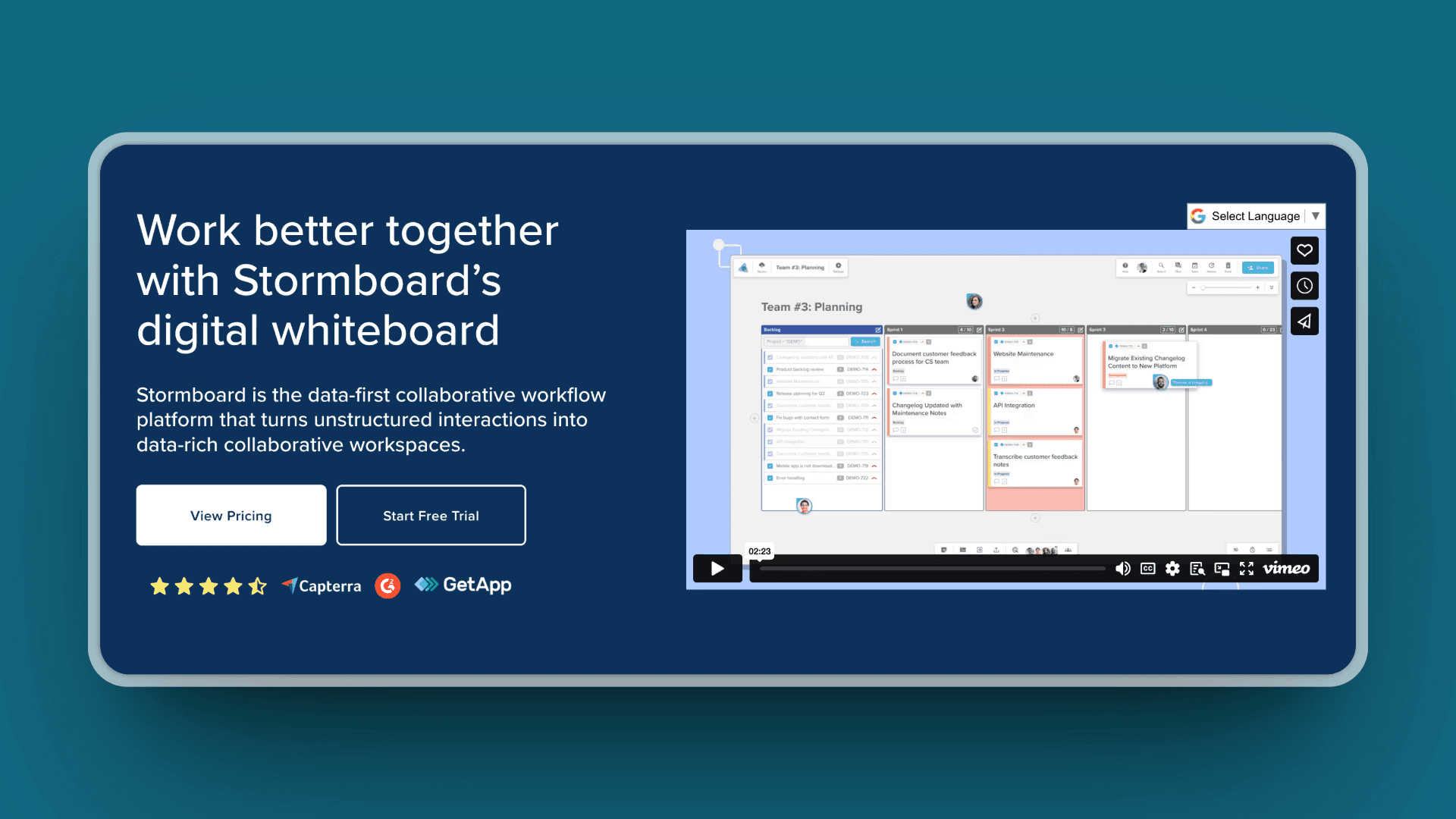
Stormboard brings the physical sticky note experience online and adds AI to help organize your ideas. Think digital sticky notes with smart grouping features.
Features
Digital sticky note interface: Virtual sticky note board for quickly jotting down and moving ideas
Voting and polling: Built-in voting tools help teams prioritize ideas efficiently
Sub-storm organization: Break large topics into sections for easier organization
AI-powered grouping: AI quickly groups related sticky notes, reducing manual work
Real-time collaboration: Multiple users contribute and edit boards simultaneously
Mobile access: Capture ideas or join sessions from anywhere with mobile apps
Pros
The sticky note approach is simple and easy to grasp
Voting and decision-making tools are excellent for group consensus
AI grouping speeds up organization and declutters brainstorming results
The free plan is generous for individuals or small teams
Learning curve is mild, easy for most people to get started
Cons
Visual styling and layout options are basic for advanced design work
The interface is simpler and older-looking versus modern platforms
Fewer advanced features compared to competitors like Miro or Mural
Template selection is more limited, requiring custom setup
Pricing
Personal: Free for up to 5 storms
Business: $10/user/month (monthly) or $8.33/user/month (annual)
Enterprise: Custom pricing
User Reviews
4.4/5 on G2
Perfect For
Teams focused on rapid idea generation, voting, and quick decisions.
12. Lucidspark: Best for Lucidchart Integration
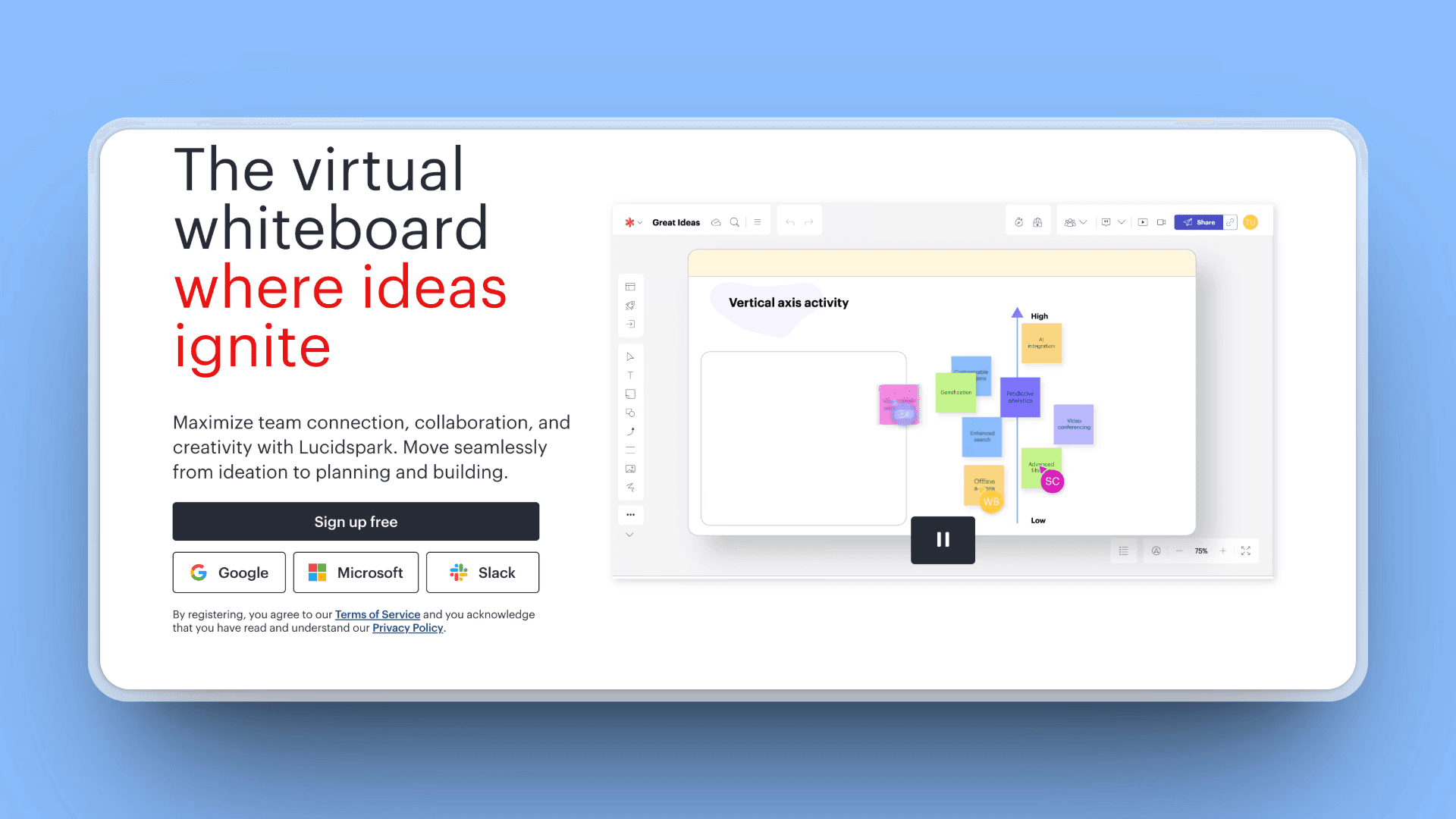
From the makers of Lucidchart comes Lucidspark, their virtual whiteboard offering. Think Lucidchart's brainstorming companion designed to move smoothly from ideation to formal diagrams.
Features
Infinite canvas: Flexible, unlimited workspace for brainstorming and collaboration
Integration with Lucidchart: Move from freeform brainstorming to polished diagrams
AI-powered organization: AI assists with grouping sticky notes, sorting ideas, and summarizing
Real-time collaboration: Multiple users add, comment, and edit simultaneously
Facilitation tools: Voting, emoji reactions, timers, and participant management features
Template library: Templates for common workflows like brainstorming and retrospectives
Pros
Strong integration with Lucidchart supports smooth transitions to documentation
AI features reduce manual work in organizing and summarizing ideas
Collaboration tools enable effective teamwork with real-time updates
Professional templates cover a wide range of use cases
Good security and compliance features for enterprise use
Cons
The team plan requires a minimum of three users, limiting smaller groups
The free plan has limited functionality
The user community and ecosystem are smaller than some competitors
The interface can be less intuitive for first-time users
Advanced AI capabilities are currently limited
Pricing
Free: Basic features
Individual: $7.95/month
Team: $9/user/month (minimum 3 users)
Enterprise: Custom pricing
User Reviews
4.5/5 on G2
Perfect For
Teams already using Lucidchart who need complementary whiteboard functionality.
13. ClickUp Whiteboards: Best for Task Integration
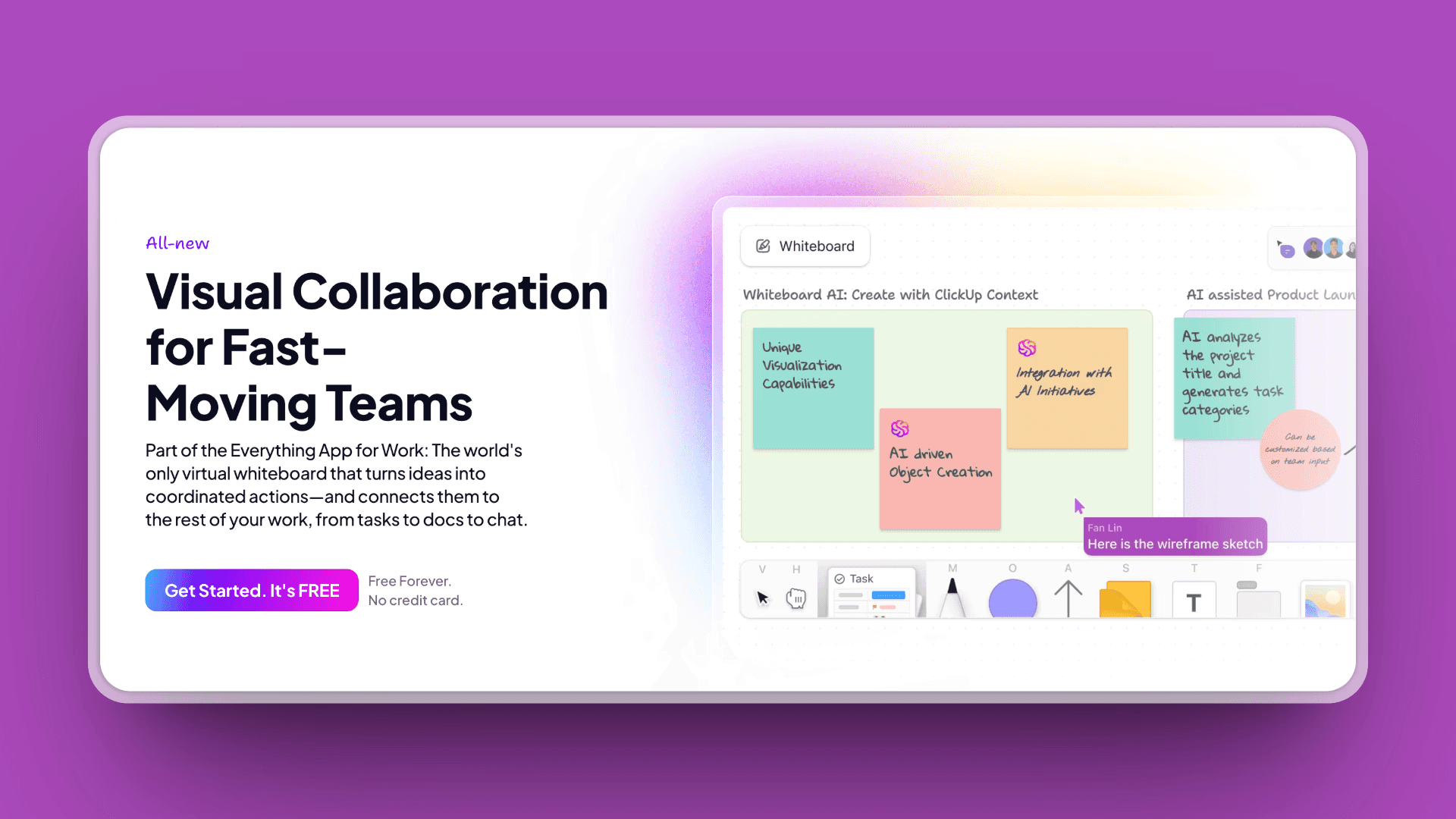
ClickUp's whiteboard feature shines if you're already managing projects in ClickUp. Think whiteboarding meets task management, convert ideas to tasks instantly.
Features
Integration with ClickUp tasks: Convert ideas into actionable tasks instantly and keep work in sync
AI-powered diagram generation: ClickUp Brain helps turn concepts into organized diagrams
Real-time collaboration: Multiple users brainstorm, edit, comment, and present simultaneously
Workflow templates: Hundreds of customizable templates to jumpstart brainstorming
Mobile access: On-the-go access, editing, and collaboration through mobile app
Instant idea to task conversion: Scribble ideas and convert to ClickUp tasks with one click
Pros
Seamless integration between whiteboards and ClickUp's project management platform
AI tools (ClickUp Brain) enhance workflow and creativity, saving time
Good value for users already invested in ClickUp's ecosystem
Strong integration with workflows across projects, docs, and chats
Real-time collaboration features and easy sharing
Cons
Whiteboard features are less advanced compared to dedicated tools like Miro
Learning curve can be steep for users not familiar with ClickUp
Less intuitive and flexible specifically for freeform brainstorming
Requires a ClickUp subscription for full access
AI features (ClickUp Brain) are an additional cost on top of base plans
Pricing
Free: Limited whiteboards, unlimited users
Unlimited: $7/user/month (yearly)
Business: $12/user/month (yearly)
Enterprise: Custom pricing
ClickUp Brain (AI): Additional $9/user/month
User Reviews
4.7/5 on G2
Perfect For
Teams already using ClickUp who want integrated brainstorming and task management.
14. Excalidraw: Best Simple, Open-Source Whiteboard
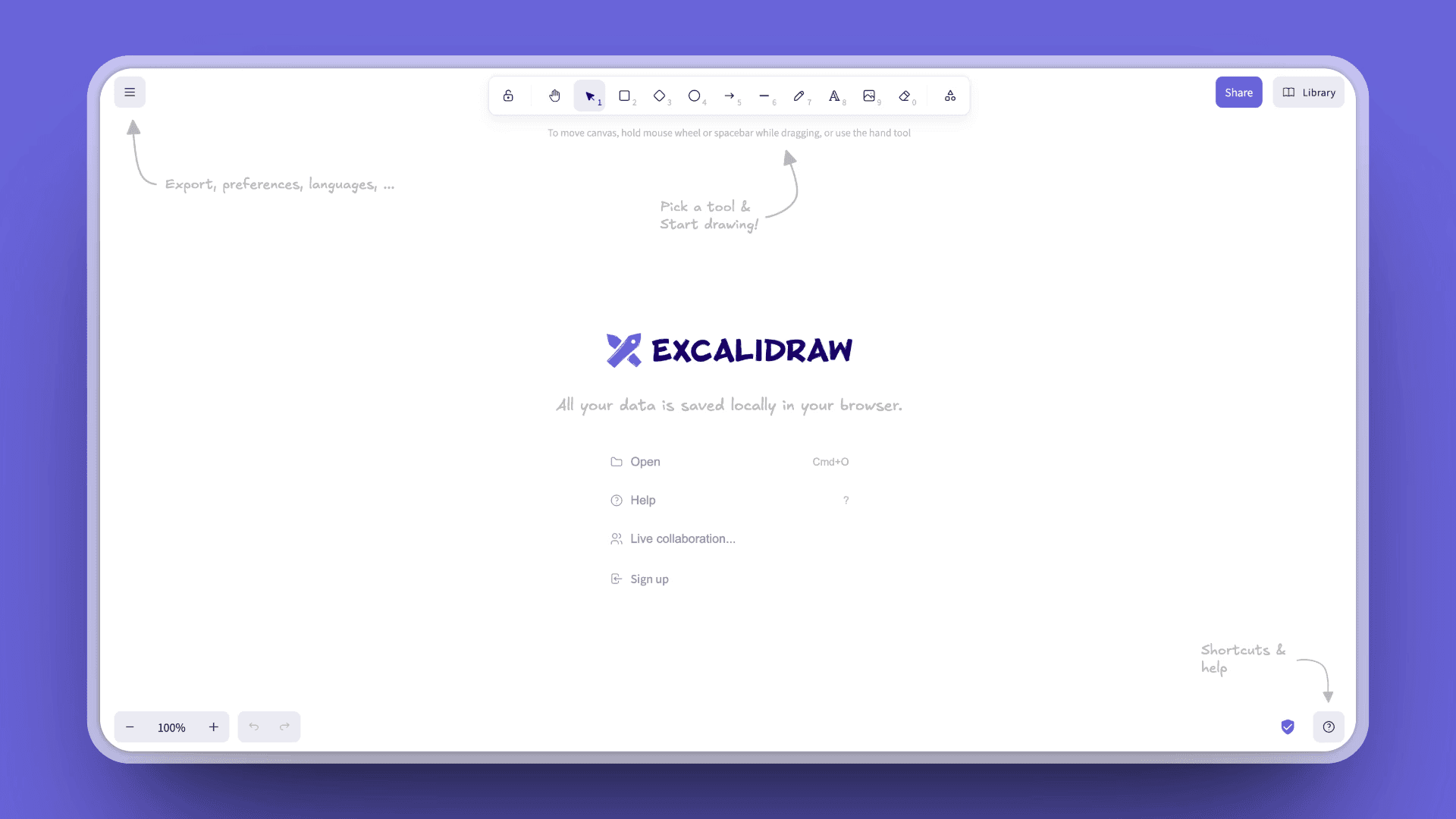
Excalidraw is the minimalist's dream. Think sketch-style diagrams with zero complexity. No frills, no account required, just sketch and go.
Features
Hand-drawn aesthetic: Unique, sketch-like look that brings a casual feel to diagrams
Open source and privacy-focused: Stores data locally by default for strong privacy
Real-time collaboration: Collaborate live on drawings with invite links
Simple interface: Minimal and distraction-free, focused on drawing and brainstorming
No sign-up required: Start using immediately without creating an account
Local data storage: Work saved in your browser by default for privacy and offline access
Pros
Completely free and open source
Strong privacy focus with local storage of data
No need for creating an account or signing in
Simple and fast, with a distraction-free design
Lightweight, running smoothly even on modest hardware
Cons
Features are very basic with no templates or advanced tools
Collaboration is limited compared to full-featured platforms
No AI or automated assistance in the core product
The hand-drawn style might not suit all professional needs
Some integrations require self-hosting or Excalidraw+ paid plans
Pricing
Free: All core features (open source), 1 infinite scene, unlimited collaborators
Excalidraw+: $6/user/month (yearly) or $7/user/month (monthly), cloud scenes, folders, advanced sharing, AI features, team workspaces
User Reviews
4.4/5 on G2
Perfect For
Privacy-conscious users who need simple, quick diagramming without accounts or complexity.
Quick Comparison: Features at a Glance
Tool | AI Features | Templates | Collaboration | Best For |
|---|---|---|---|---|
Kosmik | Advanced (Asset Finder, Auto-Tagging) | Growing | Strong | AI-powered Moodboarding and Research |
Miro | Good (AI Workspace, Flows) | Extensive (7,000+) | Enterprise-grade | Large workshops |
FigJam | Basic (AI templates) | Design-focused | Design teams | Figma ecosystem |
Milanote | None | Creative | Basic | Visual organization |
MURAL | Good (AI mind maps, clustering) | Structured | Enterprise-grade | Facilitated workshops |
Adobe Express | Design AI (Firefly) | Professional | Limited | Adobe ecosystem |
None | None | Social | Inspiration gathering | |
Canva | Design AI | Massive (2M+) | Good | Template design |
MindMeister | None | Mind maps | Good | Structured thinking |
Conceptboard | None | Basic | Good | Feedback iteration |
Stormboard | Basic (grouping) | Limited | Good | Voting decisions |
Lucidspark | Basic (sorting) | Good | Good | Lucid ecosystem |
ClickUp | Good (Brain AI) | Workflow | Good | Task integration |
Excalidraw | None (basic in paid) | None | Basic | Simple sketching |
Migrating from Figma to Your New Tool
Making the switch? Here's a practical 5-step guide that actually works:
Step 1: Export Your Figma Content
For individual assets
Select frames or objects in Figma
Right-click, then Export, then choose PNG, JPG, SVG, or PDF
Export at 2x resolution for high-quality images
For entire boards
Select all content (Cmd/Ctrl + A)
Export as PNG or PDF for complete moodboards
Save organized by project or theme
Step 2: Organize Before You Import
Create a clear folder structure before importing:
This saves time later when you're actually working in your new tool.
Step 3: Choose Your Migration Strategy
Full Recreation (Recommended for Kosmik, Miro, Milanote)
Import assets into your new tool
Rebuild organization using AI or templates
Take advantage of new features you didn't have in Figma
Quick Transfer (For FigJam, Canva)
Import entire board exports
Add new content around existing layouts
Gradually enhance with native features
Step 4: Leverage AI Features
If moving to Kosmik:
Import your images
Let AI auto-tag and organize
Use AI Asset Finder to discover related content
Build connections with the connector system
Use Frames to organize content into sections
If moving to Miro or MURAL:
Choose relevant templates
Import content into template sections
Use facilitation tools to organize
Step 5: Train Your Team
Schedule a 30-minute walkthrough
Create a quick-reference guide
Start with a small pilot project
Gather feedback and iterate
Pro Tip: Don't try to perfectly recreate Figma workflows. Instead, embrace the unique strengths of your new tool, especially AI features in Kosmik that weren't possible in Figma.
How to Choose the Right Figma Alternative?
Overwhelmed by options? Here's a practical decision framework:
Step 1: What's Your Main Use Case?
Need AI-powered research and brainstorming?
Go with Kosmik. The AI features will save you hours every week.
Running enterprise workshops?
Choose Miro or MURAL for structured facilitation.
Design team already using Figma?
Stick with FigJam for the easiest transition.
Organizing creative projects?
Try Milanote for visual project management.
Quick visual creation?
Use Canva or Adobe Express for template-based work.
Step 2: How Big Is Your Team?
Solo or 1-3 people
Kosmik, Milanote, or Pinterest work great without breaking the bank.
4-15 people
Miro, Kosmik, or Adobe Express scale nicely for medium teams.
15+ people or enterprise
Miro, MURAL, or ClickUp for robust enterprise features.
Step 3: Do You Need AI?
Advanced AI is essential
Kosmik (content discovery and auto-tagging) or ClickUp (Brain AI for diagrams) are your best bets.
Basic AI is enough
Miro, Canva, and Adobe Express offer decent AI features.
AI isn't a priority
Traditional tools like Milanote or MindMeister work fine without AI.
Step 4: What's Your Budget?
Free options
Pinterest (inspiration only)
Excalidraw (simple whiteboard)
FigJam (free tier, or bundled with paid Figma seats)
Budget-conscious ($3-10/month)
FigJam ($3-5/editor/month)
MindMeister ($6.50-15.50/user/month)
Conceptboard (5-14 EUR/user/month)
ClickUp ($7-12/user/month)
Mid-range ($10-15/month)
Kosmik ($11.99/month yearly, unlimited features including AI)
Milanote ($9.99/month yearly)
Canva Pro ($15/month)
Premium features ($8-20/user/month)
Miro ($8-20/user/month)
MURAL ($9.99-17.99/user/month)
Adobe Express ($9.99/month)
Step 5: Integration Needs
Adobe users
Adobe Express integrates smoothly with Creative Cloud
Figma teams
FigJam for workflow continuity
Project management
ClickUp for task integration
Lucidchart users
Lucidspark for diagram continuity
Standalone flexibility
Kosmik, Miro, or Milanote work with anything
Here's what matters: match the tool to your primary use case, team size, and budget, rather than choosing the tool with the most features.
Frequently Asked Questions
What is the best free alternative to Figma for moodboarding?
Pinterest is the best completely free option for visual inspiration gathering. It gives you access to billions of images and collaborative boards at no cost. Excalidraw is the best free whiteboard, offering open-source simplicity with no account required. FigJam has a generous free tier if you're already in the Figma ecosystem.
Which tool is better than Figma for creative brainstorming?
For creative brainstorming, Kosmik is purpose-built for the exploration phase. Its AI-powered content discovery, built-in web browser, and spatial organization are specifically designed for non-linear creative thinking. Figma excels at precision design work, but Kosmik handles the messy research and ideation phase that comes before design. Miro is another strong option if your brainstorming involves structured workshops with large teams.
Can I import my Figma moodboards to other tools?
Most tools support standard export formats (PNG, SVG, PDF). But you'll lose Figma-specific features like components and interactions.
Best migration strategies:
Export individual assets and rebuild in your new tool
Use Kosmik to organize imported content with AI help
Try Miro for its import capabilities
Start fresh rather than trying to recreate Figma workflows, embrace your new tool's unique strengths
Do I need AI features for moodboarding?
AI dramatically speeds up creative work. Tools like Kosmik can significantly reduce research time through intelligent content suggestions and automatic categorization.
If you find yourself spending hours manually organizing images, searching for inspiration, or tagging content, AI features will provide immediate ROI. However, if you work with small, curated collections and prefer full manual control, traditional tools work fine.
Which alternative works best for remote creative teams?
Kosmik and Miro lead the pack for remote collaboration:
Kosmik: Best for research-heavy work with real-time collaboration and AI-powered content sharing. The built-in browser means everyone can research together without sharing screens. Offers a 1-week free trial with full Pro features, then $11.99/month yearly.
Miro: Superior for structured workshops with advanced facilitation tools and enterprise features. Best for teams that need breakout rooms, timers, and voting.
FigJam: Good for design teams with built-in audio/video chat and Figma integration.
Look for: real-time collaboration, async communication tools, mobile access, and reliable cloud sync.
What's the difference between whiteboard and moodboard tools?
Whiteboard tools (Miro, FigJam, MURAL) focus on structured collaboration, templates, and facilitation for team workshops. Think: sprint planning, retrospectives, brainstorming sessions.
Moodboard tools (Milanote, Pinterest, Adobe Express) emphasize visual inspiration collection and creative project management. Think: design inspiration, brand exploration, creative briefs.
Hybrid tools like Kosmik combine both, offering AI-powered content discovery for moodboards along with collaborative whiteboard features for team brainstorming. This is ideal if you need one tool for the entire creative process.
Is there a Figma alternative that supports video for screen recording and content creation?
Yes, Kosmik is specifically built for this. Unlike Figma, which can't handle videos at all, Kosmik gives you a native video player right on your canvas.
Here's what makes it perfect for content creators and video producers:
Video capabilities Figma doesn't have
Play videos directly on your canvas (MP4, WebM, YouTube embeds)
One-click frame capture with automatic time codes
Organize videos alongside images, text, and notes
Perfect for building screen recording backgrounds and visual reference boards
Ideal for teams
Real-time collaboration without enterprise complexity
Everyone can work together collecting and organizing references
Per-account pricing (not per-seat) keeps costs predictable for teams
Simpler than Figma for reference work
You're not paying for design tools you don't need
Clean visual canvas focused on organizing content, not pixel-perfect design work
AI-powered content discovery finds related visual references automatically
The workflow is dead simple: Drop videos and images on your canvas, organize them visually, use as your screen recording background. No more juggling multiple tools or manually exporting frames.
If you're using Figma just to organize visual references and hitting the "no video support" wall, Kosmik solves exactly that problem.
How do I choose between Kosmik, Miro, and FigJam?
Choose Kosmik if you want
AI-powered content discovery and auto-organization
All-in-one workspace (no app switching)
Advanced visual research capabilities
Native video support for content creation
1-week free trial, then $11.99/month (yearly) for unlimited features
Purpose-built for moodboarding and brainstorming
Choose Miro if you need
Massive template library (7,000+)
Enterprise collaboration features
Structured workshop facilitation tools
Established ecosystem with tons of integrations
Proven at scale with hundreds of simultaneous users
Choose FigJam if you're
Already invested in Figma ecosystem
Primarily doing design collaboration
Need simple whiteboard with design file integration
Working with design-centric workflows
Want minimal learning curve for Figma users
Is Figma good for making moodboards?
Figma works for basic moodboards if your team already uses it for design work. You can drag in images, arrange them on frames, and share with collaborators. But it has real limitations: no video support, no AI-powered content discovery, no built-in way to browse and clip web content, and performance drops when boards hit 50+ images. Dedicated moodboarding tools like Kosmik, Milanote, or Pinterest handle the research and inspiration-gathering phase better because they are built for that specific workflow.
Can I use Figma alternatives offline?
Most Figma alternatives are web-based and require an internet connection. Excalidraw is the main exception: it stores data locally in your browser and works without an account. Kosmik has desktop apps for Mac and Windows that handle some tasks offline, though AI features need connectivity. For fully offline design work, look at tools like Lunacy or Penpot's desktop version.
Is Miro or Figma better for brainstorming?
For brainstorming specifically, Miro is the better choice. Figma is a precision design tool built for pixel-perfect interfaces, while Miro is built for ideation. Miro offers an infinite whiteboard with sticky notes, voting, timers, breakout rooms, and 7,000+ workshop templates. FigJam (Figma's whiteboard companion) is a lighter option if you want brainstorming within the Figma ecosystem, but it lacks Miro's advanced facilitation features.
Is Canva a good alternative to Figma for moodboards?
Canva works for polished, template-based moodboards but is not ideal for the messy research and brainstorming phase. Canva's strength is producing finished visual outputs quickly, with a massive template library and brand kit management. It lacks an infinite canvas, has no AI-powered content discovery, and its collaboration tools are more basic than dedicated whiteboard platforms. For deep creative exploration, tools like Kosmik or Milanote are better suited. For producing a final shareable moodboard from existing assets, Canva handles it well.
How do I make a moodboard without Figma?
Start by choosing a tool that matches your workflow. For AI-assisted research and organization, Kosmik lets you browse, clip, and auto-tag content on an infinite canvas. For visual simplicity, Milanote offers Pinterest-style boards with drag-and-drop organization. For free inspiration gathering, Pinterest gives you access to billions of images. The general process: pick your tool, gather visual references, organize by theme or color, add notes and annotations, then share with your team for feedback. Read our guide on how to make a mood board for a detailed walkthrough.
Why is Figma so slow with large moodboards?
Figma runs in the browser and loads entire files into memory. When moodboards grow past 50+ images, the browser consumes significant RAM, causing lag and slow rendering. Multiple collaborators working simultaneously makes it worse. Figma is optimized for vector design work, not large collections of raster images and mixed media. If performance is a consistent issue, consider tools purpose-built for visual collections: Kosmik handles multimedia content natively on its canvas, Milanote is lightweight for image-heavy boards, and Pinterest offloads all image hosting to its servers.
Conclusion
After researching 14 alternatives, Kosmik stands out for most creative teams switching from Figma for moodboarding and brainstorming work.
Here's why it's different:
AI Does the Boring Stuff
Kosmik's AI Asset Finder and auto-tagging significantly reduce manual research work. You focus on creative thinking. AI handles organization, tagging, and finding related content.
Traditional tools make you manually search, download, upload, organize, and tag every single asset. Kosmik automates 80% of this workflow.
All-in-One Workspace
No more jumping between browser tabs and design tools. Kosmik combines moodboarding, mind mapping, research, and collaboration in one intelligent interface.
The built-in browser means you can research, clip, and organize without ever leaving your workspace, a genuine way for maintaining flow state.
Proactive, Not Reactive
Traditional tools wait for you to do everything. Kosmik proactively suggests content, discovers connections, and organizes materials automatically.
It's like having an AI research assistant that learns what you're looking for and finds related content before you even ask.
Transparent Pricing
The 1-week free trial gives you full access to all Pro features, including AI. After the trial, Pro is $11.99/month (yearly) or $14.99/month (monthly) for unlimited workspaces, items, AI requests, and file imports.
Compare that to Miro at $8-20/user/month or MURAL at $9.99-17.99/user/month. Kosmik's per-account pricing (not per-seat) keeps costs predictable as your team grows.
Built for the Future
Kosmik is designed from the ground up for AI-enhanced creativity. As AI improves, so does your workflow automatically.
Other tools are retrofitting AI onto decades-old architectures. Kosmik was built for the AI era from day one.
Start with Kosmik's 1-week free trial. Full Pro features included. See for yourself why creative professionals are moving to AI-powered alternatives.
Your ideas deserve better than endless tab switching and manual organization.
—
Last updated: February 2026